3OM-1208-011_w.pdf - 第330页
6-97 AIVEDT -ID [1] [T O RCG SCRN] Button When pressed, this button opens the recognition window for the adjustment. [2] [INITIAL V ALUE] Button When pressed, the changed parameters are reset to the defaults. [3] Arrow B…
6-96
AIVEDT-ID
8. Operation Screen Adjustment
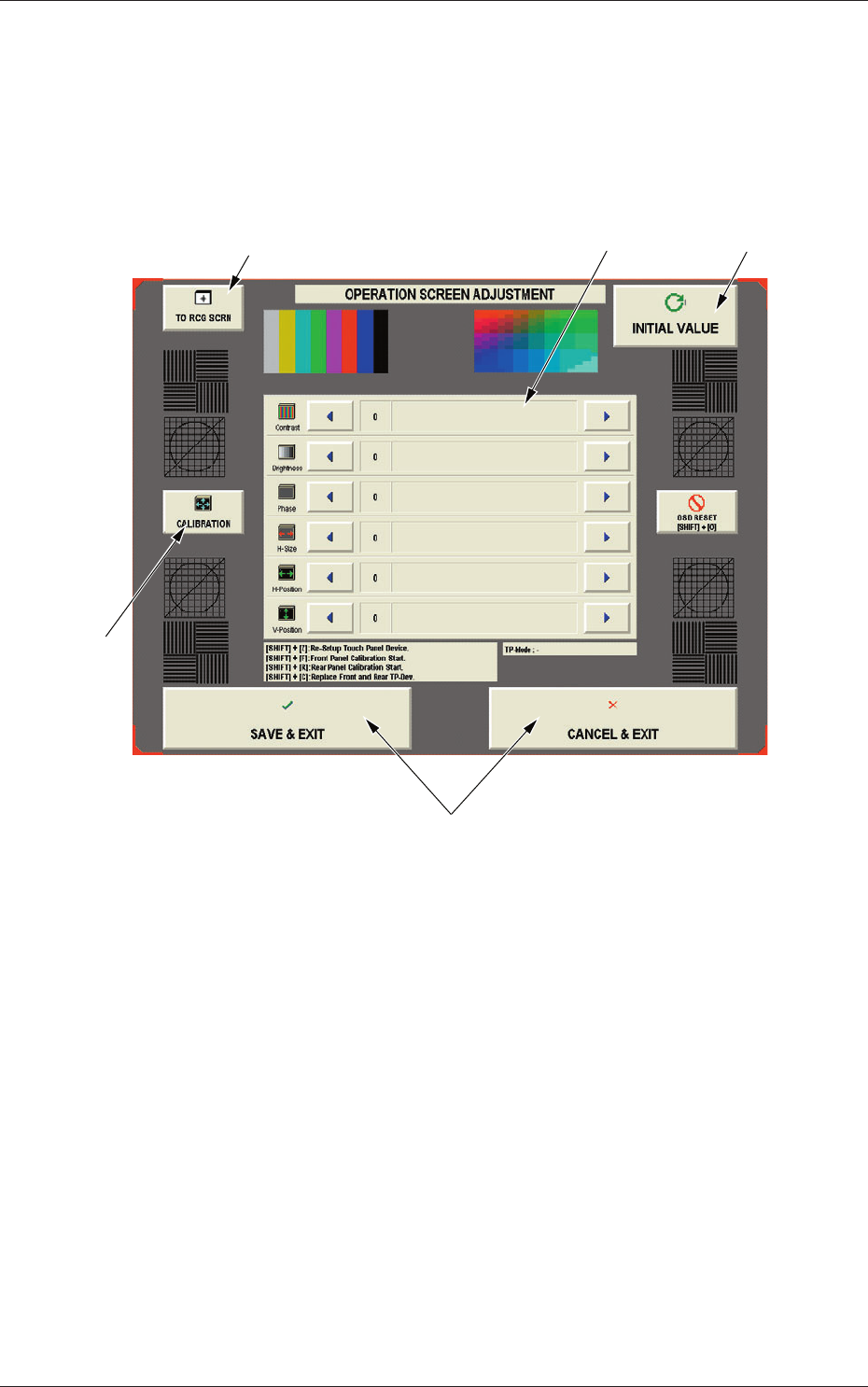
The corresponding window enables you to adjust the touch screen.
When the [MON. ADJ] button on the "MACH SET" menu bar is pressed, the
"OPERATION SCREEN ADJUSTMENT" window appears.
[1]
[2]
[4]
[5]
[3]
Fig. 3F87 "OPERATION SCREEN ADJUSTMENT" Window
This window enables you to adjust the contrast, brightness, phase, color tone,
distortions, etc., of the screen.
0606-009
8. Operation Screen Adjustment

6-97
AIVEDT-ID
[1] [TO RCG SCRN] Button
When pressed, this button opens the recognition window for the
adjustment.
[2] [INITIAL VALUE] Button
When pressed, the changed parameters are reset to the defaults.
[3] Arrow Buttons for V
arious Adjustments
Use the right-arrow or the left-arrow button for each adjustment.
Contrast :
The contrast can be adjusted.
Brightness :
The brightness can be adjusted.
Phase
:
The phase can be adjusted.
H-Size :
The width can be adjusted.
H-Position :
The horizontal position can be adjusted.
V-Position :
The vertical position can be adjusted.
[4] [CALIBRATION] Button
When pressed, this button makes it possible to calibrate the screen.
[5] "EXIT" Buttons
Press one of the following buttons to exit from the operation screen
adjustment.
[SAVE & EXIT] Button
:
Press this button to save the results
of the adjustment and exit from this
session.
[CANCEL
& EXIT] Button :
Press this button to exit from this
s
e
ssion without saving the results of the
adjustment.
0606-009
8. Operation Screen Adjustment

6-98
AIVEDT-ID
0606-009