3OM-1208-011_w.pdf - 第79页
2-4 AIVEDT -ID T able 3B2 Add Line When pressed, this adds a blank line to the last one. Insert Line When pressed, this inserts a blank line at the insertion point’ s location. Initialize When pressed, the changed parame…
2-3
AIVEDT-ID
1.2 Basic Icons
Described in the table below are the basic icons that will be used frequently
in a data edit window.
Reference
Refer to the paragraphs that describe the items for each data editing for
special icons.
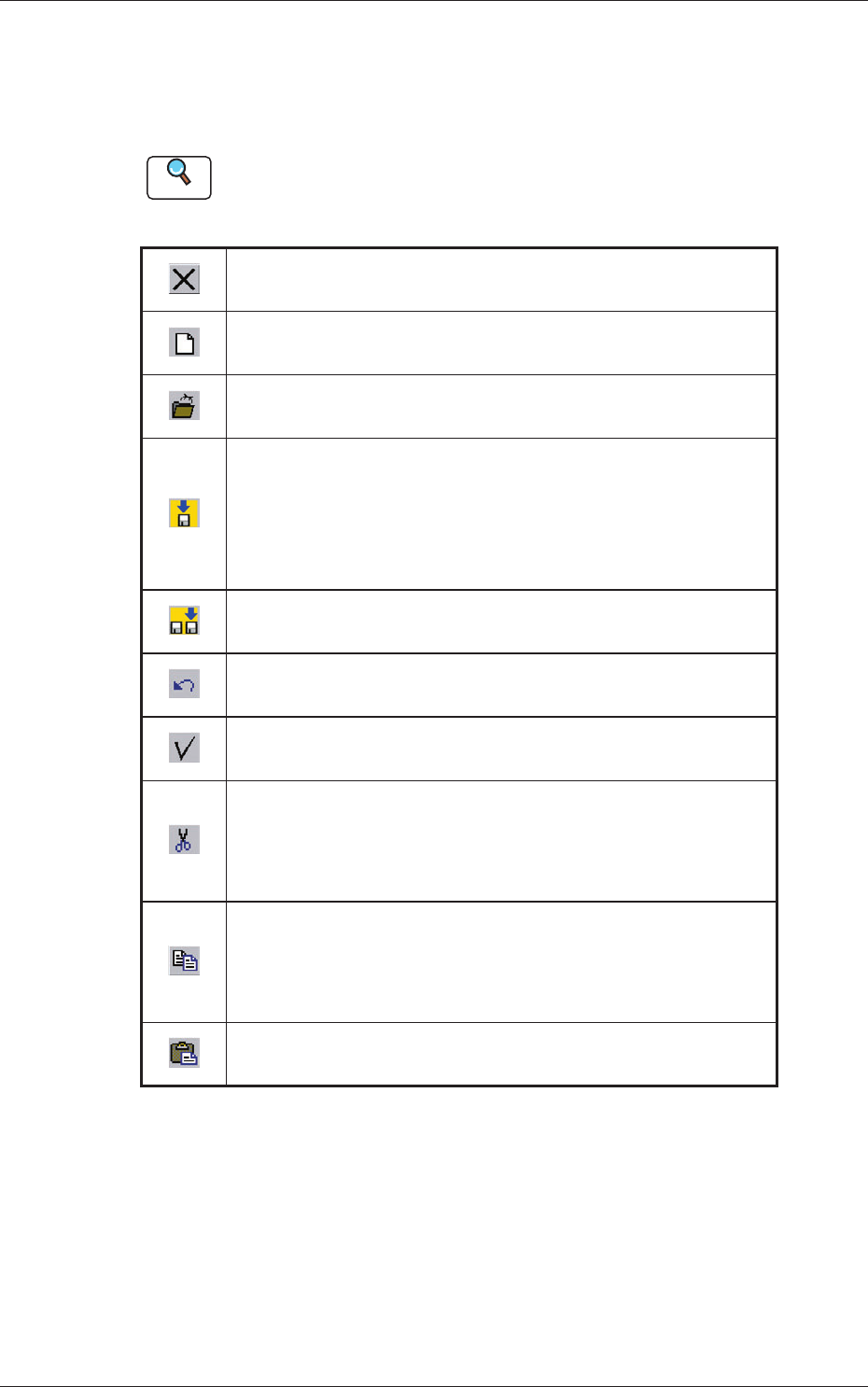
Table 3B1
Exiting from application
When pressed, this closes the active data edit window.
New
When pressed, this enables the operator to create a new file.
Close
When pressed, this closes the active file.
Save
When pressed, this saves the edited data, replacing the existing
file with the current one.
When a new file is created, it will be saved with a new file
name.
Save As
When pressed, this saves the edited data (file) with a new name.
Undo
When pressed, this reverses the effect of your previous action.
Check
When pressed, this checks if there is any deficiency in the data.
Cut
When pressed, this button removes the selection (data) and
stores it in the Clipboard (a temporary holding area).
When
"
Paste
"
is selected, the contents in the Clipboard is pasted.
Copy
When pressed, this button transfers the selection to the
Clipboard without removing the selection.
When
"
Paste
"
is selected, the contents in the Clipboard is pasted.
Paste
When pressed, this pastes the contents of the Clipboard.
0606-009
1.2 Basic Icons
2-4
AIVEDT-ID
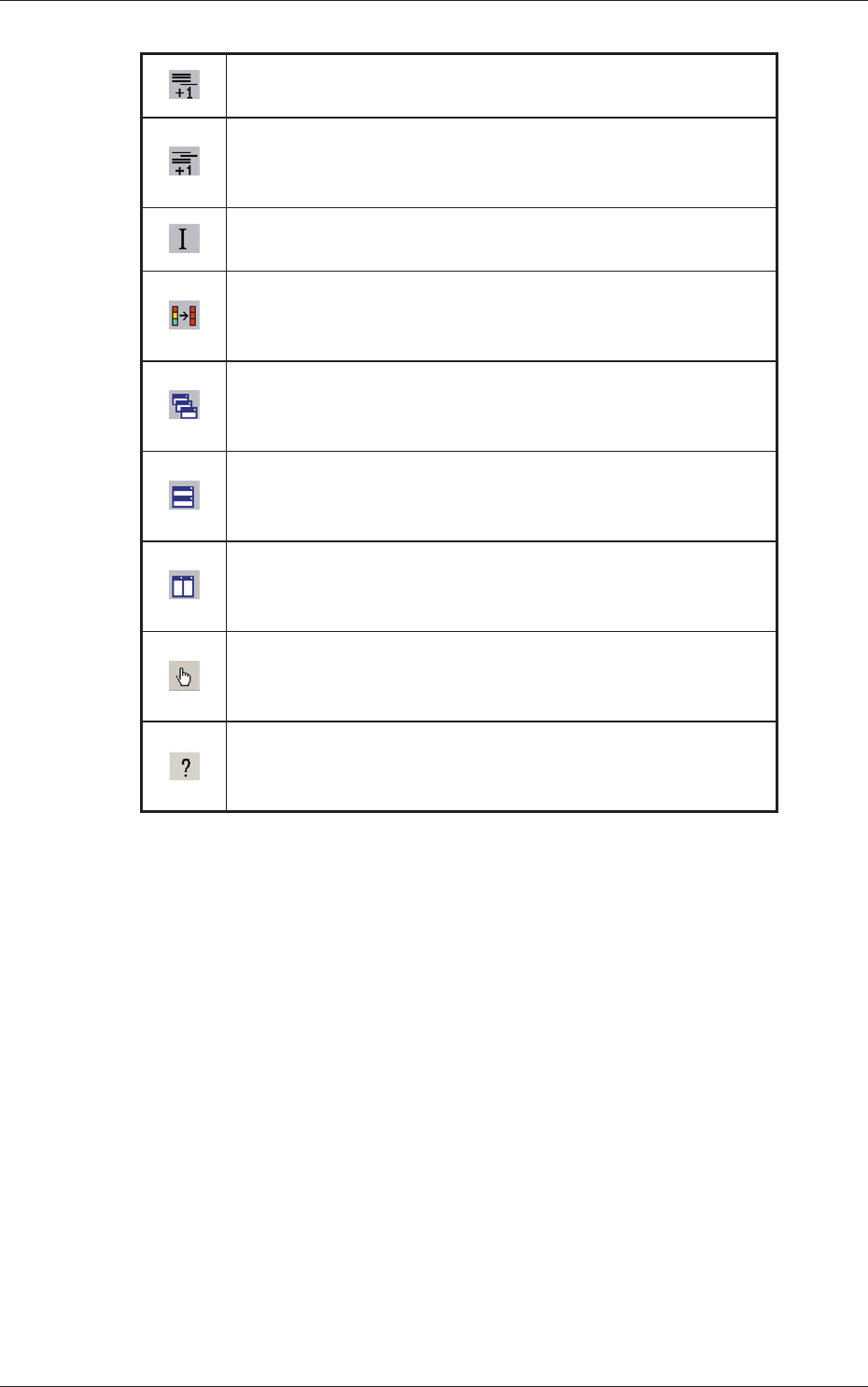
Table 3B2
Add Line
When pressed, this adds a blank line to the last one.
Insert Line
When pressed, this inserts a blank line at the insertion point’s
location.
Initialize
When pressed, the changed parameters are reset to the defaults.
Fill
When pressed, this fills all the selected text boxes with the
parameter in the first text box.
Cascade
When pressed, this overlays the currently opened files (windows)
so that you can see each title bar.
Tile Horizontally
When pressed, this re-arranges the currently opened files
(windows) up and down.
Tile Vertically
When pressed, this re-arranges the currently opened files
(windows) side by side.
Touch Panel Display
When pressed, this displays a touch panel, enabling the operator
to easily enter the data with the touch panel.
Help
When pressed, this displays a help window on the right side of
the window.
0606-009
1.2 Basic Icons
2-5
AIVEDT-ID
2. Method of Data Entry
The following describes how to enter a numerical value and select an option
in a data edit tab sheet.
2.1 How to enter numerical values
Follow the procedure below to enter numerical values in the text boxes that
require numerical values.
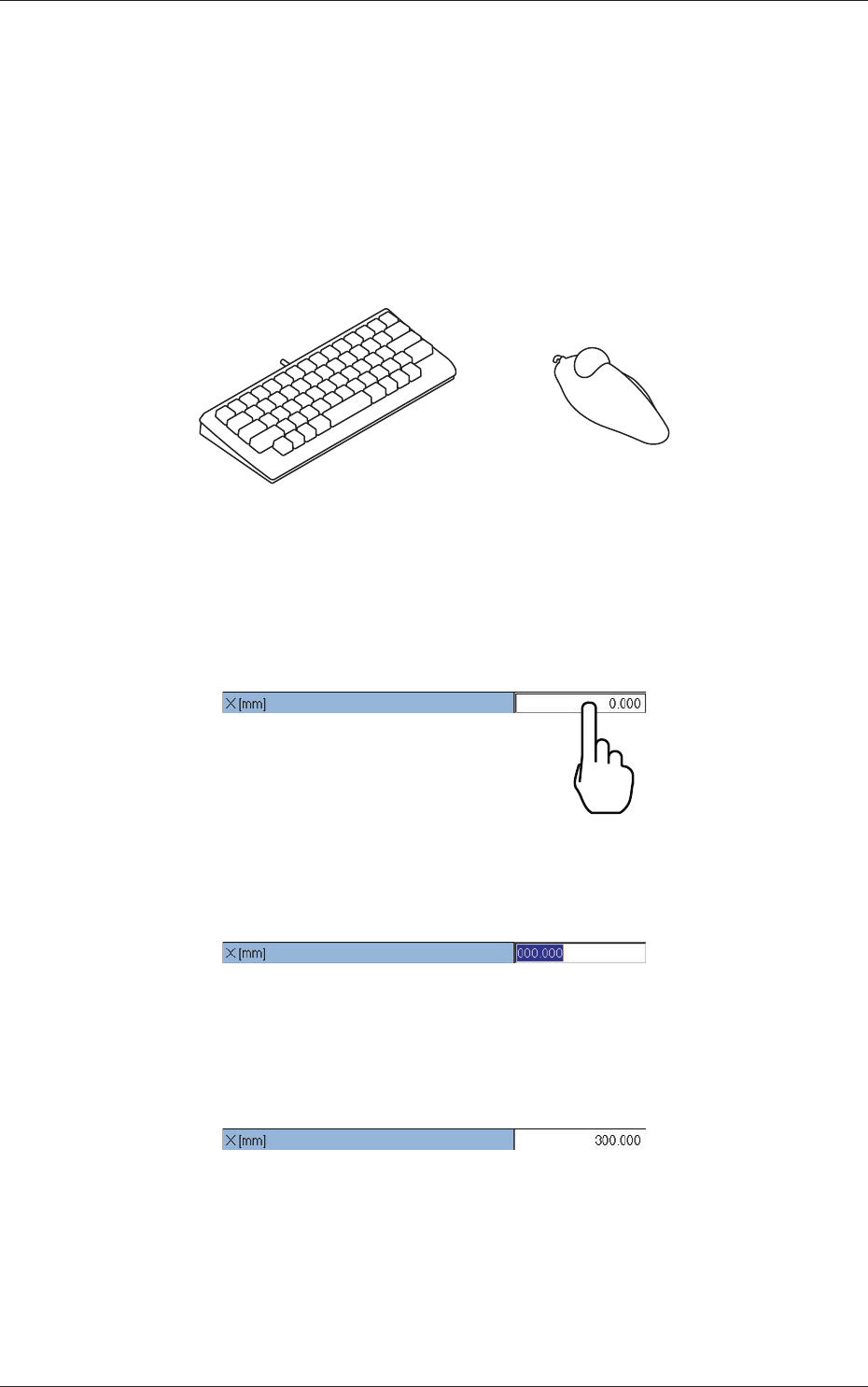
Fig. 3B2 Keyboard and Track ball
Parameters can be entered through keyboard navigation.
(1) To enter a parameter, press the text box quickly twice. Or, double-click
the text box with a track ball.
Fig. 3B3
The text box is set ready for data entry.
Fig. 3B4
(2) When a parameter is entered through keyboard navigation and the [Enter]
key is pressed, it is set in the text box.
Fig. 3B5
0606-009
2. Method of Data Entry