YSI_Prog_E.pdf - 第103页
2-32 2 Creating inspection pr ograms 2.6.4 Manual view creation procedure If unable to convert to an inspection progr am due to such reasons as ha ving no C AD data, it is necessary to create views for positions at whic …
2-31
2
Creating inspection programs
2.6.3 Creating all views and shortening inspection time
Change the view No. to automatically create views for data for which steps already exist, and to shorten the
inspection head movement time.
1
Press the [Data Edit] button and open the "View" tab.
2
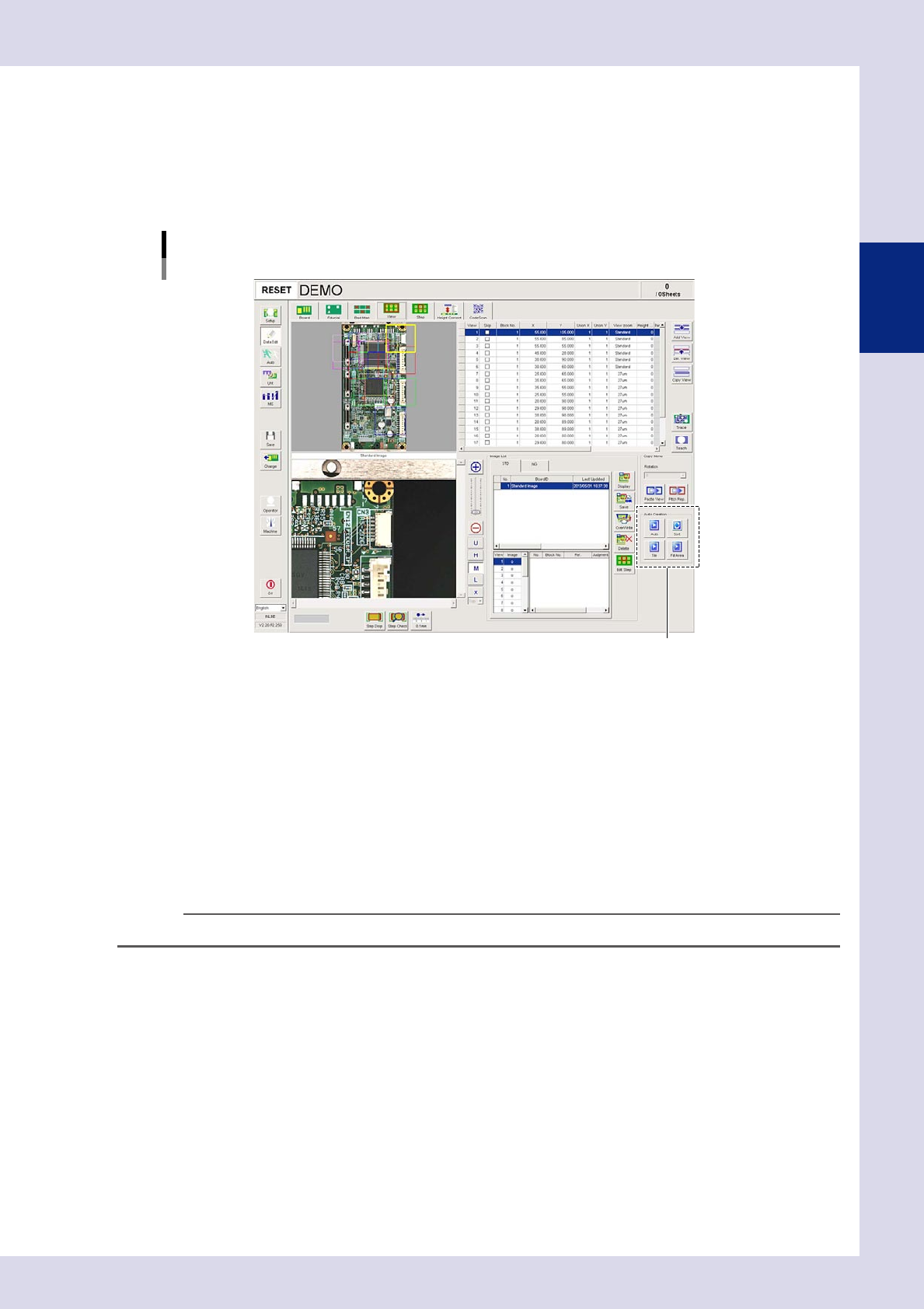
Use the auto creation function buttons in the lower right of the screen.
Auto creation function buttons
Auto creation function buttons
24229-P6-00
[Auto] button
Allocates views to include all steps considering step position and size, and adds a view No. to minimize the axis
movement time.
[Tie] button
Creates views uniformly for the entire board.
[Sort] button
Changes the view No. to minimize the axis movement time.
[Fill Area] button
Adds and assigns views to areas on the board to which no views have yet been assigned.
n
NOTE
If editing views with the auto creation function, save the view images.
2-32
2
Creating inspection programs
2.6.4 Manual view creation procedure
If unable to convert to an inspection program due to such reasons as having no CAD data, it is necessary to
create views for positions at which inspection is to be performed, and create inspection steps inside these
views. This section describes how to create views. Views cannot be created with the optional iPro offline
software.
1
Press the [Data Edit] button and open the "View" tab.
TIP
If there is no board in the inspection machine, and "View" or "Step" is selected, the following message appears. Press
the [No] button, set the board at the loading entrance sensor detection position, and press the [Change] button
Message
24230-P6-00
2
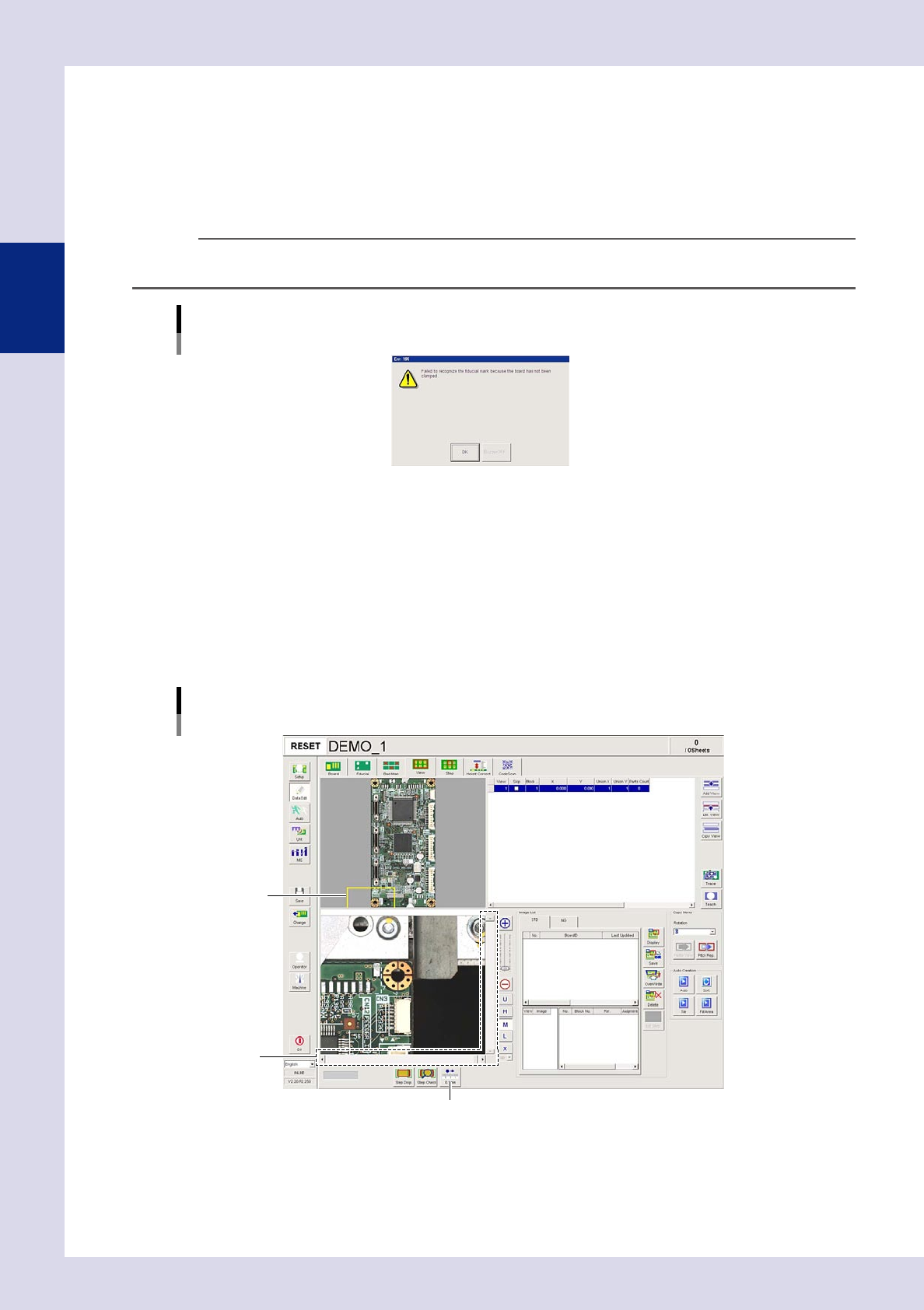
Move view 1 to the inspection position.
View 1 is created in the lower left of the view radar and is displayed in yellow. Use the following method
to move view 1 to the inspection position.
• Selectview1anddragwiththemouse.
• Usethescrollbar.
• Pressthe[0.1mm]movementpitchbuttontochangethepitch,andthenadjustwiththescrollbar
arrow buttons.
To shorten the camera movement time, allocate views from the edge of the board.
View image
Move view 1.
View 1
Scroll bar
[0.1mm] movement pitch button
24231-P6-00
2-33
2
Creating inspection programs
3
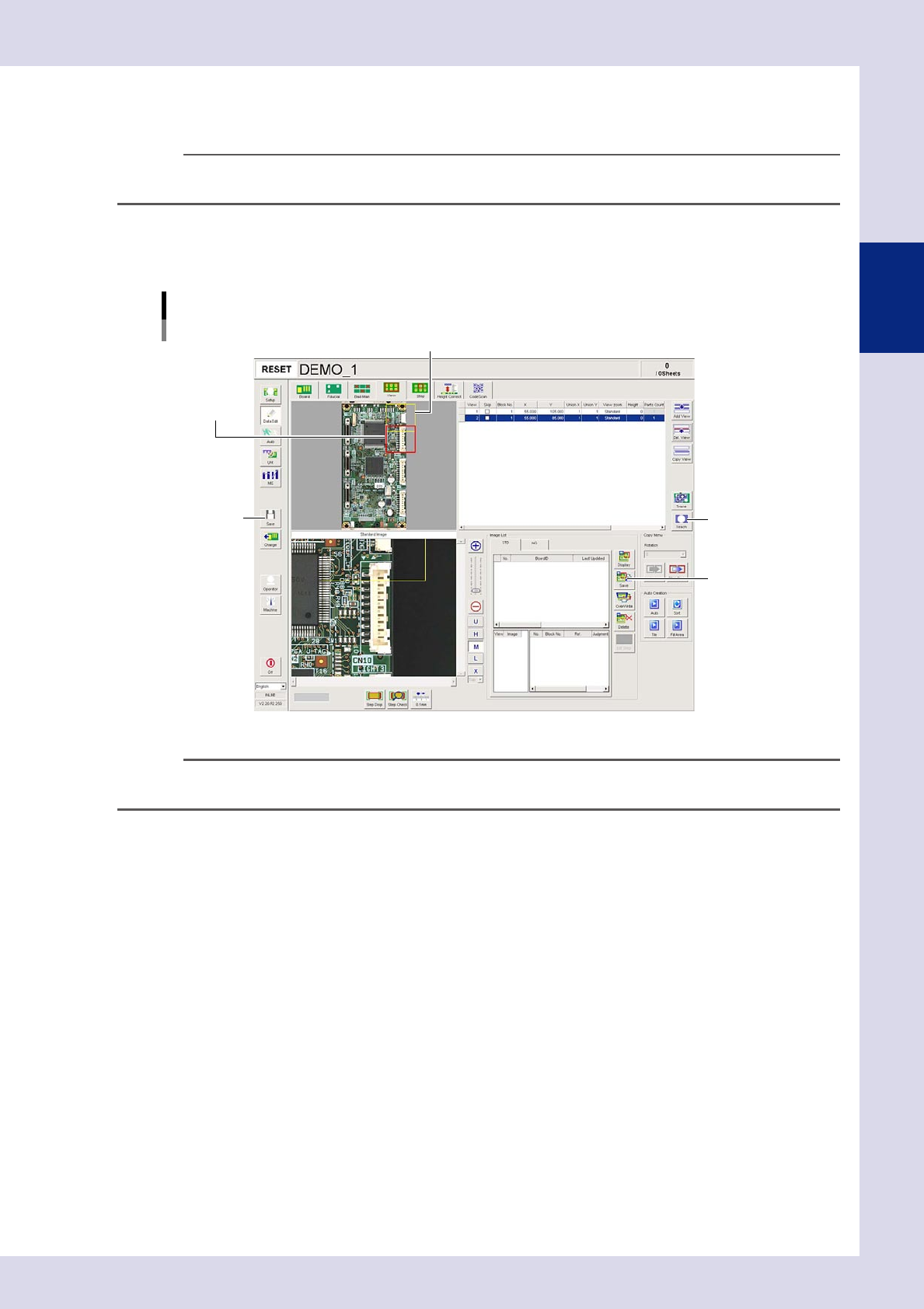
Press the [Add View] button to add a view.
An added view appears red at a position slightly shifted to the lower right of the currently selected view.
n
NOTE
Each view is displayed in color in the order that the views were created: yellow
→
red
→
green
→
blue
→
pink
→
purple
→
light blue. The selected view is highlighted by its color.
4
Move to the position at which the added view is to be inspected.
Move the added view to the desired inspection position by dragging it on the screen or using the scroll
bars or arrows.
View image
Adding views
Added view
View 1
Step6
Step7
Step8
24232-P6-00
n
NOTE
In order to avoid losing sight of the inspection area, an added view should be positioned so that it partially overlaps
the adjacent view.
5
Create views for all inspection positions.
Repeated Steps 3 and 4 to create views so that all locations to be inspected on the board are covered.
6
Press the [Teach] button.
Coordinates for the created view are registered.
7
Save the view image.
Open the image list "OK Image" tab and press the [Save] button. Press the [Yes] button at the
confirmation message that appears. Images for all views are captured and saved as standard images.
8
Save the inspection programs.
Press the [Save] button in the button area to save the inspection program.