YSI_Prog_E.pdf - 第222页
Appendix Appendix Contents 1. List of keyboard shortcut keys i
5-16
5
Inspection machine settings
2.7 Data conversion settings
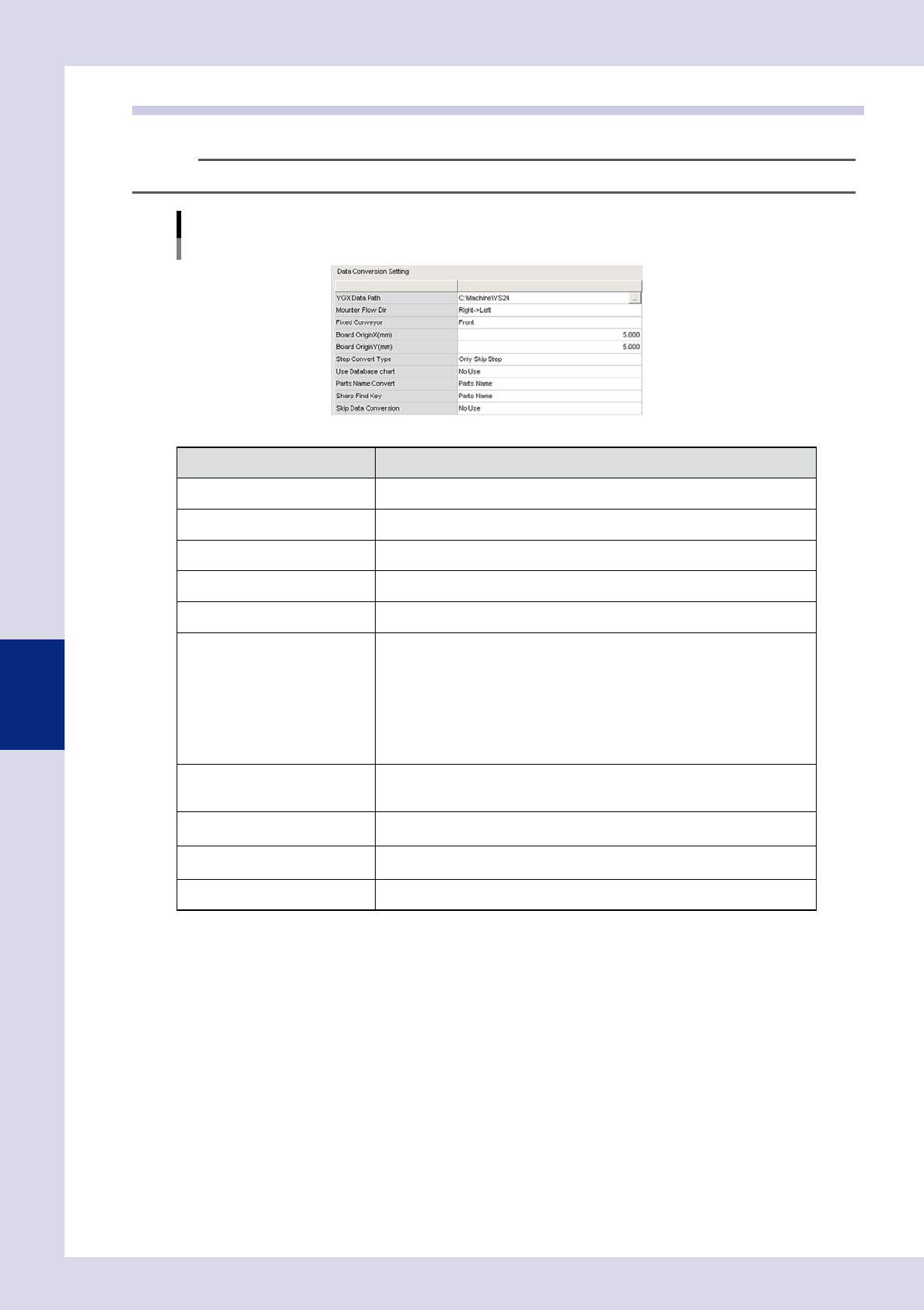
Specifies detailed settings when converting mount data to inspection machine data.
TIP
For details on data conversion operation, see section 2.2, "Data conversion", in Chapter 2.
"Machine settings" screen
"Setting" m "Machine Information" m "Data Conversion Setting"
24517-P6-00
Item Details
YGX Data Path Specifies the folder in which the YGX data to be converted is saved.
Mounter Flow Dir Selects the mounter flow direction.
Fixed Conveyor Selects the mounter fixed side conveyor.
Board OriginX(mm) Enter the board origin X coordinate to be converted.
Board OriginY(mm) Enter the board origin Y coordinate to be converted.
Step Convert Type
Selects the step conversion type from the following.
• Only Skip Step
Only reference steps for the parts exterior size are created.
• Inspection Step
Reference steps and parts check steps for the parts exterior size (some steps
will also be OK) are created.
• Inspection + Visual Step"
Reference steps and parts check steps for the parts exterior size (all steps will
be NG) are created.
Use Database chart
If set to "Use", the library parts names set in the library table are set for the step
library parts names when converting data. If set to "No Use", library parts names
are not set when converting data.
Parts Name Convert
Specifies whether to set the YGX data "Parts Name" or "Comment" as the
inspection data parts name when converting data.
Sharp Find Key
Specifies whether to set the library table "Parts Name" or "Comment" as the
inspection data parts name when converting data.
Skip Data Conversion Sets whether to convert parts skipped in YGX data to inspection machine data.

i
Appendix
1. List of keyboard shortcut keys
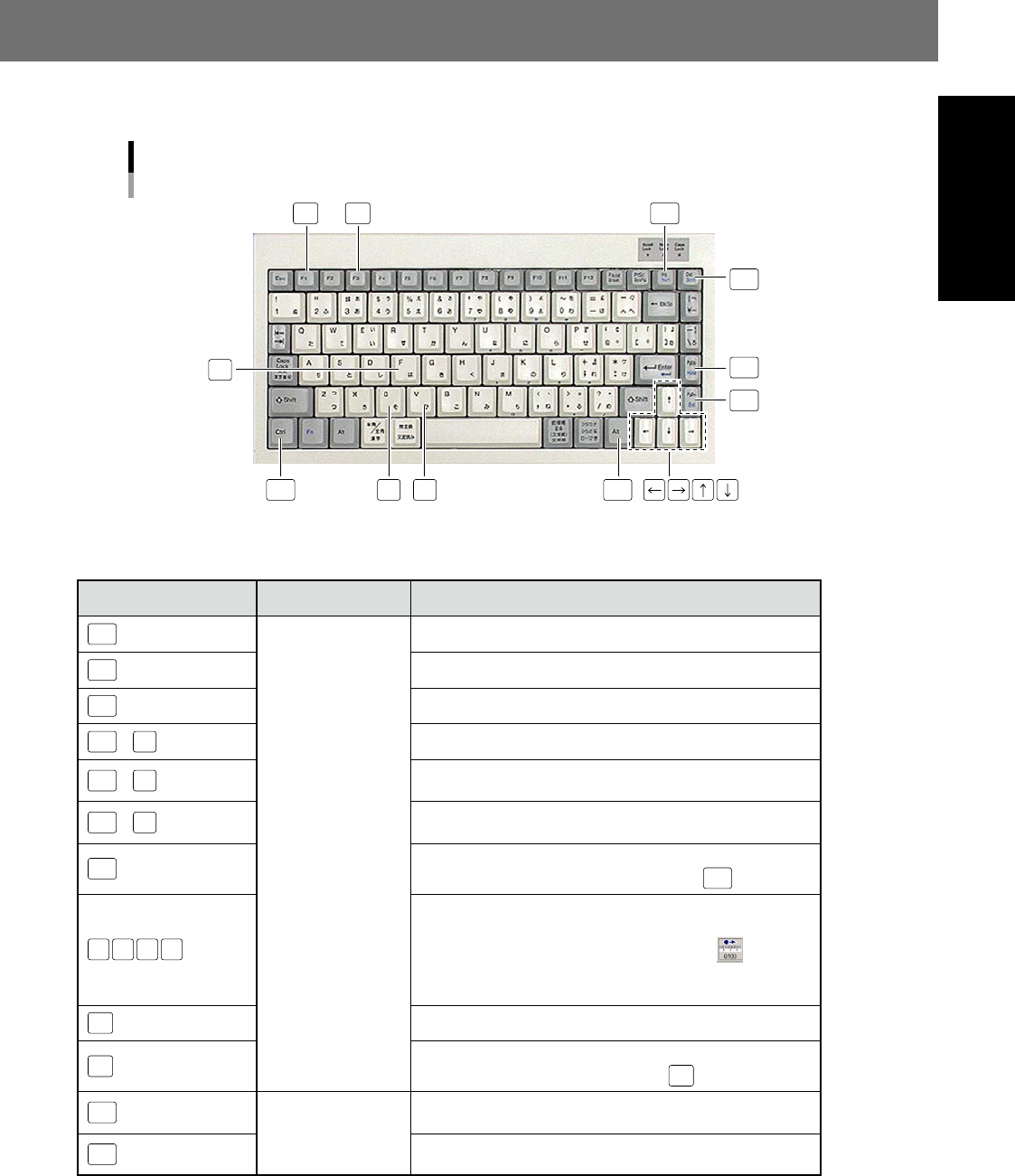
The following shortcut keys can be used at the [Data Edit] - "Step" screen or NG monitor screen, and at the
second judgment screen.
List of shortcut key functions
Del
Del
Ins
VC
Home
F
End
Ctrl
F1
F3
23002-P6-00
n
Shortcut function list
Shortcut keys Applicable screen Function
Home
[Data Edit] - [Step]
screen
Moves the cursor to the first step in the selected view.
End
Moves the cursor to the last step in the selected view.
Del
Deletes the selected (red, thick-bordered rectangle) step.
Ctrl
+
F
Displays a step search dialog box.
Ctrl
+
C
Copies the selected (red, thick-bordered rectangle) step to the
clipboard.
Ctrl
+
V
Inserts the step data copied to the clipboard after the selected
(red, thick-bordered rectangle) step.
Ctrl
+
Adds and selects individual steps. Selected steps are
unselected by clicking while holding down the
Ctrl
button.
← → ↑ ↓
Moves the selected (red, thick-bordered rectangle) step in the
arrow direction.
The movement pitch is changed by pressing the
button.
If a step that can be edited is not selected, the selection cursor
moves on to the previous or next step.
F1
Selects steps with same Ref. No.
F3
Displays steps that have not been set in the library. Displays
the next unset step when pressed again
F3
.
Ins
NG monitor screen,
YSi-S: Second
judgment screen
This is the same operation as pressing the [OK] button on the
operation screen.
Del
This is the same operation as pressing the [NG] button on the
operation screen.