YSI_Prog_E.pdf - 第91页
2-20 2 Creating inspection pr ograms 6 Set the basic par ameters. Refer to section 2.4.1, "Basic parameters", on t he previous page, and set the following parameters. Basic parameter settings [Light List] butto…

2-19
2
Creating inspection programs
X, Y
Enter the fiducial mark coordinates. If "2 Points" is selected for the correction method, enter coordinates
for X1, Y1, X2, and Y2. If "3 Points" is selected for the correction method, enter coordinates for X1, Y1, X2,
Y2, X3, and Y3.
• Ifcoordinateshavealreadybeenenteredinsuchcasesaswithprogramsconvertedfrommount
data, use the coordinates as they are. (Recommended)
• Iffiducialmarkcoordinatesareunknown,coordinatescanbeenteredbyteaching.Afterclicking
the fiducial mark on the board image, click the center of the fiducial mark in the field-of-view image
in the lower left of the screen. After setting the mark parameters, press the [Teach] button when the
test result is "OK". The recognized center coordinates are entered.
Mark
Enter the mark No. This number corresponds to the number in the mark data list.
If "2 Points" is selected for the correction method, enter a number for Mark 1 and Mark 2.
If "3 Points" is selected, enter a number for Mark 1, Mark 2, and Mark 3.
n
NOTE
• Ifsettingblockducials,settheducialmarkinthelineforeachblockNo.
• Ifsettinglocalducials,settherespectivelocalducialmarks.
Set the mark list number for the "Local Fid. No." optional parameter in the "Step" screen for the relevant step.
TIP
If fiducial marks are unclear, use the U, H, M, or L lighting buttons to change the lighting so that the mark becomes
clearer.
4
Move the camera to the fiducial mark position.
Select a mark from the mark list and press the [Trace] button. The camera moves to the fiducial mark
position.
5
Set the mark data list.
Set for the mark Nos. set in marks 1, 2, and 3 in the mark list.
Mark data list settings
Select fiducial.
24214-P6-00
No.
These numbers correspond to the mark Nos. set in marks 1, 2, and 3 in the mark list.
Mark Name
Enter an easily distinguishable name up to nineteen single-byte alphanumeric characters for each mark.
Spaces cannot be entered.
Mark Type
Select "Fiducial" from the drop-down list.

2-20
2
Creating inspection programs
6
Set the basic parameters.
Refer to section 2.4.1, "Basic parameters", on the previous page, and set the following parameters.
Basic parameter settings
[Light List] button
[Measure] button
24215-P6-00
A. Algorithm Type
Set to "Form".
H. Brightness Gain, I. Brightness Offset
Set so that the marks on the board are clearly visible.
M. Shape Type
Select from the drop-down list based on the mark being used.
N. Mark Size (mm)
Enter the mark outline dimensions. (If the outline dimensions are unknown, this procedure is dealt with later at Steps 9
and 10, and therefore there is no need to enter dimensions here.)
R. Circularity
Enter the mark circularity. (If the circularity is unknown, this procedure is dealt with later at Steps 9 and 10, and therefore
there is no need to enter a value here.)
T. Tolerance (%)
Set to 20%.
7
Press the [Light List] button and select a clear image.
By pressing the [Light List] button, a list of images appears. Select an image in which the mark appears
clearly from the image list, and press the [Set] button. When setting is complete, the display returns to
the "Fiducial" screen, and the "D. Light Type" is set.
TIP
If unable to see the fiducial mark clearly with the available lighting in the "Image List", "CUSTOM" lighting can be
selected. For details on the setting method, see 2.4.2, "Setting fiducial mark CUSTOM lighting", in the next section.
8
Set the threshold values.
After pressing the [Detected] button, adjust with the threshold slide bar so that only the mark appears
red. The "K. Thresh Lower Limit" and "L. Thresh Upper Limit" values are set.
9
Press the [Measure] button.
Press the [Yes] button at the auto measurement confirmation message that appears.
2-21
2
Creating inspection programs
0
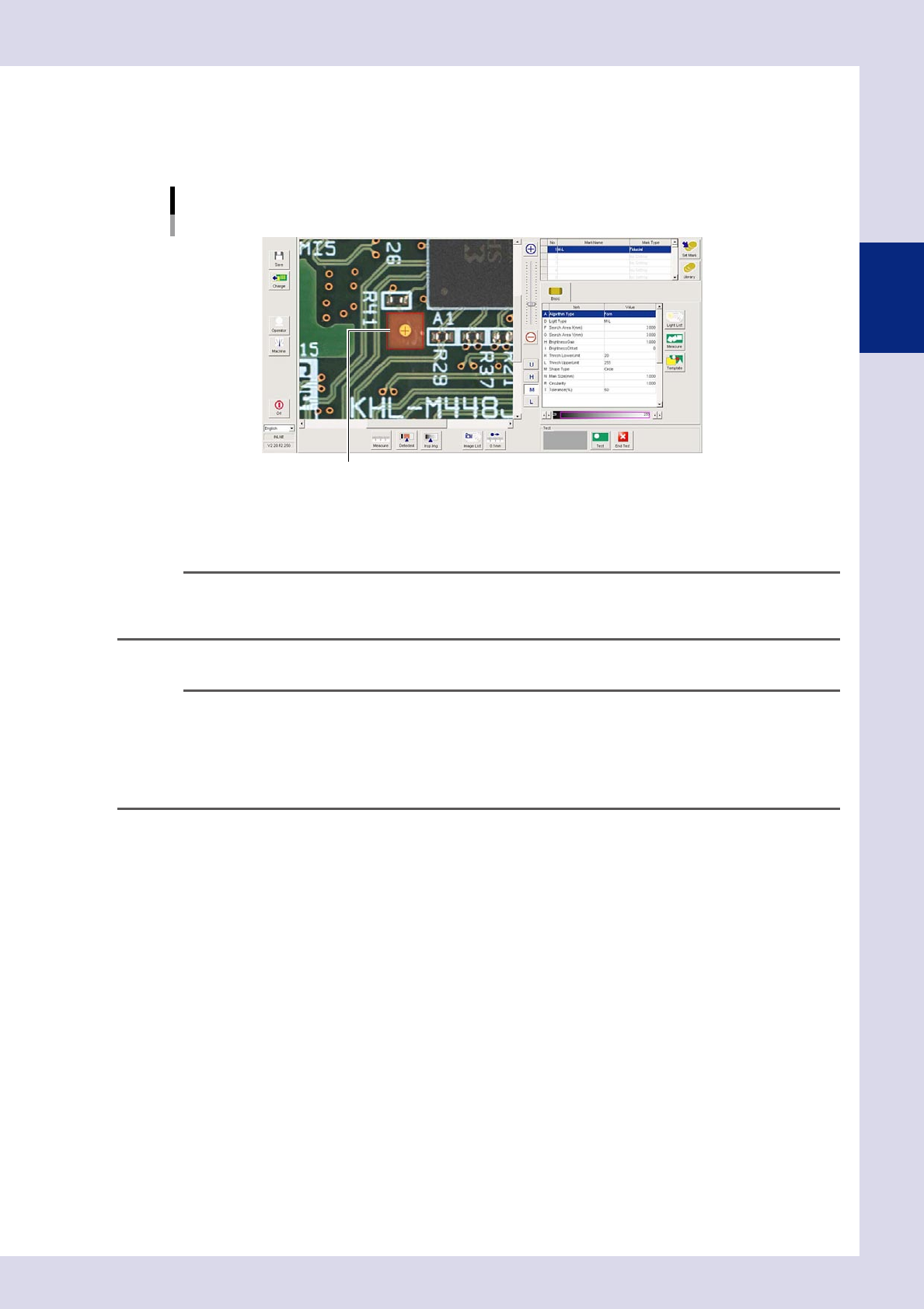
Enclose the mark by dragging the mouse.
Enclose the mark by dragging the mouse inside the mark detection range. The mark is recognized, and
"N. Mark Size (mm)", and "R. Circularity" are set for each recognition type based on the recognition
results, and a test is carried out.
Fiducial mark
Enclose by dragging the mouse.
24216-P6-00
q
Press the [End Test] button to end the detection test.
If the test result is NG, repeat the procedure from Step 7.
TIP
If the mark is successfully recognized, the center coordinates appear in the upper left of the mark screen. By pressing
the [Teach] button after the test is complete, the recognized coordinates are entered as the fiducial mark. When the
design coordinates have been entered, do not press the [Teach] button.
w
Press the [Save] button to save the inspection program.
TIP
Created marks can be registered in libraries and libraries can be set.
Registering: Select the mark to be registered from the mark data list, and press the [Set Mark] button. Press the [Yes]
button at the registration confirmation dialog box that appears.
Setting: Press the [Library] button to open the "Mark library" screen.
If setting only arbitrary marks, select the applicable mark and press the [Set] button.
If setting all marks, press the [All Set] button.