YSI_Prog_E.pdf - 第154页
3-31 3 Step screen 3.3.2 Batch pin No. reassignment T his function is used when reassigning pin Nos. clockwise or counter clockwise at one time for leaded parts for whic h pin Nos. have alread y been set. n Settings prio…
3-30
3
Step screen
3.3 Editing pin Nos.
3.3.1 Pin No. line editing
This function is used when assigning pin Nos. to the leads on all sides of leaded parts.
1
Select a step.
Select all steps at which pin Nos. are to be assigned at the "Step" screen.
2
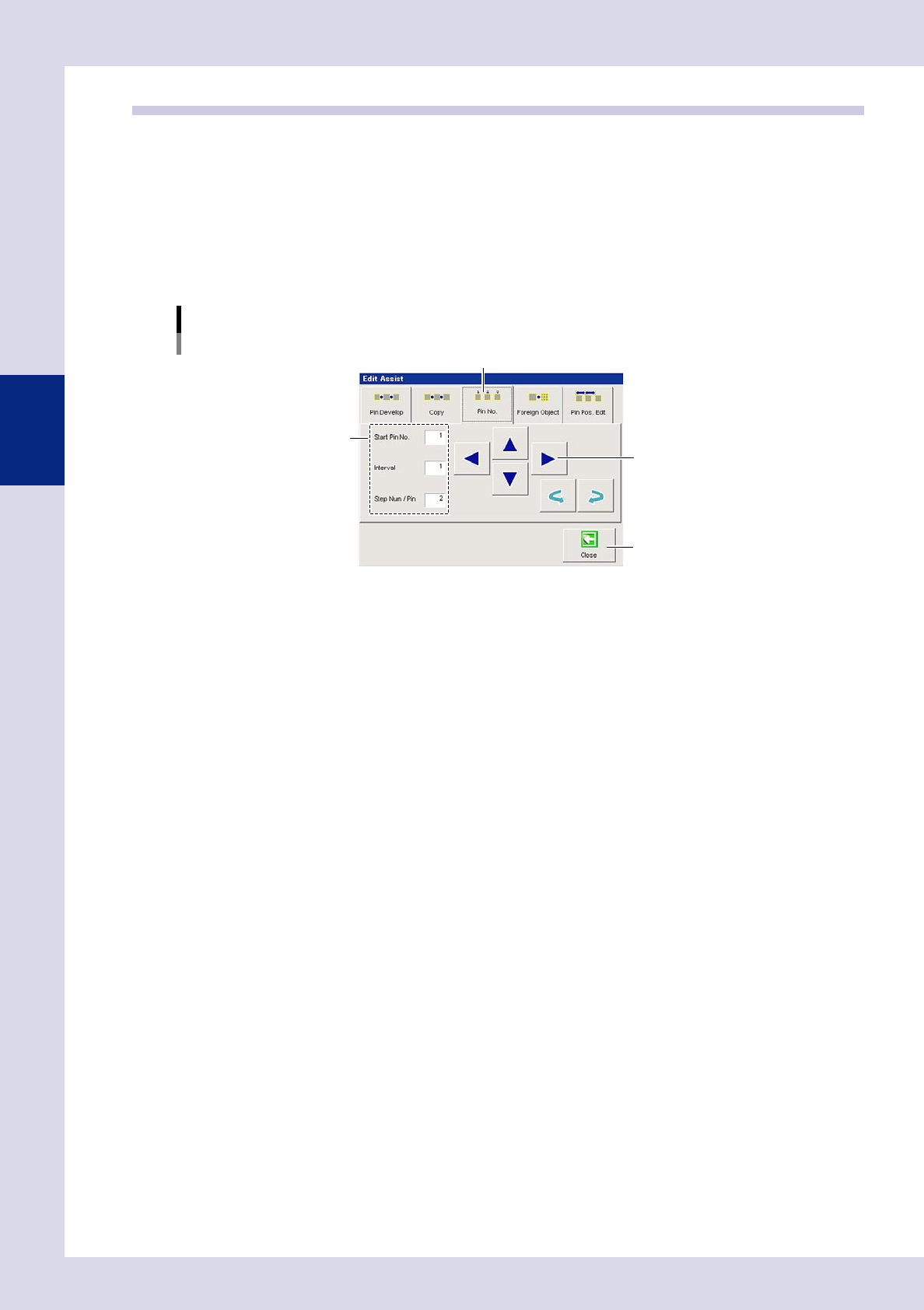
Press the [Edit Assist] button and open the "Pin No." tab.
A screen used to edit step pin Nos. appears.
Editing adjustment
Editing pin Nos.
"Pin No." tab
[Close] button
Step 3
Step 4
24335-P6-00
3
Set all conditions.
Start Pin No.
Enter the first pin No. from among the selected leads.
Interval
Enter the interval for the pin No. being assigned.
Step Num / Pin
Enter the number of steps required to inspect one pin.
4
Press the arrow buttons.
Press the arrow button facing in the direction of the number being assigned.
The pin No. is entered in "Pin No." in the basic parameters.
5
Press the [Close] button to end deployment.
3-31
3
Step screen
3.3.2 Batch pin No. reassignment
This function is used when reassigning pin Nos. clockwise or counterclockwise at one time for leaded parts for
which pin Nos. have already been set.
n
Settings prior to assignment
It is necessary to specify the following settings in order to reassign pin Nos. correctly.
Basic parameters
Pin No.
Pin Nos. are not reassigned for steps with pin No. 0.
Lead Group:
Select the lead position for the part from the drop-down list.
Up (N) : Steps on upper side of part
Down (S ): Steps on lower side of part
Right (E) : Steps on right side of part
Left (W) : Steps on left side of part
1
Select the start pin.
Refer to the following table and select the start pin (step) for pin No. reassignment from the view screen.
Start pin (step)
Step position Clockwise Counterclockwise
Up (N) Left edge step Right edge step
Down (S) Right edge step Left edge step
Right (E) Upper edge step Lower edge step
Left (W) Lower edge step Upper edge step
2
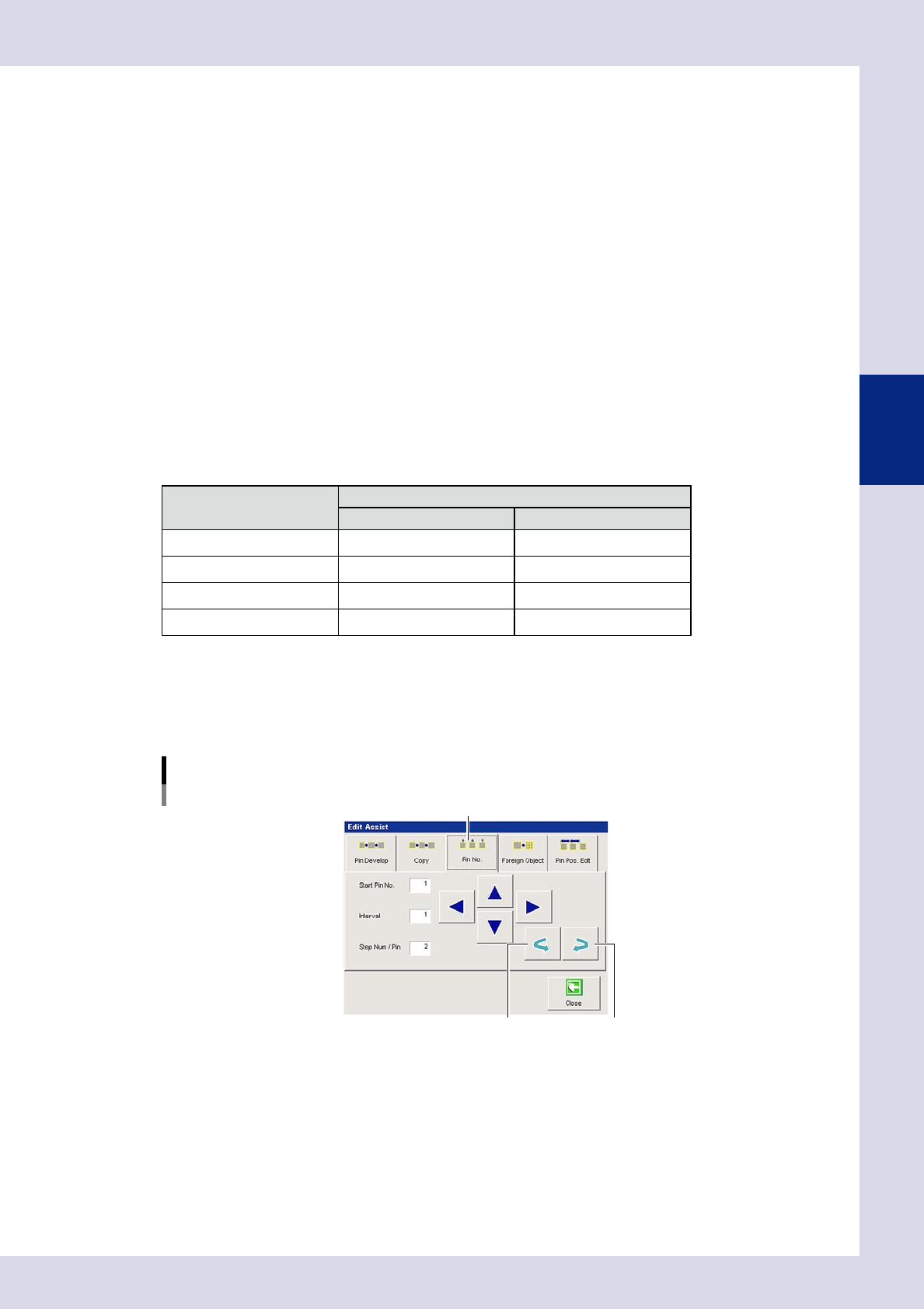
Press the [Edit Assist] button and open the "Pin No." tab.
3
Select the reassignment direction.
Press the clockwise arrow button or counterclockwise arrow button based on the reassignment
direction.
Editing assistance
Pin No. editing - Batch pin No. reassignment
"Pin No." tab
Counterclockwise arrow button Clockwise arrow button
24336-P6-00
Clockwise arrow button
Reassigns pin Nos. clockwise from the start pin No.
Counterclockwise arrow button
Reassigns pin Nos. counterclockwise from the start pin No.
4
Press the [Close] button to end deployment.
3-32
3
Step screen
3.4 Foreign object check deployment
This function deploys foreign object steps to all views.
Foreign object inspection steps for which "Foreign Object” is set for the inspection status are deployed to all
views.
1
Select a step.
Select the deployment source foreign object step at the "Step" screen. Steps are deployed with the
same parameters as the selected step. Select an arbitrary step if no foreign object check steps exist to
deploy steps with default parameters.
2
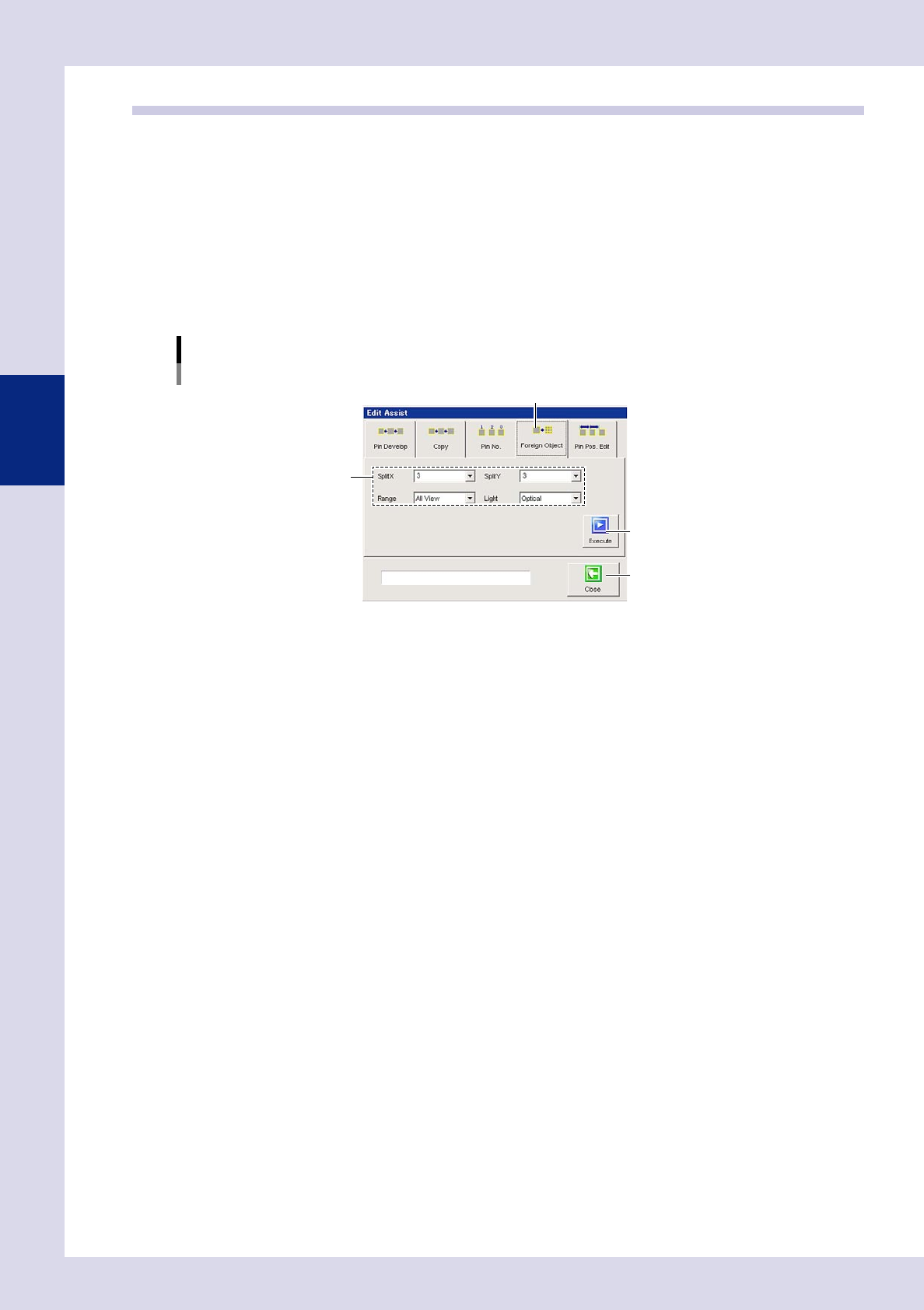
Press the [Edit Assist] button and open the "Foreign Object" tab.
A screen used to set foreign object check deployment conditions appears.
"Foreign Object" tab screen
Step 4
[Execute] button
[Close] button
"Foreign Object" tab
24337-P6-00
3
Set the deployment conditions.
Split X, Y
Enter the number of splits for foreign object check steps created in each view.
Range
Sets the range for creating foreign object check steps. Set the applicable range to "All View" or
"Selected View".
Light (YSi-X)
This setting is only valid for X-ray inspection machines, and the foreign object check step lighting can be
selected from "Optical" or "X-ray".
Optical: Select to perform the foreign object check with optical lighting.
X-ray: Select to perform the foreign object check with X-rays (X-ray image).
4
Press the [Execute] button.
Press the [Yes] button at the confirmation dialog box that appears after checking the content.
Foreign object check steps are created for the applicable view.
5
Press the [Close] button to end deployment.