YSI_Prog_E.pdf - 第42页
1-7 1 asic operation 1.4.4 "View" screen T his screen allows you to register inspection view coordinates, sa ve view images, and edit views. [Data Edit] - [View] screen 1 2 3 4 5 9 8 19 20 21 22 23 15 16 17 1…
1-6
1
asic operation
1.4.3 "Bad Mark" screen
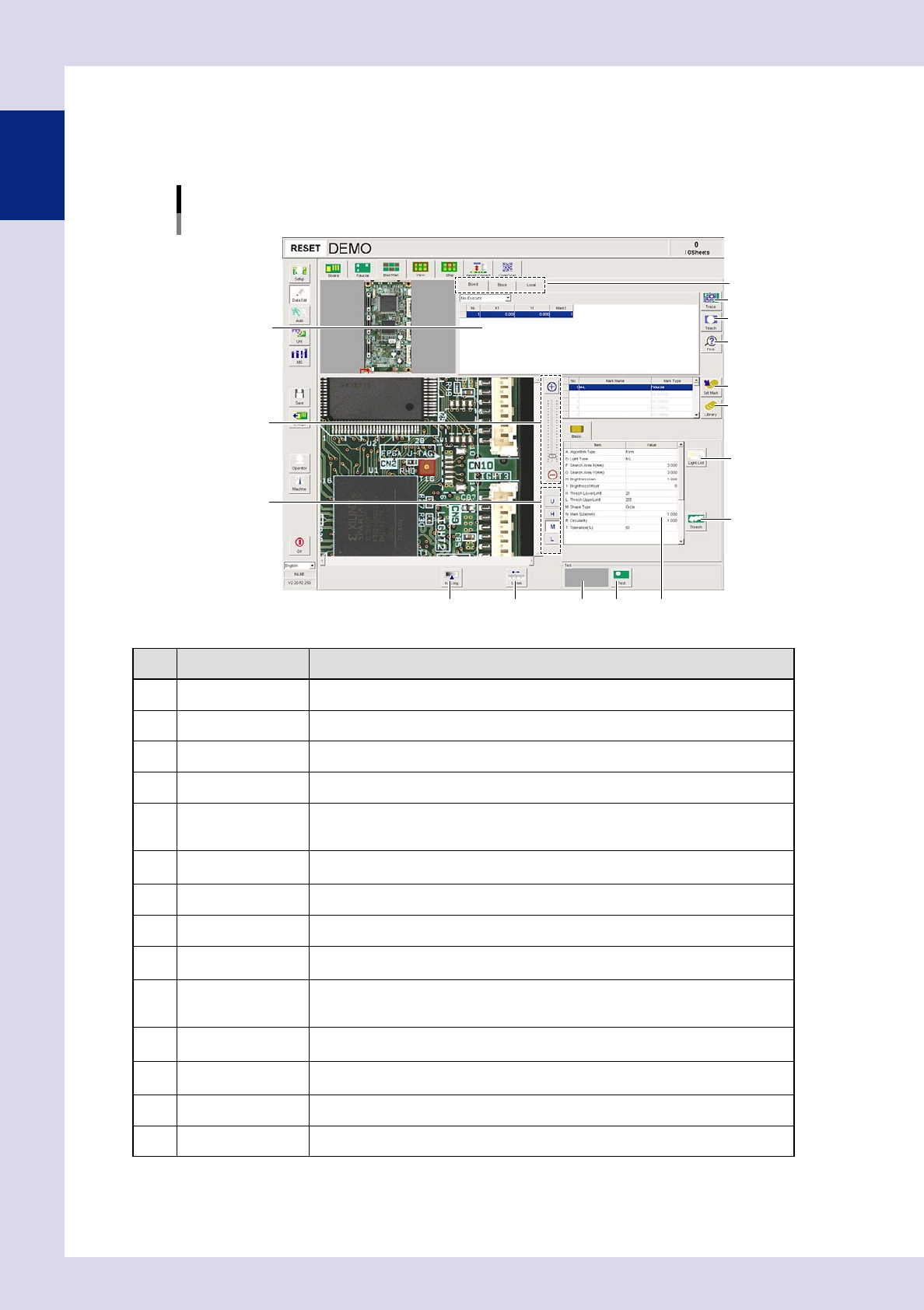
This screen allows you to set bad marks in order to use the bad mark function. The bad mark function involves
affixing a mark (bad mark) to a set location on the board in order to ensure that inspection is not performed
when the mark is recognized by the inspection machine.
[Data Edit] - [Bad Mark] screen
1
9
11 12
10
13
14
Basic parameter
Mark list
2
3
4
7
8
5
6
24106-P6-00
Item/button name Function
1 Board/Block/Local The unit for enabling the bad mark function can be selected from board, block, or local.
2 Trace Moves the camera to the mark XY coordinates selected in the mark list.
3 Teach The center of the recognized mark is registered as the bad mark position coordinates.
4 Find Searches for and replaces items registered in the block or local mark list.
5 Zoom
+ : Enlarges the bad mark image.
- : Reduces the bad mark image.
The image can also be enlarged and reduced by rotating the mouse wheel.
6 Change lighting
Changes the bad mark image lighting. Select the lighting that results in the clearest
image from U, H, M, and L.
7 Set Mark Registers the selected mark in the library.
8 Library Pastes the mark registered in the library.
9 Light List
Displays a list with the mark image illuminated under each lighting, allowing the operator
to select the most suitable lighting from the list.
10 Thresh
Sets the threshold value used for mark recognition. By pressing this button, a "Bad mark
threshold value setting" screen appears, allowing the user to set the threshold value
when marks are detected and when not detected.
11 Insp img
Displays the view image selected in the view list. The view image can be changed even
by selecting the board image view.
12 0.1mm
Pressing this button changes the pitch for the camera to move when the arrow buttons
on the scroll bars are pressed. (0.01mm, 0.100mm, 0.500mm, 5.000m)
13 Result display Displays the result of the bad mark recognition test.
14 Test Performs the bad mark recognition test.
1-7
1
asic operation
1.4.4 "View" screen
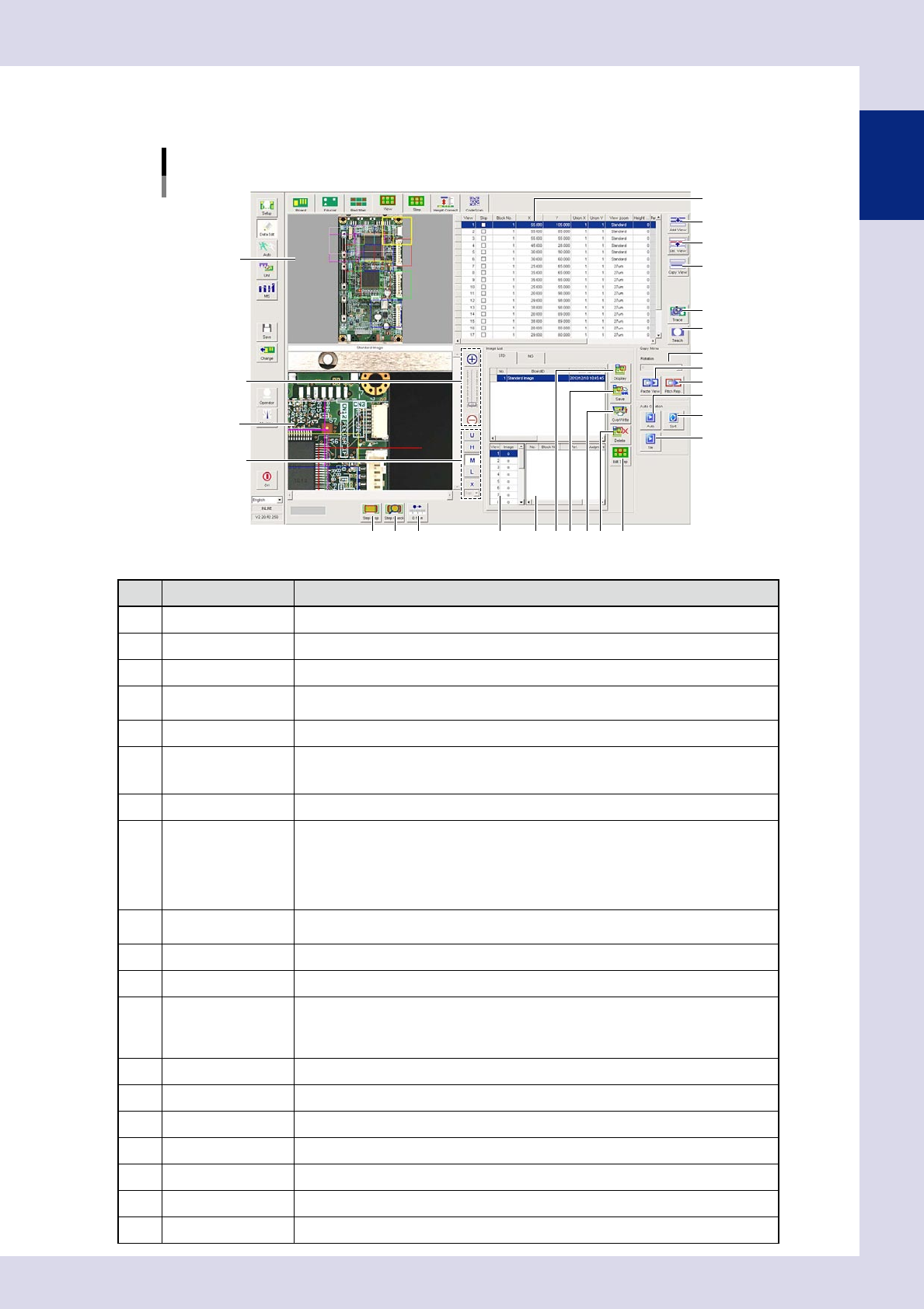
This screen allows you to register inspection view coordinates, save view images, and edit views.
[Data Edit] - [View] screen
1
2
3
4
5
9819 20 21 22 23
15
16
17
18
10 1211
13
14
6
7
View radar
View list
View image
24107-P6-00
Item/button name Function
1 Add View* Adds a view at the lower right of the selected view.
2 Delete View* Deletes the selected view.
3 Copy View* Copies the selected view.
4 Trace
Displays the selected view image. The view image can be changed even by selecting the
board image view.
5 Teach* Registers the coordinates displayed in the view list.
6 Zoom
+ : Enlarges the view image.
- : Reduces the view image.
The image can also be enlarged and reduced by rotating the mouse wheel.
7 Change lighting Changes the view image lighting. Select the lighting from U, H, M, L, and X (YSi-X).
8 Display
Displays the image selected in the image list.
OK images : Displays a list of saved images when the image list [Save] or [OverWrite]
button is pressed.
NG images : Displays a list of view images for which auto inspection was unsuccessful.
* To save NG images, select "Installation Setting"
→
"Image Setting" in the machine
settings, and select "NG Image" for "Image Auto SAVE".
9 Save*
Saves all view images and mark images as OK images. After saving images, always
press the [Save] button in the button area to save the program.
10 Overwrite* Select images in the OK board image list, and then press this button to overwrite images.
11 Delete Deletes all images with the selected board ID.
12 Edt Step
The [Edit Step] button becomes valid when the (NG) tab is opened. By selecting the view
for which "0" is displayed in the existing images list, selecting applicable parts from the
displayed parts list, and then pressing this button, the "Step" screen appears, allowing
the first step for relevant parts to be selected.
13 Rotation Sets the angle to rotate the copied view when pasting it.
14 Paste View* Pastes the copied view.
15 Pitch Rep.* Creates multiple view copies in the XY directions.
16 Auto* Automatically creates views while taking the step frame positions and sizes into account.
17 Sort* Changes the view numbers so that the camera movement time becomes the shortest.
18 Tile* Creates views in a tile pattern to fill the entire board.
19 Step Disp Displays step frames on the selected view image.
1-8
1
asic operation
Item/button name Function
20 Step Check Displays all steps on the entire board.
21 0.1mm*
Pressing this button changes the pitch for the camera to move when the arrow buttons
on the scroll bars are pressed. (0.01mm, 0.100mm, 0.500mm, 5.000mm)
22 Existing images list
Displays whether images exist in each view for board ID images selected in the image
list.
is displayed if the image exists, and X is displayed in the image does not exist.
23 NG parts list Displays all NG parts for the entire view saved as an NG image.
* This cannot be used with offline software YSi-OS (option).
1.4.5 "Step" screen
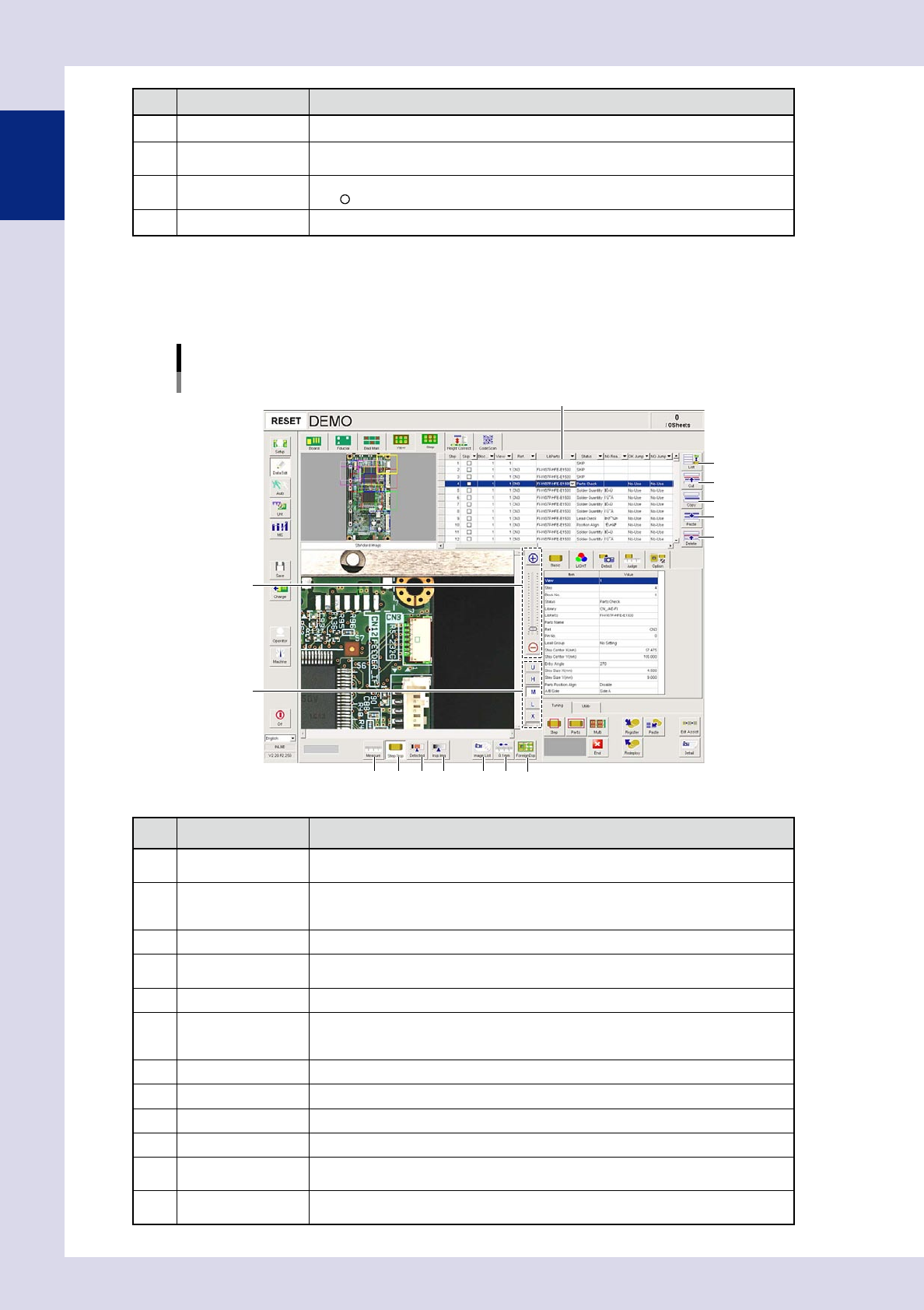
This screen allows you to create and edit inspection steps, and to save and deploy libraries.
[Data Edit] – [Step] screen
1
2
3
4
5
8
9
11
10
12 13
6
7
14
Step data list
24108-P6-00
Item/button name Function
1 List
Displays data displayed in the step data list as all steps in the program, or as inspection
steps for the currently selected part.
2 Cut
Cuts (deletes) the selected rows and copies them to the clipboard. The data rows below
the deleted rows move up.The cut data is kept stored until different data is cut or paste
to the clipboard.
3 Copy Copies the selected rows to the clipboard.
4 Paste
Inserts and overwrites data copied to the clipboard into inspection data. Pressing this
button displays an "Add step" dialog box, allowing the add method to be selected.
5 Delete Deletes the selected data rows. The data rows below the deleted rows move up.
6 Zoom
+ : Enlarges the step image
- : Reduces the step image.
The image can also be enlarged and reduced by rotating the mouse wheel.
7 Change lighting Changes the step image lighting. Select the lighting from U, H, M, L, and X (YSi-X).
8 Measure Measures the distance on the step image.
9 Step Disp Displays or hides step frames on the screen.
10 Detected Displays the detected area in red.
11 Insp Img
Displays an image at the step frame position, by capturing it under lighting used for
inspection.
12 Image List
A list of images saved to the inspection program appears. Select the image to be
displayed from the image list.