YSI_Prog_E.pdf - 第81页
2-10 2 Creating inspection pr ograms 2.2 Data conversion Mounter data for Y AMAHA mounters is converted to inspection programs using a data con version function. n NOTE Before per forming this operation, it is necessary …
2-9
2
Creating inspection programs
2. Creating inspection programs
This section describes how to create inspection programs for inspection machines from mounter mount data.
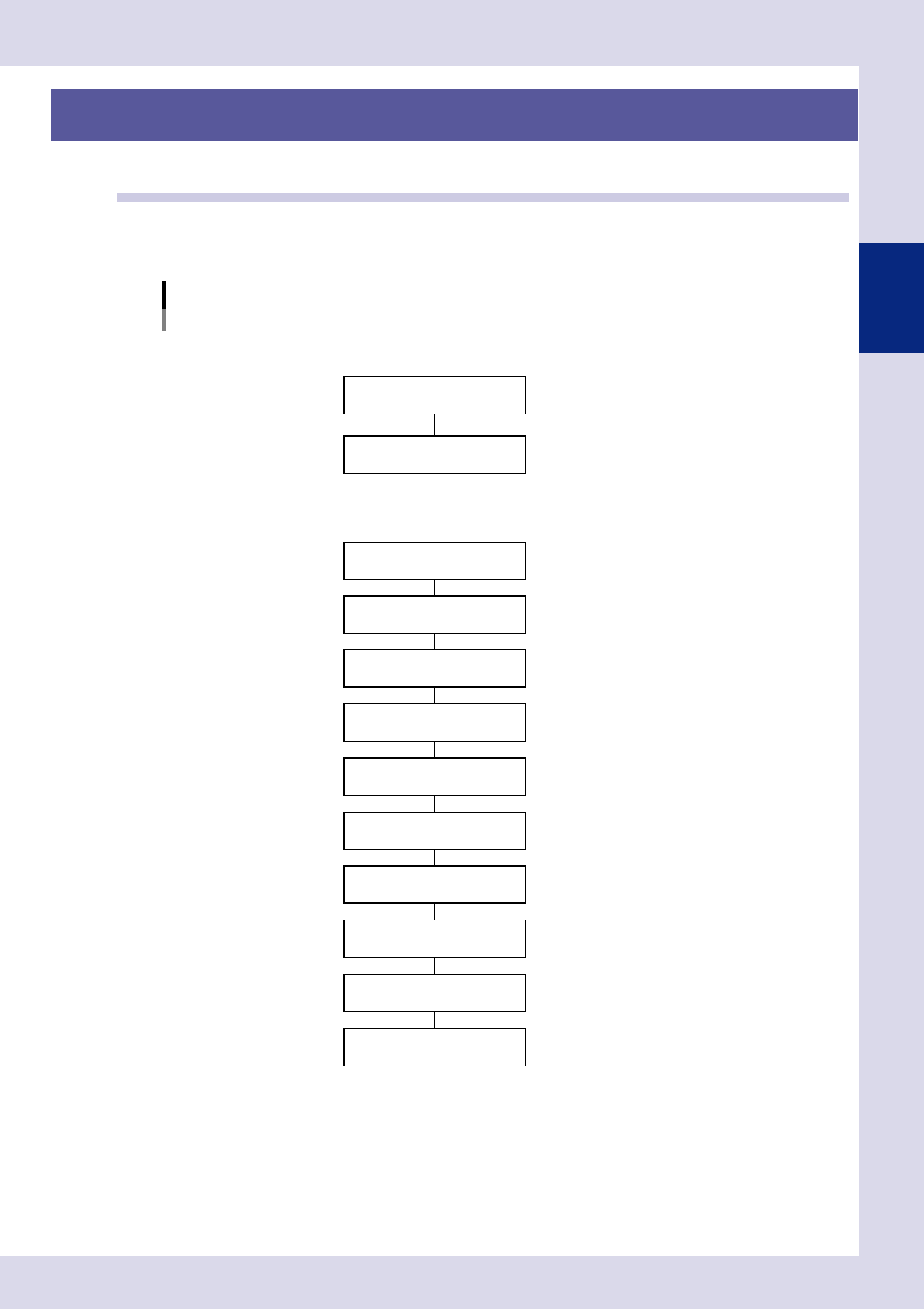
2.1 Flowchart for creating an inspection program
Press the [Convert] button at the "Setup" screen to convert YAMAHA mounter mount data to an inspection
program. Inspection programs are created by pasting parts libraries to mounting positions. Mount data for third
party mounters is converted to inspection programs after first converting it to YAMAHA mounter data format.
Flowchart for creating an inspection program
Convert to inspection data
Create full board image
Conversion to YAMAHA mounter data
NConversion from YAMAHA mounter data
Font file creation
NConversion from third party mounter data
* Set libraries if not all parts have been registered in libraries.
F"Common Factory Tools Function" manual
Set fiducial marks
Set views
Set bad marks
Set steps (inspection areas)
Library deployment *
Inspection data complete
Check board inspection
Data tuning
F See Chapter 2, "2.2 Data conversion".
FSee Chapter 2, "2.3 Creating a full board image".
F See Chapter 2, "2.4.1 Fiducial mark settings".
F See Chapter 2, "2.5.2 Bad mark settings".
F See Chapter 2, "2.6 View settings".
F See Chapter 2, "2.7 Step settings".
23212-P6-00
2-10
2
Creating inspection programs
2.2 Data conversion
Mounter data for YAMAHA mounters is converted to inspection programs using a data conversion function.
n
NOTE
Before performing this operation, it is necessary to refer to Chapter 5, "2.7 Data conversion settings", and set the
required items at the "Data Conversion Setting" screen in the machine settings.
1
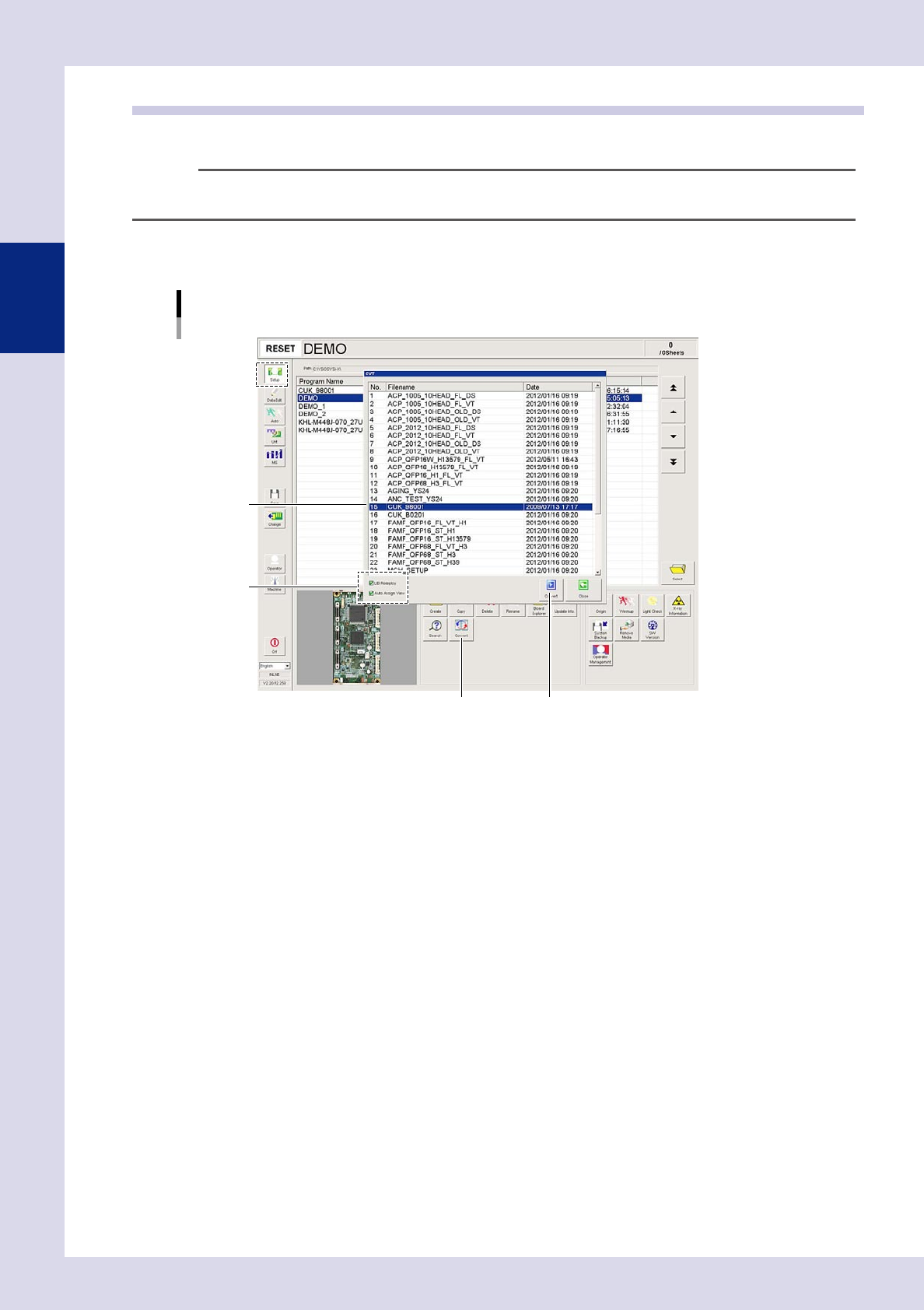
Open the "Setup" screen and press the [Convert] button.
A "CVT" screen appears.
[Setup] screen
Data conversion
[Convert] button [Convert] button
Step2
Step3
24205-P6-00
2
Set the conversion conditions.
Select both check boxes to enable the conversion conditions.
LIB Redeploy
By selecting this check box, libraries corresponding to the names of parts to be converted are deployed
to mounting positions based on the library table. If the selection is cleared, or parts name have not
been registered in the library table, steps are created for parts mounting positions without performing
library conversion.
Auto Assign View
By selecting this check box, views are created and assigned based on steps.
If the selection is cleared, views are not assigned.
2-11
2
Creating inspection programs
3
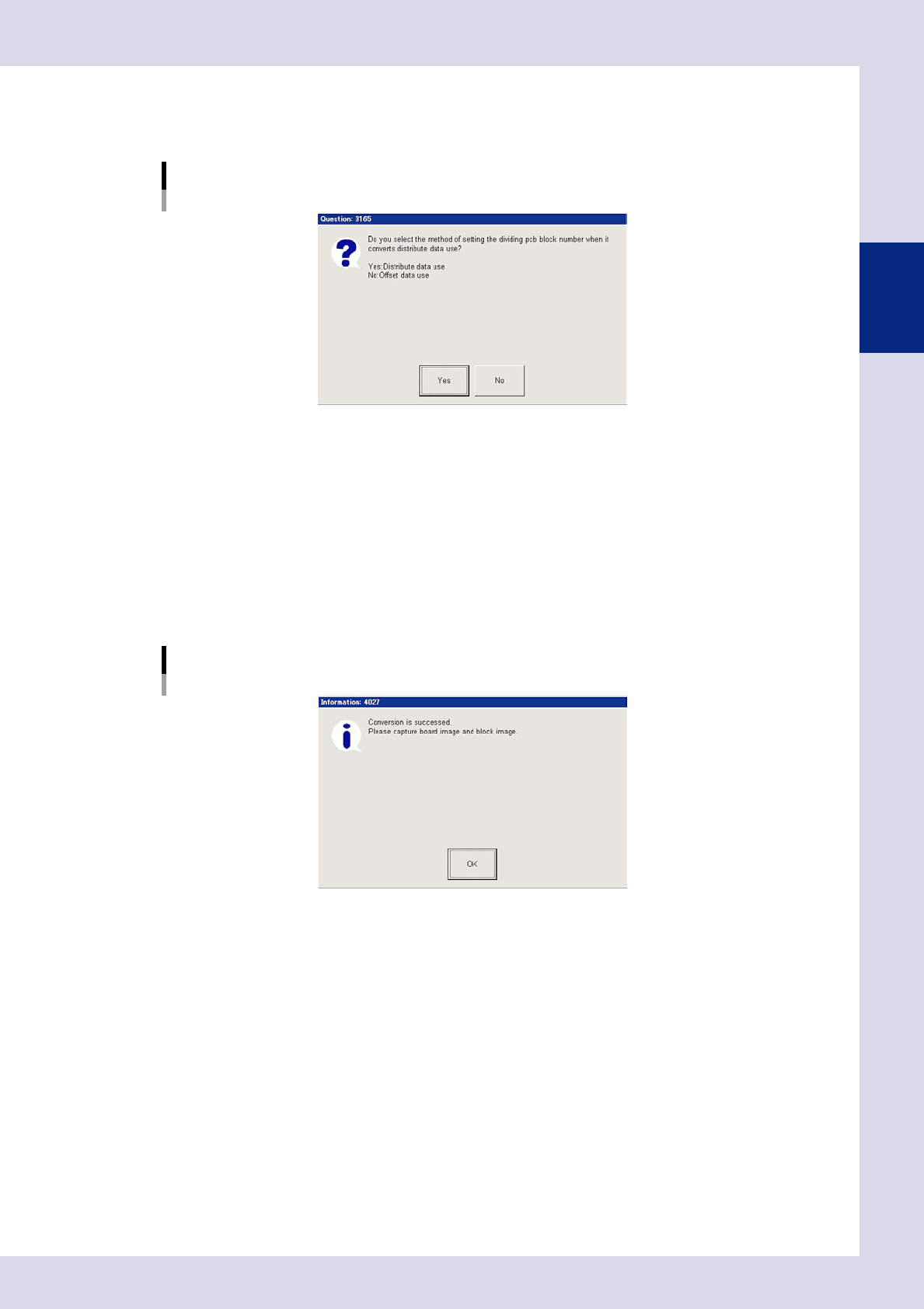
Select the file to be converted and press the [Convert] button.
1. A multi-board panel block No. setting confirmation dialog box appears. Check the contents and
press the relevant button to perform data conversion.
Multi-board panel block No. setting confirmation dialog box
24206-P6-00
Yes
Uses reference data.
Select to convert data for blocks for which block deployment is complete.
No
Uses offset information.
Select to convert data for boards with only one block, or for boards for which no blocks have been
deployed.
2. A conversion complete dialog box appears when conversion is complete. Press the [OK] button to
return to the "Setup" screen.
Conversion complete dialog box
24207-P6-00
3. The name of the converted program appears in the status area, and the converted inspection
program is added to the program list.