YSI_Prog_E.pdf - 第99页
2-28 2 Creating inspection pr ograms 7 Pr ess the [Light List] button and select a clear image. By pressing the [Light List] button, a lis t of images appears. Select an image in which the mark appears clearly from the i…
2-27
2
Creating inspection programs
4
Move the camera to the fiducial mark position.
Select a mark from the mark list and press the [Trace] button. The camera moves to the fiducial mark
position.
5
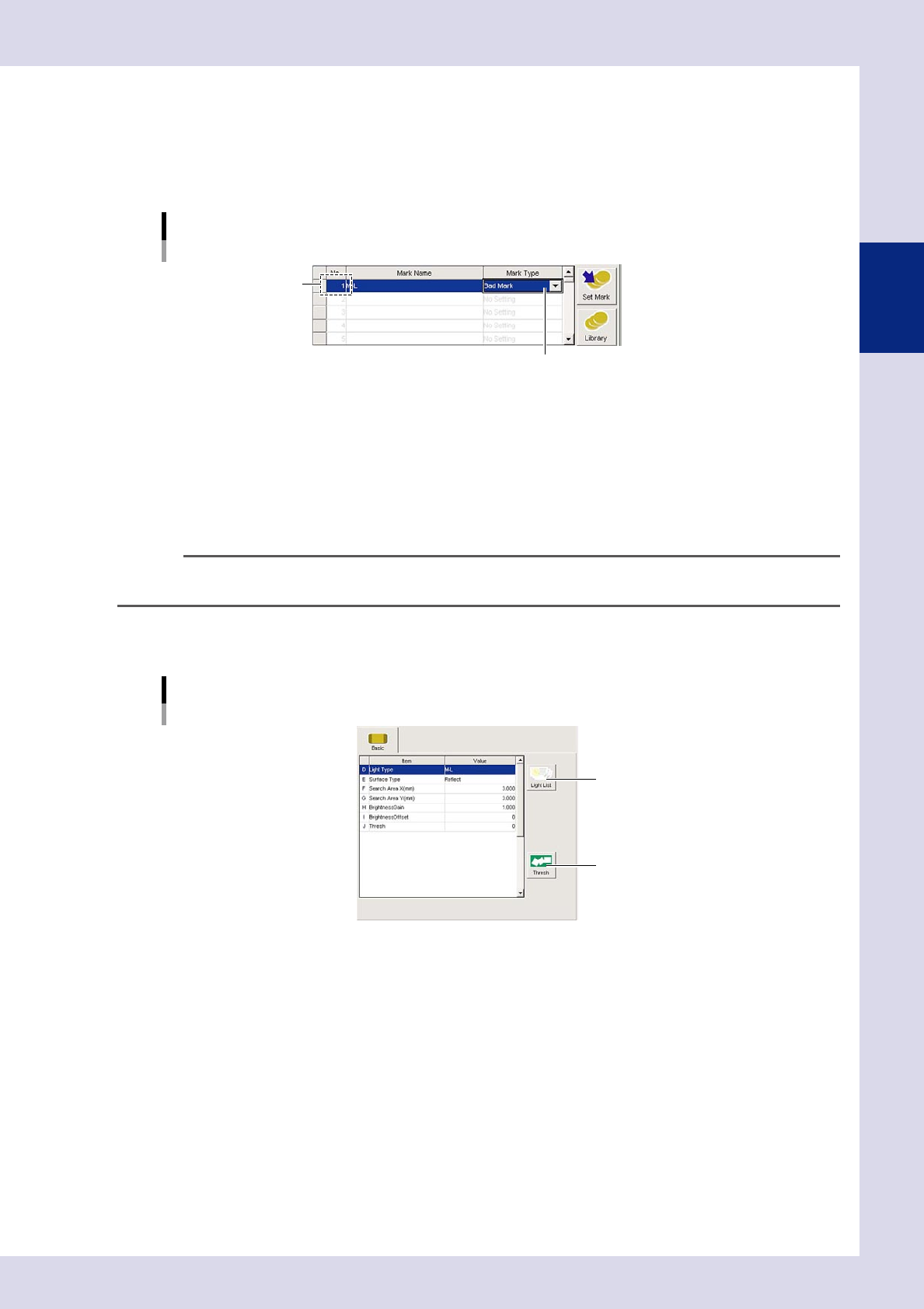
Enter the mark data list.
Set for the mark No. set in mark 1 in the mark list.
Mark data list settings
Select bad mark.
Set for mark 1 No.
24224-P6-00
No.
This number corresponds to the mark No. set in mark 1 in the mark list.
Mark Name
Enter an easily distinguishable name up to nineteen single-byte alphanumeric characters for each mark.
Spaces cannot be entered.
Mark Type
Select "Bad Mark" from the drop-down list.
TIP
"Fiducial", "Bad Mark", and "Code Scan" can be set in the mark list, and so the code No. should be changed when
registering.
6
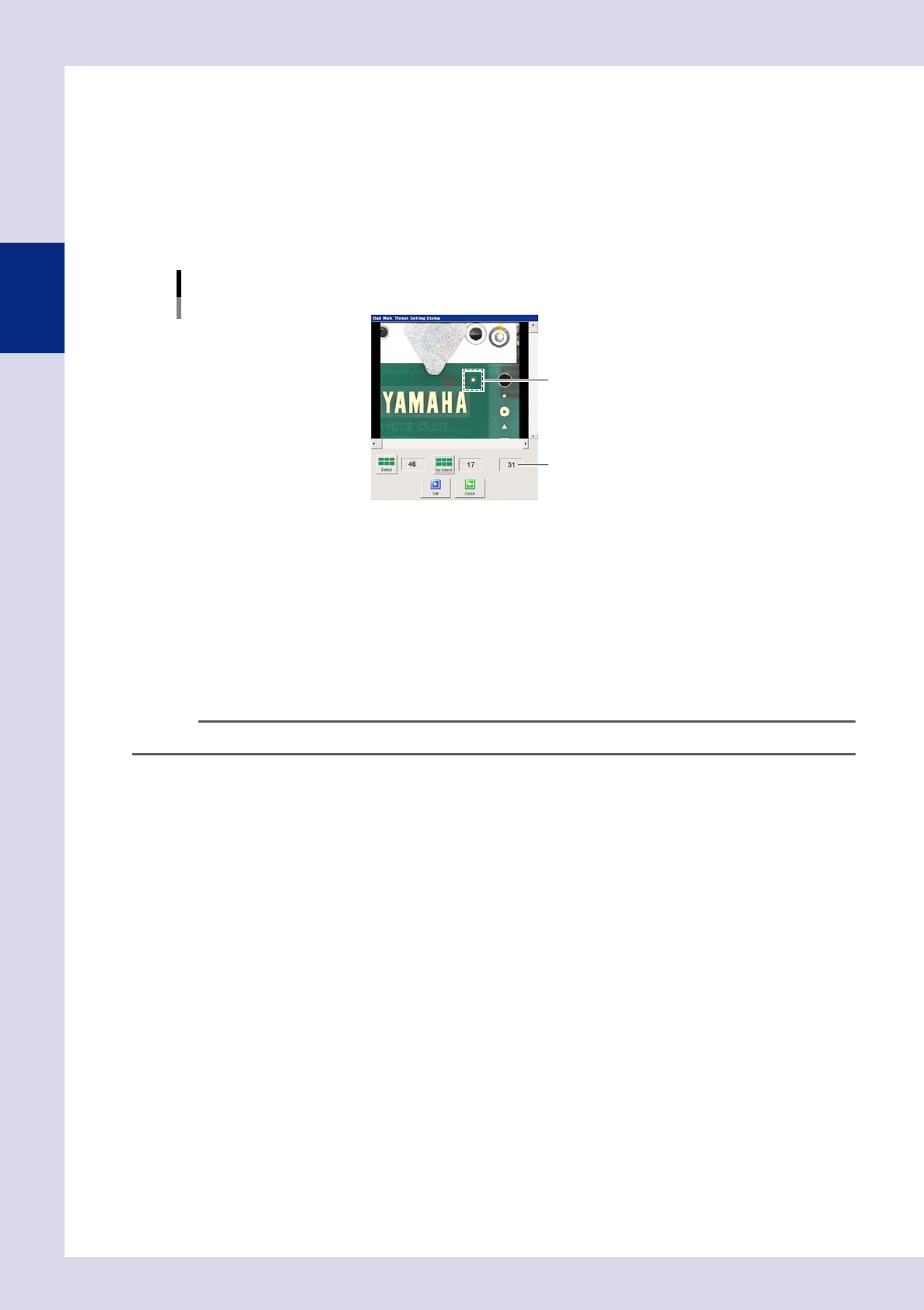
Set the basic parameters.
Set the following parameters.
[Bad Mark] tab screen
Basic parameter
[Light List] button
[Measure] button
24225-P6-00
E. Surface Type
Select from the drop-down list based on the bad mark being used.
F, G. Search Area X, Y (mm)
Enter the size of the area in which to search for the mark.
H. Brightness Gain, I. Brightness Offset
Set so that the marks on the board are clearly visible.
2-28
2
Creating inspection programs
7
Press the [Light List] button and select a clear image.
By pressing the [Light List] button, a list of images appears. Select an image in which the mark appears
clearly from the image list, and press the [Set] button. When setting is complete, the display returns to
the "Bad Mark" screen, and the "D. Light Type" is set.
8
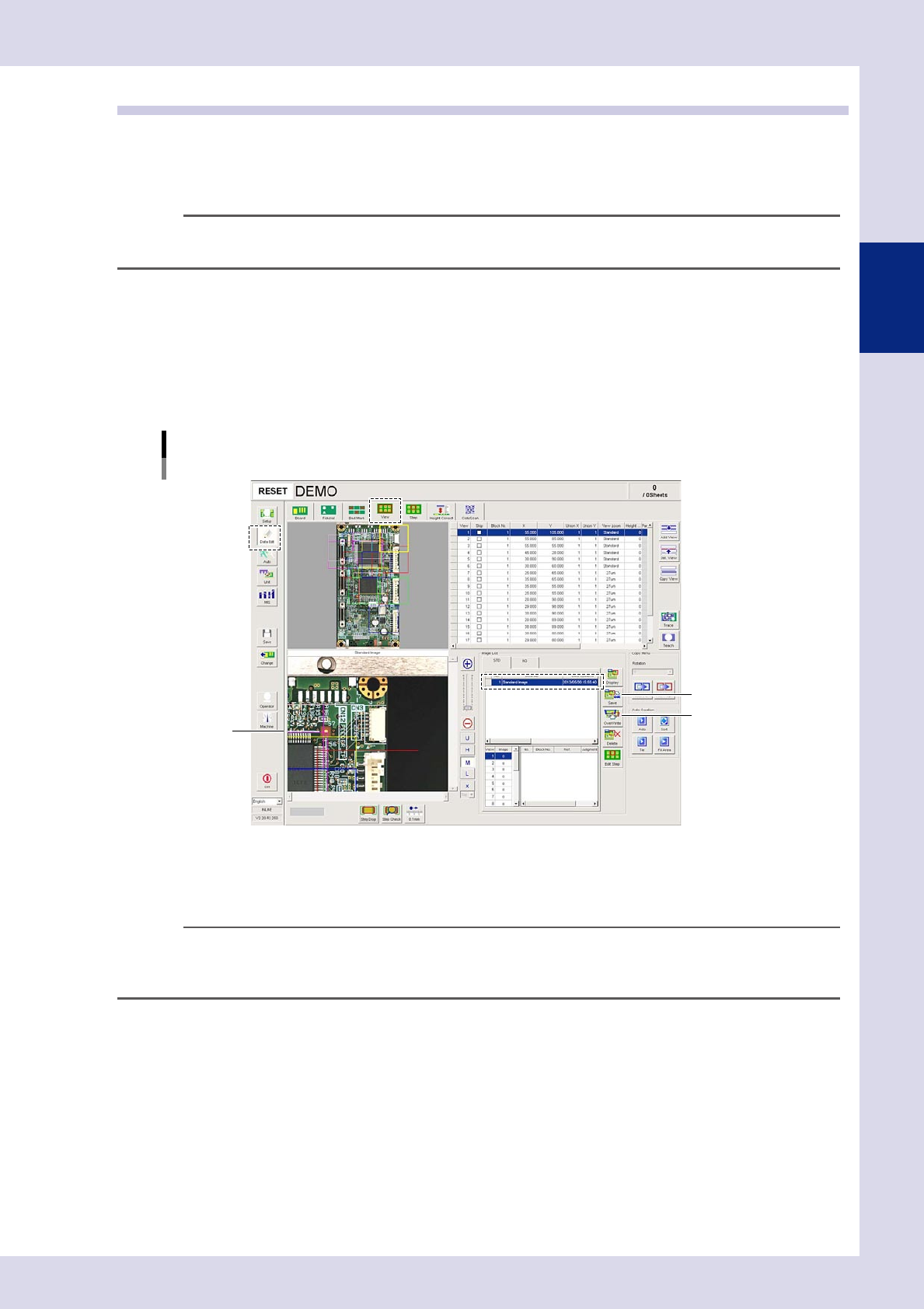
Press the [Thresh] button and set the threshold value.
By pressing the [Thresh] button, a "Bad mark threshold value setting" screen appears. Set the threshold
value using the following procedure.
1. Click the bad mark on the screen, and move the camera axis until the mark enters the red box.
"Bad mark threshold value setting" screen
Threshold value
Select the bad mark.
24226-P6-00
2. Press the [Detect] button to display the luminance when a bad mark exists.
3. Click a position with no bad mark, and move the camera axis to a position with no marks.
4. Press the [No Detect] button to display the luminance when no bad mark exists.
5. The intermediate value is set as the threshold value. Press the [Set] button to set the value for "J.
Thresh". By pressing the [Close] button without pressing the [Set] button, the acquired threshold value
is not set.
9
Perform a test.
Press the [Test] button to verify whether the mark is judged correctly.
TIP
The mark recognition coordinates appear in the upper left of the mark screen.
0
Press the [Save] button to save the inspection program.
2-29
2
Creating inspection programs
2.6 View settings
A "view" is the camera field-of-view used by the the inspection machine to inspect a board. In the view
settings, views are set for locations on the board to be inspected, and the board images for each view are
saved. When performing automatic inspection, the inspection head moves to the set coordinates to perform
inspection. View settings cannot be specified with the optional iPro offline software.
TIP
With the optional iPro ofine software, saved images are used to make changes to data. Furthermore, saved images
are also displayed in the Repair Station (option) OK images.
2.6.1 Saving view images
Capture all view images for the board set on the inspection machine, and save a standard image.
1
Press the [Data Edit] button and open the "View" tab.
2
Save the view image.
Press the image list [Save] button. The view registered first is saved as the standard image.
[Data Edit] – [View] screen
Saving the standard image
[Save] button
[OverWrite] button
View image
24227-P6-00
3
Save the inspection programs.
Press the [Save] button in the button area to save the board program.
n
NOTE
• If editing the view after saving the standard image, select the standard image from the OK image list, and then
press the image list [OverWrite] button.
• The saved image can be displayed by pressing the [List] button in the [Data Edit] - [Step] screen.
n
Saving additional OK images
If saving multiple OK images, after saving the standard image, replace the board and press the image list [Save] button.
The images are saved with the board ID for the saved date. To display saved images, press the [List] button in the "Step"
tab, open the "Image List" screen, select a board ID, and then press the [OK] button.