YSI_Prog_E.pdf - 第147页
3-24 3 Step screen 2.4 Step test It is necessary to perform tuning for all parameters in order that the test result for created steps is correct. T o chec k the step test result, use the buttons in the "T uning"…
3-23
3
Step screen
2.3 Mask function
The mask function involves creating a mask area inside a step, and specifying whether or not to always detect
the created mask area when performing inspection. If, for example, the inspection status is "Parts Check", and
the printed characters on the top of the parts cannot be recognized, using this function, an inspection object
exclusion mask is created at the character position and inspection is performed. Furthermore, if the inspection
status is "Electrode Check" and the electrode and parts are detected simultaneously, inspection can be
performed by creating an inspection object exclusion mask in the center of the parts. This procedure describes
an example in which the inspection status is chip part "Electrode Check", the electrode and part are detected
simultaneously, and an inspection object exclusion mask is created in the center of the parts.
TIP
The mask function is valid for the following inspection statuses.
parts
check, electrode check, polarity check, character recognition, solder quantity check, lead check, position
align, brightness level, shape check
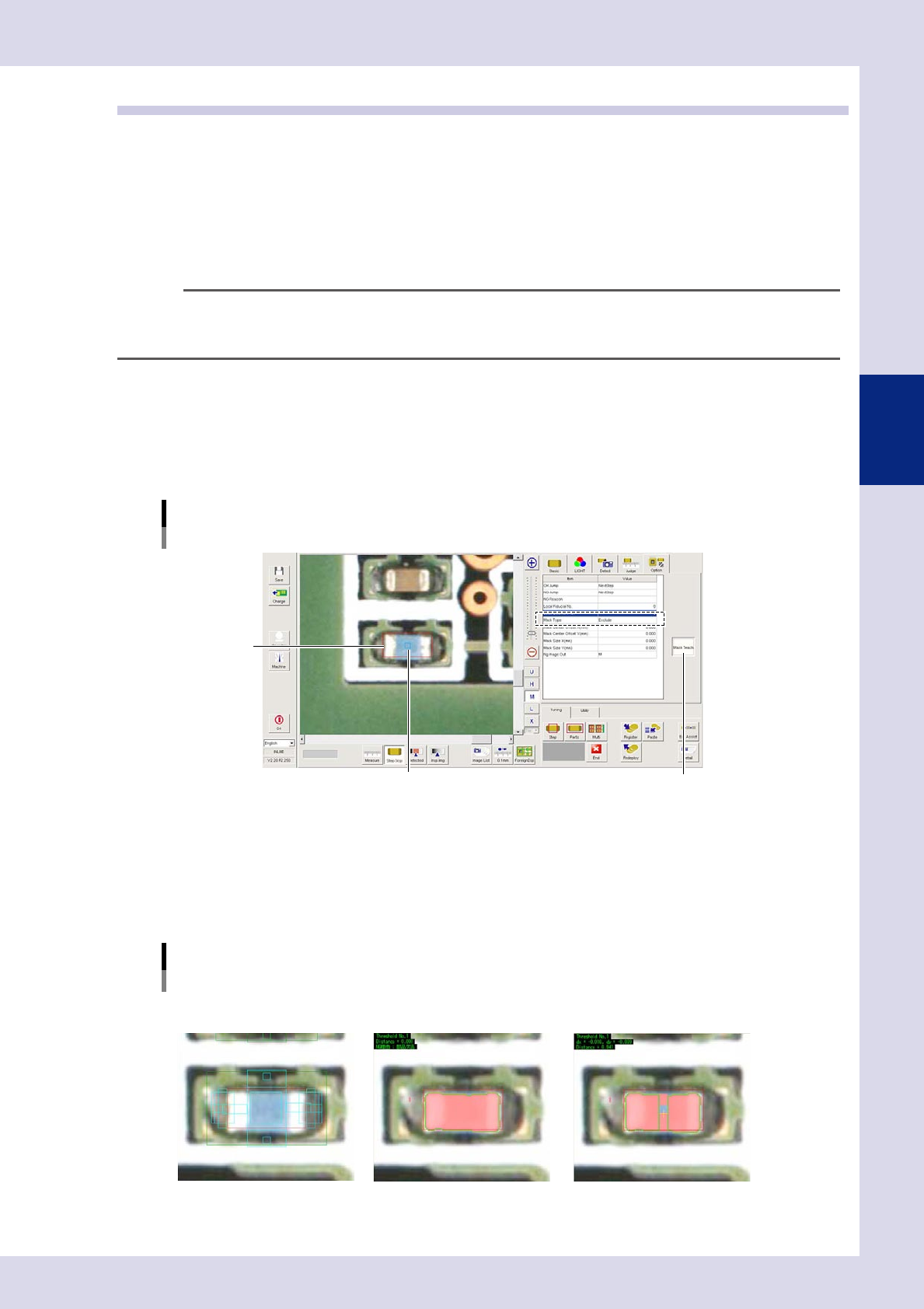
1
Select an electrode check step.
Select "Exclude" for the "Mask Type" in the option parameters. By selecting "Exclude", the mask area is
never detected.
2
Press the [Mask Teach] button.
The mask frame (blue) is displayed inside the step frame (red).
"Option" tab
Select the mask type.
[Mask Teach] button
Step frame (red)
Mask frame (blue)
24327-P6-00
3
Align the mask frame size and position.
Drag the mask frame with the mouse to align the size and position with the target area.
The size and position can also be aligned by entering values for "Mask Center Offset X, Y" and "Mask Size
X, Y" in the option parameters.
The following images represent an example of a parts check with inspection object mask set in the
resistor body position.
Mask setting image example
M lighting Mask type: Disable
Test result: NG
Mask type: Exclude
Test result: OK
24328-P6-00
3-24
3
Step screen
2.4 Step test
It is necessary to perform tuning for all parameters in order that the test result for created steps is correct. To
check the step test result, use the buttons in the "Tuning" tab in the lower right of the "Step" screen - "Tuning"
tab. To review settings, see Chapter 4, "Inspection status", in this manual.
2.4.1 Multi-test
The multi-test function is used to perform a step test under set conditions. For example, the "Lib Parts Name" is
specified at such times as when creating a new library, an inspection is performed for all of the same libraries
on the board, and parameters are tuned based on the inspection result.
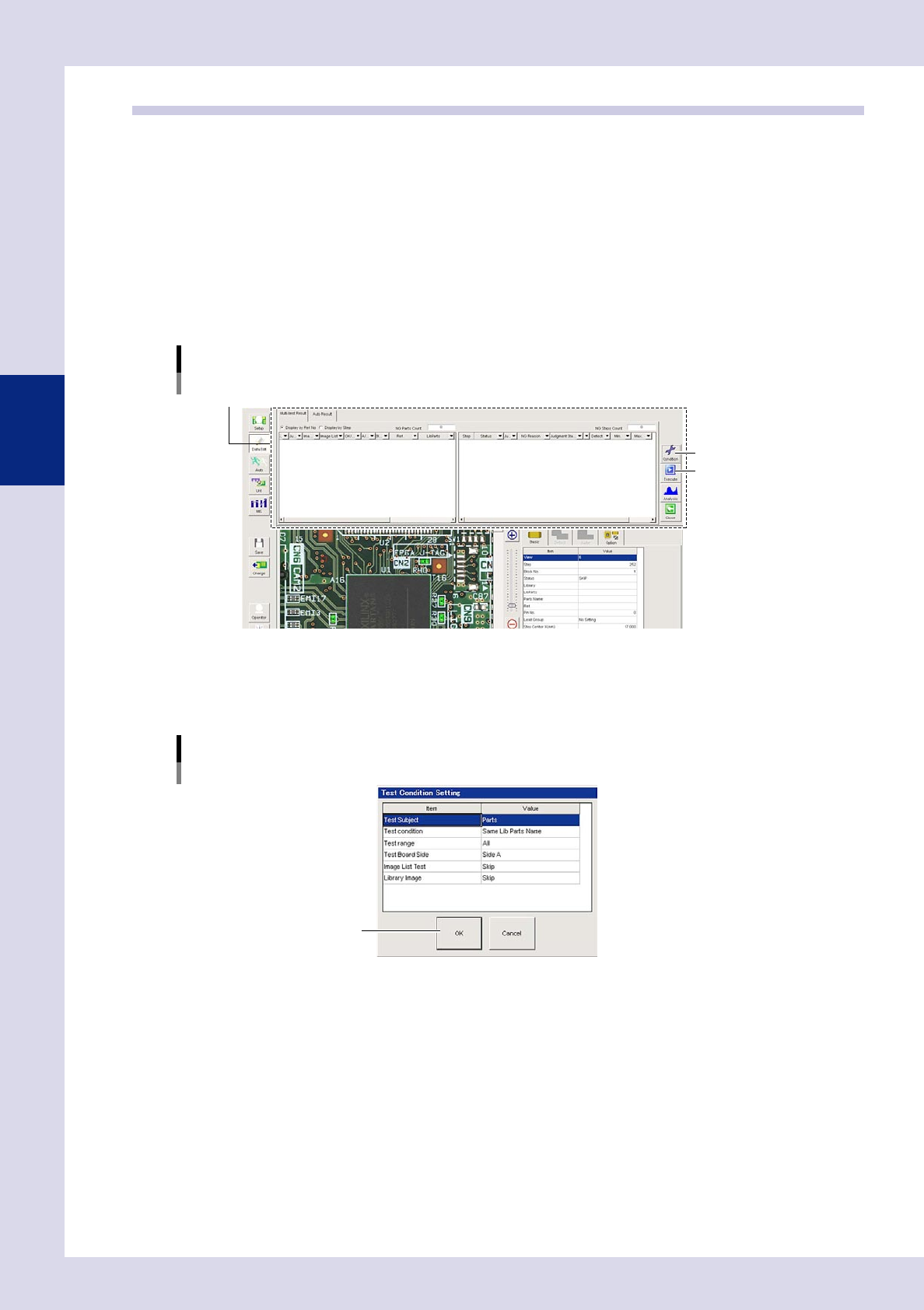
1
Press the [Multi] button at the "Tuning" tab.
A "Multi-test Result" window appears at the top of the screen.
"Multi-test Result" window
[Condition] button
[Execute] button
"Multi-test Result" window
24329-P6-00
2
Press the [Condition] button and set the inspection conditions.
By pressing the [Condition] button, a "Test Condition Setting" dialog box appears. Select each item from
the respective drop-down list boxes, and press the [OK] button when setting is complete.
"Test Condition Setting" dialog box
[OK] button
24330-P6-00
Test Subject
Step : Tests all steps.
Inspection Status : Tests steps for the selected inspection status.
Parts : Tests steps for the selected parts.
NG Reason : Tests steps with selected NG reason.
Test condition
All : Tests all steps.
Same Lib Parts Name : Tests steps with same selected Lib parts name.
Same Parts Name : Tests steps with same selected parts name.
Same Ref. No. : Tests steps with same selected Ref. No.
3-25
3
Step screen
Test range
All : Tests all steps.
Only Piece of Board : Tests steps in individual boards of the selected multi-board panel No.
Only Selected View : Tests steps in the selected view.
Only Selected Parts : Tests steps for the selected part.
Test Board Side (YSi-X)
Performs a test based on the "A/B Side" setting in the basic parameters.
Side A : Tests only those steps for which "A/B Side" is set to "Side A".
Side B : Tests only those steps for which "A/B Side" is set to "Side B".
Both : Tests all steps, regardless of the "A/B Side" setting.
Image List Test
Skip : Tests only standard images, and does not test images in the image list.
All : Tests standard images and images in the image list.
Exec OK Parts : Tests standard images and images in the OK image list.
Exec NG Parts : Tests images in the NG image list.
3
Press the [Execute] button to perform a multi-test.
4
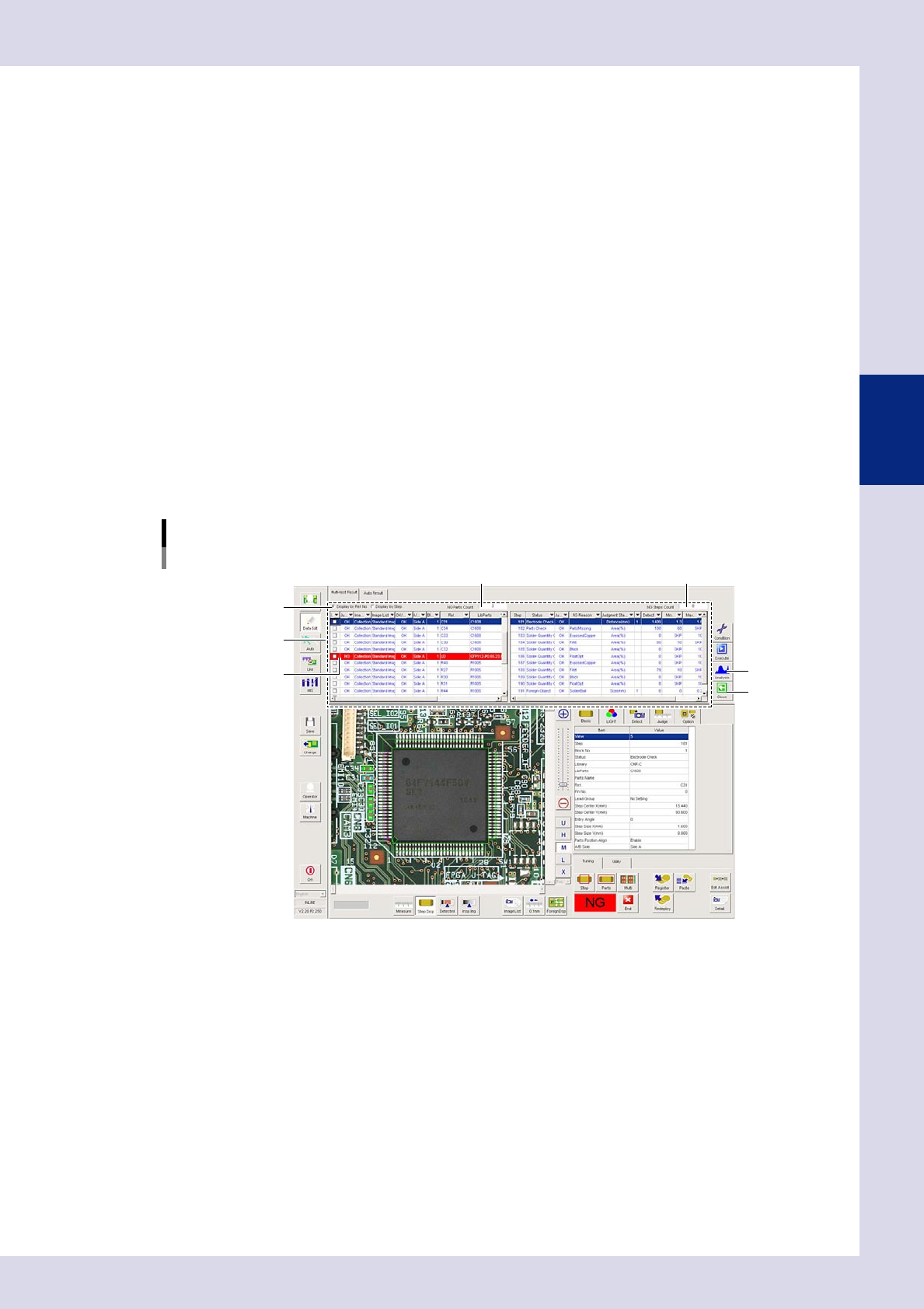
Check the test results.
A list of test results appears when the test is complete, allowing the test results and detection values for
each step to be referenced. Steps with NG result appear in red.
Multi-test results example
Ref. No. unit display
[Close] button
Results list
NG step
[Analysis] button
Changes the display.
NG Parts Count
NG Steps Count
24331-P6-00