YSI_Prog_E.pdf - 第47页
1-12 1 asic operation 1.4.7 "Code Scan" screen T he code scan function is used to read QR Codes and so on affixed to boards to identify boards IDs. Board IDs are used when outputting SPC data, and w hen outpu…
1-11
1
asic operation
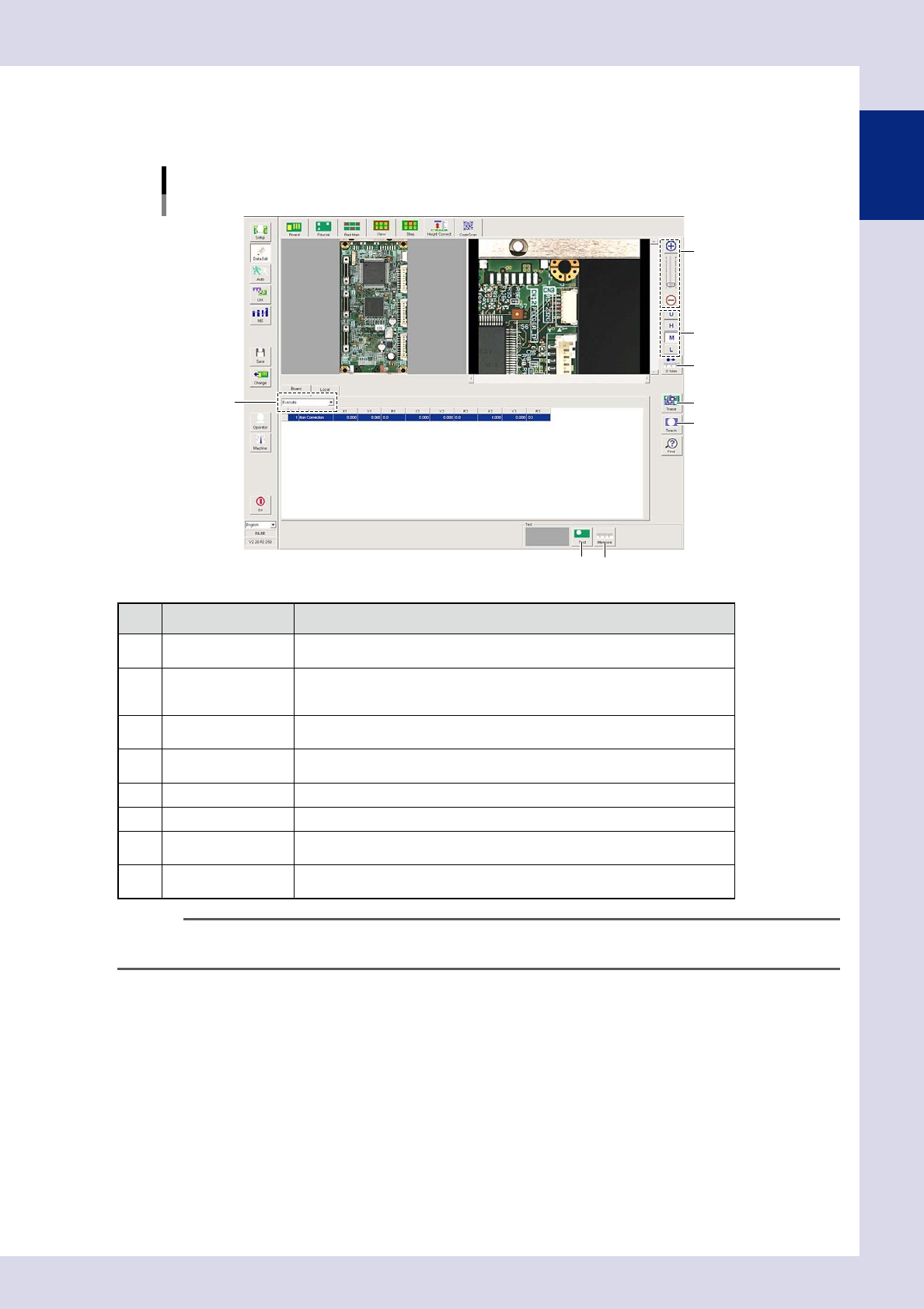
1.4.6 "Height Correct" screen (YSi-X)
Height is measured with a laser height sensor, and height is then corrected in order to perform X-ray inspection
correctly.
[Data Edit] – [Height Correct] screen
2
3
4
5
6
7
1
8
24111-P6-00
Item/button name Function
1 Board/Local
The unit for enabling the height correction function can be selected from board
or local.
2 Image size change
+ : Enlarges the height correction image.
- : Reduces the height correction image.
The image can also be enlarged and reduced by rotating the mouse wheel.
3 Change lighting
Changes the code scan image lighting. Select the lighting that results in the
clearest mark image from U, H, M, and L.
4 0.1mm
Pressing this button changes the pitch for the camera to move when the arrow
buttons on the scroll bars are pressed. (0.01mm, 0.100mm, 0.500mm, 5.000mm)
5 Trace Moves the camera to the mark list XY coordinates.
6 Teach Registers the current coordinates as the position coordinates.
7 Test
By pressing this button, the height of the position selected in the list is measured
and then displayed in the upper right screen.
8 Measure
Pressing this button and moving the mouse to the upper right screen displays
the XY coordinates and height.
TIP
Height correction performed locally becomes valid in view units, and is set in the "Height correct" field in the "View"
screen view data.
1-12
1
asic operation
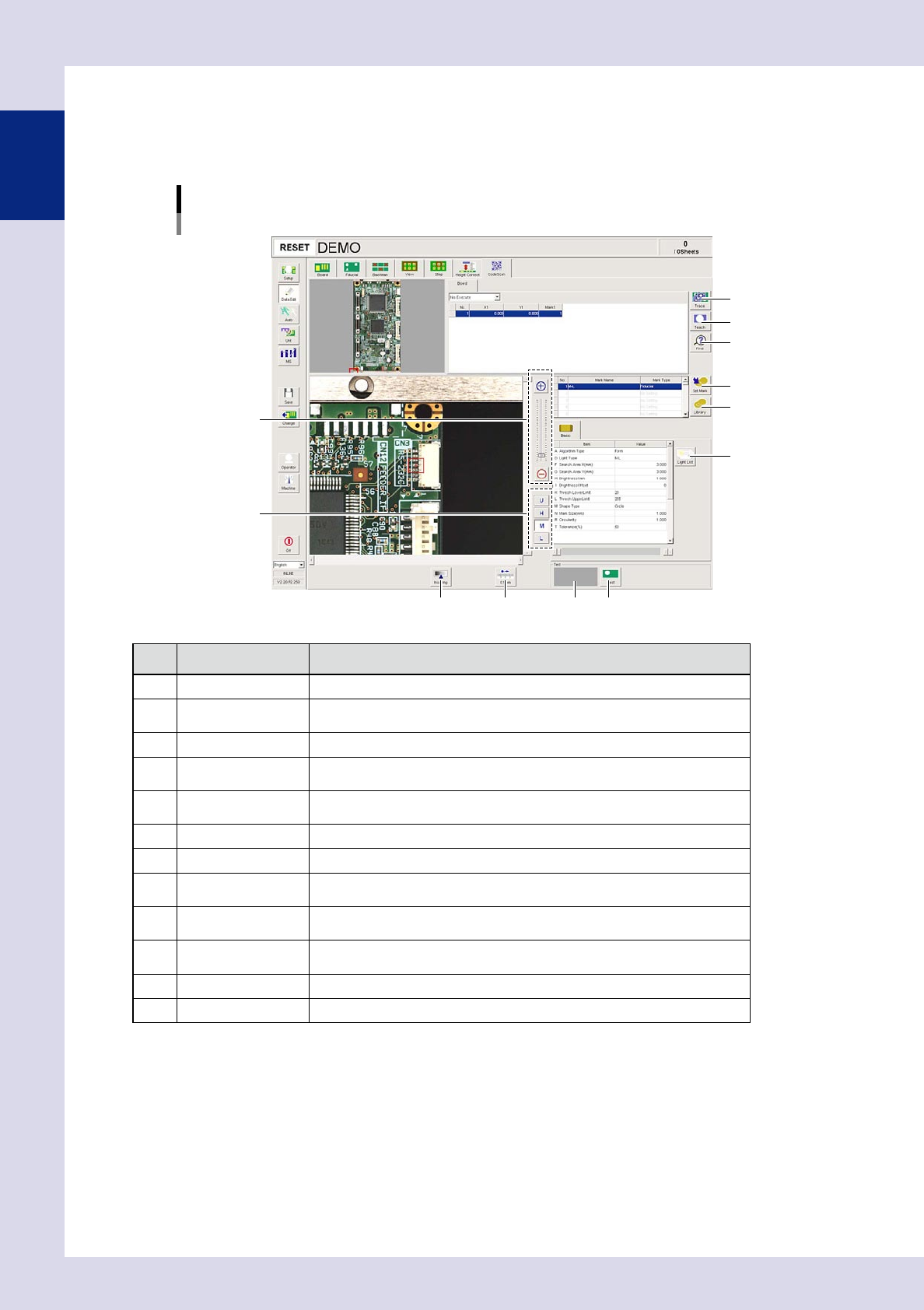
1.4.7 "Code Scan" screen
The code scan function is used to read QR Codes and so on affixed to boards to identify boards IDs. Board IDs
are used when outputting SPC data, and when outputting results to the Repair Station (option).
This screen allows you to set and edit code scan conditions.
[Data Edit] – [Code Scan] screen
2
3
6
5
1
4
7
8
12109
11
24112-P6-00
Item/button name Function
1 Trace Moves the camera to the mark list XY coordinates.
2 Teach
The center of the recognized mark is registered as the fiducial position
coordinates.
3 Find Searches for and replaces items registered in the mark list.
4 Zoom
+ : Enlarges the code scan image.
- : Reduces the code scan image.
5 Change lighting
Changes the code scan image lighting. Select the lighting that results in the
clearest mark image from U, H, M, and L.
6 Set Mark Registers the selected mark in the library.
7 Library Sets the mark information registered in the library.
8 Light List
Displays a list with the mark image illuminated under each lighting, allowing the
operator to select the most suitable lighting from the list.
9 Insp Img
Displays the code scan image captured with the lighting used to perform
inspection in the code scan position.
10 0.1mm
Pressing this button changes the pitch for the camera to move when the arrow
buttons on the scroll bars are pressed. (0.01mm, 0.100mm, 0.500mm, 5.000m)
11 Result display Displays the code scan test results.
12 Test Performs the code scan test.
1-13
1
asic operation
1.5 Auto inspection screen
Press the [Auto] button to perform automatic board inspection.
This section describes the screen items and buttons that appear when the [Auto] button is pressed.
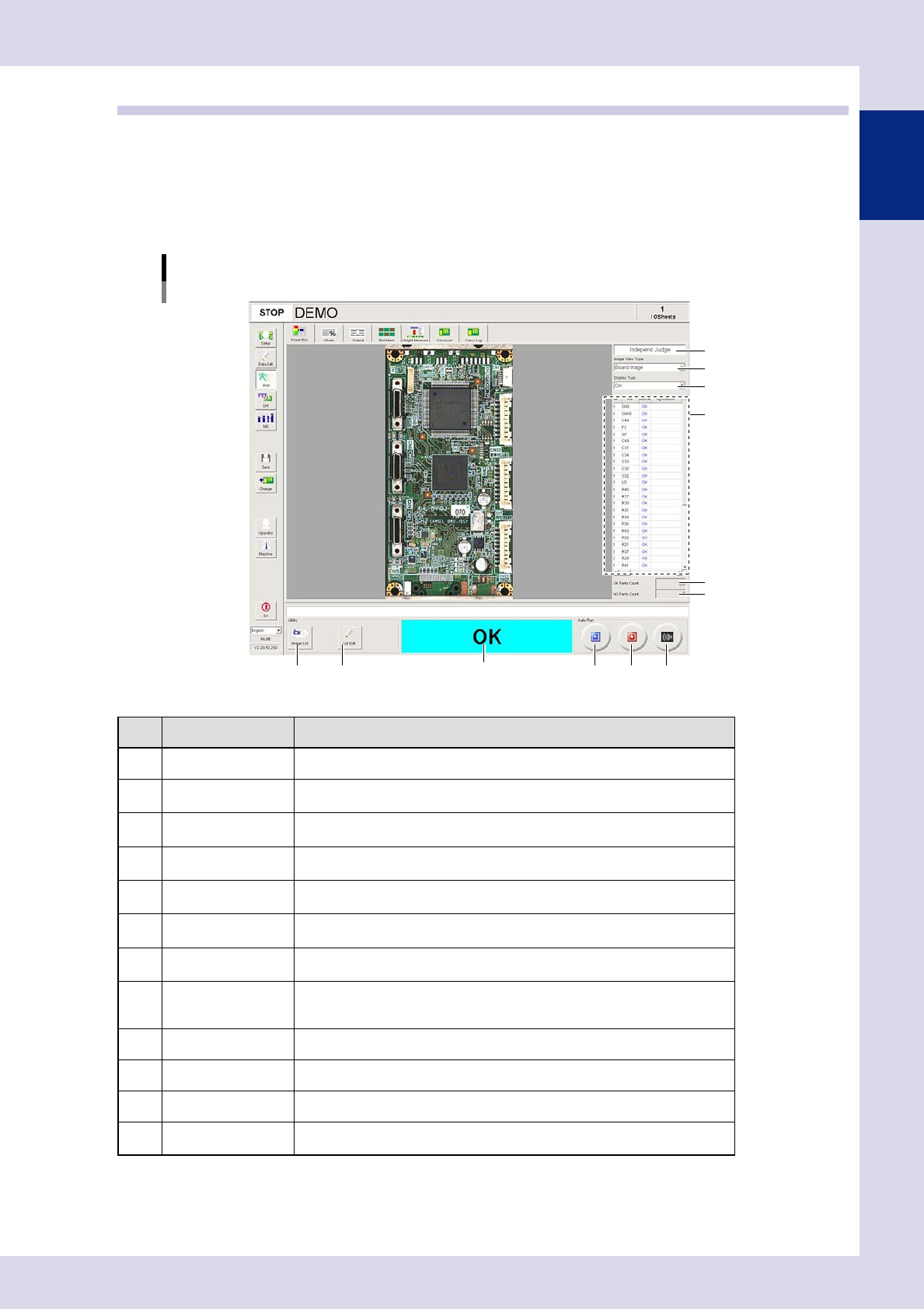
1.5.1 "Inspection" screen
This screen allows you to perform and stop automatic inspection. Inspection judgment information is also
displayed.
[Auto] – [Inspection] screen
2
4
5
1
912 10
6
3
7 8
11
24113-P6-00
Item/button name Description
1 Judgment Mode Displays optional software used to send inspection results to the Repair Station.
2 Image View Type
Selects and displays the image display. Select the display type from the
drop-down list.
3 Display Type
Selects and displays the inspection results displayed in the results details list.
Select the display type from the drop-down list.
4 Rsult detail
Displays inspection steps for the inspection results specified in "Display Type".
(No steps are displayed if the no Ref. Nos. have been set for the steps.)
5 OK Parts Count
The number of parts for which an OK inspection result was obtained is
displayed.
6 NG Parts Count
The number of parts for which an NG inspection result was obtained is
displayed.
7 Image List
Inspects images saved to the inspection program. Pressing this button displays
an "Image list" screen. Select an image and then press the [Select] button.
8 Lot Edit
This button appears when "Use" is set in "Server Settings"
→
"Lot Unit
Management" in the machine settings. Pressing this button displays a "Lot input"
screen, allowing the lot No. and production quantity to be edited.
9 Run Starts the inspection.
10 Stop Stops the inspection.
11 Buzzer off Stops the buzzer.
12
Inspection result
display field
Displays the board inspection result.