KE2040Instruction Manual Ver2.01,REV04.2003.6.25.pdf - 第277页
4 – 167 − Primar y Secondary Select which side to be used mainly in Non-S top oper ation mode, fr ont or rear . • Front to Rear: The system performs PWB production with the front side mainly , and uses the rear side when…
4 – 166
(7) Non-stop operation
You can use the Optimization function to specify a station that is to perform the
Non-stop operation. When you use this option, you can replace components
without stopping the current production.
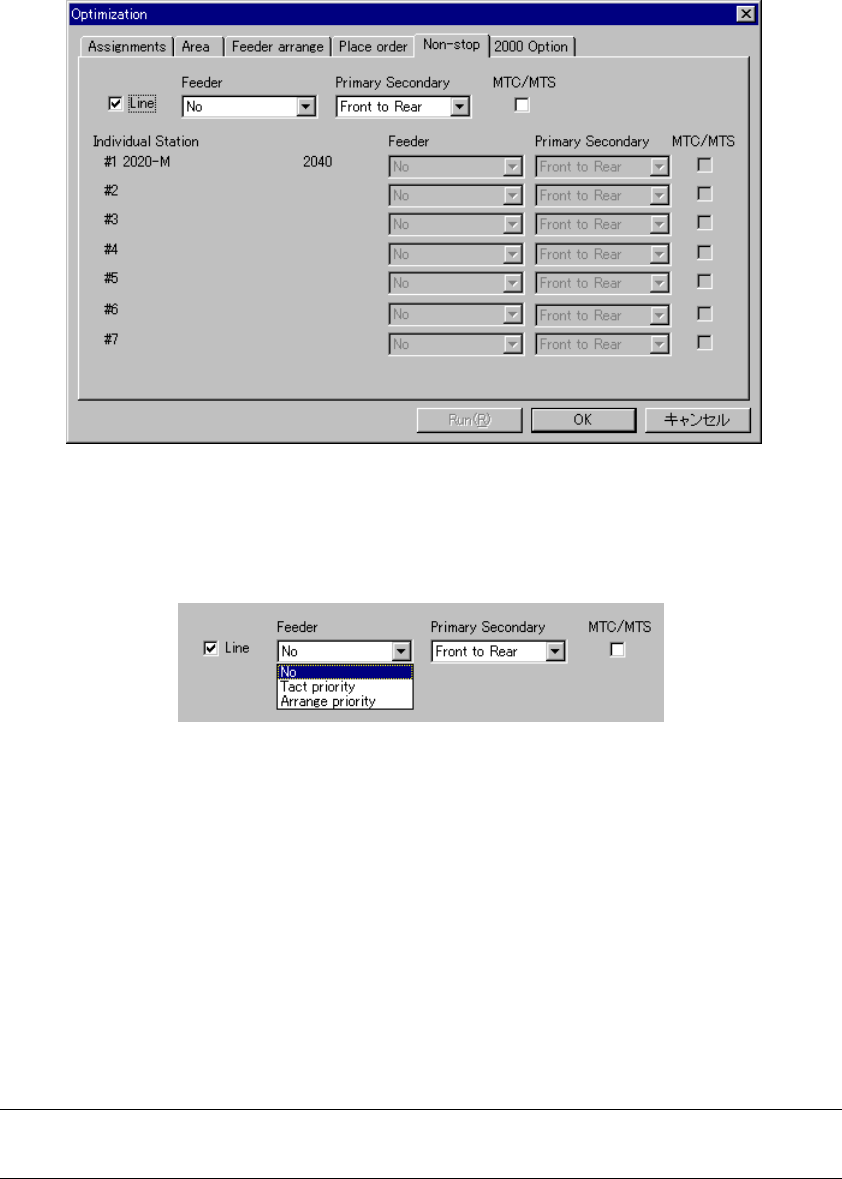
When you select the “Non-stop” tab, the following dialog box appears on the
screen.
Figure 4.10.1.17 “Non-stop” option tab
− When you check the check box “Line”, you can specify the Non-stop operation.
Figure 4.10.1.18 Specifying the Non-stop operation
− Feeder
Set the Non-stop operation of a feeder.
• No: The Optimization utility does not perform the Non-stop
operation.
• Tact priority: The Optimization utility assigns components with considering
the tact first.
• Arrange priority: The Optimization utility assigns components with considering
the feeder changeover first.
When you select “Arrange priority” with a KE-2020, an error occurs if the
system executes the line coherence check.
4 – 167
− Primary Secondary
Select which side to be used mainly in Non-Stop operation mode, front or rear.
• Front to Rear: The system performs PWB production with the front side mainly,
and uses the rear side when you replace components.
• Rear to Front: The system performs PWB production with the rear side mainly,
and uses the front side when you replace components.
− MTC/MTS
Select whether to allow an MTC and MTS to perform the Non-stop operation or
not.
4 – 168
4.10.2 Divided Placement Data
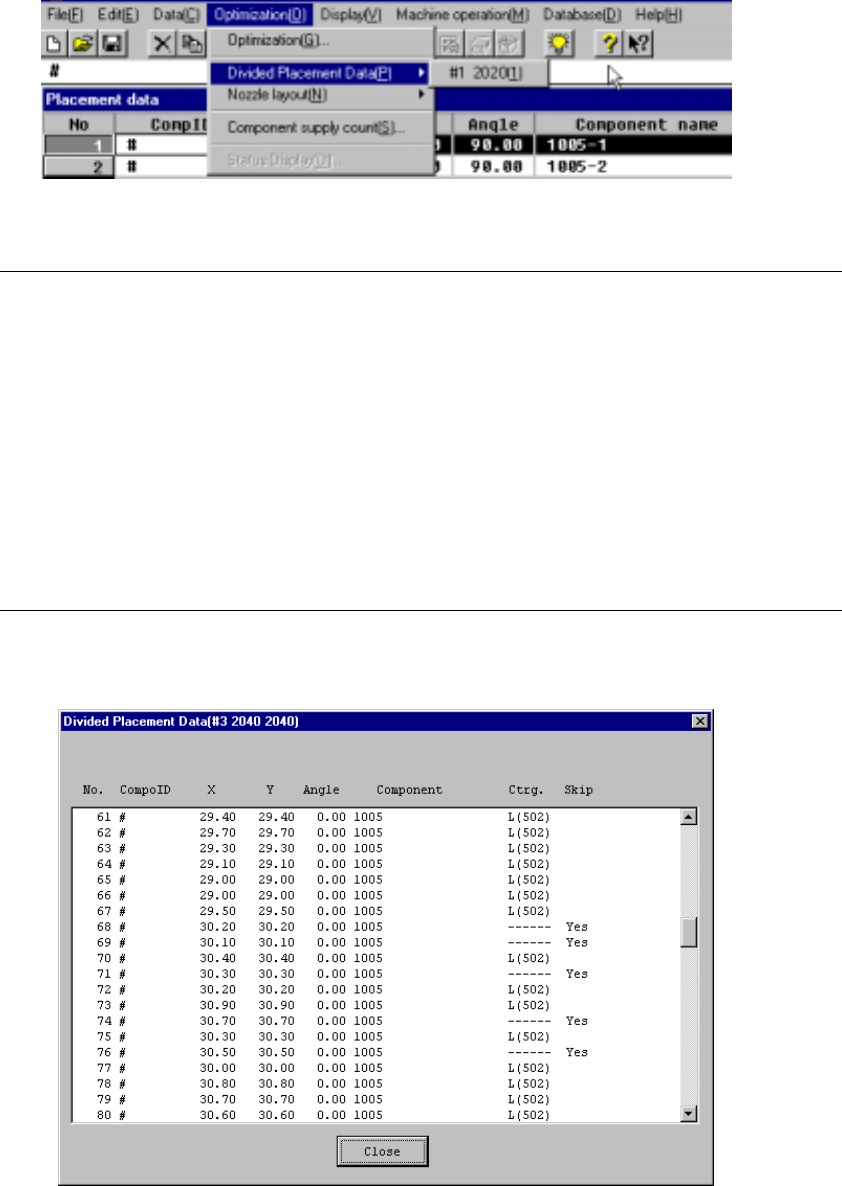
This command displays Placement data which is distributed to each station by the
Optimization utility. Select the menu command [Divided Placement Data] from the
“Optimization” menu. A submenu from which you can select stations displays. Select
a station whose data is to be displayed.
Figure 4.10.2.1 Divided Placement Data selection menu
Notes:
①
This menu cannot be selected if optimization has not been performed
(the divided files do not exist), or if the production program has been
changed after optimization.
②
The system can display Divided Placement data in two orders: input
order and optimization order. Select the menu command [File], and then
[Environment setting] command on the “File” menu to select the order.
•
When you select the input order, the system displays all Placement
data in input order.
•
When optimization order is selected, data on a component to be
placed only is displayed in the optimized placement order as the
result of optimization.
When you select a station on the station selection dialog box, the corresponding
window appears on the screen as shown below.
Figure 4.10.2.2 Divided Placement Data Display Example (input Order)