KE2040Instruction Manual Ver2.01,REV04.2003.6.25.pdf - 第430页
5 − 86 3) Mark element A mark element is indicat ed as a dotted line circle or rectang le. Fig. 5.2. 4.6.4-3 Example of Mark Element Screen Display 4) Side element A side element is indicated as a r ed line. Fig. 5.2. 4.…
5 − 85
5.2.4.6.4 Example of “Component Viewer” Screen by Element Type
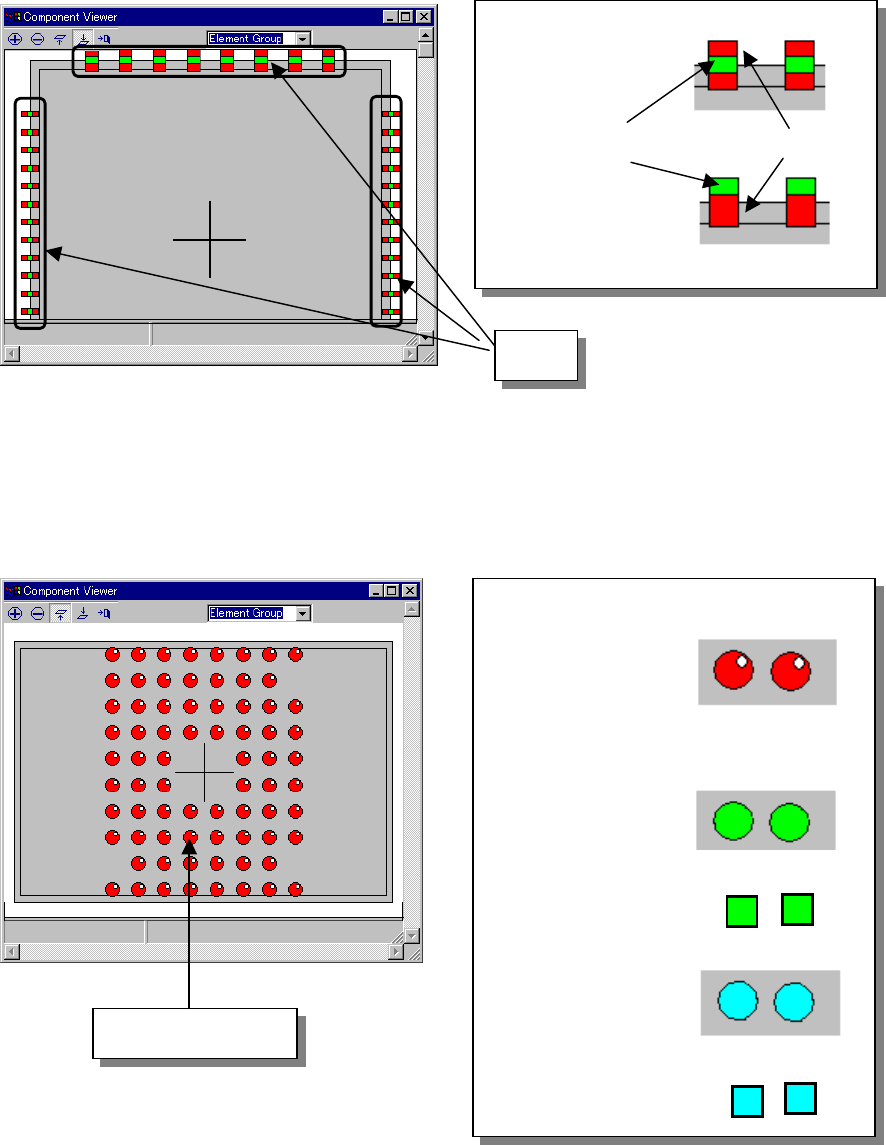
1) Outer lead/inner lead element
Leads are represented in rectangular form. A component shape is displayed
with dimensions including the lead length.
Fig. 5.2.4.6.4-1 Example of Outer Lead Element Screen Display
2) Ball, land, and column elements
Balls, lands, and columns are indicated as circles painted in different colors.
Fig. 5.2.4.6.4-2 Example of Ball Element Screen Display
◇Outer lead:
A green spot exists
in the center of the
red rectangle.
◇Inner lead:
A green spot exists
at the end of the
red rectangle.
Lead
Green
◇Ball:
Red circle
(painted). A white
spot exists in the
upper right part so
as to be
represented in
three dimensions.
◇Land:
Lands are indicated
as green circles or
rectangles.
◇Column:
Columns are
indicated as light
blue circles or
rectangles.
Or
Or
Ball, land or column
Red
5 − 86
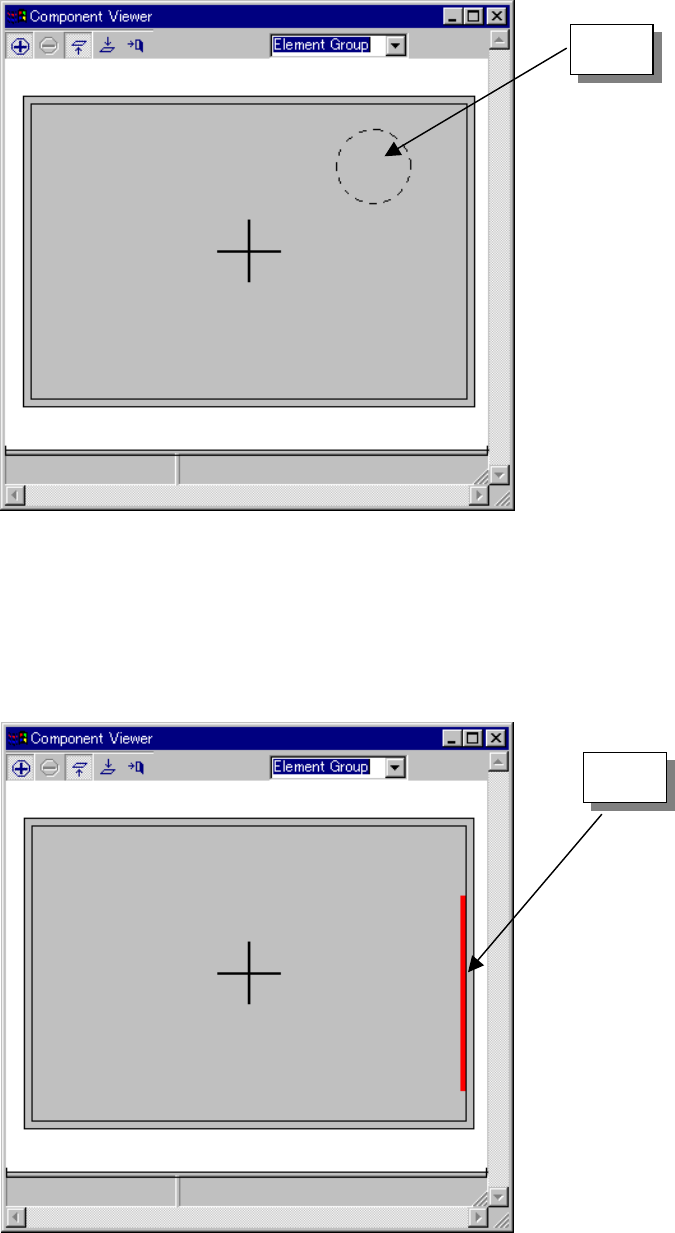
3) Mark element
A mark element is indicated as a dotted line circle or rectangle.
Fig. 5.2.4.6.4-3 Example of Mark Element Screen Display
4) Side element
A side element is indicated as a red line.
Fig. 5.2.4.6.4-4 Example of Side Element Screen Display
Mark
Side
5 − 87
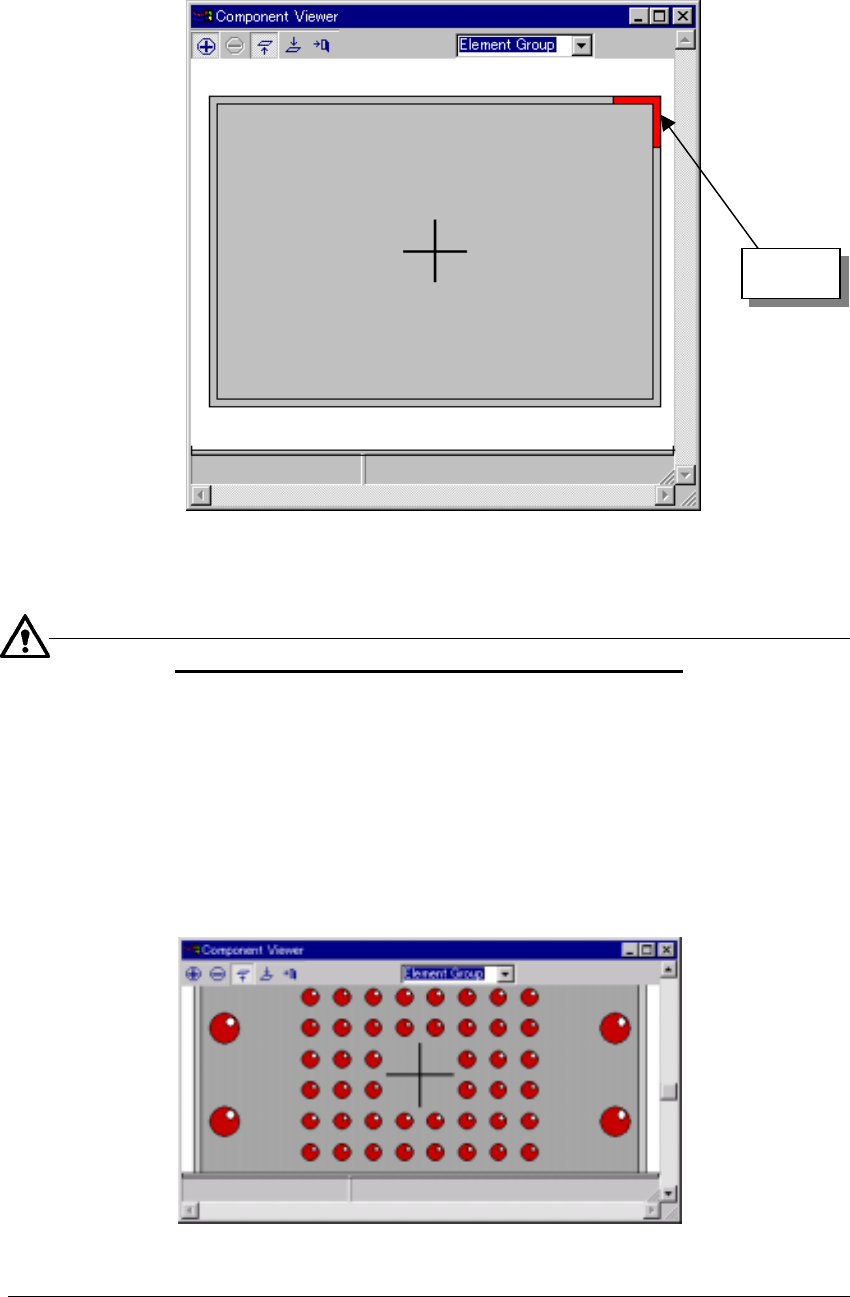
5) Corner element
A corner element is indicated in red.
Fig. 5.2.4.6.4-5 Example of Corner Element Screen Display
Resizing the “Component Viewer” dialog screen
The “Component Viewer” screen can be resized. Even if the screen is resized, the
dimensions of the displayed component remain without change.
− In the status where the scroll bar is displayed by zooming in the component,
resize the screen. When the screen is enlarged, the component in a larger
range can be seen.
− When the screen is contracted, a part of the component may be invisible.
− Resize processing changes the screen size on the basis of the center of the
currently displayed screen.
Fig. 5.2.4.6.4-6 Example of Resize Display Screen
Corner