KE2040Instruction Manual Ver2.01,REV04.2003.6.25.pdf - 第94页
3 − 18 3.5.4 Machine setup local menu File [F] Setting Group [G] Disp [V] Help [H] Registered nzl . no table [L] Read Nzl. data [R] Exitin g [X] A TC nozzle setup [ A] V acuum value without pos ition [ U] Reference pin p…
3 − 17
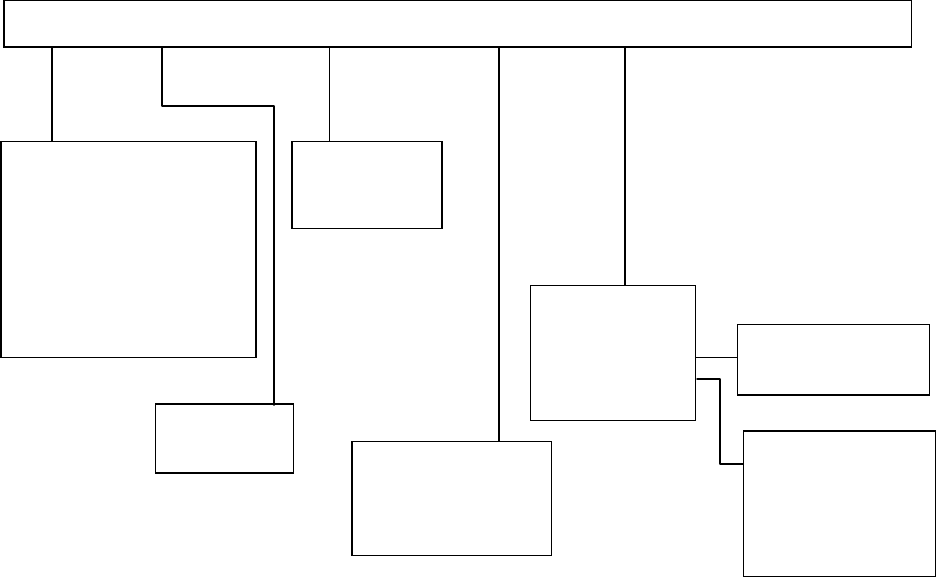
3.5.3 Production local menu
Toolbar [T]
Status Bar [S]
Open [O] Ctrl + O
Over write Save [S] Ctrl + S
Save as [A]
Print [P] Ctrl + P
Print prev [V]
Print set up [R]
Save Machine Data
Exit [X]
PWB production
Trial
Dryrum
Production status
Production Conditions
Management Info
Production Info
Unplaced list
Supplier information
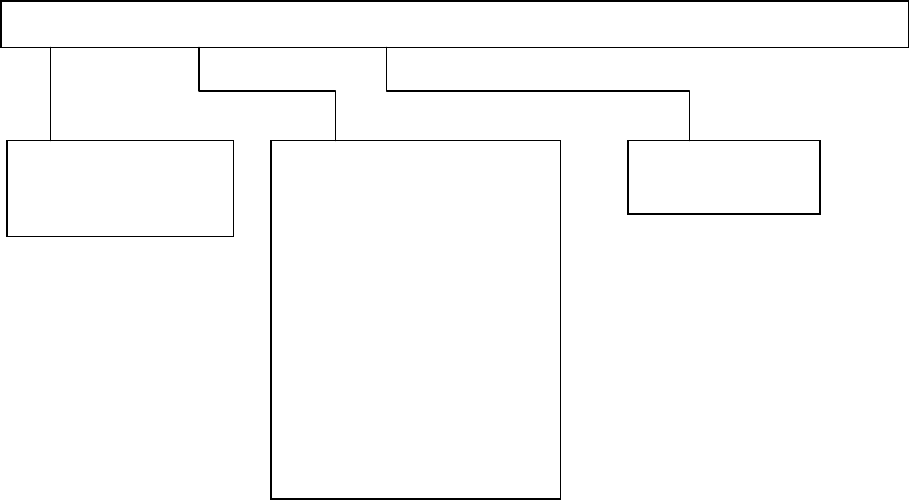
File [F] View [E] Production conditions [P] window [W] Tool [T]
Parts no. set up
Operation option
Retry List
Check
Edit Data
Verify Current check
Verify all check
SOT Current check
SOT all check
Laser check
3 − 18
3.5.4 Machine setup local menu
File [F] Setting Group [G] Disp [V] Help [H]
Registered nzl. no table [L]
Read Nzl. data [R]
Exiting [X]
A
TC nozzle setup [A]
Vacuum value without position [U]
Reference pin position [R]
Shape clamp position [F]
MTC shuttle pick position [P]
MTS position offset [O]
Component scrap position [T]
IC conveyor belt position [I]
Head Wait Position [W]
Device enable[D]
Multi-station line [L]
PWB conveyor [C]
Signal light [S]
Bad mark sensor teaching [B]
Tool bar [T]
Status bar [S]
3 − 19
3.6 File Operation
This section describes how to operate a production program file.
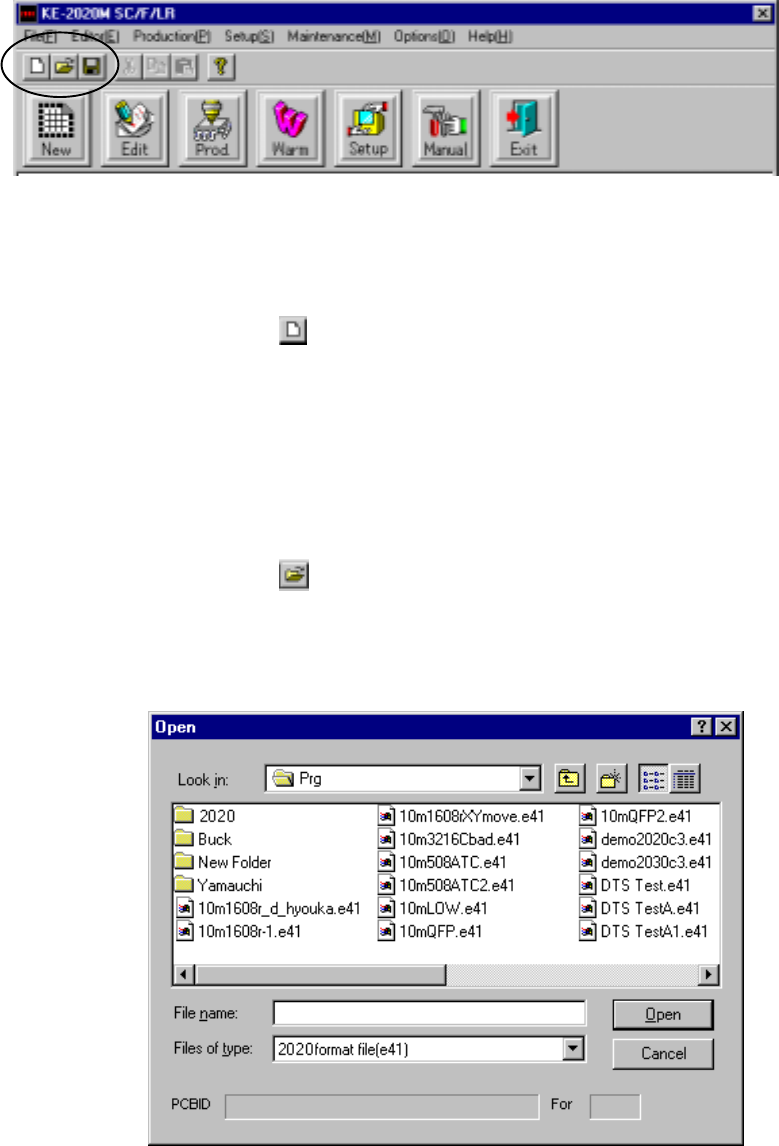
3.6.1 Create New
Operation 1: Select the [File] command on the menu bar, then [Create New]
command on the File menu.
Operation 2: Select the
button on the tool bar.
This operation clears production program data.
3.6.2 Open
Operation 1: Select the [File] command on the menu bar, then [Open] command on
the File menu.
Operation 2: Select the
button on the tool bar.
This operation selects a production program, then loads it to the system.
Figure 3.6.2 File load dialog box
)