KE2040Instruction Manual Ver2.01,REV04.2003.6.25.pdf - 第440页
5 − 50 3-2. Detailed descr iption of each set ting it em Setting item Description Elem ent group Name Ent er up to 32 alphanum eric c haract ers to as sign an elem ent group nam e. Y ou can om it thi s set ting it em. W …
5 − 49
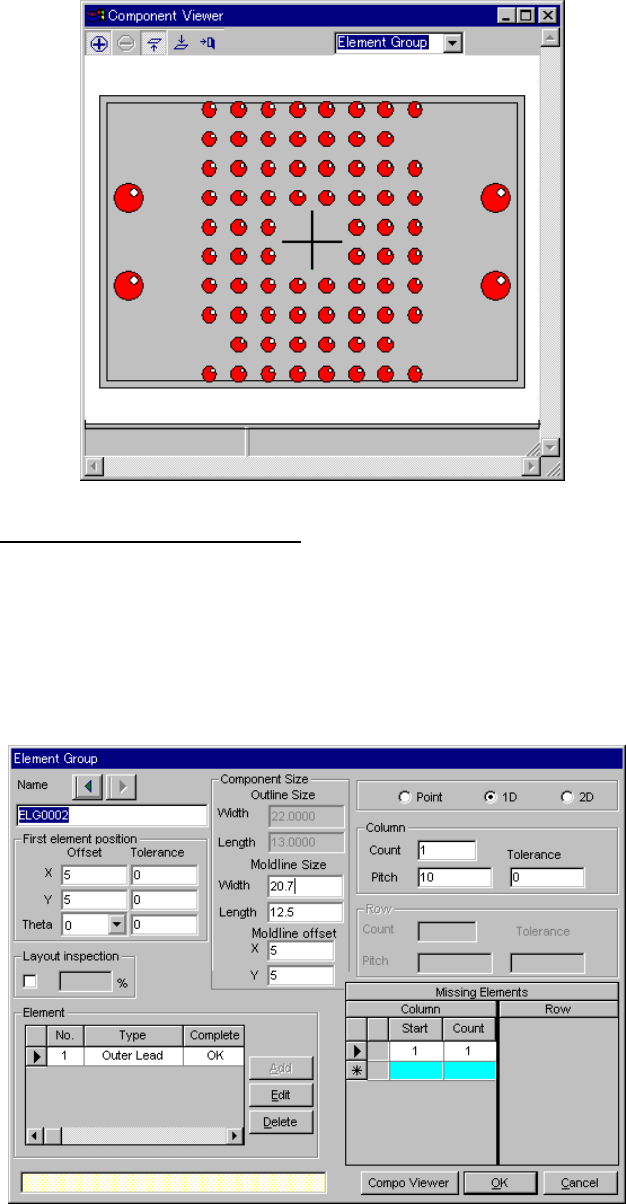
After data is completed, press the OK button. The editing screen reappears.
The following dialog is displayed by pressing “Component Viewer”. How to
use “Component Viewer” is described in “5.2.4.6 Component Viewer”.
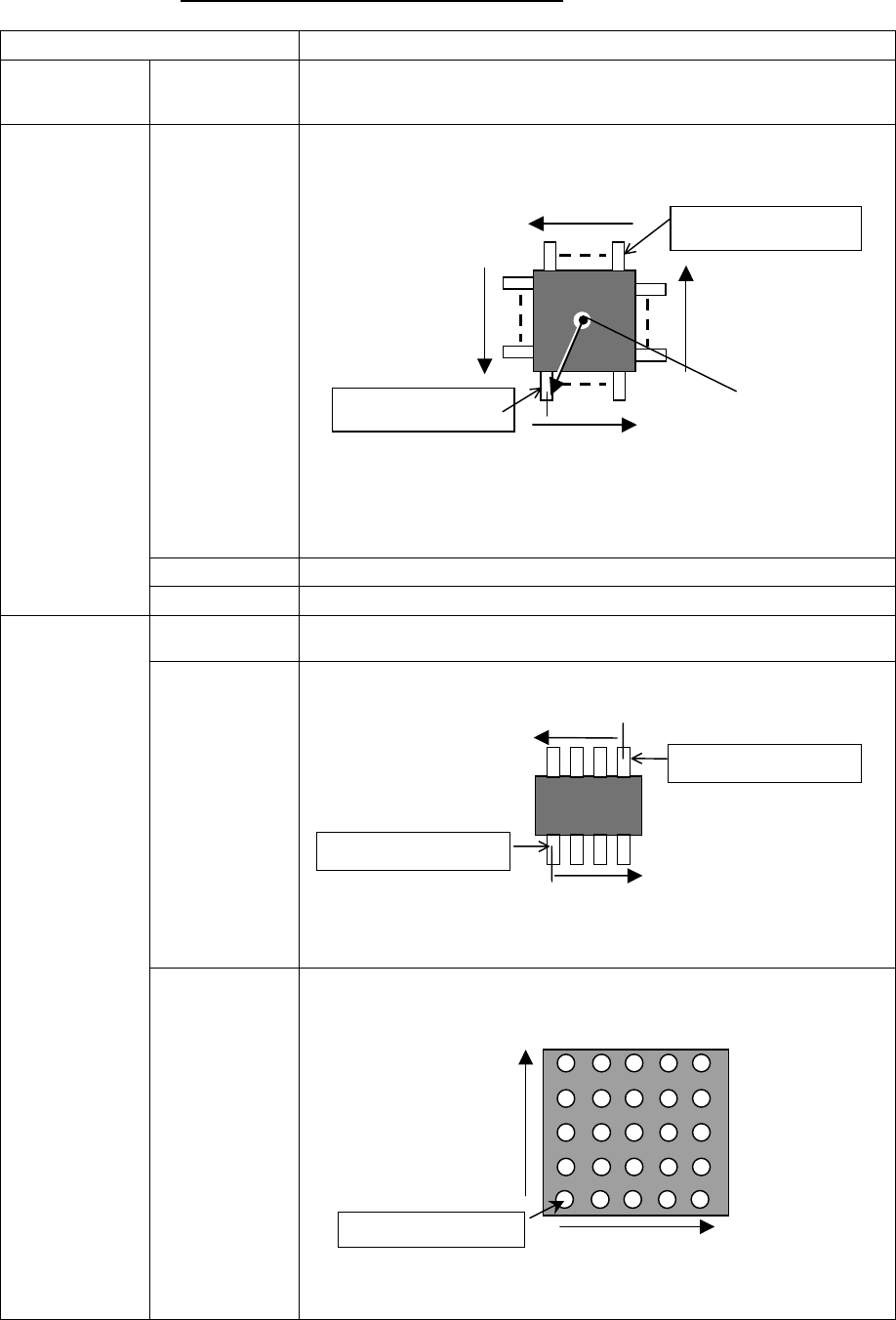
3.1 Element group/Element format
This screen allows you to group components whose lead (ball) pitch, lead
length or ball diameter is the same as each other, and create or edit data
on a group.
- Up to 20 element groups can be defined.
- When you check the “Element group/Element format” check box and
click the <Add> or <Edit> button, the following screen appears.
5 − 50
3-2. Detailed description of each setting item
Setting item Description
Element group Name Enter up to 32 alphanumeric characters to assign an element group name. You
can omit this setting item. When omitted, “ELGxxxx” is assigned to an element
group, where xxxx is a four-digit integer automatically obtained.
Offset
(X, Y, Z, Theta)
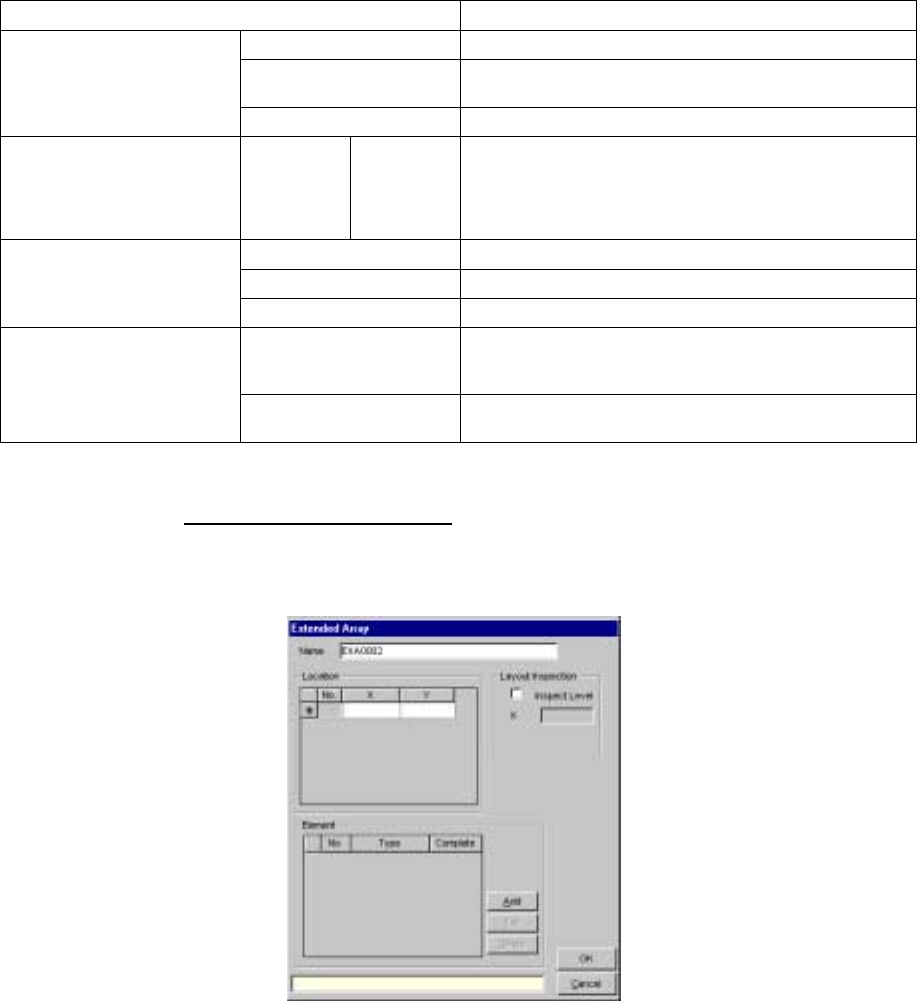
Enter the coordinate of the center (or ball center for a ball component) of the
reference lead (reference element) end with being viewed from the center of a
component.
Note that when you select “2D” as the “Dimension”, enter “0” to the “Theta” field.
You cannot enter any other value here. The center of a component is normally
that of the outline of the component.
Tolerance Enter the allowable offset coordinate range.
First element
position
Layout inspection Set the level used for checking an element layout error (default: 20 %).
Point (Side,
corner, mark)
Select this radio button if you set only one lead (ball) to be checked.
1D (lead) Select this radio button if you set leads arranged in a column to be checked.
Dimension
2D (Ball, Land) Select this radio button if you set leads (balls) arranged in a row and column to be
checked.
Center of a
component
Reference element
Reference element
Arrangement direction (0 degrees)
(90°)
(270°)
(180°)
Arrangement direction
Reference element
Arrangement direction
TOPVIEW
Reference element
Reference element
Arrangement direction of
arow
BOTTOMVIEW
Arrangement direction of
a column
5 − 51
Setting item Description
Count Set the number of leads (balls) to be checked.
Pitch Set the distance between two consecutive leads (balls) to be
checked.
Column, Row
Tolerance Enter the allowable pitch range. (Not used)
Missing Elements Column,
Row
Start,
Count
Set the missing leads (balls) to be checked.
Up to four blocks of missing leads or balls can be set per
column/row.
Set blocks from a block of missing leads/balls nearest the
reference lead (ball).
Add Sets a new reference element.
Edit Allows you to edit an element already set.
Element
(Only one element can be set
for an element group.)
See Section 3-5 “Element”.
Delete Deletes an element.
OK Registers data then displays the “Extended Vision” screen,
where the registered data appears on the “Element Group
List”.
Cancel Cancels your entering/editing, then displays the “Extended
Vision” screen again.
3.3 Extended array data format
When you check the “Extended array data format” check box, and click
the <Add> or <Edit> button, the following screen appears.