KE2040Instruction Manual Ver2.01,REV04.2003.6.25.pdf - 第681页
8 − 37 8.2.2.10. 4 VCS Device enable W hen you select the [VCS Device enable] tab, the “ VCS Device setting” dialog box appears on the screen as shown in Figure 8. 2.2.10. 4. Figure 8.2.2. 10.4 VCS Device enable setting …

8 − 36
(3) Production operation
Table 8.2.2.10.3 Placement when set to “Unused”
No. Unit Production operation
1 Stops by detected
feeder float
The XY speed becomes slower when the sensor detects feeder floating while
the XY axe are moving.
When the sensor detects feeder floating before the XY axes moves, the
machine asks the operator whether to retry the sensor detection operation.
When the operator selects “Retry”, the sensor reconfirms feeder floating.
When he or she selects “Cancel”, the production is terminated.
2 Bank mark Recognition
(front, rear)
The function is disabled but placement of components is carried out.
3 SOT Inspect Stage You cannot specify the SOT direction check on the tracking menu.
4 Back Master-Bank
[Non-stop]
Places the master bank on the front (“Front” means the front side of the main
unit.).
5 VCS recognition retry The system does not retry to recognize a lead component with the VCS even
though the recognition error occurs due to the difference of gloss that varies
depending on the lot.
Table 8.2.2.10.4 Placement operation to be performed if you check any of the
check boxes of the “Optimization function” group
No. Unit Production operation
1 Disable feeder
optimization
The “Pick Data” option displayed on the dialog box that appears when you
execute the [Optimization] command on the “Optimization” menu of the
Program Editor utility is fixed to “Auto assign all data”. You cannot select
any other option.
2 Disable nozzle
optimization
The “Nozzle” option displayed on the dialog box that appears when you
execute the [Optimization] command on the “Optimization” menu of the
Program Editing utility is fixed to “Use permanent nozzle setup from MSL
Setup”. You cannot select any other option.
8 − 37
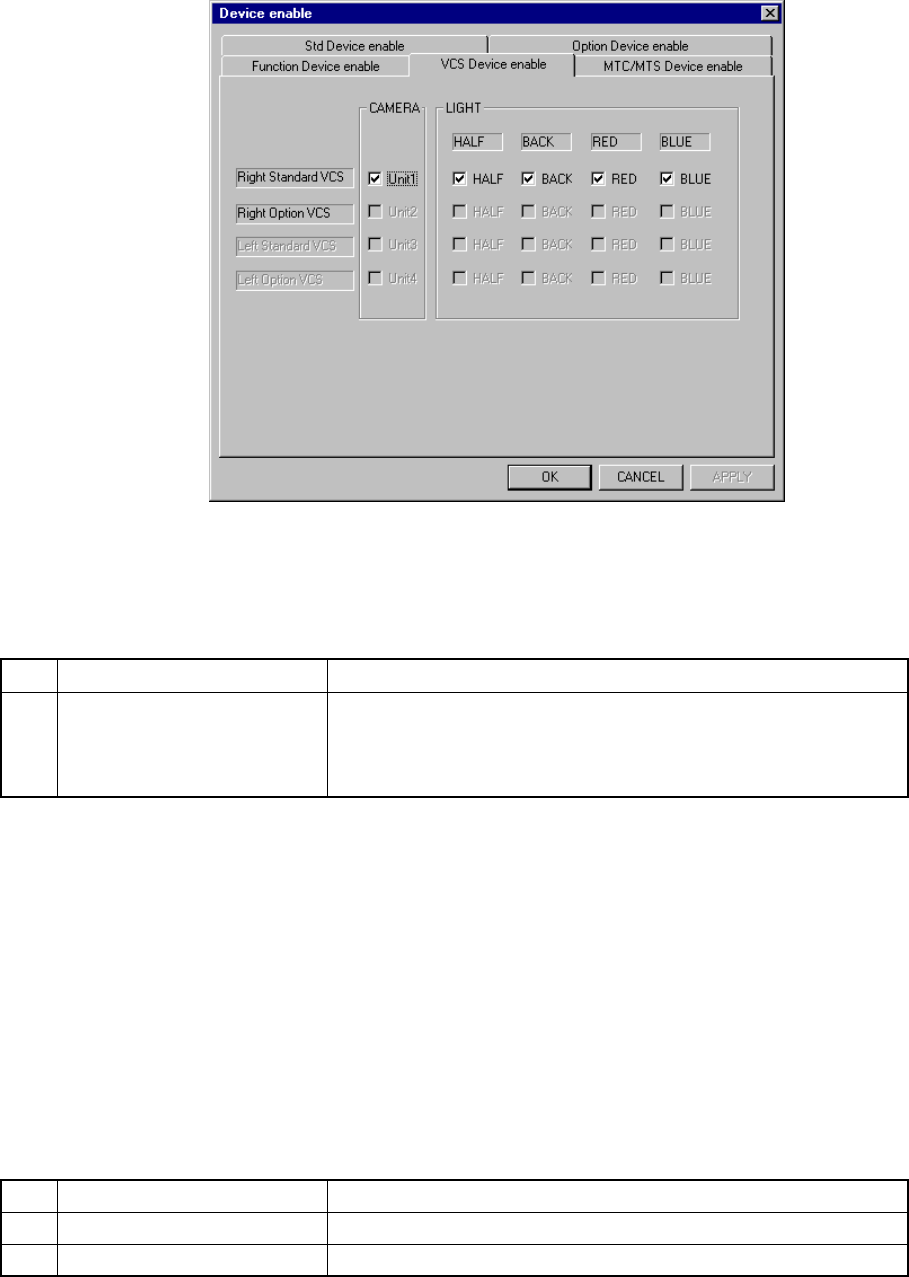
8.2.2.10.4 VCS Device enable
When you select the [VCS Device enable] tab, the “VCS Device setting” dialog box
appears on the screen as shown in Figure 8.2.2.10.4.
Figure 8.2.2.10.4 VCS Device enable setting dialog box
(Screen example when a KE-2020 is used)
(1) Setting items
No. Item Description
1 VCS
Enables or disables an VCS unit.
If a VCS unit malfunctions, disable it on this dialog box. It allows the
machine to pick up/place components on a board without modifying
the production program being used.
If the production program requires the unit above to complete component
placement, Table 8.2.2.10.4 shows whether production is to be performed
actually or not.
(2) Setting the position
- Specify a VCS unit to be used with checking the corresponding check box.
- You cannot select a VCS unit which was not set as an option with the MS
parameter (it is dimmed on the dialog box).
(3) Production operation
Table 8.2.2.10.4 Placement when set to "Unused"
No. Unit Production operation
1 CAMERA A component that is to be recognized with a VCS is skipped.
2 LIGHT A component that is to be recognized with a VCS is skipped.
8 − 38
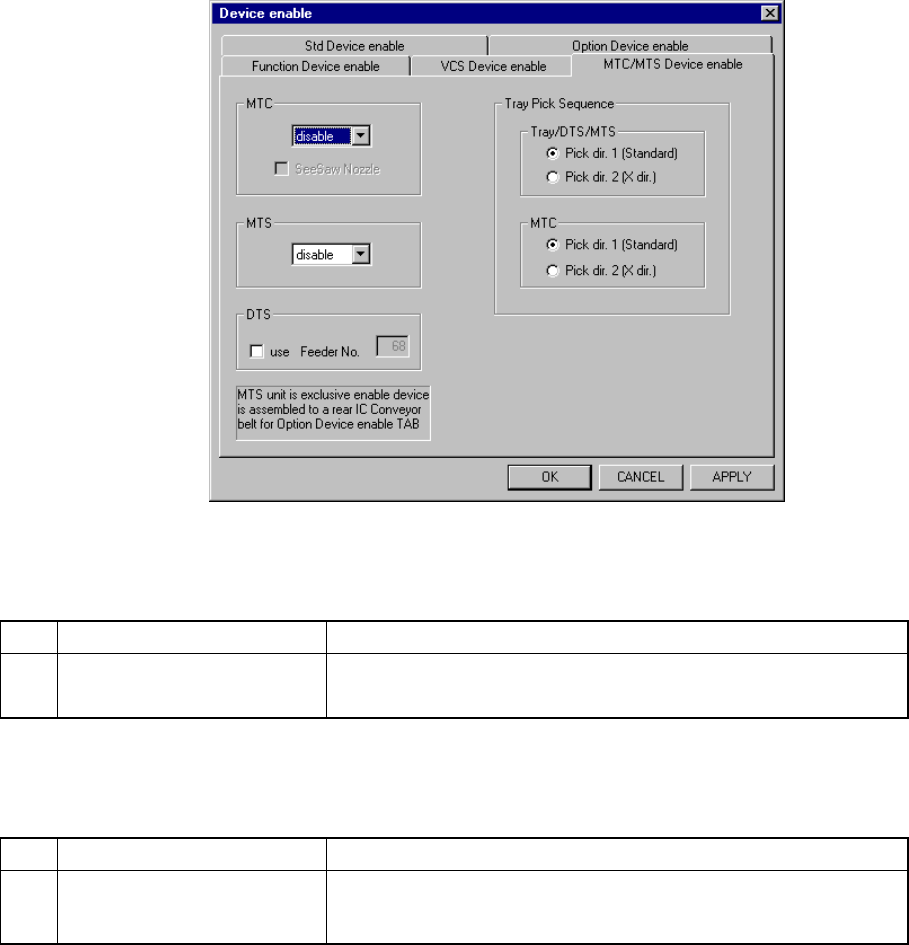
8.2.2.10.5 MTC/MTS Device enable
When you select the "MTC/MTS Device enable" tab, the "MTC/MTS Device enable
setting" dialog box appears on the screen as shown in Figure 8.2.2.10.5.
Figure 8.2.2.10.5 MTC/MTS Device enable setting dialog box
(1) Setting items
No. Item Description
1 MTC/MTS
Enables or disables an MTC/MTS unit.
Set the type of MTS, MTS or DTS to be used here.
If the production program requires the unit above to complete component
placement, Table 8.2.2.10.4 shows whether production is to be performed
actually or not.
No. Item Description
2 Tray Pick Sequence Sets the order tray components are picked up:
sets the direction on which components are to be picked up per
available unit.
If the production program requires the unit above to complete component
placement, see Table 8.2.2.10.6 to check the production operation the system
actually performs.
(2) Setting the position
- Specify the device to be used with the combo box.
- Only when an MTC is equipped with a seesaw nozzle, check the check box
“Seesaw nozzle”
- For a DTS, check the check box "use", then enter the feeder mounting hole
number to the "Feeder No." edit box.
- You cannot connect both the MTC and MTS to the machine at the same
time.