KE2040Instruction Manual Ver2.01,REV04.2003.6.25.pdf - 第397页
5 − 34 4) W hen you select “Edit” on t he pop-up menu The f ollowing “BGA Edit or” appears on t he screen. - Regist er the desired ball patt ern with the BGA edit or . - Up to 70 patterns can be r egistered. - The r egis…
5 − 33
3) When you select “Browse” on the pop-up menu
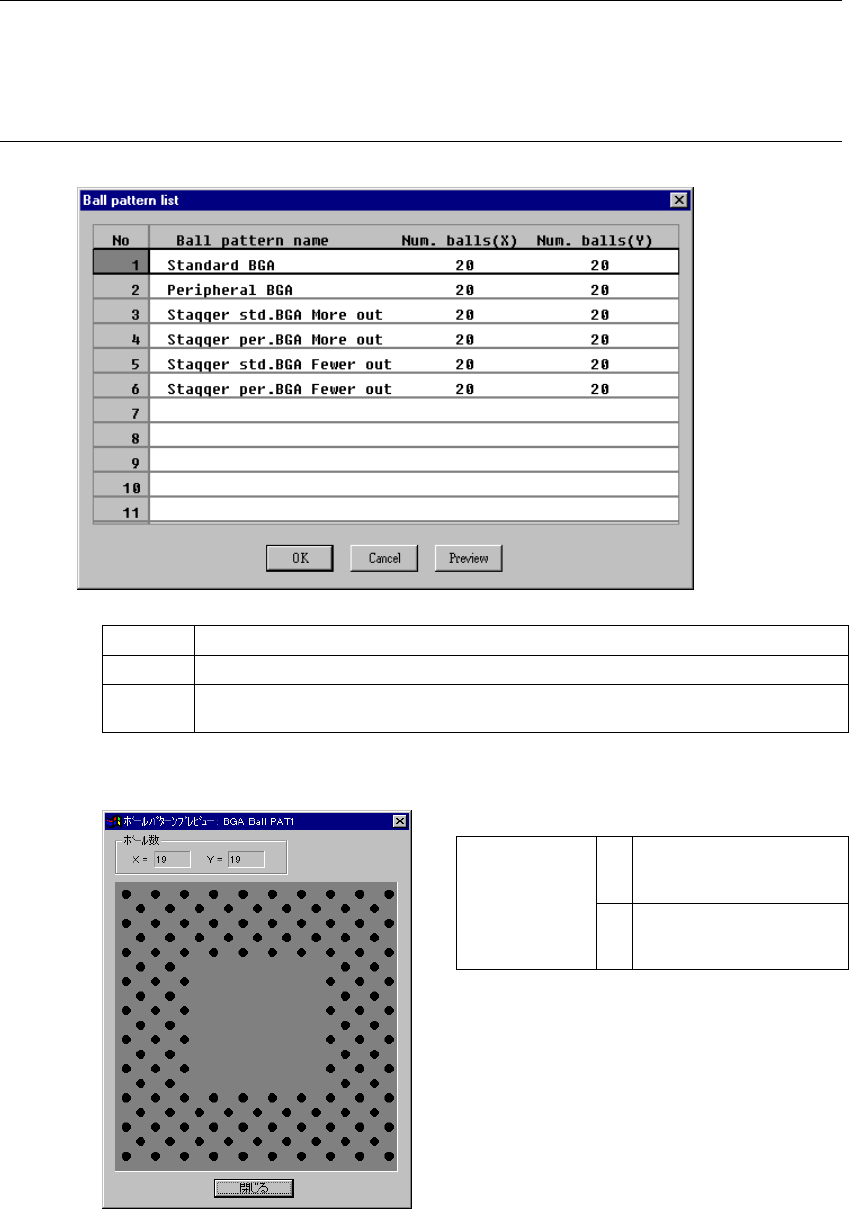
The following “Ball pattern list” dialog box appears on the screen.
[How to set]
In the same manner as when you invoke the database list, double-click a
ball pattern to be set or select a ball pattern, then click the <OK> button.
The confirmation dialog box appears on the screen.
Notes:
①
When you call a ball pattern from the database, call the Component data
(Vision data) on which the ball pattern is set.
②
You cannot directly call a ball pattern only.
OK Sets a ball pattern. After setting the ball pattern, the dialog box shown above closes.
Cancel Cancels setting of a ball pattern, then closes the dialog box.
Preview
This is the ball pattern preview function. When you select a ball pattern and click the
“Preview” command, the selected ball pattern appears on the screen.
• Ball pattern preview dialog example
X Number of ball columns
(Number of balls arranged
in the X direction)
Number of balls
Y Number of ball rows
(Number of balls arranged
in the Y direction)
When you click the <Close> button, the “Ball
pattern list” dialog box reappears on the
screen.
5 − 34
4) When you select “Edit” on the pop-up menu
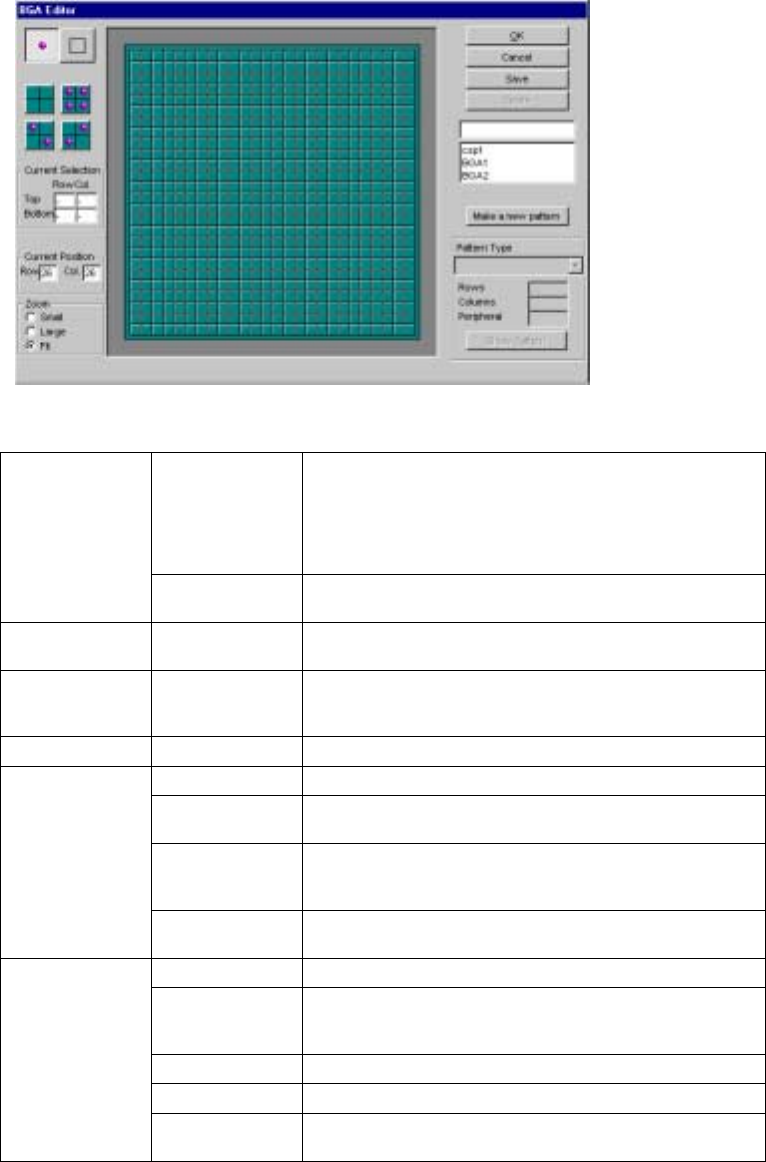
The following “BGA Editor” appears on the screen.
- Register the desired ball pattern with the BGA editor.
- Up to 70 patterns can be registered.
- The registered pattern name is added to the “Ball pattern list” dialog
box.
▼ Description of the BGA editor
Ball/Index When you click the left button of the trackball, it allows you
to create a ball pattern. When you click the left button
again, a ball pattern is cleared.
When you click the right button of the trackball, it allows you
to create an index mark. When you click the right button
again, an index mark is cleared.
Tool box
Rectangle When you move the trackball while holding down the left
button of the trackball, you can arrange balls in a rectangle.
Filling patterns Pattern setting For a solid rectangle pattern, select one of these filling
patterns.
Current
selection
Row, Col.
(Column)
Displays the coordinates of the start and end points of the
area that is selected with a rectangle provided in the Tool
box.
Current position Row, Col. Displays the X- and Y-coordinates of the cursor position.
OK Validates the current pattern editing.
Cancel Cancels the current pattern editing. Note that the
registered patterns will not be cleared.
Save Use this button to save the edited ball pattern.
If you edited a new ball pattern, assign a name to the ball
pattern, then save it.
Buttons
Delete Deletes a registered ball pattern. Select a ball pattern from
the list box to be deleted.
List box Displays the registered ball patterns.
Make a new
pattern
Allows you to create a new ball pattern. When you click
this button, it allows you to enter a ball pattern type in the
“Pattern Type” combo box displayed below this button.
Pattern Type Select a ball pattern type from this combo box.
Rows, Columns Set the maximum number of balls.
Ball pattern
Peripheral Sets a peripheral when you select the staggered peripheral
type of pattern in the “Pattern Type” combo box.
5 − 35
▼ How to edit a ball pattern
1) Set a ball pattern.
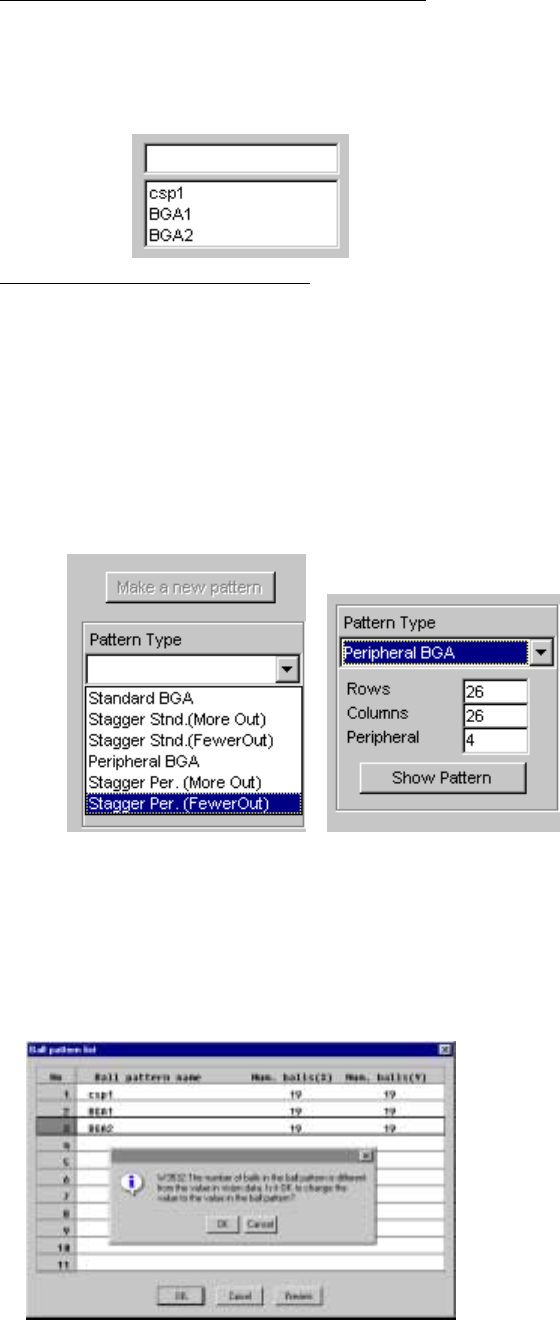
1-1 When setting a ball pattern from the list box
① When you select a registered ball pattern name, the corresponding
ball pattern appears on this dialog box.
② Click the <Make a new pattern> button.
③ Edit a ball pattern if necessary.
1-2 When setting a new ball pattern
① Click the <Make a new pattern> button.
② Select a ball pattern from the “Pattern Type” combo box, then enter
the number of “Rows” and that of “Columns” of a new pattern.
If you select a peripheral pattern, enter the number of lines on
which a ball is located.
③ When you click the <Show Pattern> button, the ball pattern you set
appears on this dialog box.
④ By clicking each cell to add/delete a pin, edit the displayed pattern.
* If the number of leads (balls) set on the Vision data screen is different
from the number of balls set on the “Ball pattern list” dialog box, the
number you set on this dialog box is regarded as “valid”, and the
number of leads (balls) and the number of missing leads (balls) are all
set to zero.
♦ The confirmation message appears on the screen.