KE2040Instruction Manual Ver2.01,REV04.2003.6.25.pdf - 第459页
5 − 96 5.3 Commands Command list The commands t o be invoked f rom Vision dat a are shown below. Commands shown in a hatched area indicate t hat they cannot be selected when the input f ocus is located in Vision data. Fi…
5 − 95
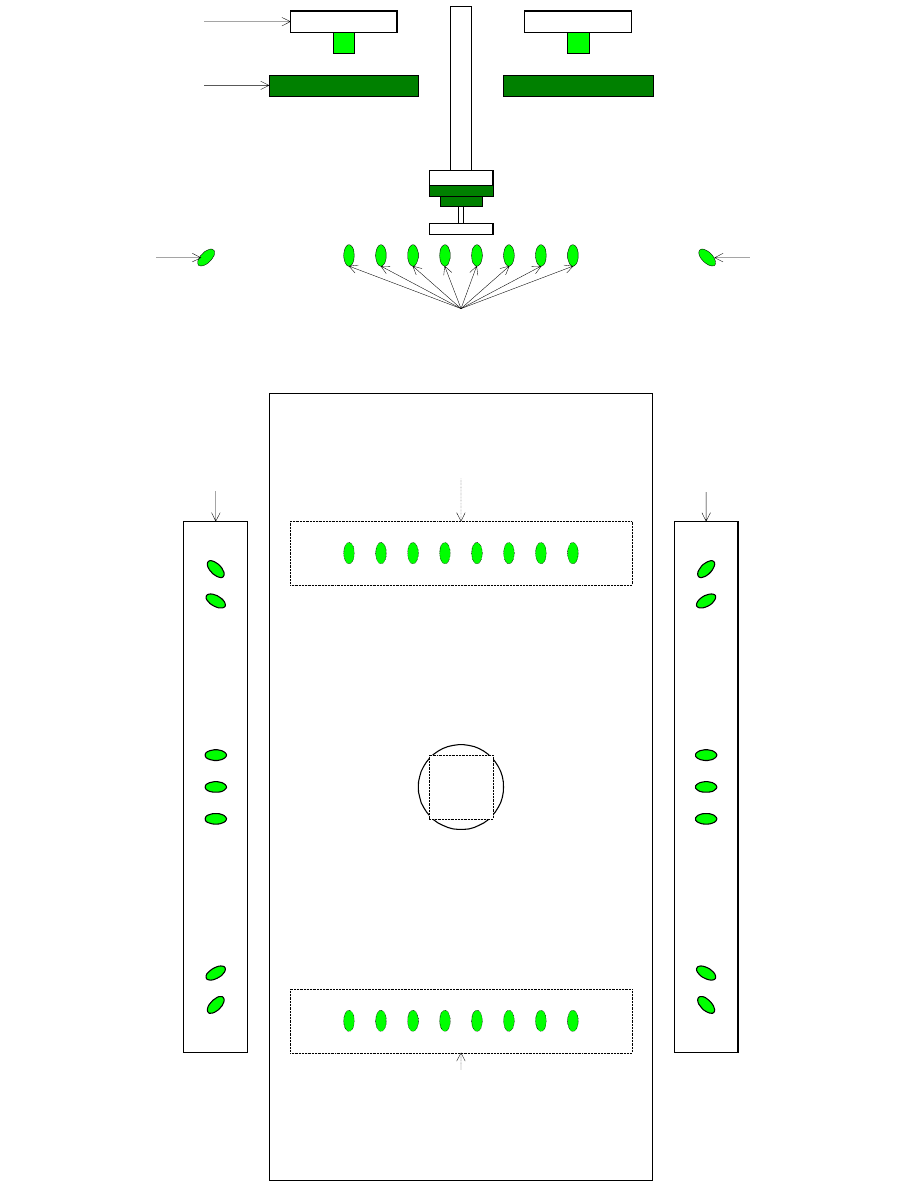
Figure 5.2.6.2 Back light unit
Top View
VCS透過照明前後
後
VCS透過照明前後
前
VCS透過照明左右
左
VCS透過照明左右
右
Side View
VCS透過照明前後
VCS透過照明左右
左
VCS透過照明左右
右
ヘッド透過照明
緑色デフューザ
Head back light
Green diffuser
VCS back lights
left and right
Left
VCS back lights
left and right
L
e
f
t
VCS back lights front and rear
VCS back lights
left and right
Right
VCS back lights front and rear
Front
VCS back lights
left and right
Right
VCS back lights
front and rear
Rear
5 − 96
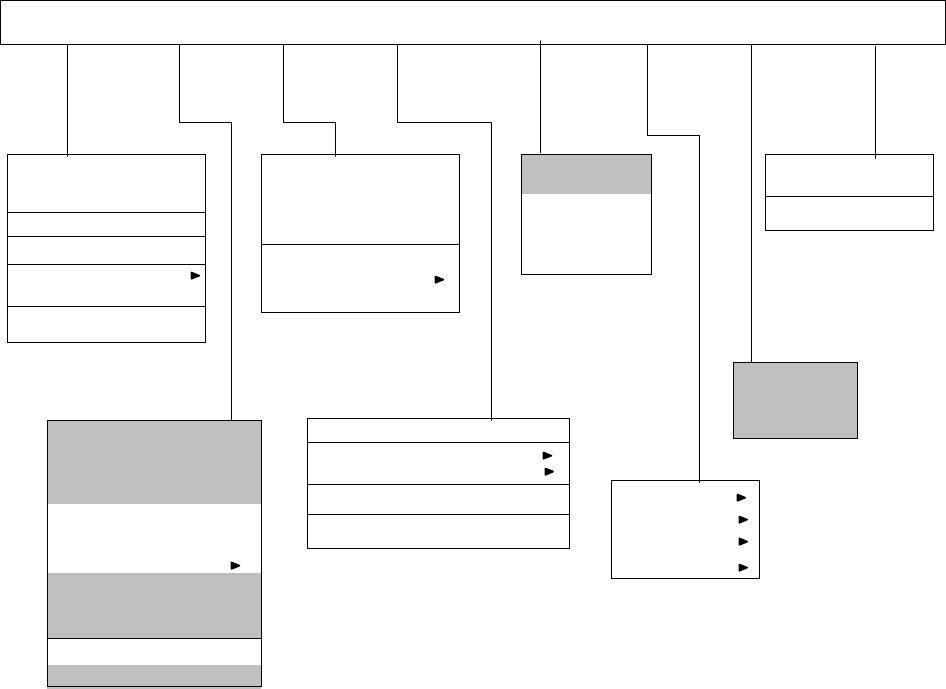
5.3 Commands
Command list
The commands to be invoked from Vision data are shown below. Commands shown in a
hatched area indicate that they cannot be selected when the input focus is located in Vision
data.
File (F) Edit (E) Data (C) Optimization (O)
Display
(V)
Machine operation Database (D) Help (H)
Create new (N) Ctrl+N
Open (O)… Ctrl+O
Overwrite&save (S) Ctrl+S
Save As (A)…
File information (I)
Print (P)
Environment setting (C)
End of program editing (X)
PWB data (B)
Placement data (P)
Component data (C)
Pick data (I)
Vision data (V)
Data completion status (S)…
Station data (E)
Data coherence check (L)
Component form
Component list
Vision Form
Vision List
Feeder layout…
Tool bar
Command (C)
How to use Help (H)
Version information (A)
Cut (T) Ctrl+X
Copy (C) Ctrl+C
Paste (P) Ctrl+V
Insert line (I)
Double line (U)
Jump (J)… Ctrl+G
Search (S)… Ctrl+F
Search next item (N) F7
Replacement (L)
Cell copy (O) Ctrl+E
Cell paste Ctrl+R
Sort (R)
Change Component Name (H)
Matrix copy (M)
Vision copy (V)
Optimization (O)…
Division placement data (P)
Nozzle layout (N)
Number of components to be fed… (S)
Status display (D)…
Register (B)…
Call list (C)…
Re-search (R)
Transport (T)
Measurement (M)
Confirmation (C)
Management (A)
6 − 1
CHAPTER 6 TEACHING
This chapter describes how to perform teaching operation.
There are two types of teaching; one is for coordinates and the other for recognition.
This section starts describing teaching operation from how to operate the HOD which is
basically used for these two types of teaching operations.
6.1 How to Use the HOD
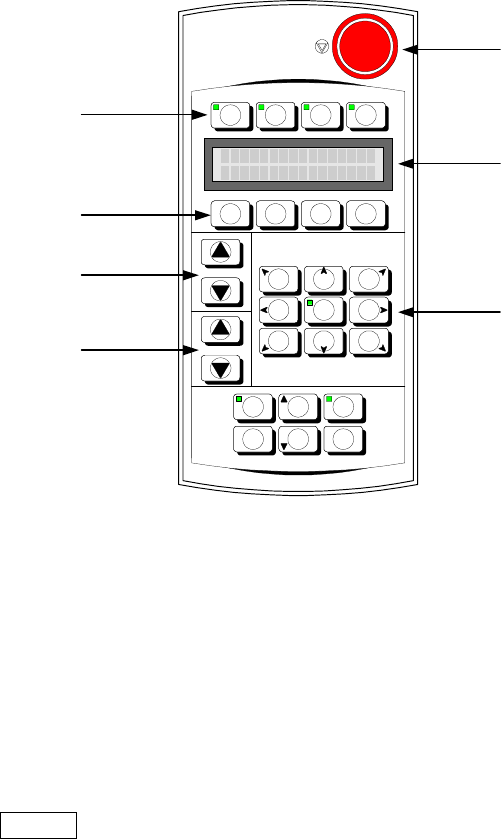
The appearance of the HOD is shown in Figure 6-1 below:
Figure 6-1 Appearance of the HOD
Use the DEV. NAME key to select a device other than the camera and HMS. To
select such a device, press either of two DEV. NAME keys (up or down direction) to
display the device name you want to select on the LCD.
Use the No. key to display (select) the device name and device number.
Use the ENTER key to validate your selection.
Use the move key to move the X- and Y-axes.
-X+Y +Z+Y +X+Y
-
θ
θθ
θ
-X +
θ
θθ
θ
+X
-X-Y -Z-Y +X-Y
FAST
DEV.NAME
No.
J U K I
F1 F2 F3 F4
NEXT
PREVIOUS PAUSEWINDOW
CANCEL ENTER
HMS CAMERA
VACUUM
ON/OFF
HEAD
Device selection keys
Function keys
No. keys
DEV. NAME
(
device name
)
ke
y
s
Move keys
Liquid crystal display
(
LCD
)
Emergency switch