KE2040Instruction Manual Ver2.01,REV04.2003.6.25.pdf - 第396页
5 − 33 3) W hen you select “Browse” on the pop-up m enu The f ollowing “Ball patter n list” dialog box appears on the screen. [How to set] In the same m anner as when you invoke the database list, double-click a ball pat…
5 − 32
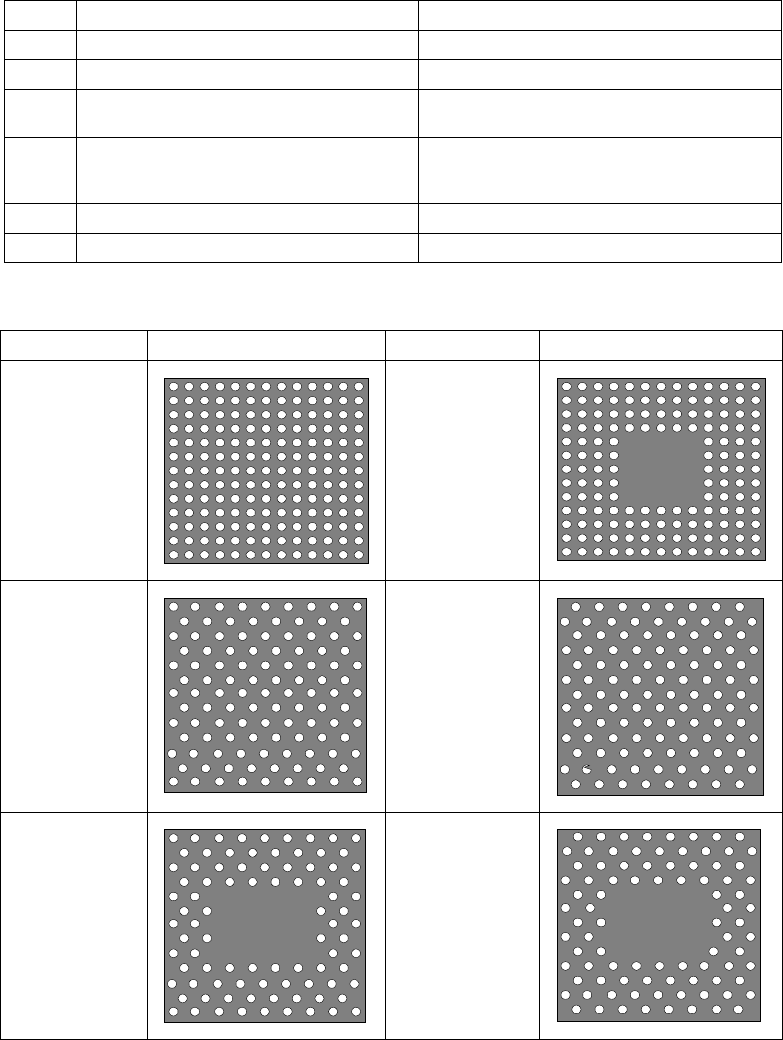
1) Default patterns
A default pattern is a ball pattern built into the machine by default. The
following default patterns are provided. The available default patterns vary
depending on the lead (ball) pitch you entered.
Type Default pattern Selection conditions (Ball pitch range)
1 Standard BGA 1.00 mm to 1.99 mm
2 Peripheral BGA 1.00 mm to 1.99 mm
3 Staggered std. BGA (More Out)
(More balls are located on the outer frame)
2.00 mm to 3.00 mm
4 Staggered std. BGA (Fewer Out)
(Fewer balls are located on the outer
frame)
2.00 mm to 3.00 mm
5 Staggered per. BGA (More Out) 2.00 mm to 3.00 mm
6 Staggered per. BGA (Fewer Out) 2.00 mm to 3.00 mm
2) Default pattern sample images
Default pattern Sample image Default pattern Sample image
1. Standard
BGA
2. Peripheral
BGA
3. Stagger Std.
BGA
(More OUT)
4. Stagger Std.
BGA
(Fewer OUT)
5. Stagger Per.
BGA
(More OUT)
6. Stagger Per.
BGA
(Fewer OUT)
5 − 33
3) When you select “Browse” on the pop-up menu
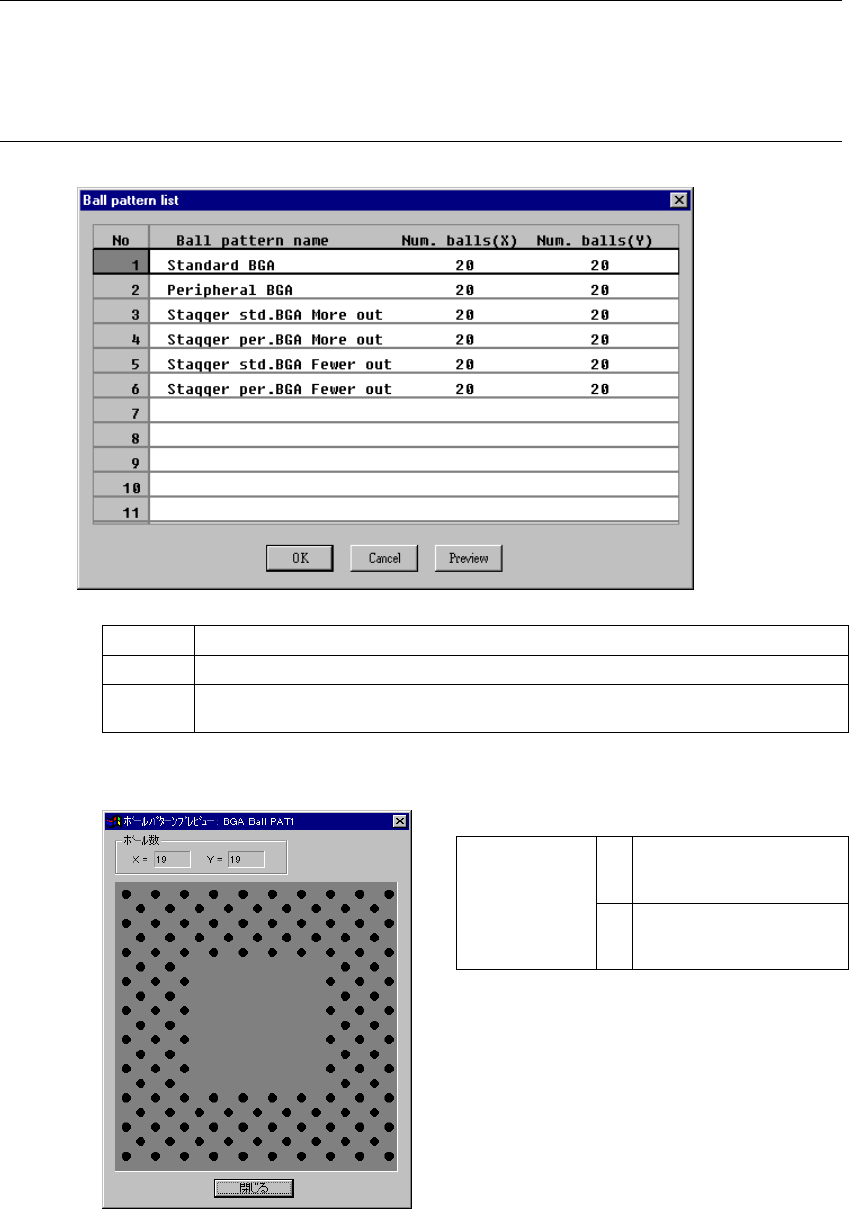
The following “Ball pattern list” dialog box appears on the screen.
[How to set]
In the same manner as when you invoke the database list, double-click a
ball pattern to be set or select a ball pattern, then click the <OK> button.
The confirmation dialog box appears on the screen.
Notes:
①
When you call a ball pattern from the database, call the Component data
(Vision data) on which the ball pattern is set.
②
You cannot directly call a ball pattern only.
OK Sets a ball pattern. After setting the ball pattern, the dialog box shown above closes.
Cancel Cancels setting of a ball pattern, then closes the dialog box.
Preview
This is the ball pattern preview function. When you select a ball pattern and click the
“Preview” command, the selected ball pattern appears on the screen.
• Ball pattern preview dialog example
X Number of ball columns
(Number of balls arranged
in the X direction)
Number of balls
Y Number of ball rows
(Number of balls arranged
in the Y direction)
When you click the <Close> button, the “Ball
pattern list” dialog box reappears on the
screen.
5 − 34
4) When you select “Edit” on the pop-up menu
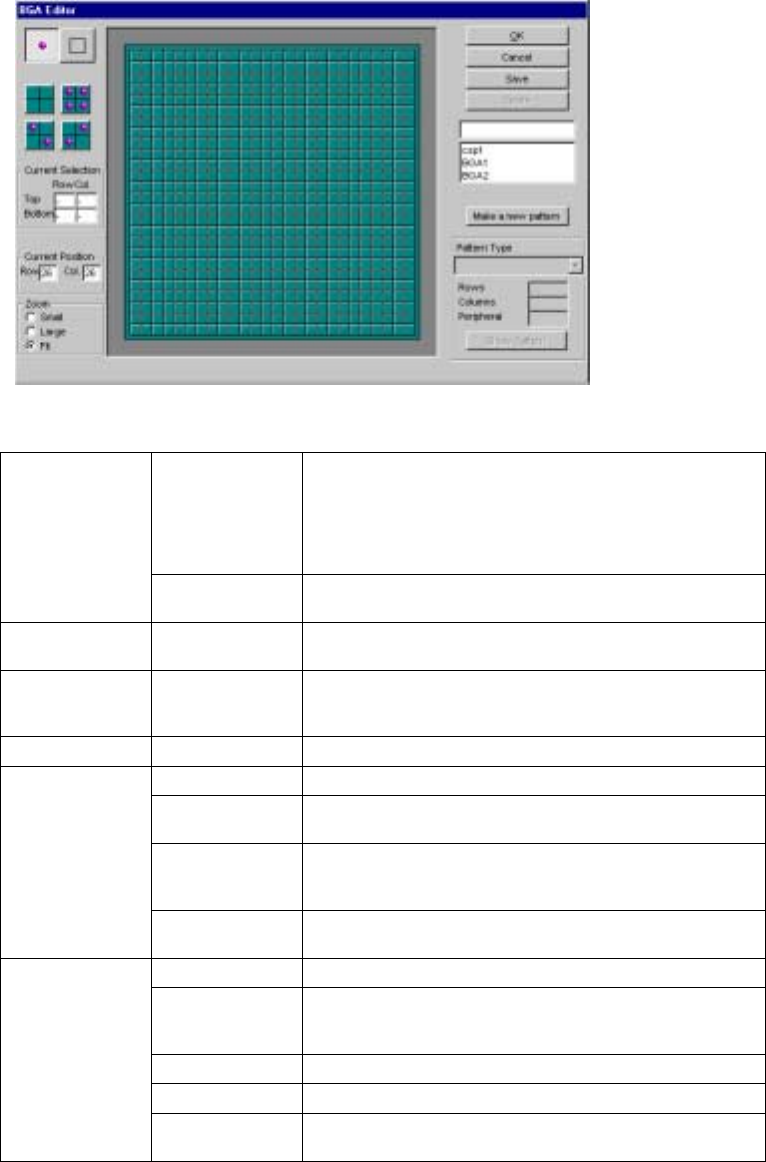
The following “BGA Editor” appears on the screen.
- Register the desired ball pattern with the BGA editor.
- Up to 70 patterns can be registered.
- The registered pattern name is added to the “Ball pattern list” dialog
box.
▼ Description of the BGA editor
Ball/Index When you click the left button of the trackball, it allows you
to create a ball pattern. When you click the left button
again, a ball pattern is cleared.
When you click the right button of the trackball, it allows you
to create an index mark. When you click the right button
again, an index mark is cleared.
Tool box
Rectangle When you move the trackball while holding down the left
button of the trackball, you can arrange balls in a rectangle.
Filling patterns Pattern setting For a solid rectangle pattern, select one of these filling
patterns.
Current
selection
Row, Col.
(Column)
Displays the coordinates of the start and end points of the
area that is selected with a rectangle provided in the Tool
box.
Current position Row, Col. Displays the X- and Y-coordinates of the cursor position.
OK Validates the current pattern editing.
Cancel Cancels the current pattern editing. Note that the
registered patterns will not be cleared.
Save Use this button to save the edited ball pattern.
If you edited a new ball pattern, assign a name to the ball
pattern, then save it.
Buttons
Delete Deletes a registered ball pattern. Select a ball pattern from
the list box to be deleted.
List box Displays the registered ball patterns.
Make a new
pattern
Allows you to create a new ball pattern. When you click
this button, it allows you to enter a ball pattern type in the
“Pattern Type” combo box displayed below this button.
Pattern Type Select a ball pattern type from this combo box.
Rows, Columns Set the maximum number of balls.
Ball pattern
Peripheral Sets a peripheral when you select the staggered peripheral
type of pattern in the “Pattern Type” combo box.