KE2040Instruction Manual Ver2.01,REV04.2003.6.25.pdf - 第376页
5 − 13 5.2.2 Basic operation V ision data is displayed in two way s: in the list for mat and t he for m f ormat . Select the [Display] com mand f orm the m enu bar on the Pr ogram Editor windows, and select the [Vision F…

5 − 12
5.2.1.3 Outline-recognized components
(1) Outline recognition
Setting item Allowable setting range/Description Default value
1
Contrast Select one of the settings: “4sides”, “4corners” and “Center”. 4sides
2
Corr. -127 to 127 0
Note: Outline-recognized components
1) Component size (with a reflective light)
- Maximum component size: 50 mm x 50 mm
- Maximum component size recognized with optional VCSs
Optional 37-mm VCS: 34 mm x 34 mm
Optional 27-mm VCS: 24 mm x 24 mm
Optional 18-mm VCS: 15.5 mm x 15.5 mm
- Minimum component size: 3 mm x 3 mm
2) Component size (with a penetrative light)
- Maximum component size: 35 mm x 35 mm
- Minimum component size: 9 mm x 9 mm
Note that only the standard VCS can divide and recognize image of an
outline-recognized component.
5 − 13
5.2.2 Basic operation
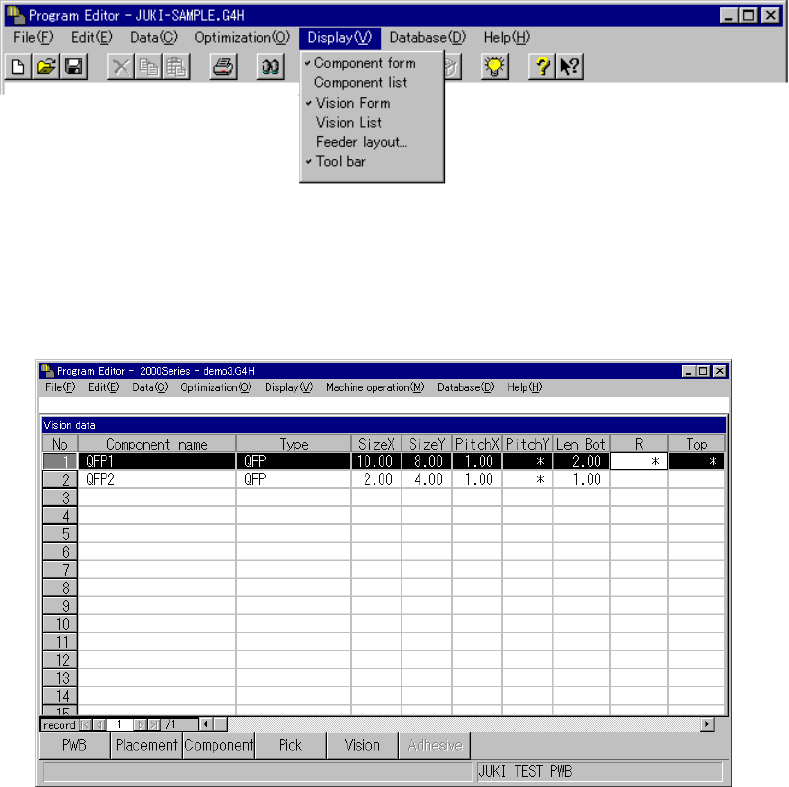
Vision data is displayed in two ways: in the list format and the form format.
Select the [Display] command form the menu bar on the Program Editor windows,
and select the [Vision Form] or [Vision List] command on the displayed menu.
− When you double-click on the Vision List displayed on the screen, the “Vision
Form” appears also.
* A check mark appears next to the menu item [Vision List] when the Vision list
screen is displayed while it appears next to the menu item [Vision Form]
when the Vision form screen is displayed.
Figure 5.2.2 Selecting Vision data screen format
5.2.2.1 Vision list screen
Sample Vision data and its basic operation are shown below.
Figure 5.2.2.1 Vision List screen
− Description of basic operation
① Input focus
A line on which the input focus is located is reverse-displayed, while a cell in
which the input focus is located is not.
◇ An input character is echoed back onto the formula bar as you enter it.
When you validate it, it is entered in a cell.
② Cursor movement range
Column: The cursor can move to any line on which a component name is
entered. You cannot move the input field to any line on which a
component name is entered yet.
Row: The cursor can move between the rows “Type” and “Contrast”.
5 − 14
③ Setting items for which you do not have to enter any data
An asterisk mark (*) appears in a cell which does not require any data entry.
Although you can move the input focus to such a cell, you cannot enter any
data in it.
④ Horizontal scroll
All of the Vision data setting items cannot be displayed on the screen at a time.
Enter data while scrolling the screen horizontally.
Except for a component whose leads are arranged irregularly, when you enter
data for the items from “Type” to “Bot.”, “R”, “Top” and “L”, Vision data on a
component is completed (“Contrast” also for a BGA type of component).
For a component having no lead at some point, scroll the screen in the right
direction to specify the lead arrangement on each side.
- When you reach the last item filed by scrolling the screen in the right
direction, the input focus cannot move any more even though you are to
move it. To move the input focus to the next line, move it to the field below
the current one.
⑤ Vertical scroll
When you press the up arrow key or Up button if the input focus is located on
the top line of the data display area of the window, but this line is not the first
line, the screen is scrolled down by one line.
When you press the down arrow key or Down button if the input focus is
located on the bottom line of the data display area of the window, and a
component type is entered in the “Type” cell of the next line, the screen is
scrolled up by one line.
⑥ Scroll bar
- When you click the scroll bar on the upper side of the vertical scroll box, the
screen is scrolled down by one page.
The Page Up key functions in the same manner.
- When you click the scroll bar on the lower side of the vertical scroll box, the
screen is scrolled up by one page.
The Page Down key functions in the same manner.
- When you click the scroll bar on the left of the vertical scroll box, the screen
is scrolled in the right direction by one page.
- When you click the scroll bar on the right of the vertical scroll box, the
screen is scrolled in the left direction by one page.
⑦ Scroll bar box
When you drag the scroll box, the machine compares the data display area of
all data to the length of the scroll bar, then scrolls the screen with regarding
the scroll box position as the display position.
⑧ Moving to the beginning or end of a line
When you press the Home key, the machine displays the screen up to the left
limit and moves the input field to a “Type” cell.
When you press the End key, the machine displays the screen up to the right
limit and moves the input field to the rightmost cell.
⑨ Making a choice to enter data
To enter or change data, press the F2 key or right button of the trackball.
The pop-up menu appears which allows you to select the desired value.