00197043-04_VD_706_1_SP2_705_05_SP2_DE_EN.pdf - 第31页
Station S oftware 70 6. 1 SP 2 /705.05 SP 2 / Vers ion De scription Ausgabe 07/2013 E dition 31 In this c ase the oper ator has two options: 1. Make anoth er setting within the allowed c orrection ar ea. Thereaf ter, the…
Station Software 706.1 SP2/705.05 SP2 / Version Description Ausgabe 07/2013 Edition
30
Example
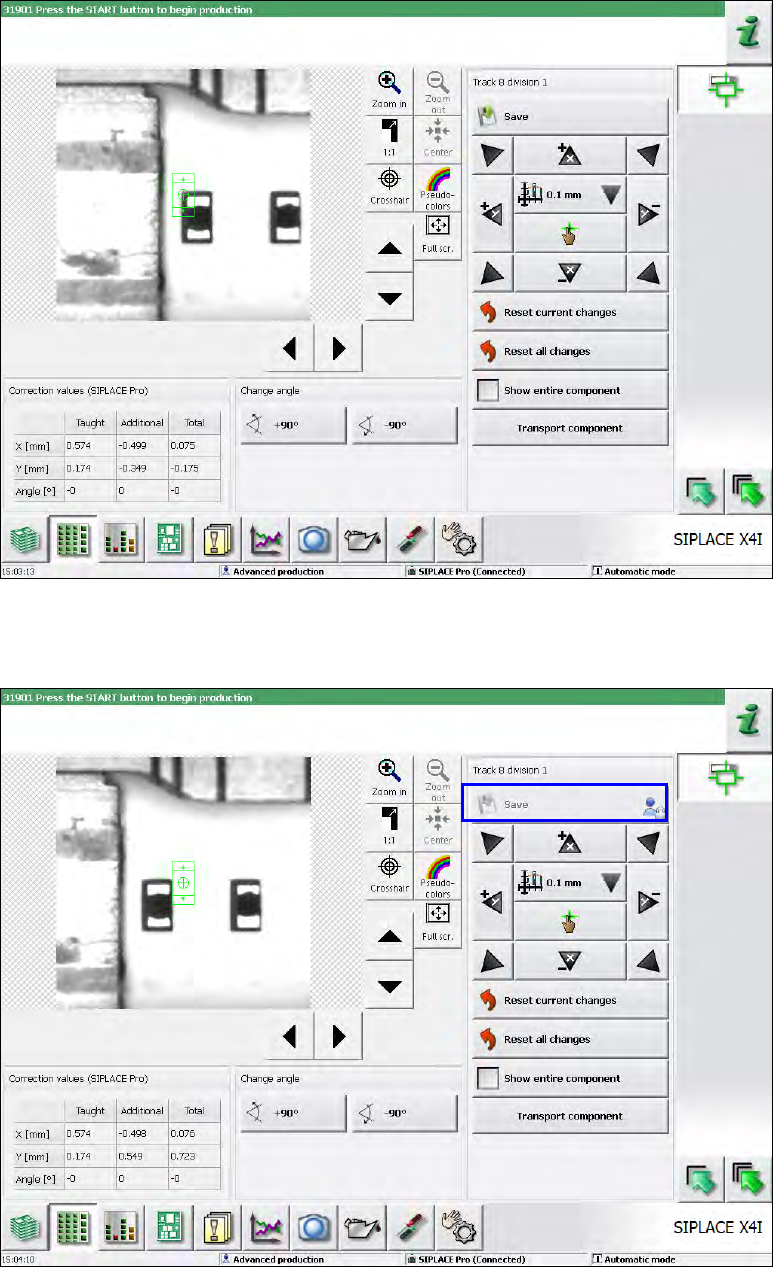
The allowed correction area is displayed in the following figure.
Figure 5-12: Allowed correction area
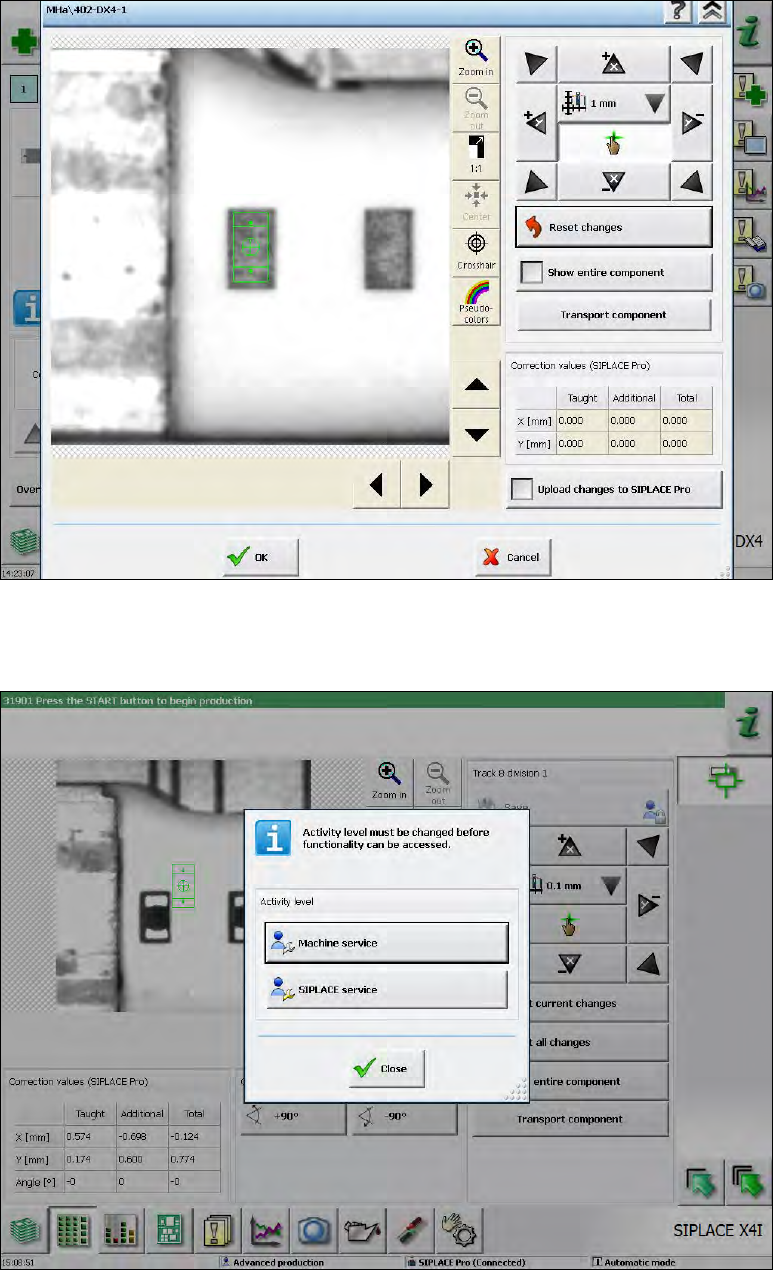
The operator can navigate to any position with the camera during the setting procedure. If the
allowed correction area is exceeded, the Save button will be deactivated (greyed out).
Figure 5-13: Allowed correction area exceeded
Station Software 706.1 SP2/705.05 SP2 / Version Description Ausgabe 07/2013 Edition
31
In this case the operator has two options:
1. Make another setting within the allowed correction area.
Thereafter, the Save button is reactivated and the changed position can be saved.
Figure 5-14: Saving the changed position
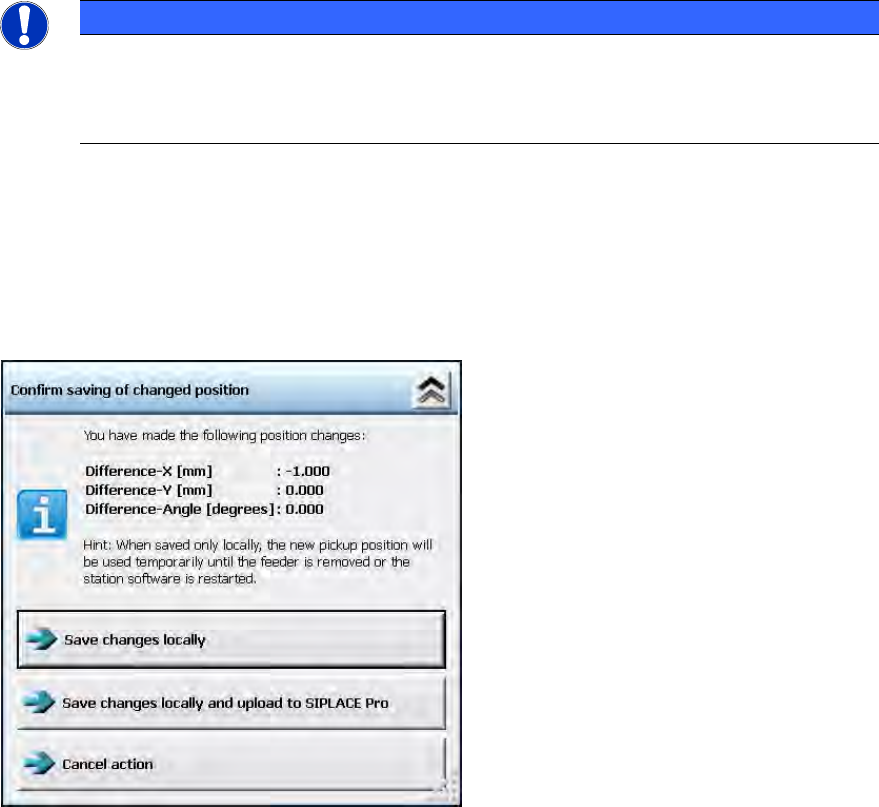
2. Right-click with the mouse on the Save button and change the activity level. Thereafter, the
Save button is reactivated and any positions can be saved.
Figure 5-15: Changing activity level
Station Software 706.1 SP2/705.05 SP2 / Version Description Ausgabe 07/2013 Edition
32
If the pick-up angle has been changed and the pick-up point is non-central, the pick-up location
possibly will be changed, too.Thus, the pick-up location might be located outside of the allowed
area. After the pick-up angle has been changed, the values cannot be saved until the XY position
has been adjusted so that the pick-up location is located within the allowed area again.
The limitation of the setting area refers to the nominal position. If the pick-up position has been
taught to a point outside of the allowed area on the Machine service activity level, an operator on
a lower activity level may also teach outside the allowed area. However, only changes in the
direction of the nominal position are allowed. For this operator, it is not allowed to move farther
away from the nominal position.
NOTICE
After the pick-up position has been changed in Y direction, it will not be checked if all
head segments can pick up from there, because at the teaching time, the segments
which will pick up from there during placement later on might not be known. The
possibility to go there with the z-axis depends on the used segment.
6.11.7 Saving the XY Pick-up Position
Compatible mode: Not supported
After the XY pick-up position or the pick-up angle have been changed and the Save button has
been clicked in the correction dialog of the pick-up position, the taught offsets will be displayed as
follows:
Figure 5-16: Confirmation dialog for changed XY pick-up position / pick-up angle
If uploading is allowed under the current handling option, you can select if the changed position
parameters shall be saved locally at the station only (Save changes locally button) or additionally
uploaded to SIPLACE Pro into the local setup data (Save changes locally and upload to
SIPLACE Pro button).
If uploading is not allowed under the current activity level, the Save changes locally button is
displayed only.