User-Manual-NeoDen9-PNP-machine.pdf - 第12页
12 Zhejiang Neoden T echnol ogy Co., Ltd list interfac e displays new files , the opera tion is successful. 2.1 PCB informatio n In manual pro gramming, this item is the p rimary editing item, as s hown in the figure: 2.…
11
Zhejiang Neoden Technology Co., Ltd
2.PCB Editing
On the file list page, select an existing file for editing or add a new file and name it, select the file for editing, and enter the
editing interface:
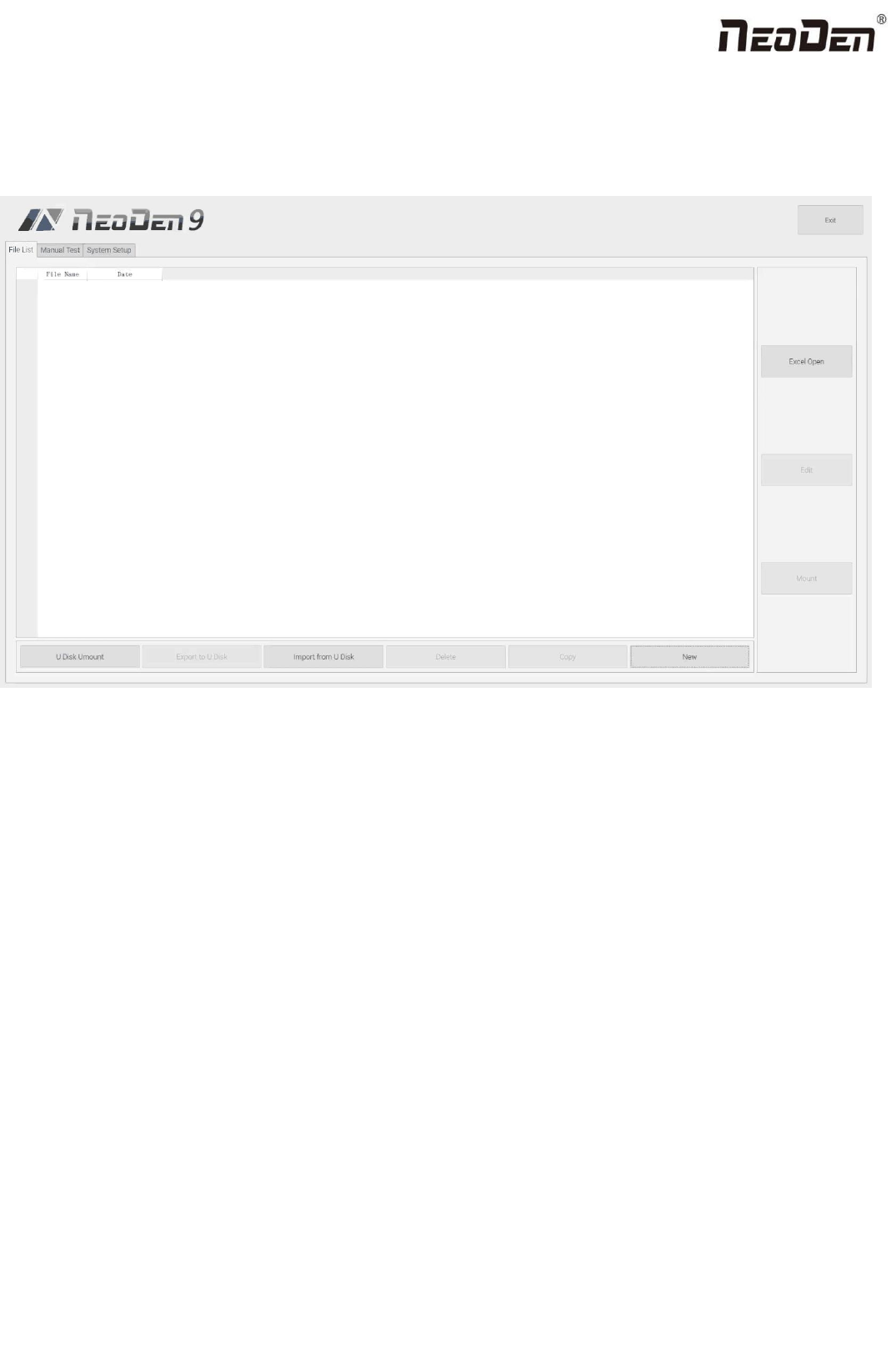
File list introduction:
(1) Excel Open:The Excel table of the file can be modified directly in the table for some routine operations,
simplifying the programming operation.
(2) Edit: select a file and click Edit to enter the corresponding editing interface.
(3) Processing: after editing the file, after checking the correctness, select the file and click processing to mount.
(4) Export file: After connecting an U disk, select the file and click Export, after the successful notice pops up, the
export is finished.
(5) Import from U disk: for the files that have been edited offline, they can be directly imported from U disk for
mounting. After connecting U disk, click Import from U disk, select the corresponding files in the new window, and
click OK. When the imported files are showed in the file list, the operation is finished.
(6) Delete: select the corresponding file, click delete, a prompt window will pop up, and click Yes.
(7) Copy: select the corresponding file, click Copy, and the file list will generate a file of xxxcopy1. In order to
prevent misoperation, a new file can be copied before operation.
(8) Add a new file: click Add to open the input window, input the file name, and click OK. At this time, when the file
12
Zhejiang Neoden Technology Co., Ltd
list interface displays new files, the operation is successful.
2.1 PCB information
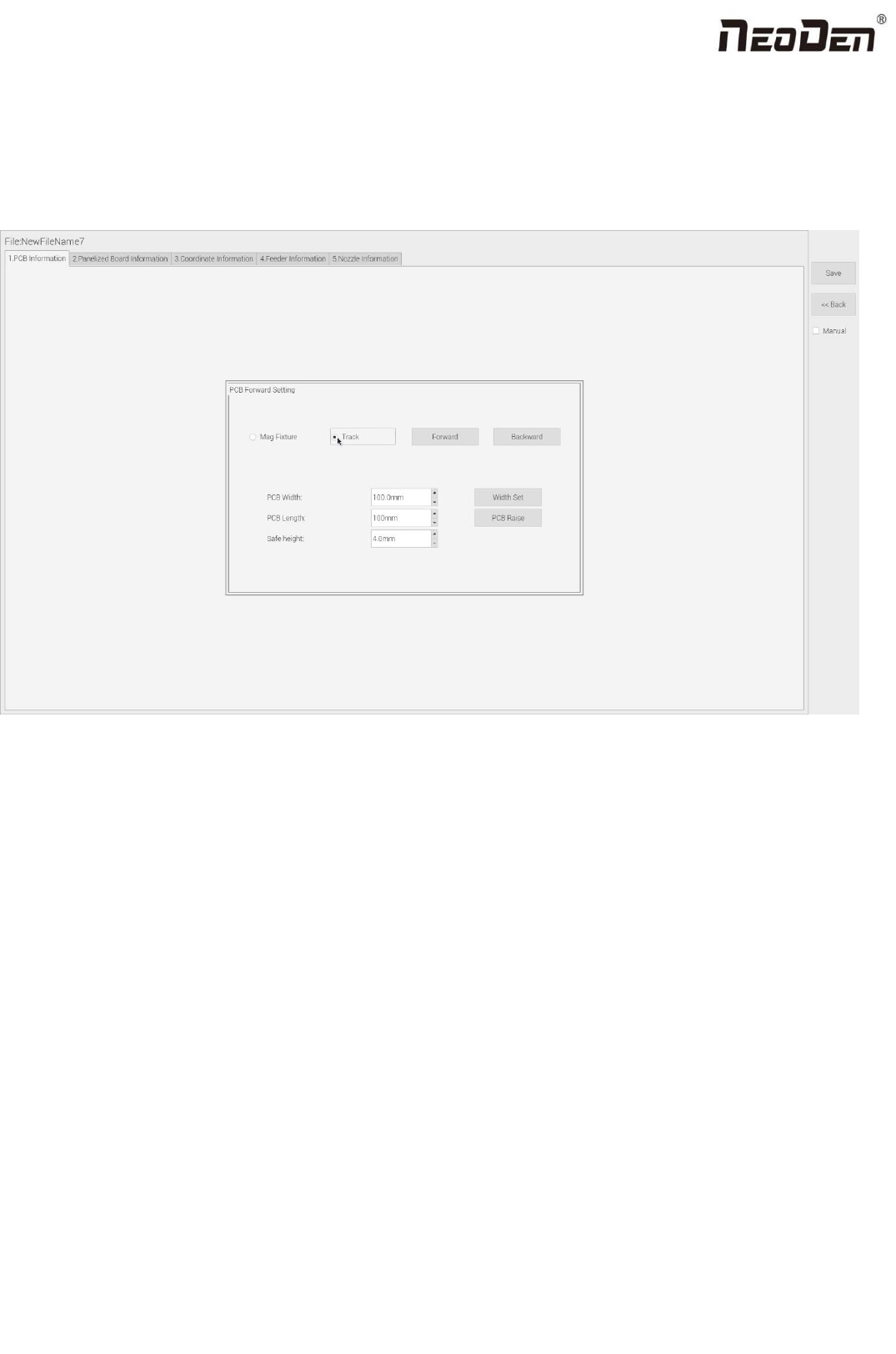
In manual programming, this item is the primary editing item, as shown in the figure:
2.1.1 PCB Forward Setting
Mag Fixture
Select ”Mag Fixture” mode, click “Forward” to feed PCB into the mounting position.
Track
Select “Track” mode, put PCB at the track entrance position and click “Forward”, it will be fed into the stop pin position
(this position can be adjusted manually). Once pcb was stopped, the cylinder will raise pcb and pin return back.
2.1.2 Backward
Click “Backward”, cylinder will descend and pcb be transit to the end of track, it will stop above the sensor position. If
there’s SMT conveyor connected and release signal to pnp machine, pcb will be automatically transit into SMT conveyor.

13
Zhejiang Neoden Technology Co., Ltd
2.1.3 Width Set
Generally setting the width data in this way: pcb width+1mm. Input the data and click “Width Set”, against the tips to check
if it meet with the width back to zero condition. The track will be firstly back to zero width and then widen to the adjusted
data, after that you can put pcb on the track and push it slightly to test if board can be moved smoothly.
2.1.4 PCB Length
It refers to the whole length of PCB. Specially when you need to import the bottom layer coordinates, please firstly input
the PCB length, save it and then import bottom layer, the coordinates will be positive data.
2.1.5 Safe Height
If there’s some special higher component on the PCB, please must set the safe height in case any collision during mounting.
Safe height can be set same as the higher component thickness.
3.Panelized Board Information
3.1 SMD 1 Position Setting
This is mainly to determine the first component on single or panelized PCB of manual program or imported file. The
principle is to collect and calculate the data of each board’s relative spacing, in order to achieve the calculation of the real
coordinate.
3.1.1 Single Board Setting
Click “single board setting”, you will see the “align” button of the SMD1 position that means the first component on the
component setup. Click “align” to enter the vision align interface, we need find the first component that on the component
list, generally we choose the center of the component, see figure: