User-Manual-NeoDen9-PNP-machine.pdf - 第31页
31 Zhejiang Neoden T echnol ogy Co., Ltd brightnes s reas on) Feed test: fe eding compon ent, this is used to test if the fee der works normally. Size measure ment: after se tting the pick position and pick height an…
30
Zhejiang Neoden Technology Co., Ltd
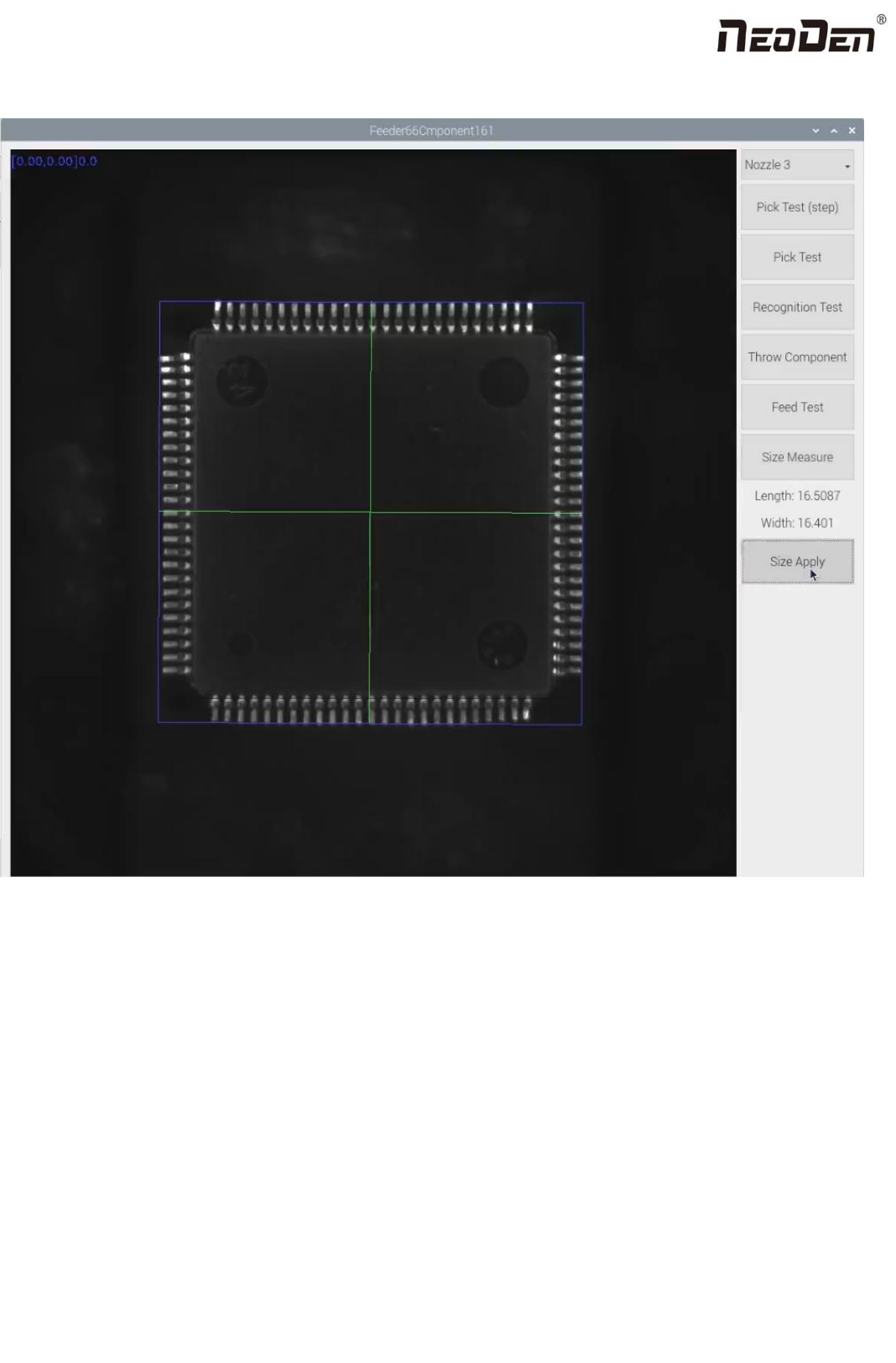
which nozzle is available to pick up component from this selected feeder. Details for each button:
Nozzle: select the nozzle head you need to test
Step pick test: click this button after nozzle is selected, the detailed process: the nozzle head moves to this
feeder→feeder cover opens → the nozzle lowers down to pick up component. This is single step operation, which can
help the operator check whether pick position/ pick height is correct or not. If there is problem, they can be re-set in
feeder basic setting.
Pick test: after nozzle selection, click this button, the head will move to feeder position, the component is feeded,
nozzle lowers down to pick component. This procedure is finished without any pause.
Recognition test: after the “Pick test” with component picked up, then click this “Recognition test” to reognize the
photo taken by flying camera according to selected recognition method. If the photo is with problem, you need to do
some adjustment for the problematic recognition after finding the reason(such as interference reason and recognition
31
Zhejiang Neoden Technology Co., Ltd
brightness reason)
Feed test: feeding component, this is used to test if the feeder works normally.
Size measurement: after setting the pick position and pick height and selecting the nozzle, click the button “size
measurement”, the machine will measure the length and width of component automatically. If the size is correct, click
the button “size confirmation”, the length and width data will be synchronized to size information in feeder setting
interface.
Size information: If you input the length and width of the component,the image taken by flying camera will be
identified and recognized with the corresponding pixel. Note: For special thick component, you must input the
thickness! User can choose whether to click “open size recognition” according to their own requirement. If “open size
recognition” is clicked, the machine will throw the component and pick again when working if the component size is
not in corresponding with setting size information.
After above feeder information setting is finished, click “feeder assign to component”, then component list will be updated
accordingly. Click “save”and “back”. All the procedures are finished.
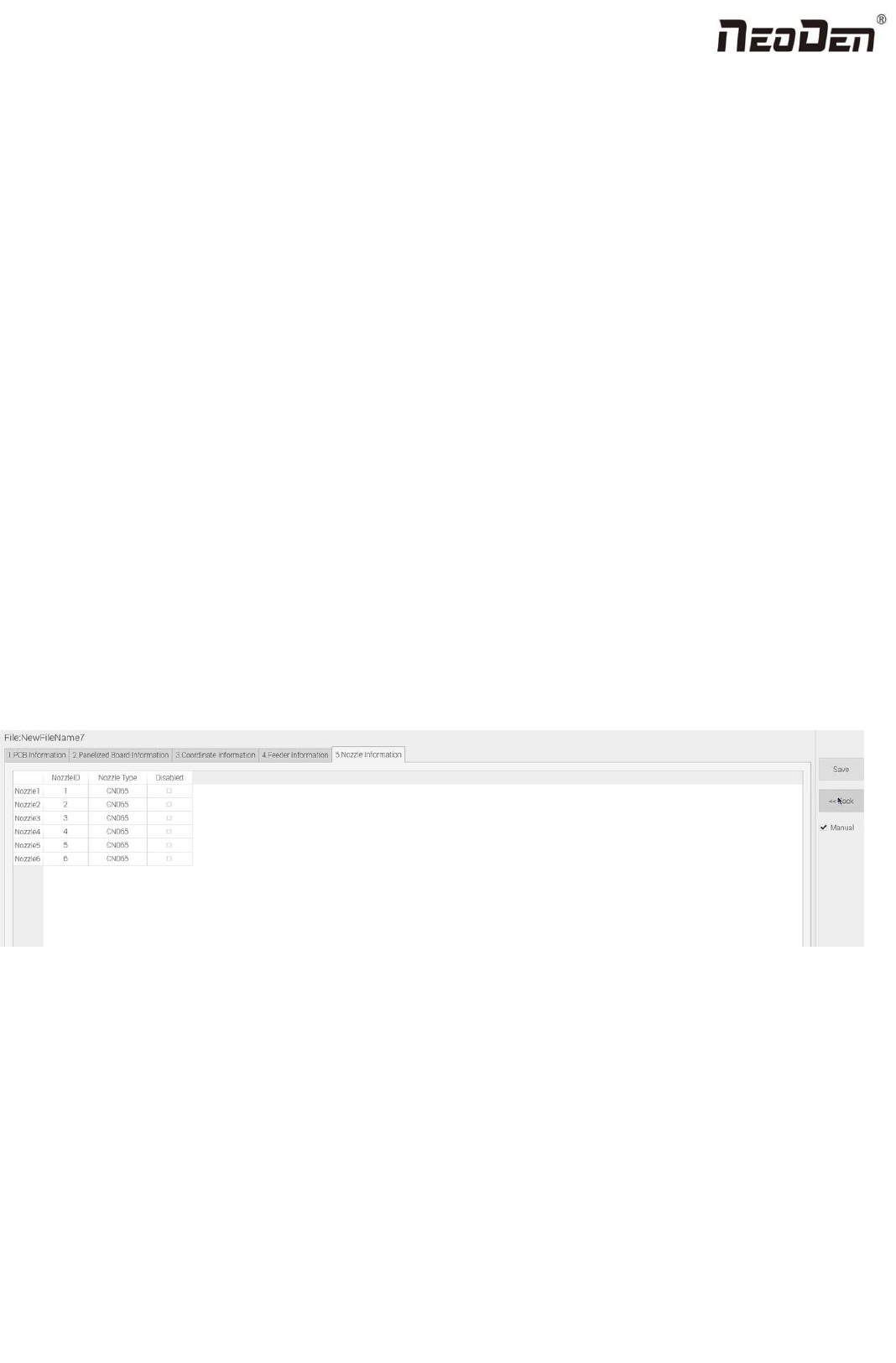
6. Nozzle Information
Below records the nozzle type of nozzle No.1-No.6. When replacing the nozzle, just replace the nozzle according to the file
recorded nozzle type.
7. Assembly Interface
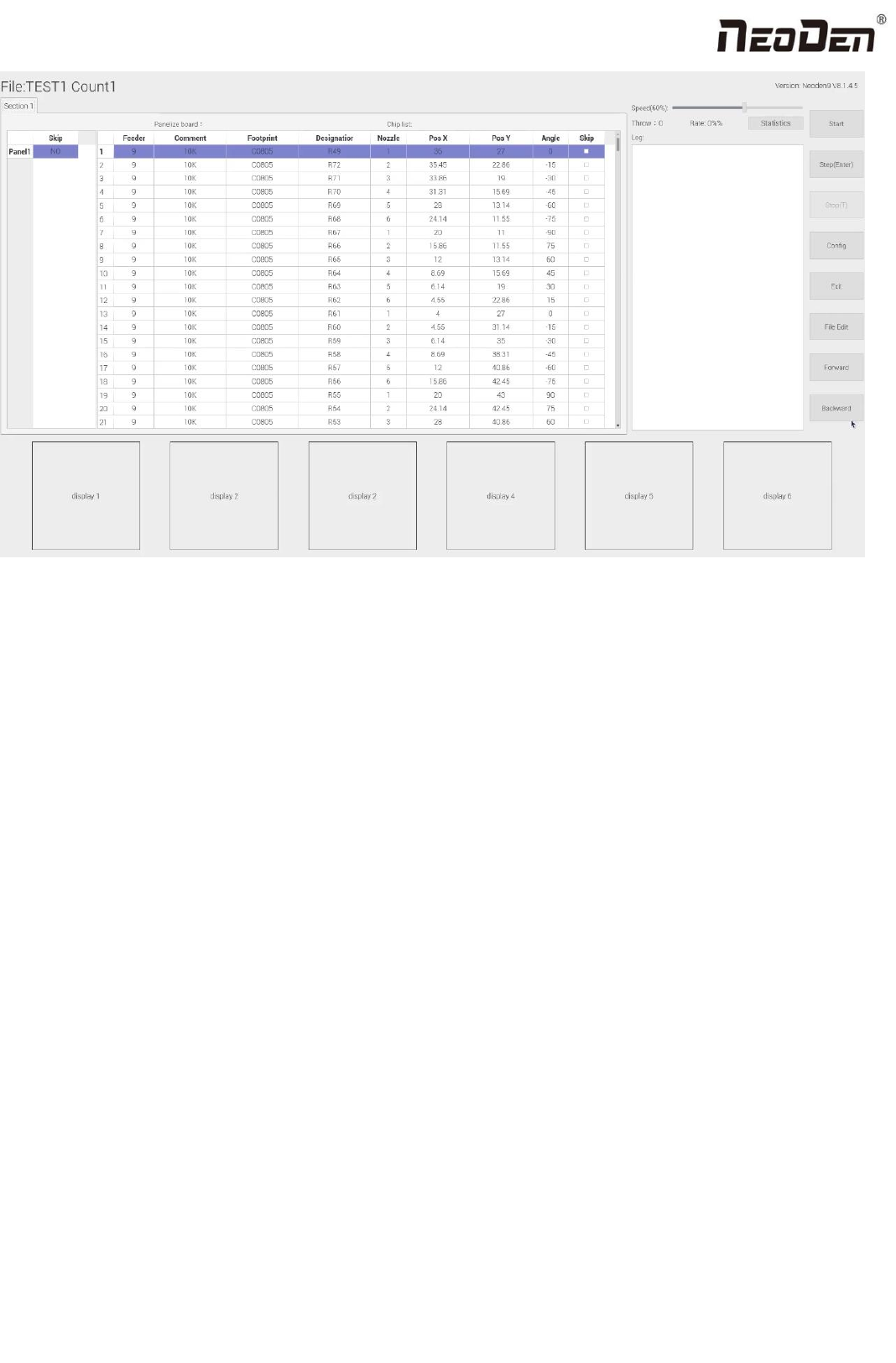
Choose the programmed file in file listed interface, click “Mount”, it will go into assembly interface as below:
32
Zhejiang Neoden Technology Co., Ltd
(1) Left part is detailed component list, you can get a real-time assembly situation with the varying of the highlight
blue area;
(2) Right top part shows the current assembly speed, you can drag the scroll bar to adjust it(the max is 100%);
(3) Throw and Rate will make a statistics for thrown components and you can check each feeder’s component pick
failure rate and get the information that which kind of component is easily picked failure, then find solution to
improve it.
(4)Log will show some informations like rate of throw component, current average speed and quantity of components
which have been assembled under the current file.
(5)The bottom side 6 display windows are real-time feedback for component recognition images.
(6)Right side buttons’ introduction:
Start: machine starts the current file’s assembly procedure.
Step: operation for each single assembly procedure.
Stop: stop current assembly work.
Exit: after assembly is finished, please directly click this button and back to home interface.
File edit: if the component picking is failed several times or there is big deviation of placement accuracy, the operation
need to be paused. After analyzing the reason, you do not need to exit the assembly interface and just click “file edit”
to modify it. After the modifying is finished, save it and come back to assembly interface.
Config: press this button, a detailed configuration setting interface will pop out as below: