User-Manual-NeoDen9-PNP-machine.pdf - 第38页
38 Zhejiang Neoden T echnol ogy Co., Ltd 9.2 Comp onent Po sitions Setup
37
Zhejiang Neoden Technology Co., Ltd
Change password: before Administration login in, this function is not visible.
If the password needs to be changed, please login and click Change password. A window will pop out, enter the original
password. Then follow steps to enter the new password. A successful window will pop out when it’s finished.
Version: the current software version will be displayed below.
When any software upgrade is required, please copy the upgrade file into the subdirectory of U disk, click “software
upgrade” to load it. Then follow instructions to upgrade it.
English: this machine supports Chinese and English. To convert it into English, a password is required.
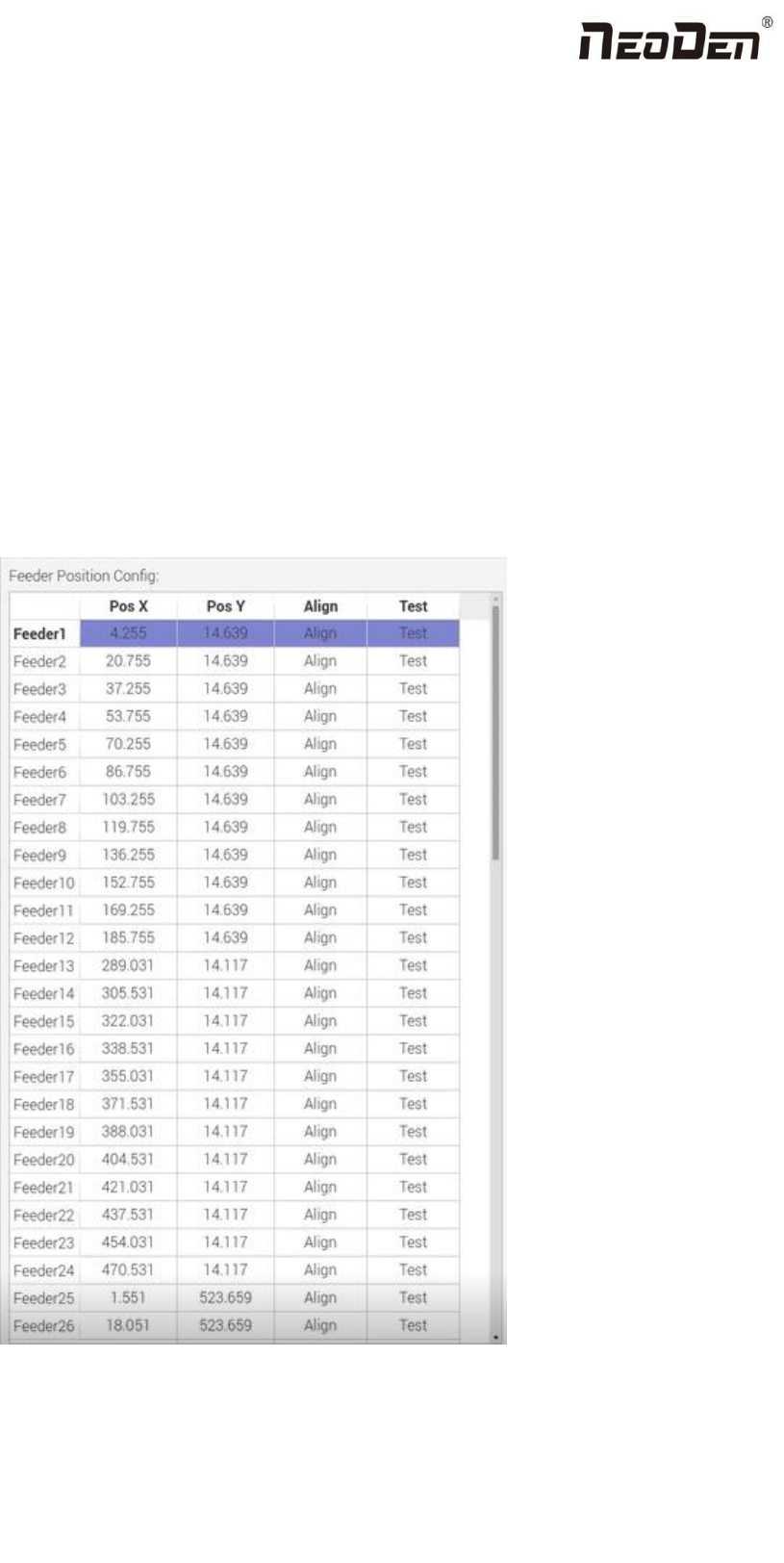
9.1 Feeder Position Config
This interface is used to setup pick offset and test feeding for each feeder.
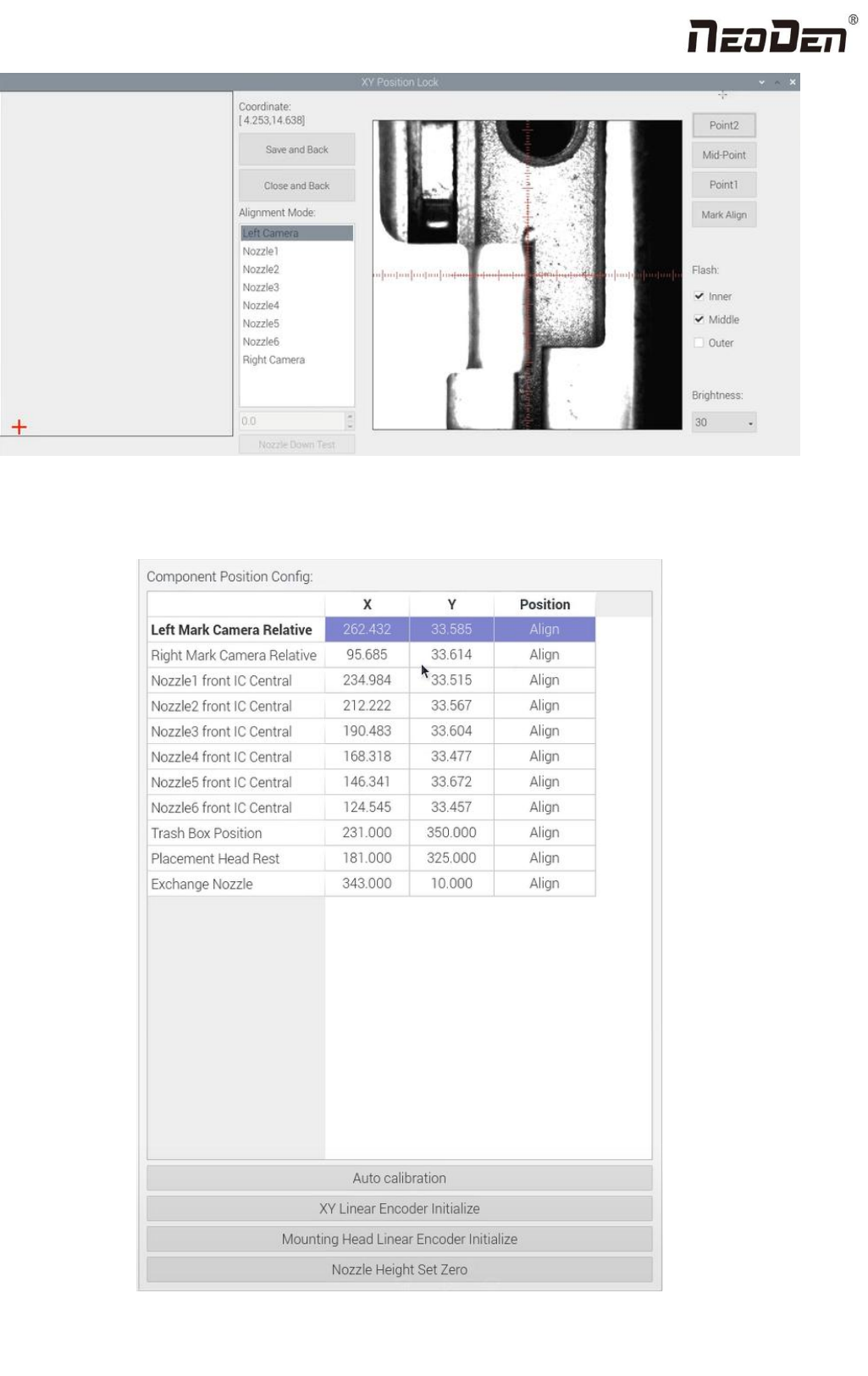
The left column refers to feeder No., Pick X and Pick Y refer to the coordinates of pick offset. After “click to align”, this
interface will be displayed. Align the center of component (edge of tablet), then save it.
38
Zhejiang Neoden Technology Co., Ltd
9.2 Component Positions Setup
39
Zhejiang Neoden Technology Co., Ltd
(
P.S. Password is required to activate the items to avoid misoperation, please contact technical engineer before
calibrating.
)
1. Mark Camera Relative Position
Stick a piece of label on the edge of rail and apply ink or ink on the nozzle;
Enter the manual test interface, click XY to move, find the position of the label paper (the position pasted on the rail
surface) through the reference camera, then switch the alignment mode to "nozzle 1", and then click "close and return".
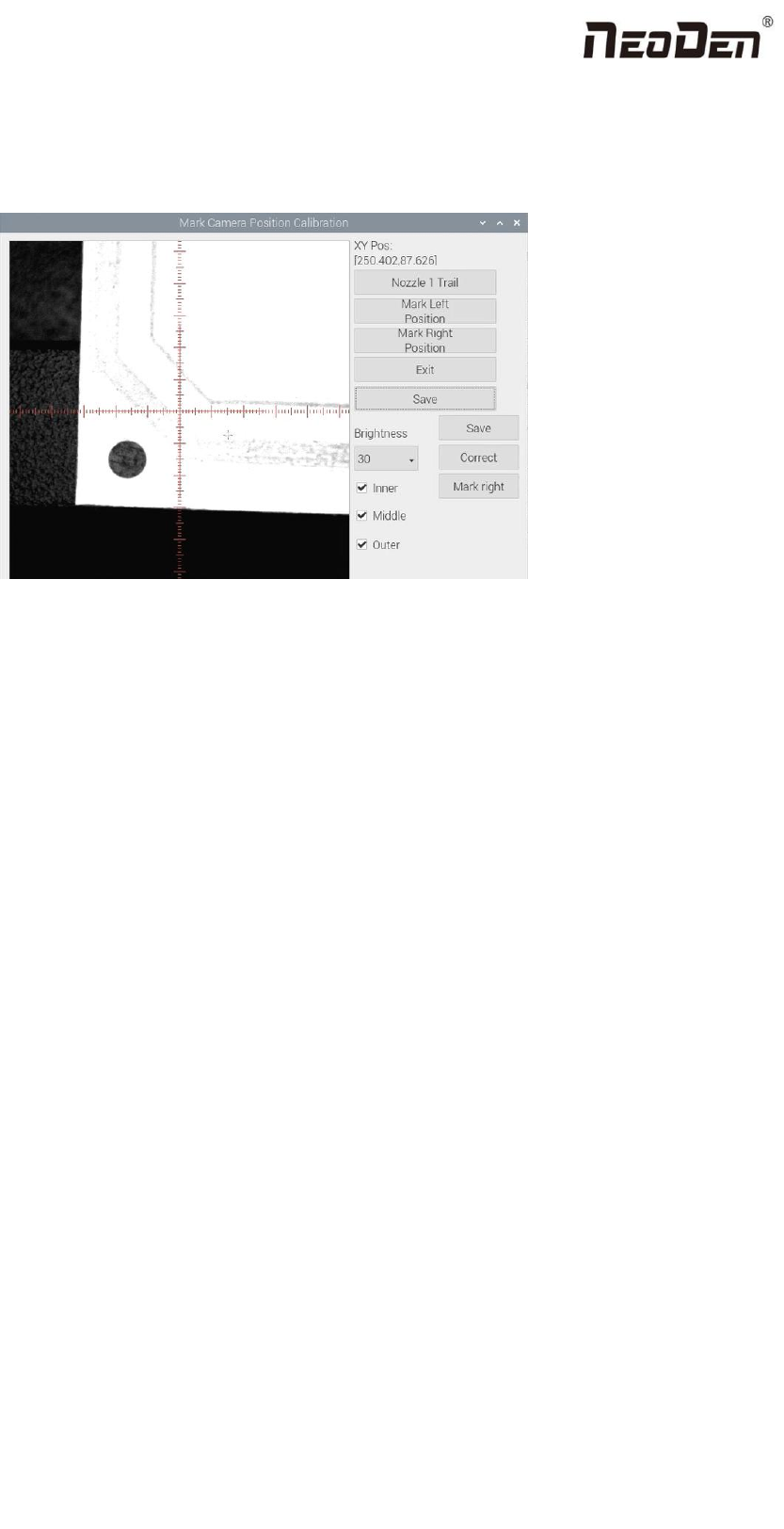
After entering the factory settings, the administrator logs in first, clicks "click lock" at the relative position of the mark
camera, and a prompt window pops up (do you want to leave a mark at the current position). Click Yes, and the
following interface will appear. Click "nozzle 1 leave a mark" and the sticker will drop, leaving a dot. Observe the
position deviation between the mark point and the center point of the red cross cursor, You can use the Red Cross to
select the center position of the mark point. If the deviation position is within 10 wires, it is regarded as the completion
of the mark. After the left camera is aligned, click mark to locate it right. Similarly, you can also use the cross to select
the center position of the line mark point. Note: both left and right cameras shall be positioned and then saved (if the
deviation is too large, the Engineer shall be contacted in time for correction)
2. Introduction of Mark Camera Relative Position function:
Left Mark Camera Positioning:The left camera is used to recognize the image after leaving the mark
Right Mark Camera Positioning:The right camera is used to recognize the image after leaving the mark(In principle, the
images of left and right cameras are the same)
Exit:Exit without leaving marks
Save:After the marking operation is completed and the center position of the marking point is also selected, click save to
save the data.
Brightness:The brightness of the mark camera when recognizing an image, it can be adjusted in the drop-down list