User-Manual-NeoDen9-PNP-machine.pdf - 第22页
22 Zhejiang Neoden T echnol ogy Co., Ltd After finish all editing o peration, click convert to c urrent positio n. It will pop u p th e above dialo gue, click yes, the m achine will recogniz e the fiducials automatically…
21
Zhejiang Neoden Technology Co., Ltd
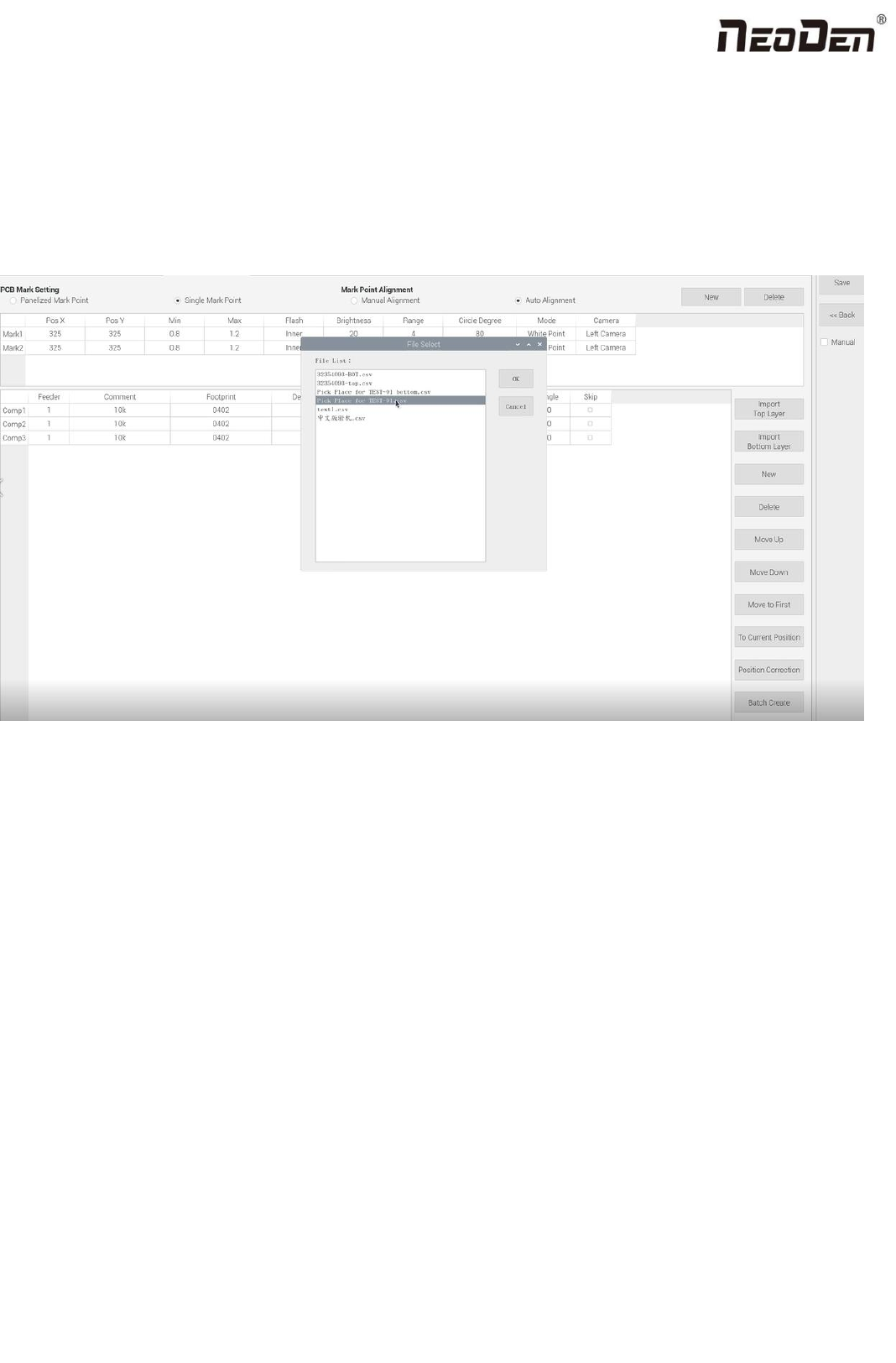
(2)Plug the USB into the machine, do not choose the manual programming, import the processing file by clicking related
layer file import button. The right side click ‘file import top layer’ and the reverse side click ‘file import bottom layer’ . It
will pop up a selecting window, choose the processing file and click save, the information will be imported to the list. (Note:
when import bottom layer, the PCB length(the whole board), need to be set and save before importing, so as to ensure that
the import coordinates will not have negative values). The following figure show the process of importing Toy layer.
Introduction of other functions:
(1)Addition of component: Click ‘New’ , the component list will copy one row from the adjacent row, then modify the
component information.
(2)Delete component: Select the wrong component row, click delete to remove the component.
(3)Movement of component:When editing, sometimes we need to do a slightly adjustment for the edited file, we have
three ways of movement:
Move up: to move the selected component upward.
Move down: to move the selected component downward.
Move to head position: To move the selected component to the first row. Please notice the first row component must be
the same as the first component to place on the PCB.
(4)Convert to current machine coordinate
22
Zhejiang Neoden Technology Co., Ltd
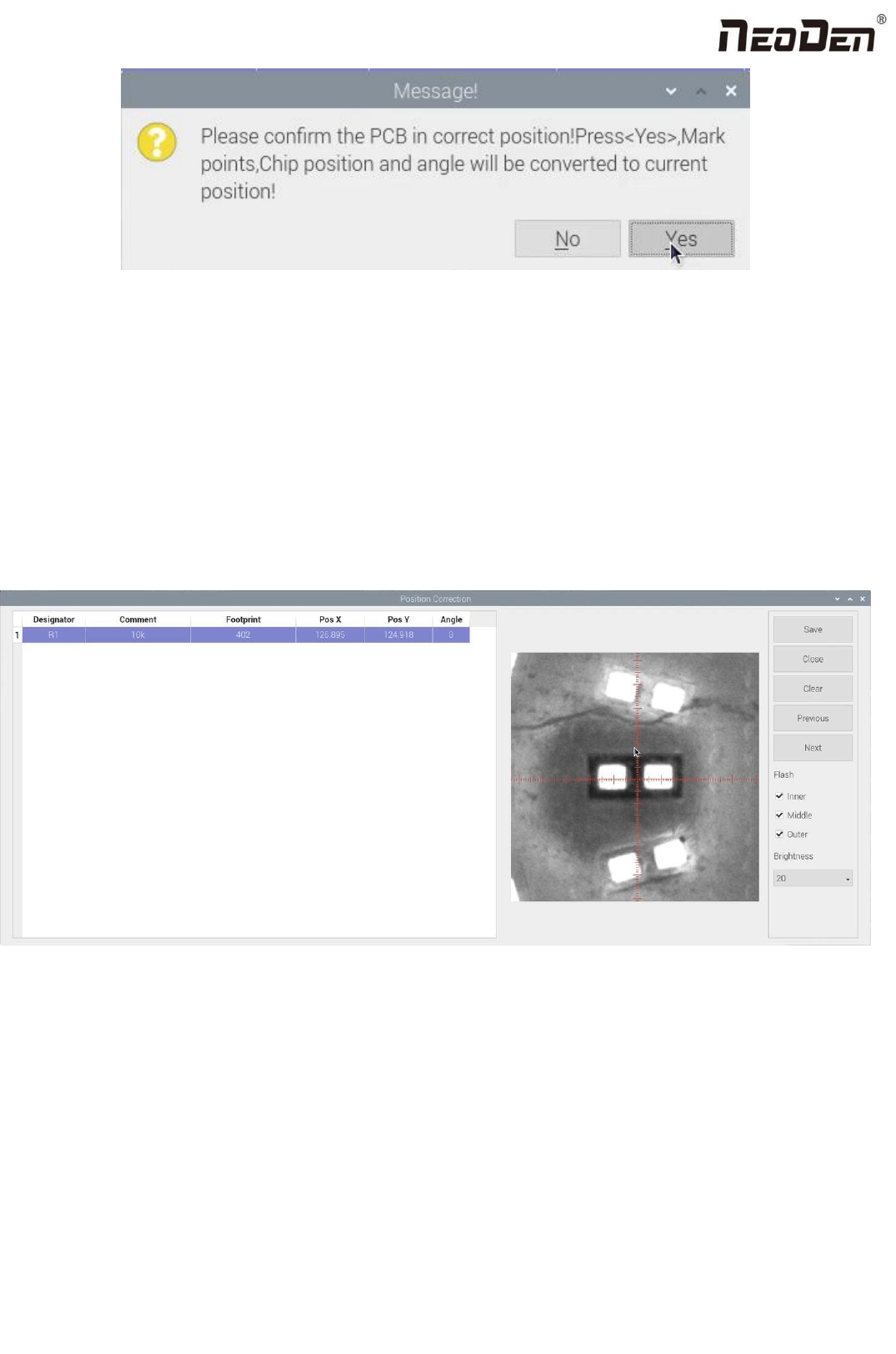
After finish all editing operation, click convert to current position. It will pop up the above dialogue, click yes, the machine
will recognize the fiducials automatically and convert all component coordinate to machine coordinate. After convert
successfully, it will pop up a dialogue, click align to check if the components’ position are still correct.
(5)Position correction
After mounting, if there is a deviation(deviations are regular and relatively consistent), please click position correction to
enter the new vision page. Click the left mouse button to align the center of the placed component; Click the right mouse
button to align the center of pad. Then correct next one until finish all component and save. The machine will remember the
position after correction. It will fix it automatically at the second placement.
(6)Batch create components
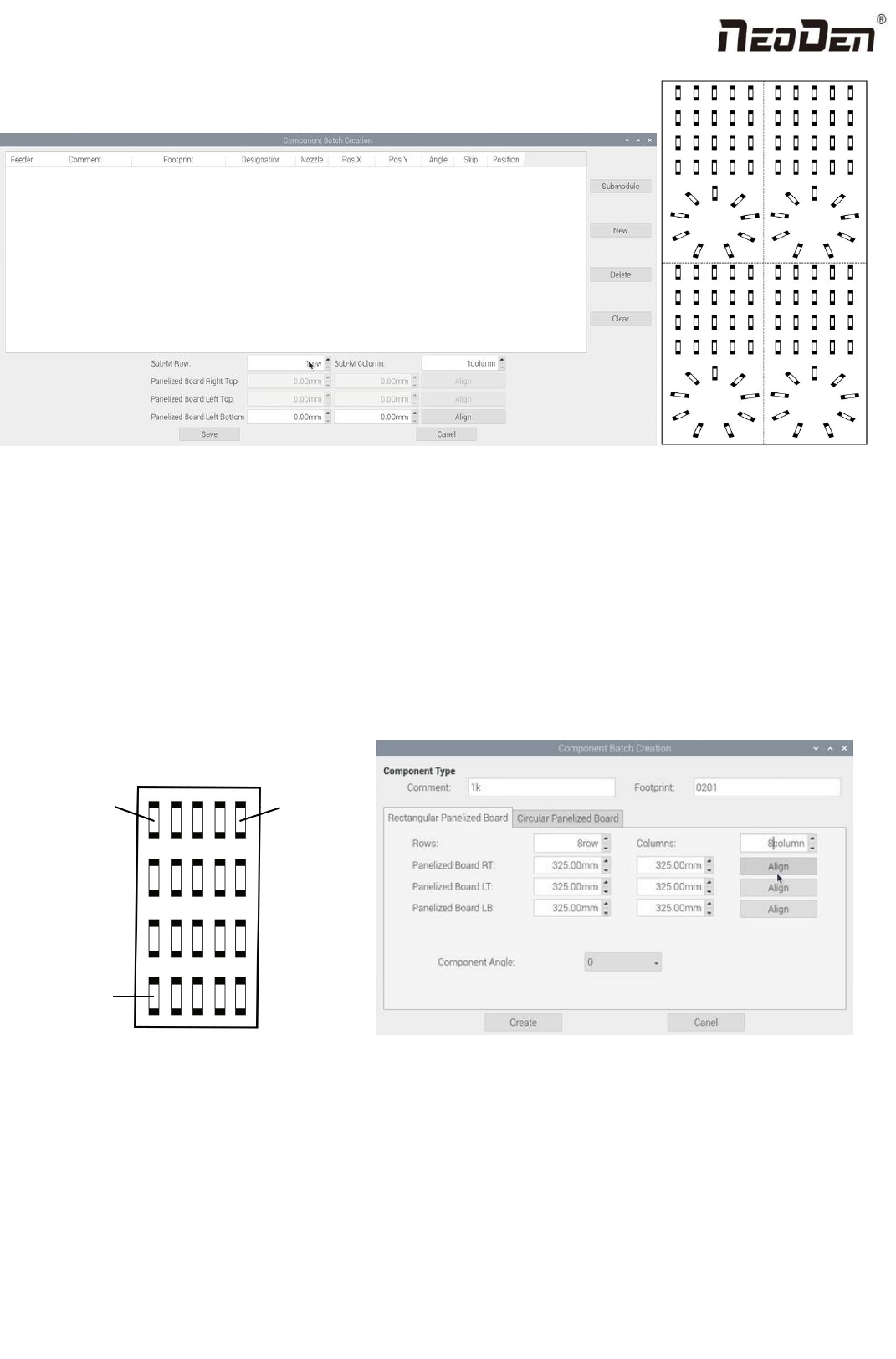
Some circuit boards are relatively regular and easy in real editing situation. For this type of circuit board, we can generate
coordinate in batch , the interface as shown in figure:
23
Zhejiang Neoden Technology Co., Ltd
For example: we can see the above picture which has a rectangular block and a circular block to form a small panel. We call
such panel as submodule. We can generate the whole panel board through creating a submodule.
Two ways to generate submodules: rectangle and circle.
(1) The way to generate rectangle panel: Click: ‘submodule’, below dialogue will pop up. Please fill in specification and
footprint of component. We can see the panel has four rows and five columns. Fill in 4 rows and 5 columns in the dialogue,
and align the three components(right top, left top, left bottom). The component degree will be based on actual situation.
Click ‘create’, the machine will generate all the coordinate automatically.
Upper right
角
Upper left
上角
Lower left
(2)
The way to generate circle panel
When the quantity of component is even: Click: “batch create”, below dialogue will pop up. Please fill in specification and
footprint of component. Choose circle panel, the component number is 24 in the example, the angle is 0. Since the quantity
of component is even number, we only need to find two symmetry components to align, Start point and Component point 2.
After that, click create, the 24 components coordinate will be generate automatically.