User-Manual-NeoDen9-PNP-machine.pdf - 第20页
20 Zhejiang Neoden T echnol ogy Co., Ltd 4.2.1 Ope ration in troduction of component list 1.Manua l programming ( 1 ) Select m anual pro gramming; ( 2 ) The compon ent informa tion list disp lays multiple ro ws of sample…

19
Zhejiang Neoden Technology Co., Ltd
It means the size of mark point, it has a floated value, which can prevent recognizing mark point wrongly.
(3)Light source
Light source divide into inner、middle、 outer、inner and middle、middle and outer, whole lights. The user can make
adjustments accordint to fiducial point recognition situation.
(4)Brightness
The user can adjust the brightness when align the fiducial point according to actual situation.
Selection of light source and brightness: The user can lock the location of the fiducial point through the XY position lock
interface, select the light source and brightness through the recognition of the Mark camera on the right, and fill the
corresponding parameters into the mark point information.
(5)Range
If there are interference points near the Mark point, you can input a certain value and ensure identify the Mark point more
accurately.
(6)Circle Degree
Input reasonable circle degree value,can avoid interference from other points effectively.
(7)Mode
Dividing into white point and black point, select black point mode if have hole and bright point,select white point mode if
have bright point.
(8)Camera
Support select left camera and right camera(user can select the camera for calibration according to the actual situation),also
can select default setting camera. If user select camera that can’t reach the position, the machine will use corresponding
camera during work.
(9)Mark point add and delete
Click “new” to add new fiducial point(base on mode of the latest fiducial point). Click ”delete” to remove the selected
fiducial point you want.
4.2 Component list setting
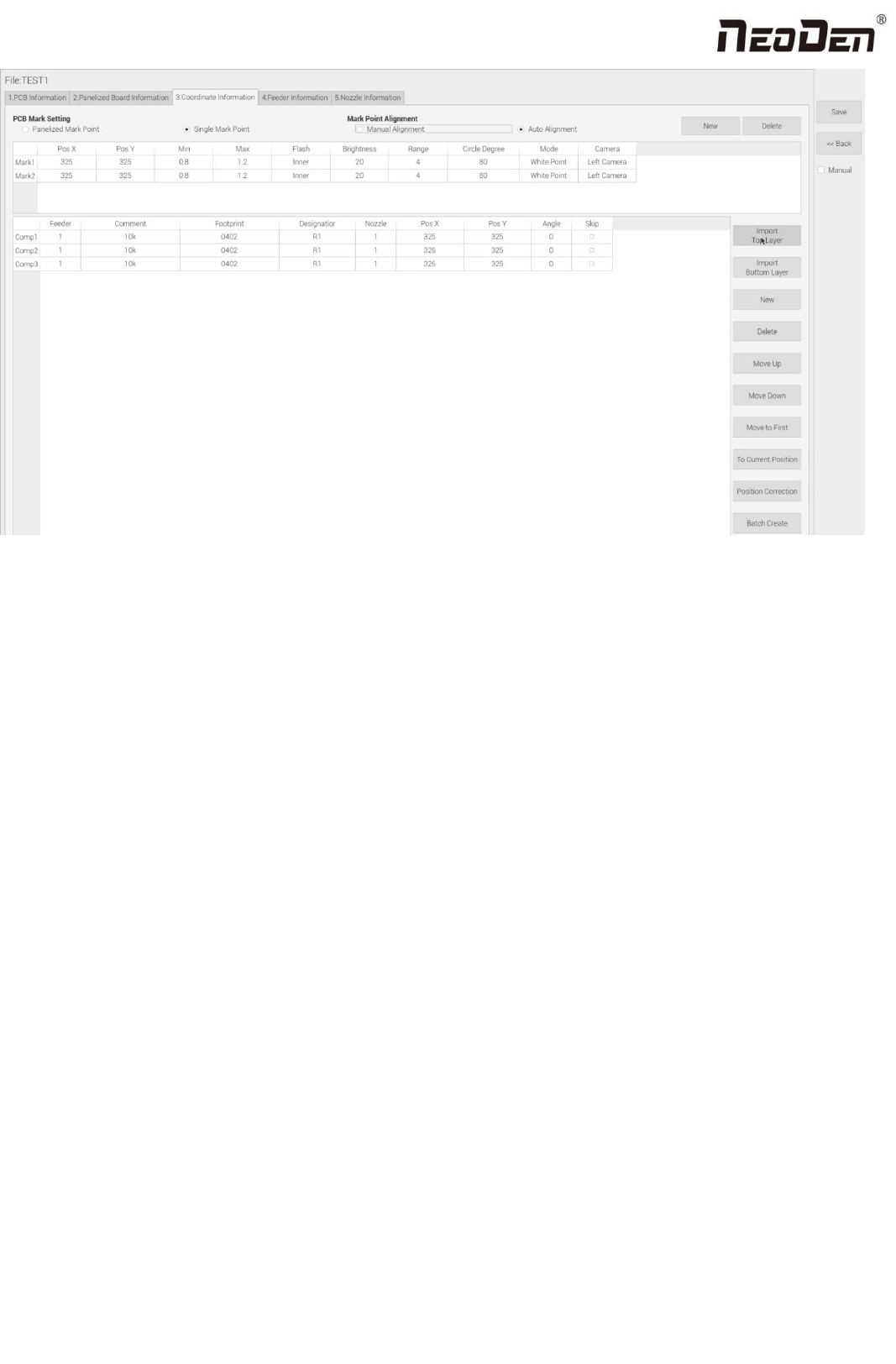
Function: display the information and mounting order of components. The components’ quantity and mounting information
can be added through manual programming or importing files , see below figure:
20
Zhejiang Neoden Technology Co., Ltd
4.2.1 Operation introduction of component list
1.Manual programming
(1)Select manual programming;
(2)The component information list displays multiple rows of sample components. First, modify the sample components:
coordinate XY, click the position lock to enter the lock interface. According to the image presented by the Mark camera,
find the corresponding component and confirm the center position coordinates, click save.
(3)Fill in the information of component: Stack refers to which stack No. the component located; Nozzle refers to which
nozzle used to mounting the component; Specification refers to the component’s value; Footprint refers to the common
footprint name as 0402,0603,0805 etc; Skip setting includes true or false, false means keep mounting, true means skip
mounting this component. After finish all parameters’ editing, the setting of first component information finish.
(4)Click ‘New’ to add one row on the component list. The information will exactly copy from last row. Click align to find
the component’s coordinate. Then click save then edit other information such as name, value, footprint and angle etc. Keep
adding new component until the whole PCB finish. Please note that the stack and nozzle do not need to be edited manually.
It can be set through feeder setting interface with ‘Assign all sequentially’ button to assign the information to component list
automatically.
2.Import the processing file
(1)Export the component coordinate information through computer by choosing metric system CSV format to the USB
flash disk.
21
Zhejiang Neoden Technology Co., Ltd
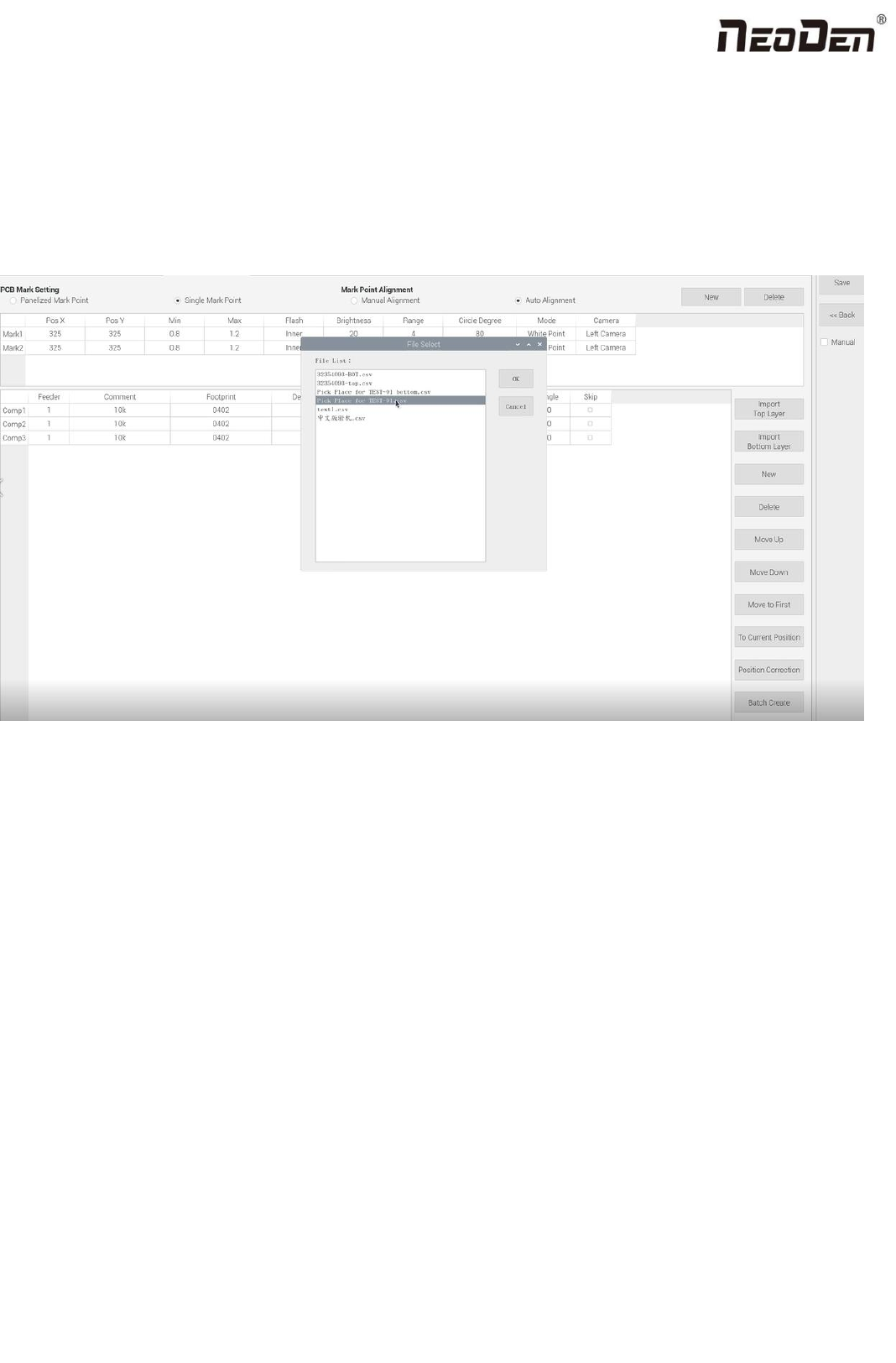
(2)Plug the USB into the machine, do not choose the manual programming, import the processing file by clicking related
layer file import button. The right side click ‘file import top layer’ and the reverse side click ‘file import bottom layer’ . It
will pop up a selecting window, choose the processing file and click save, the information will be imported to the list. (Note:
when import bottom layer, the PCB length(the whole board), need to be set and save before importing, so as to ensure that
the import coordinates will not have negative values). The following figure show the process of importing Toy layer.
Introduction of other functions:
(1)Addition of component: Click ‘New’ , the component list will copy one row from the adjacent row, then modify the
component information.
(2)Delete component: Select the wrong component row, click delete to remove the component.
(3)Movement of component:When editing, sometimes we need to do a slightly adjustment for the edited file, we have
three ways of movement:
Move up: to move the selected component upward.
Move down: to move the selected component downward.
Move to head position: To move the selected component to the first row. Please notice the first row component must be
the same as the first component to place on the PCB.
(4)Convert to current machine coordinate