User-Manual-NeoDen9-PNP-machine.pdf - 第14页
14 Zhejiang Neoden T echnol ogy Co., Ltd Click “Save a nd Ba ck”, it will go b ack to the previou s interfac e, c lick “crea te p anelized list” button , the data which on the panelized list will ch ange. Can see the “SM…

13
Zhejiang Neoden Technology Co., Ltd
2.1.3 Width Set
Generally setting the width data in this way: pcb width+1mm. Input the data and click “Width Set”, against the tips to check
if it meet with the width back to zero condition. The track will be firstly back to zero width and then widen to the adjusted
data, after that you can put pcb on the track and push it slightly to test if board can be moved smoothly.
2.1.4 PCB Length
It refers to the whole length of PCB. Specially when you need to import the bottom layer coordinates, please firstly input
the PCB length, save it and then import bottom layer, the coordinates will be positive data.
2.1.5 Safe Height
If there’s some special higher component on the PCB, please must set the safe height in case any collision during mounting.
Safe height can be set same as the higher component thickness.
3.Panelized Board Information
3.1 SMD 1 Position Setting
This is mainly to determine the first component on single or panelized PCB of manual program or imported file. The
principle is to collect and calculate the data of each board’s relative spacing, in order to achieve the calculation of the real
coordinate.
3.1.1 Single Board Setting
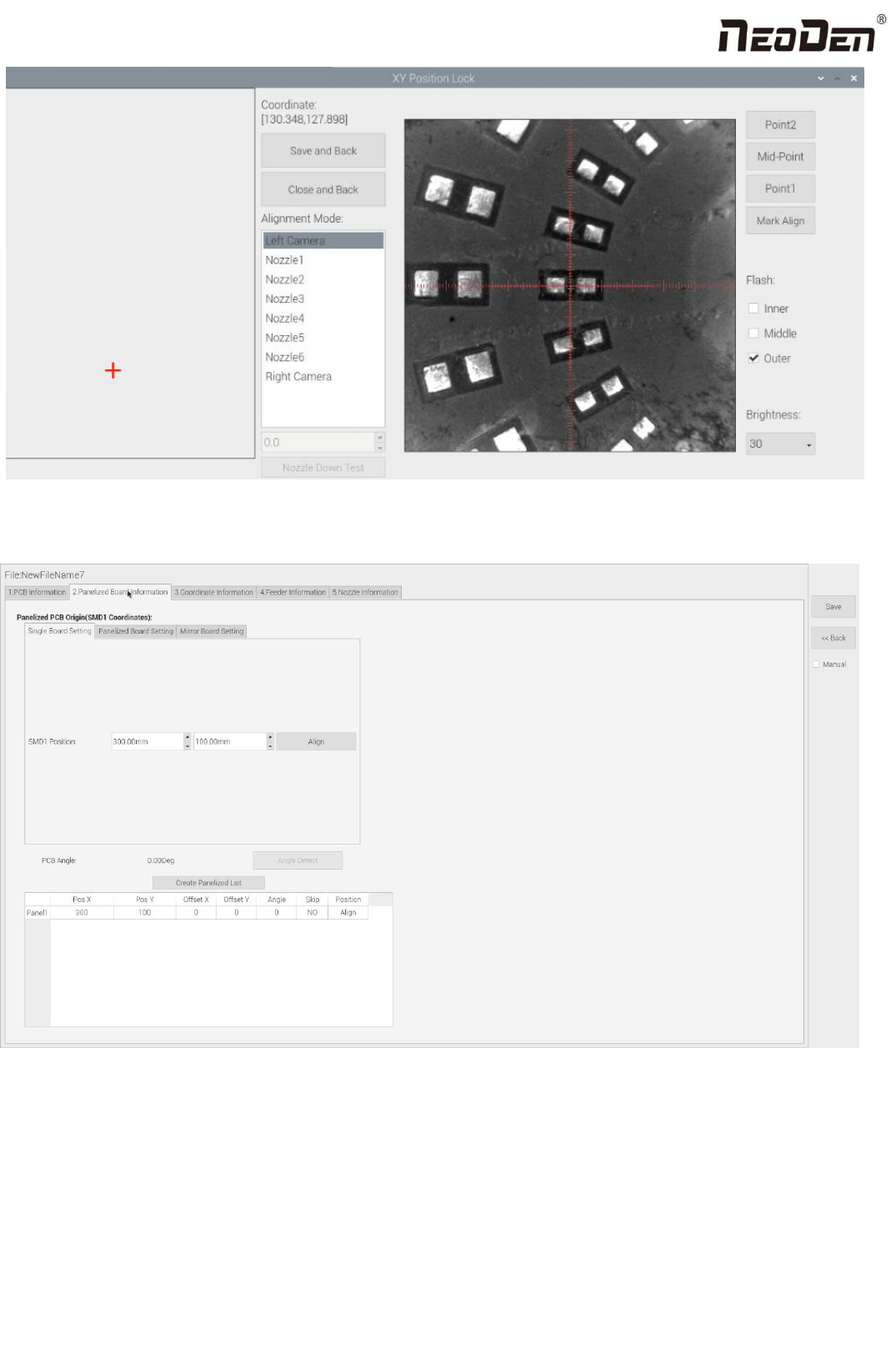
Click “single board setting”, you will see the “align” button of the SMD1 position that means the first component on the
component setup. Click “align” to enter the vision align interface, we need find the first component that on the component
list, generally we choose the center of the component, see figure:
14
Zhejiang Neoden Technology Co., Ltd
Click “Save and Back”, it will go back to the previous interface, click “create panelized list” button, the data which on the
panelized list will change. Can see the “SMD1 information”on the list and do double check via “align” button.
Notice: when you program under “Manual” mode, as we cannot assume the related PCB to be absolute 90° or 0°, we need
to setting the “PCB angle” (angle deviation of PCB board compares to rails). To minimize the deviation, please select two
points in parallel positions, machine can calculate the PCB angle automatically.
When you program under the mode of import coordinate file, no need to set this step. The default angle under this mode
will be 0°.
15
Zhejiang Neoden Technology Co., Ltd
3.1.2 Panelized Board Setting
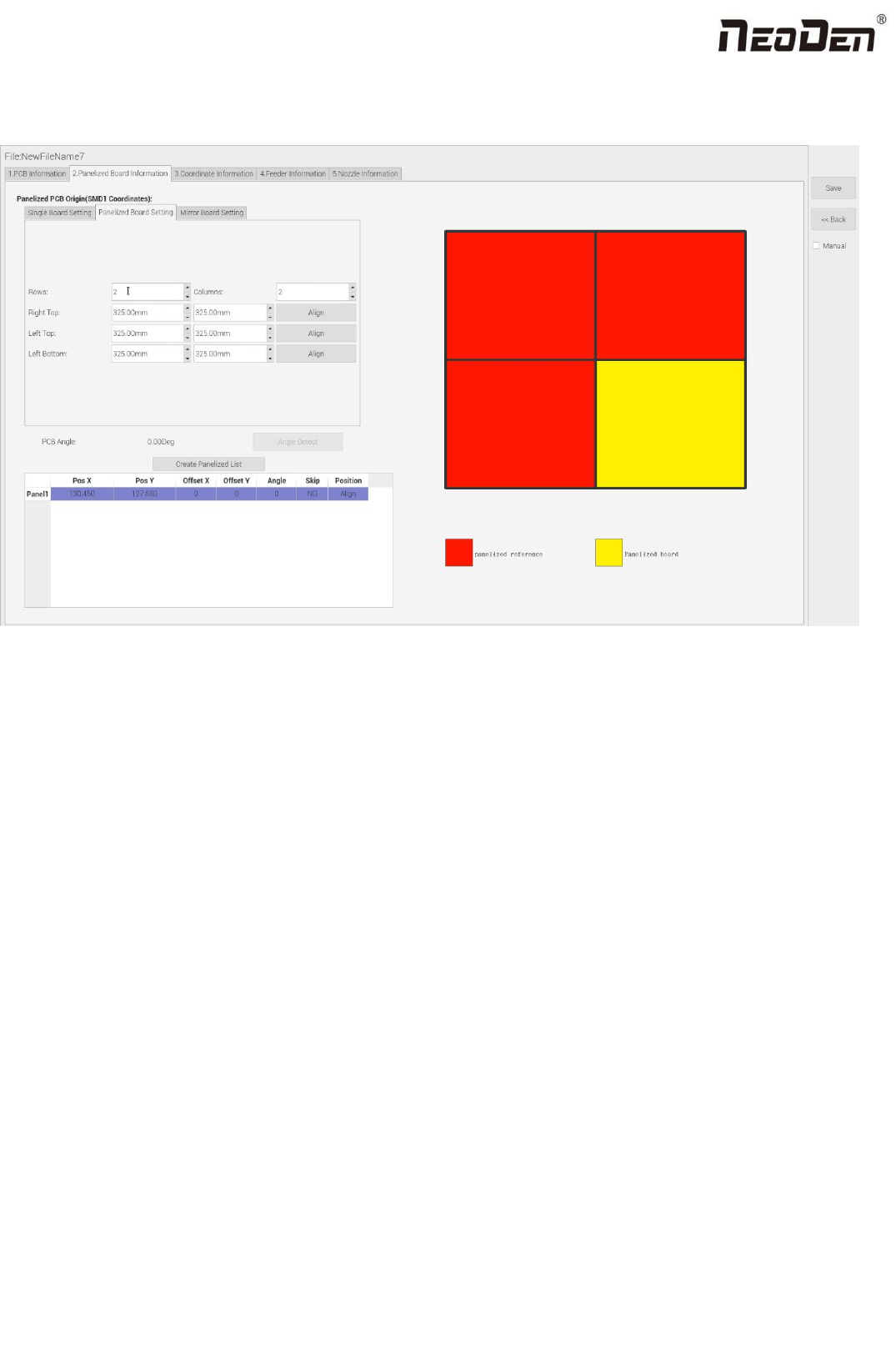
The steps of the panelized board setting are similar with the single board, but need pay attention to several points below:
(1)The row and column are determined by the positioning of PCB on working area. The direction along the rails is the X ,
the direction perpendicular to the rail is Y , then please enter data in the row and column.
(2)Detailed introduction for each position’s info.:
The data of “left bottom” is collected according to first component in the component list of programming file. Press
“align” of left bottom, find the left bottom panel that is nearest to the left side and nearest to the feeding position, then
find the first component which on the chip list of this panel, align the center of this component. After saving the data, it
will return to the “PCB information” automatically.
The data of “left top”: on the alignment interface, find the left top panel that is nearest to the left side but farthest to the
feeding position, then find the component same as the component that aligned on the “left bottom”, align the center of
this component. Click save and back, it will return to the “PCB information” automatically.
The data of “right top”: on the alignment interface, find the right top panel that is nearest to the right side but nearest to
the feeding position, then find the same component as the component that aligned on the “right top”, align the center of
this component, click save and back, it will return to the “PCB information” automatically.
After setup, click “create panelized list”, the panelized list will be generated accordingly in the blank. You can also double-
confirm each position by clicking “Align”.