DR4900 用户手册_Full version.pdf - 第29页
Figure 9 Read sample ID label 7.6 Show reports and data 1. Push , then select Reports & data . 2. Select an option. Option Description Data log Keeps a data log with a maximum of 10,000 measurements. A complete repor…

3. Select an option.
Option Description
Name Enters a name for the new program.
Version Enters an abbreviation or a number for the version.
Measurement process Sets the measurement formula.
Formulas Sets the formula with which the test result is calculated.
Formula variables Enters the wavelengths, factors, constants and more.
Timers Adds a maximum of four timers to the program.
Control number Calculates based on the selected measurement procedure.
4. Push OK.
7.5 Use the camera (optional)
Use the external camera to:
• Show, keep and send the certificate of analysis for each chemical consumable package.
4
Refer to
step a.
• Use the QR code to update the chemistry database with the latest calibration information. Refer to
step b.
• Read the sample information. Special labels are used to record the information about where, by
whom and when the sample was collected. The handwritten text (in uppercase letters) is imported
by the external camera. Refer to step c.
1. Make sure that the camera is correctly installed and shows on the display. Refer to Install the
camera (optional) on page 11.
2. Push . The camera is set on and a window with a live video stream shows.
a. Hold the package for chemical consumables 5 to 10 cm (2 to 4 inches) above the camera.
A video stream is shown on the screen to help the user navigate through the package so that
the data matrix code can be read by the camera.
b. Put the barcode cuvette in cell compartment 1.
The system examines if necessary updates are available. If yes, the camera is set to on and a
window with a live video stream shows.
c. Hold the bottle with the sample ID label in front of the camera. Refer to Figure 9.
Note: Use only capital letters written with a black pen with a line width of 0.6 to 0.7 mm (0.023 to
0.028 inches)
The information is read, decoded and shown on the screen. Correct the data if necessary.
3. Select an option.
4. Push OK to go back to the main menu.
4
Each package for chemical consumables has a data matrix code on the bottom with the most
important information.
28 English
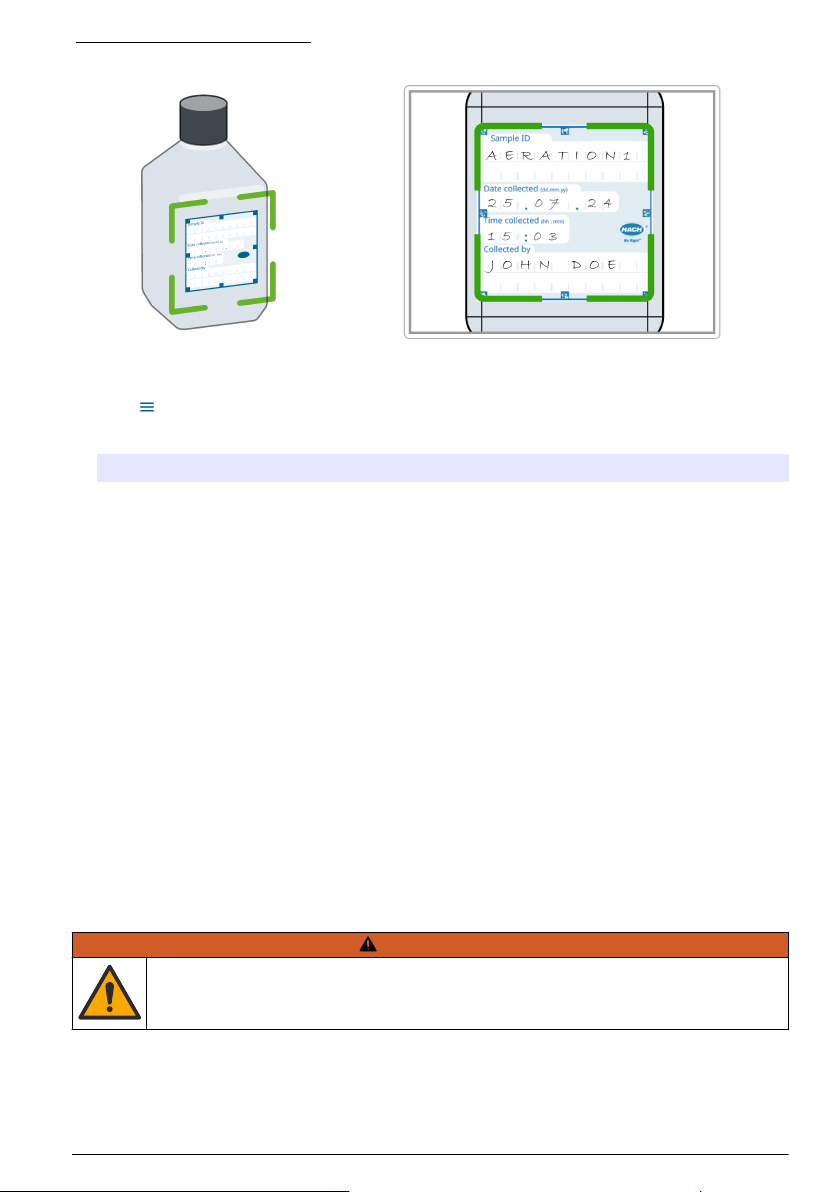
Figure 9 Read sample ID label
7.6 Show reports and data
1. Push , then select Reports & data.
2. Select an option.
Option Description
Data log Keeps a data log with a maximum of 10,000 measurements. A complete report of the analysis is
kept, which includes the date, time, parameter, value, sample ID and operator.
Trends Use the trend option to show a time curve or history curve for the saved measurements for each
parameter and location. The concentration of the applicable parameter shows over time.
Ratios Monitors the parameter relationships at a special location and shows the parameter in a chart with
the ratio function.
Scan log Records 200 time-course measurements and multi wavelength scans.
AQA log Examines the analytical quality. Configures the control of individual procedures with standard
solutions or the testing of cross-sensitivity of analyses with standard addition solutions, multiple
determinations and dilutions. A maximum of 1000 records are recorded.
7.7 Do a system check
The System checks menu contains some optical checks for the system.
7.7.1 Do an optical check
At regular intervals, do an optical verification to look at stray light, photometric and wavelength
precision.
An optional test filter set (verification kit) with six precision glass filters, target values and instructions
is available as an aid to do a comprehensive instrument verification. Refer to Table 7 on page 33.
Section 8 Maintenance
W A R N I N G
Multiple hazards. Only qualified personnel must conduct the tasks described in this section of the
document.
English 29
C A U T I O N
Chemical exposure hazard. Obey laboratory safety procedures and wear all of the personal protective
equipment appropriate to the chemicals that are handled. Refer to the current safety data sheets
(MSDS/SDS) for safety protocols.
C A U T I O N
Chemical exposure hazard. Dispose of chemicals and wastes in accordance with local, regional and
national regulations.
8.1 Clean the instrument
N O T I C E
Do not use cleaning agents such as turpentine, acetone or similar products to clean the instrument including the
display and accessories.
Clean the enclosure, the cell compartment and all of the accessories with a moist cloth and a mild
soap solution.
8.2 Clean spills
C A U T I O N
Chemical exposure hazard. Dispose of chemicals and wastes in accordance with local, regional and
national regulations.
1. Obey all facility safety protocols for spill control.
2. Discard the waste according to applicable regulations.
8.3 Replace the cell compartment
Replace the cell compartment if the cell compartment is very dirty and cannot be cleaned with a mild
soap solution.
1. Set the power switch to off. Refer to Startup on page 9.
2. Replace the cell compartment. Make sure that the surface of the cell compartment is aligned flush
with the surface of the enclosure. Refer to Figure 10.
30
English