AOI_RS_v85_en.pdf - 第106页
Chap ter3 SPC User Ma nual AOI Repair Station 102 b. T he Show Columns block on the upper left hand side of the screen contains items that y ou can use to define the fields to be displayed in the Monitor List. c. The Mon…
Chapter3 SPC User Manual
AOI Repair Station
101
c. 2x: Zooms the control chart to 2 times its original size.
d. 2.5x: Zooms the control chart to 2.5 times its original size.
e. 3x: Zooms the control chart to 3 times its original size.
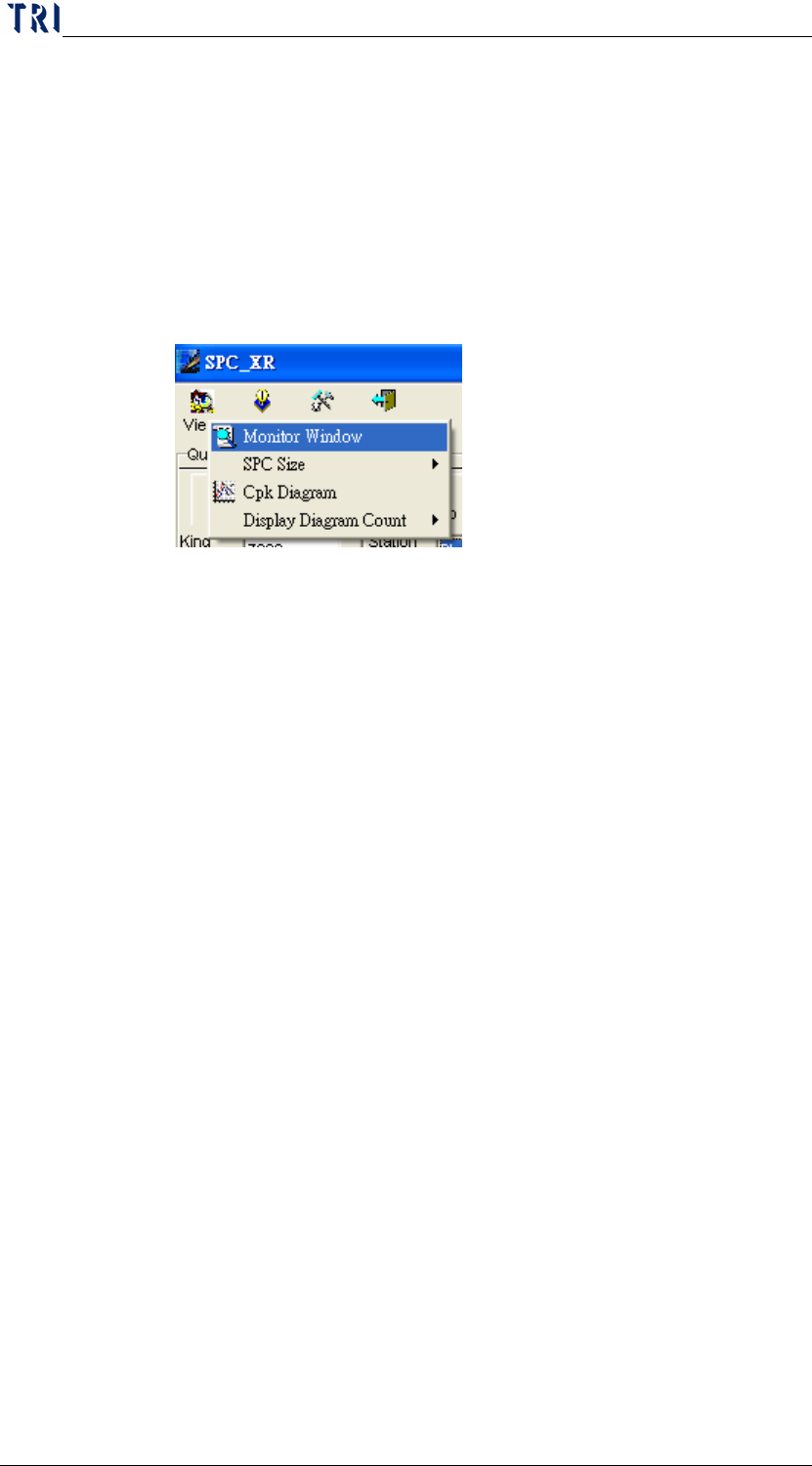
Monitor Window: This function allows you to view the action
currently being executed by the system. To use this function,
click on the [View] function on the upper part of the menu and then
[Monitor Window] as shown in the figure below.
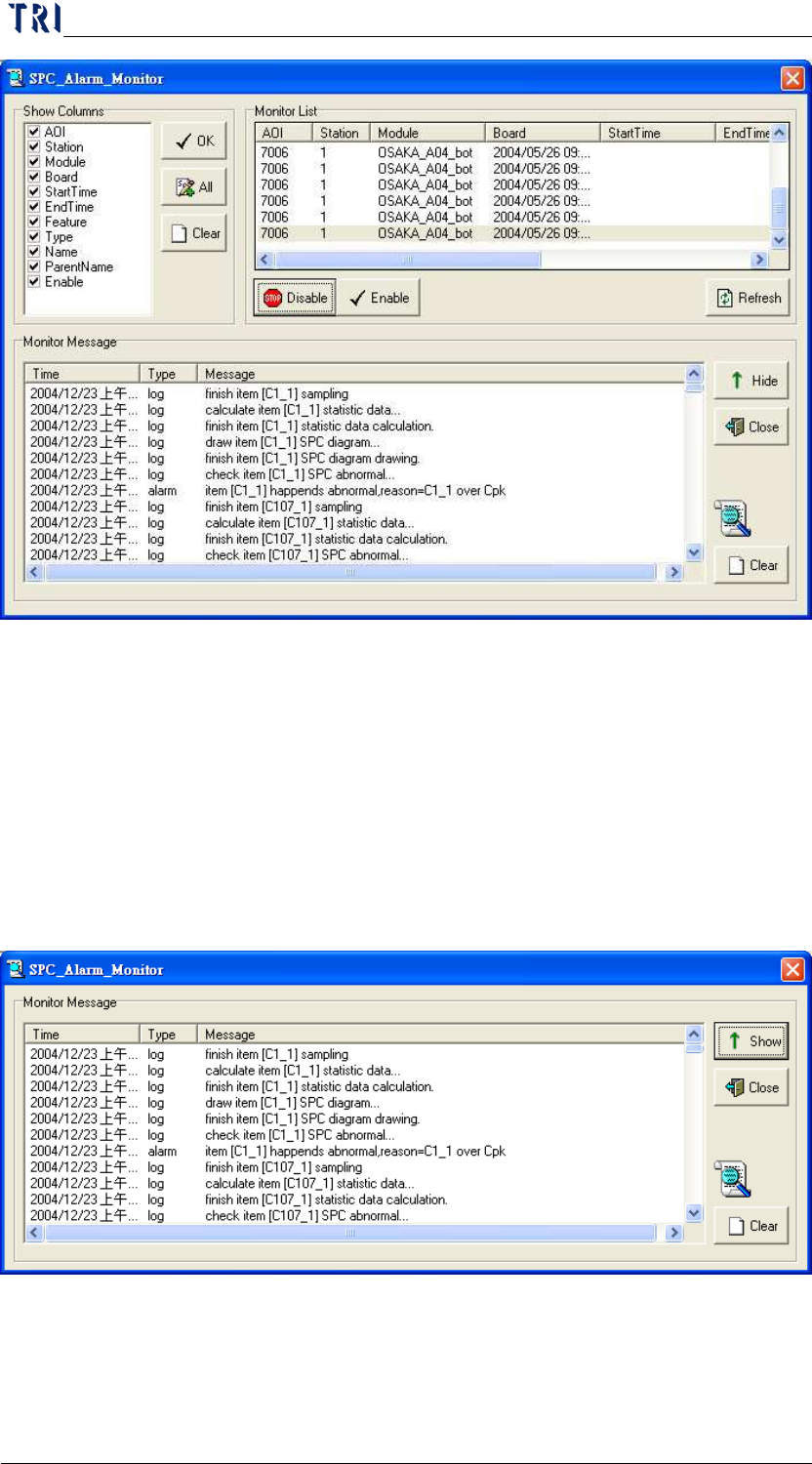
a. Enter the Setting screen as shown below. The Monitor List
block on the upper right hand side displays the list of
“Non-real-time monitor setup area”. You can click on the
Refresh button to get the list again. During monitoring, you
can select one or more items and then click on the Enable
button located below the list to resume monitoring of these
items. Or, you can click on the Disable button to stop
monitoring these items. Note that the Enable and Disable
functions only enable and disable items for monitoring for this
time only. The selected items will not be enabled or disabled
whenever the system performs monitoring. To enable or
disable items for monitoring anytime the system performs
monitoring, you have to use the Monitor Setup option under
Setting.
Chapter3 SPC User Manual
AOI Repair Station
102
b. The Show Columns block on the upper left hand side of the
screen contains items that you can use to define the fields to
be displayed in the Monitor List.
c. The Monitor Message block on the lower part of the screen
displays the tasks that the system is currently executing. If
you want the screen to display the Monitor Message block
only, click on the Hide button on the lower right of the screen
to hide the Monitor List and Show Columns blocks as shown
in the figure below.
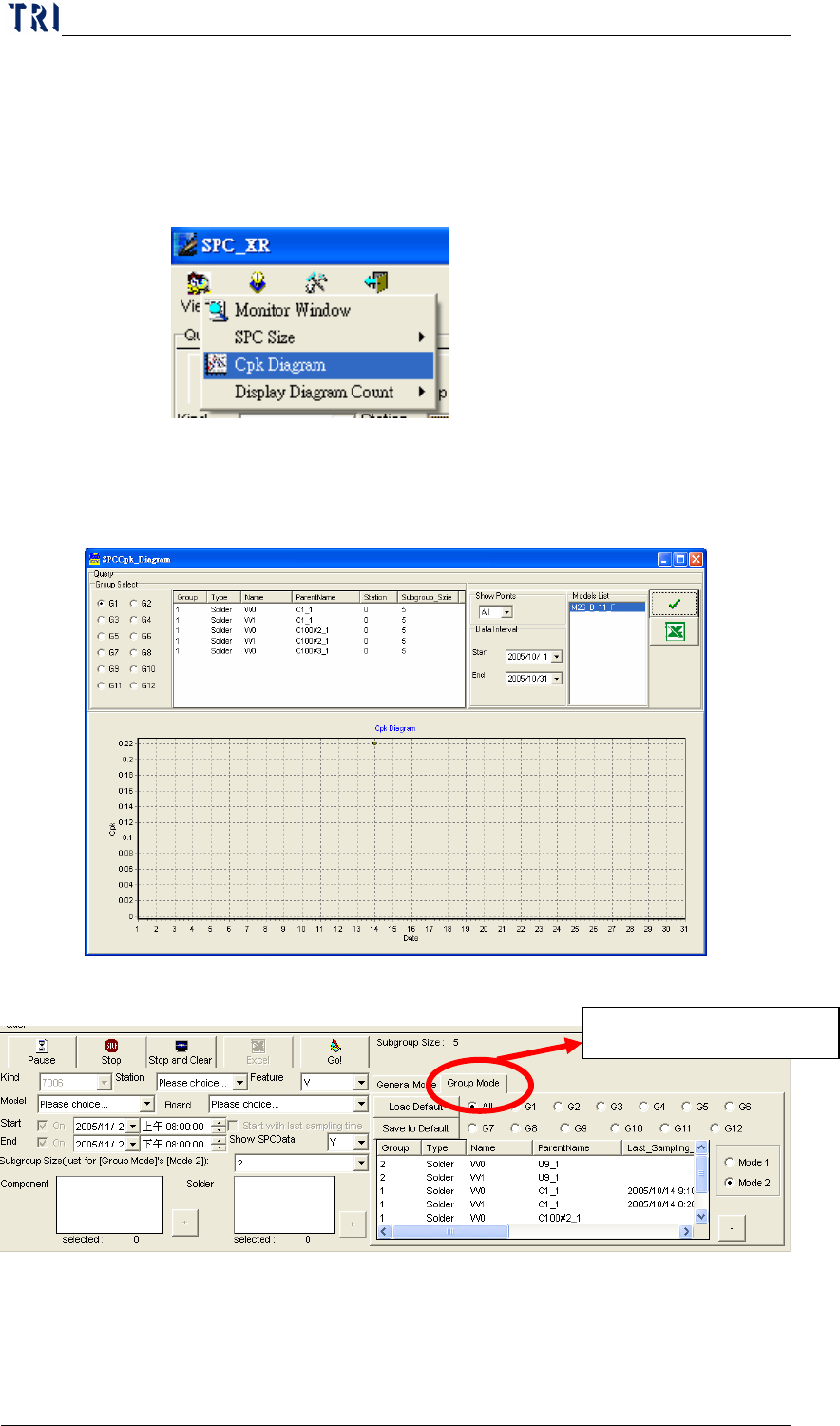
d. Click on the [Show] button to display the [Monitor List] and
Show Columns blocks again. Click on [Clear] to clear the
current messages and click on [Close] to close this window.
Chapter3 SPC User Manual
AOI Repair Station
103
Cpk Diagram: When system executes monitoring, user can use
this function to review the daily Cpk data in a period of time. This
item will be enabled only when user starts the “Auto Output Daily
Report” function.
a. You can see the window as below. The “Query” section is to
set the conditions; you can select a group to monitor. So the
“Cpk Diagram” function is only for “Group Mode”.
b. “Show Points” is to set the number of counts you want to
display in the Cpk Diagram. “Data Interval” is to set the
period of time you want to see the daily Cpk data; in this case,
Must be “Group Mode”