AOI_RS_v85_en.pdf - 第130页
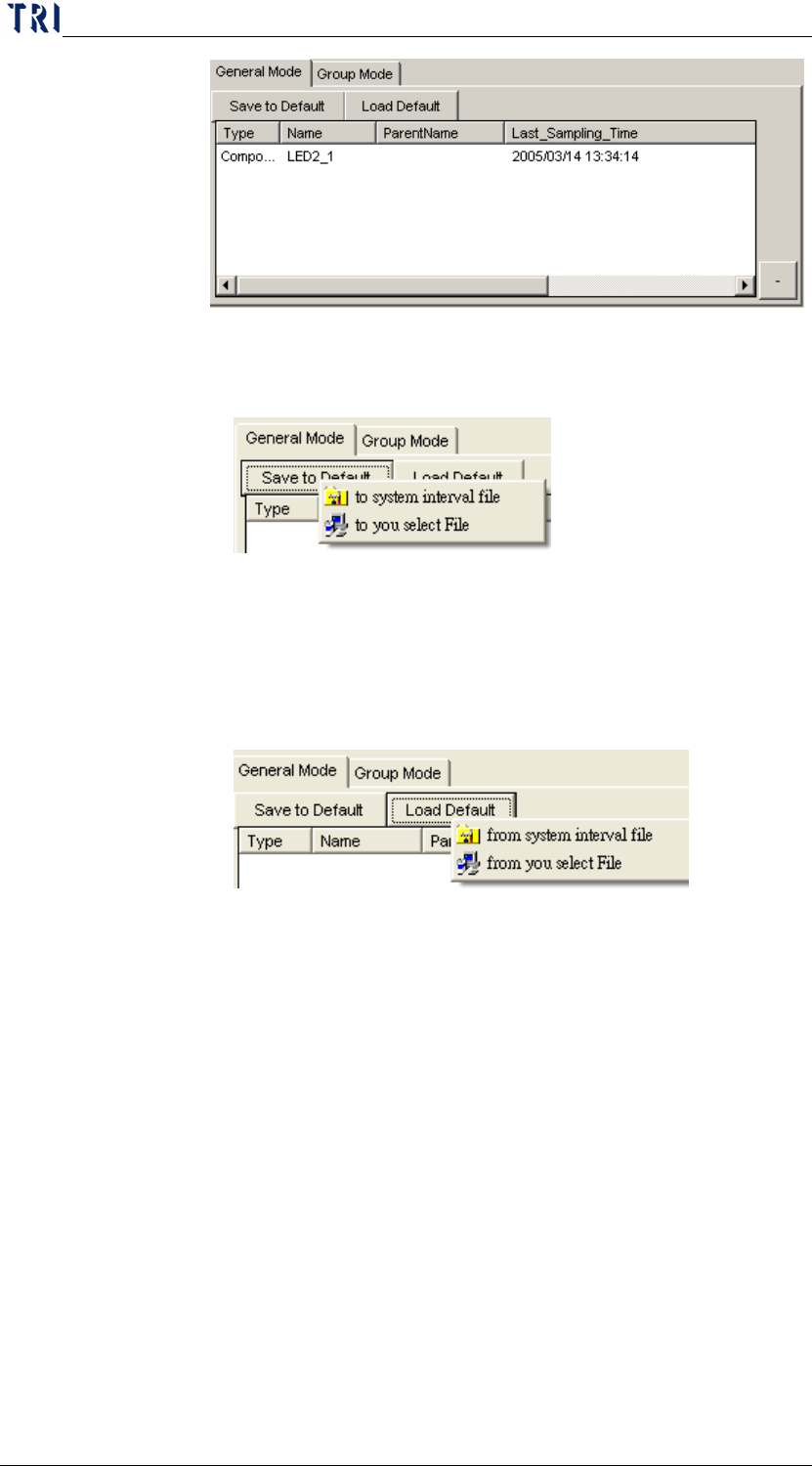
Chap ter3 SPC User Ma nual AOI Repair Station 126 Save to De fault: T o save t he current selection list as default for quick loading next time. There are two different way to save the list as default, ex plained below…
Chapter3 SPC User Manual
AOI Repair Station
125
Save to Default: To save the current selection list as default
for quick loading next time. There are two different way to
save the list as default, explained below.
to system interval file: set as the system default in the
interior path.
to you select file: save the list to specified path; this is
for user to save several settings for different ways.
Load Default: Loads the list saved last time. There are 2 ways
to save the list.
from system interval file: loads list from the system
default.
from you select file: loads the list form specified path.
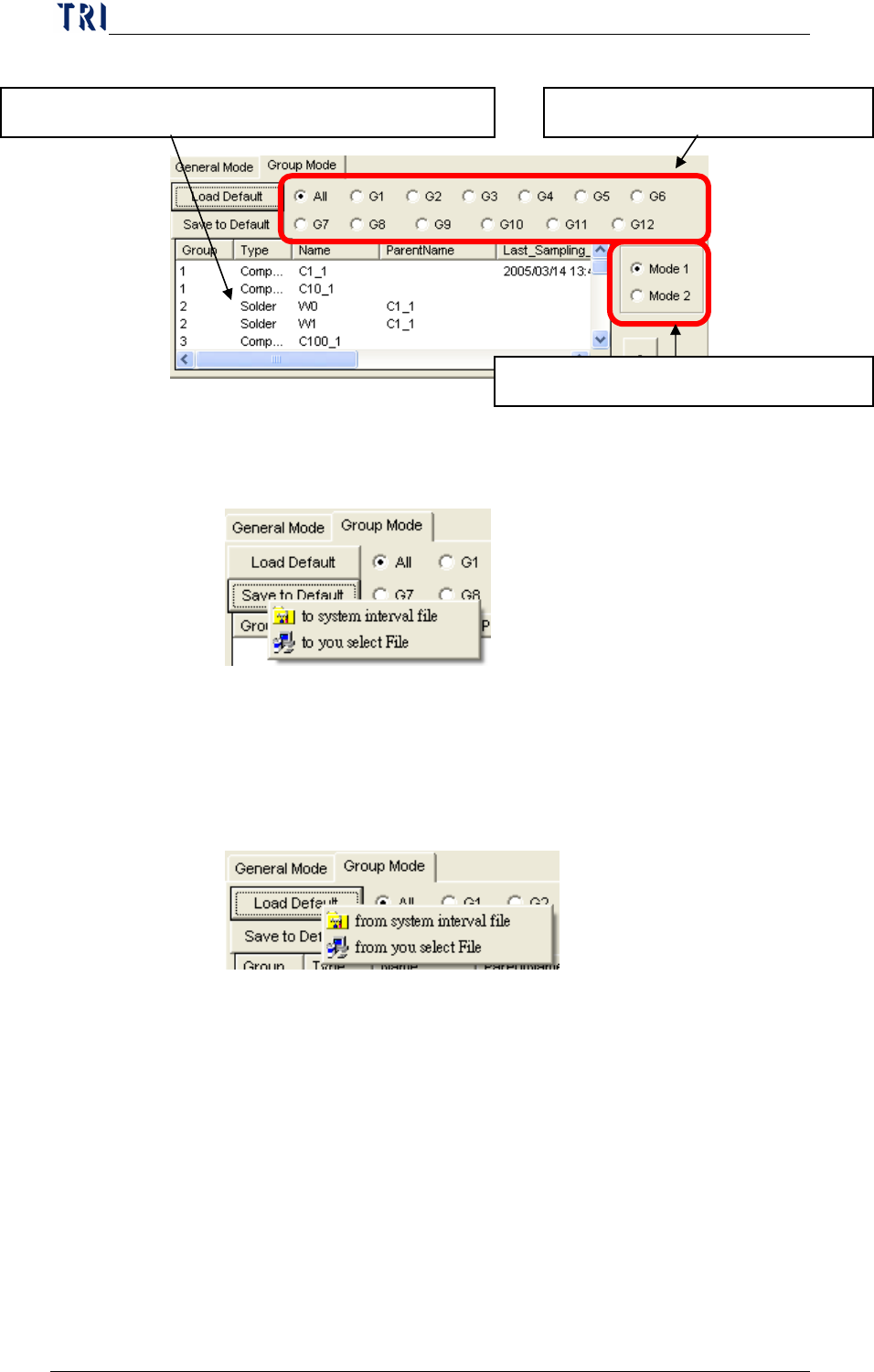
Group Mode: User could put several components or solders
that are with same character into a group and monitor the
components by group. There are 12 groups at most can be
set. The spec data is the average spec of all components in
this group.
Chapter3 SPC User Manual
AOI Repair Station
126
Save to Default: To save the current selection list as default
for quick loading next time. There are two different way to
save the list as default, explained below.
to system interval file: set as the system default in the
interior path.
to you select file: save the list to specified path; this is
for user to save several settings for different ways.
Load Default: Loads the list saved last time. There are 2 ways
to save the list.
from system interval file: loads list from the system
default.
from you select file: loads the list form specified path.
Ways to calculate samples: There are two ways to calculate
samples, Mode1 and Mode2.
Mode 1: The value for one sampling is the average of
inspection results of all items in this group.
Mode 2: The value for one sampling is every single
inspection results of the items in this group.
Monitoring Control Area: After all settings are finished, user could
use the buttons here to execute monitoring.
Select the group name to review. The component or solder listed in this group.
Select the mode to calculate sample.
Chapter3 SPC User Manual
AOI Repair Station
127
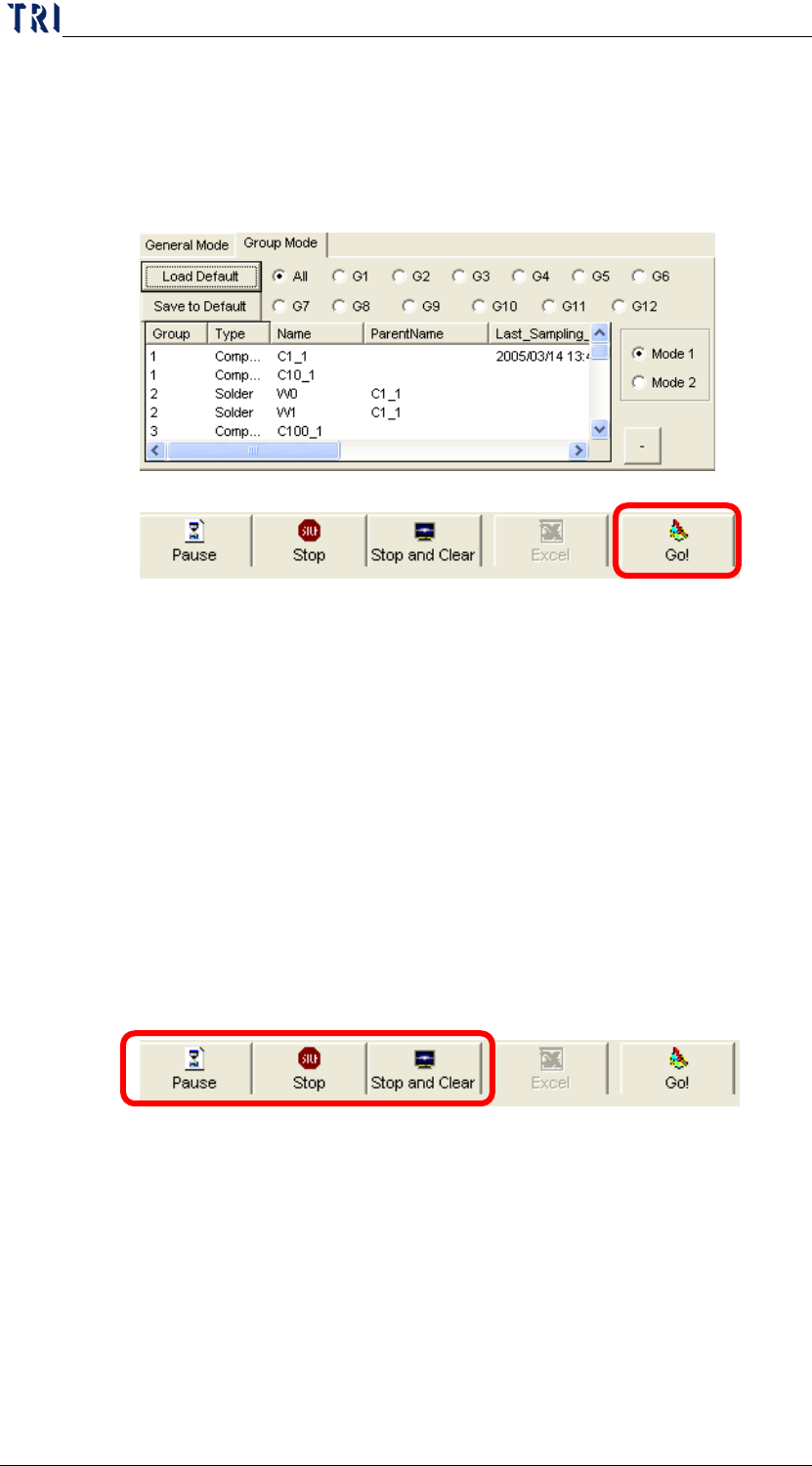
Start to monitor: After selecting the components and solders
to be viewed, click on the “
Go!” Button to start monitoring as
shown in the following figure. Before monitoring, user has
to change to the page of the mode that he uses to monitor.
Then click on “
Go!” to start the monitoring.
Confirm the Mode.
Start to Monitor.
Pause or Stop Monitoring: During monitoring, you can
click on the “
Pause” button to halt the monitoring
temporarily; the button label will changes to Continue.
Click on “Continue” to resume monitoring. Click on
“Stop” or “Stop Clear” to stop monitoring. Pause and
Stop only stop the monitoring without clearing the
monitor data. Stop Clear stops the monitoring and
clears all monitor data. Or, you can select other
components and solders again and click on the “Go!”
Button to let the system execute the current settings as
shown in the following figure.
Report Generating: When you click on “Pause” to halt
or “Stop” to end the process, you can click on the
“Excel” button to save the current control chart data
into the Excel file. The format of Excel files is
described in “Post Monitoring” Section.
7.4.1.7
Non-realtime monitor setup area
This function sets the components and solders to be monitored.