AOI_RS_v85_en.pdf - 第82页
Chapter 2 Repair Station Main Progr am AOI Repair Station 78 Step3. Close all programs and restart the main program Step4. A wa rning message appears in [ I NSER TDA T A.EXE] program when DB size is over the original set…
Chapter 2 Repair Station Main Program
AOI Repair Station
77
11 Data Backup
11.1 Auto Backup
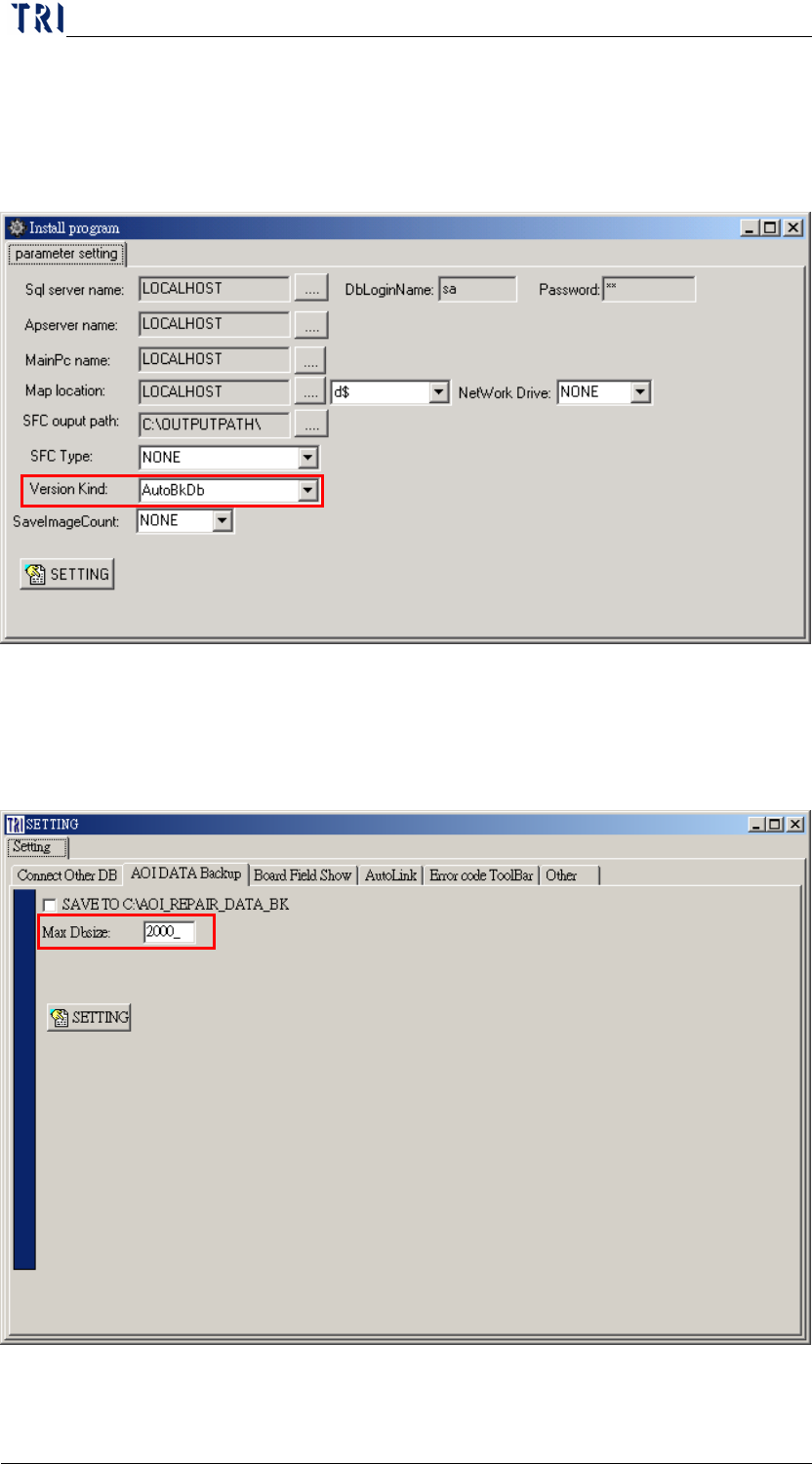
Step1. Run [c:\rsinstall\pinstall.exe], select [AutoBkDb] by switching to
[parameter setting] under [version kind] menu bar.
Step2. Set the [Max Dbsize] on [SETTING/AOI DATA Backup] on the
main screen sets the size of backup files, and the default size
setting is 2000mb(2G).
Chapter 2 Repair Station Main Program
AOI Repair Station
78
Step3. Close all programs and restart the main program
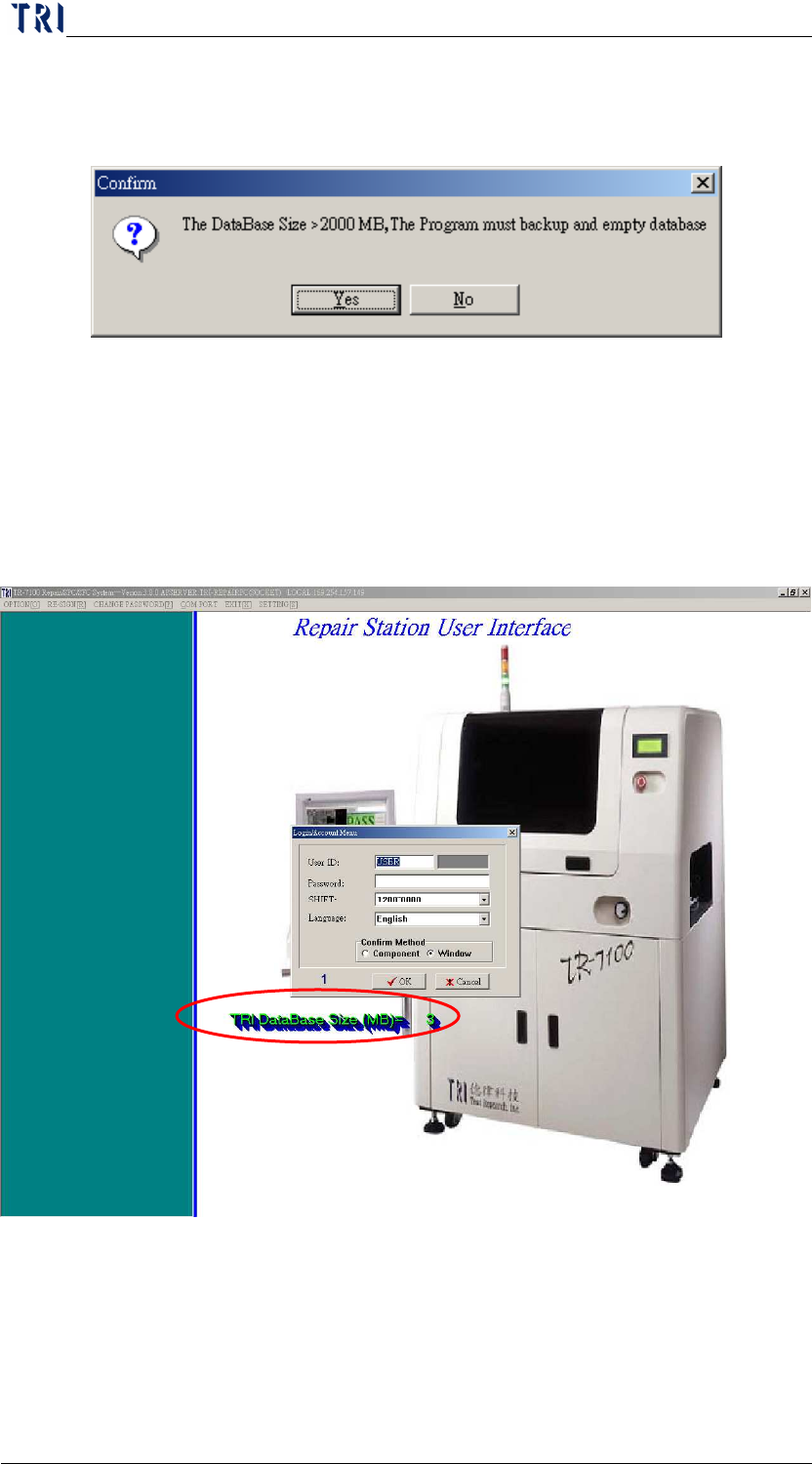
Step4. A warning message appears in [INSERTDATA.EXE] program
when DB size is over the original setting.
Press [Yes] to start backup, Press [ok] when
empty db is ok
and append db is ok appears, (it will take about 10~20
minutes to backup a 2000mb DB), press [no] to disregard
backup, the program will exit.
The original DB size will become approximately 2~5mb
after the backup, the db size will show when logging in the
main program
Chapter 2 Repair Station Main Program
AOI Repair Station
79
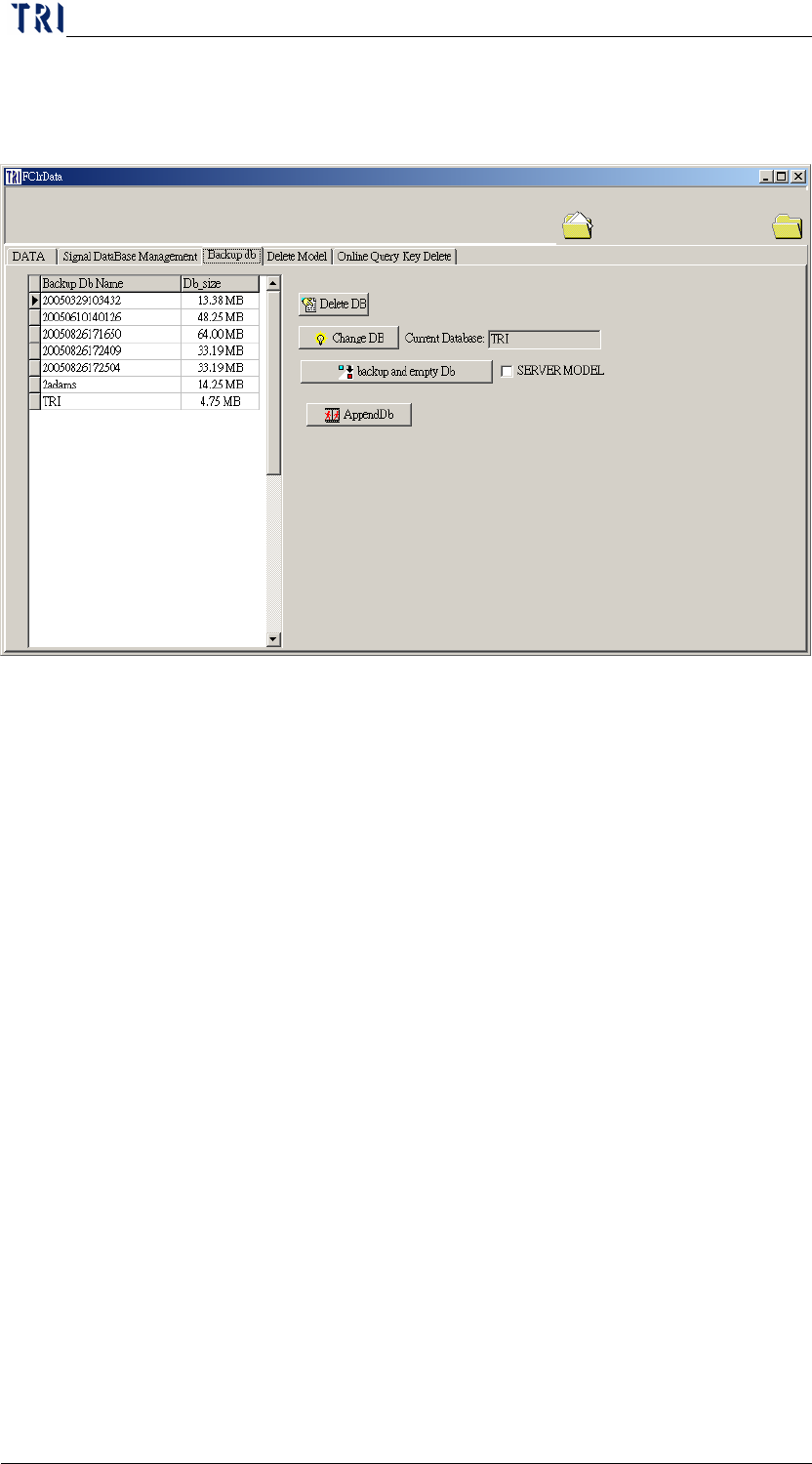
Step5. After the backup, you may see the backed up DB by going to the
[Backup db] page at [REPAIR STATION Main Program/USER
TOOLS/Clear Data].
Step6. Select the backup db bass name and press [Change Db] to view
saved database in this screen (if [insertdata.exe] is under the same
system, remember to shut of the [INSERTDATA.EXE] before you
press the [CHANGE DB] button), and then restart the system.
While finished checking, remember to switch back to [TRI] and
restart the system, otherwise the [insertdata.exe] will not work.
Step7. To delete backup DB, select a DB NAME and press [Delete DB]
button on this screen. [TRI] Database can’t be deleted here.
Step8. The backup files will be saved in [C:\Aoidata_bk] folder. You can
copy these files to the other storage facilities to preserve it.
11.2 Manual Backup
Go to [Back db] on the figure above, and press [Backup and Empty
DB]. The backup files will be saved in [C:\Aoidata_bk] folder. You can
copy these files to the other storage facilities to preserve it.
11.3 The way to save the Database file
The backup DB files will be saved in [C:\Aoidata_bk] folder. If you
want to save it in the other facilities, stop the [SQL Server] first and
copy the pairs of [*.LDF] and [*.MDF] files to the objective position.
You have to use “Copy” and not “Delete” or “Cut” function to move