AOI_RS_v85_en.pdf - 第132页
Chap ter3 SPC User Ma nual AOI Repair Station 128 Each time this software starts monitoring, it will monit or the items you selected in this function in additi on to real-time monitoring of the 12 components and solders …
Chapter3 SPC User Manual
AOI Repair Station
127
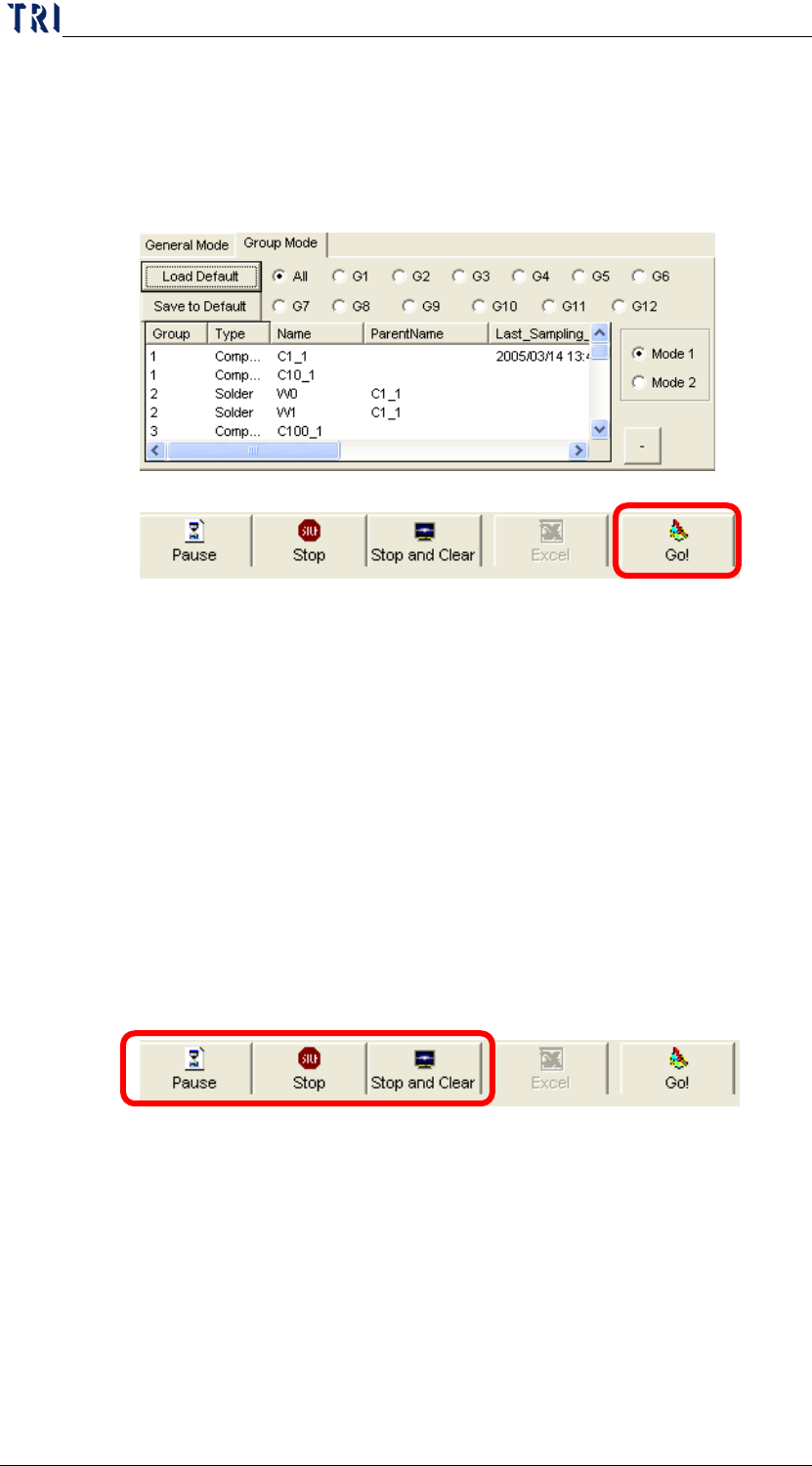
Start to monitor: After selecting the components and solders
to be viewed, click on the “
Go!” Button to start monitoring as
shown in the following figure. Before monitoring, user has
to change to the page of the mode that he uses to monitor.
Then click on “
Go!” to start the monitoring.
Confirm the Mode.
Start to Monitor.
Pause or Stop Monitoring: During monitoring, you can
click on the “
Pause” button to halt the monitoring
temporarily; the button label will changes to Continue.
Click on “Continue” to resume monitoring. Click on
“Stop” or “Stop Clear” to stop monitoring. Pause and
Stop only stop the monitoring without clearing the
monitor data. Stop Clear stops the monitoring and
clears all monitor data. Or, you can select other
components and solders again and click on the “Go!”
Button to let the system execute the current settings as
shown in the following figure.
Report Generating: When you click on “Pause” to halt
or “Stop” to end the process, you can click on the
“Excel” button to save the current control chart data
into the Excel file. The format of Excel files is
described in “Post Monitoring” Section.
7.4.1.7
Non-realtime monitor setup area
This function sets the components and solders to be monitored.
Chapter3 SPC User Manual
AOI Repair Station
128
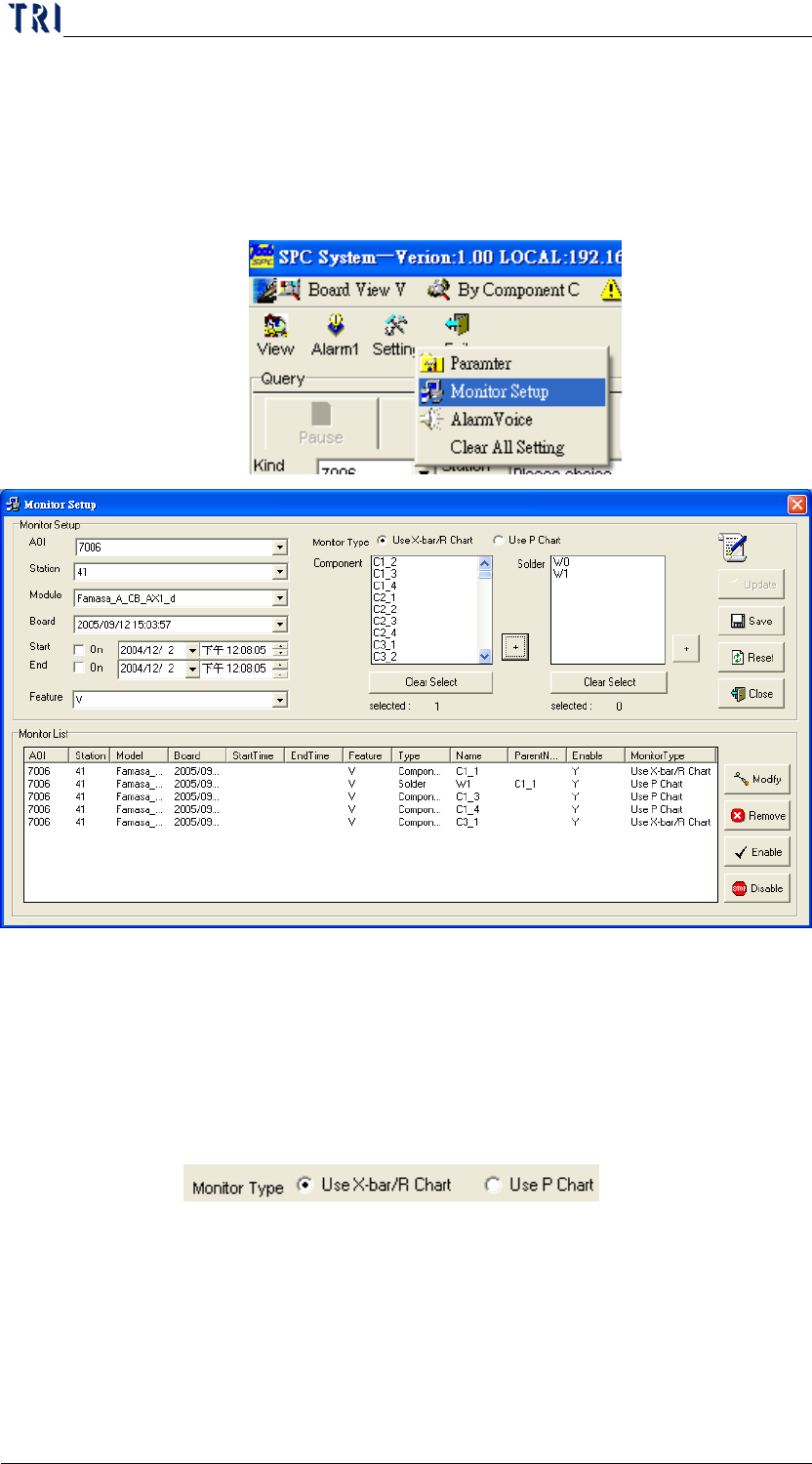
Each time this software starts monitoring, it will monitor the items
you selected in this function in addition to real-time monitoring of
the 12 components and solders in the screen. From the Main
menu, you can click on “
Setting” and then “Monitor Setup” to
display the following screen.
The screen above provides a quick way to find the components and
solders you want to monitor. To select several components or
solders at the same time, press and hold the “
Ctrl” key on your
keyboard and then use the mouse cursor to select the desired
component or solder. After selecting a component or solder,
select an item in “Monitor Type”
( ), then click on the
“+” button on the lower right of the Component or Solder list to
add the selected component or solder into the Monitor List below.
To clear all the items you selected in the Component or Solder list,
just click on the “Clear Select” button below the list and all items
will be cleared.
Chapter3 SPC User Manual
AOI Repair Station
129
The lower part of the screen shows the components and solders you
have selected. To modify the conditions for one or more selected
components or solders, use the mouse cursor to select the items for
to be modified and then click on the “
Modify” button on the lower
right. At this time, the system will display the detailed settings of
this item in the middle of the upper part of the screen. After
modifying, click on the “Update” button on the lower right to
complete updating this item. To delete one or more selected items,
select the item (to select several items at the same time, press and
hold the “Ctrl” key on your keyboard and then use the mouse
cursor to select the desired components or solders) and then click
on the Delete button on the lower right. In addition, you can
disable or enable one or more items just by clicking on the Disable
or Enable button on the lower right. Once an item is disabled, the
system will not include it in the monitor list. To resume
monitoring an item, just enable it again.
When all settings are completed, remember to click on the “Save”
button so that the system will save all these changes. To reset the
settings, just click on the “Reset” button and then click on the
“Close” button.
7.4.1.8
Alarm Setting
This is for setting the alarm (error) conditions. That is, when the
data in the control chart reaches the scenario in the alarm condition,
this indicates that errors has occurred in the component or solder
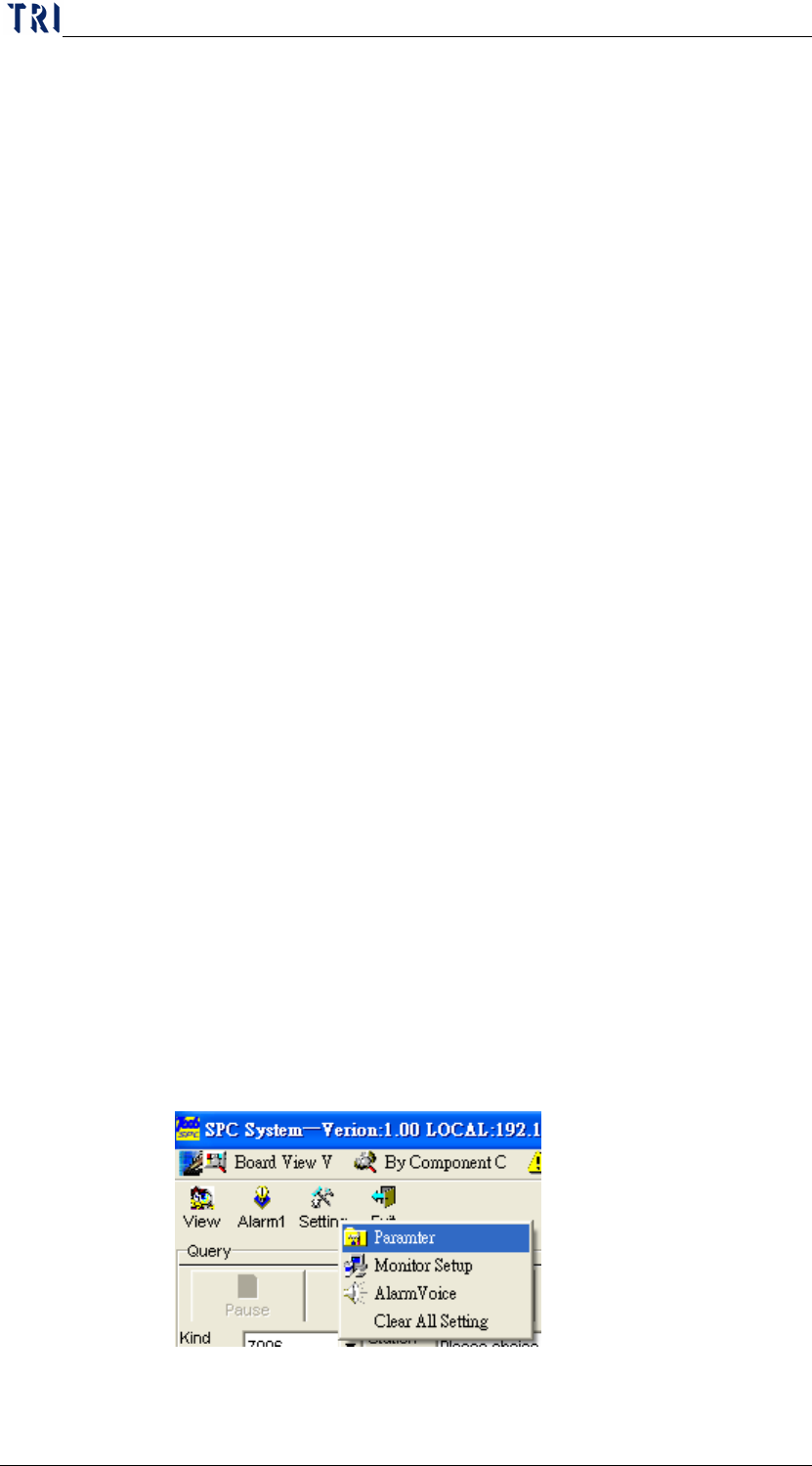
process in the current control chart. From the Main menu, you
can click on “
Setting” and then “Parameter” to display the
following screen.
The alarm setting will be separated to X bar-R Chart and P Chart.
They are explained below.