AOI_RS_v85_en.pdf - 第123页
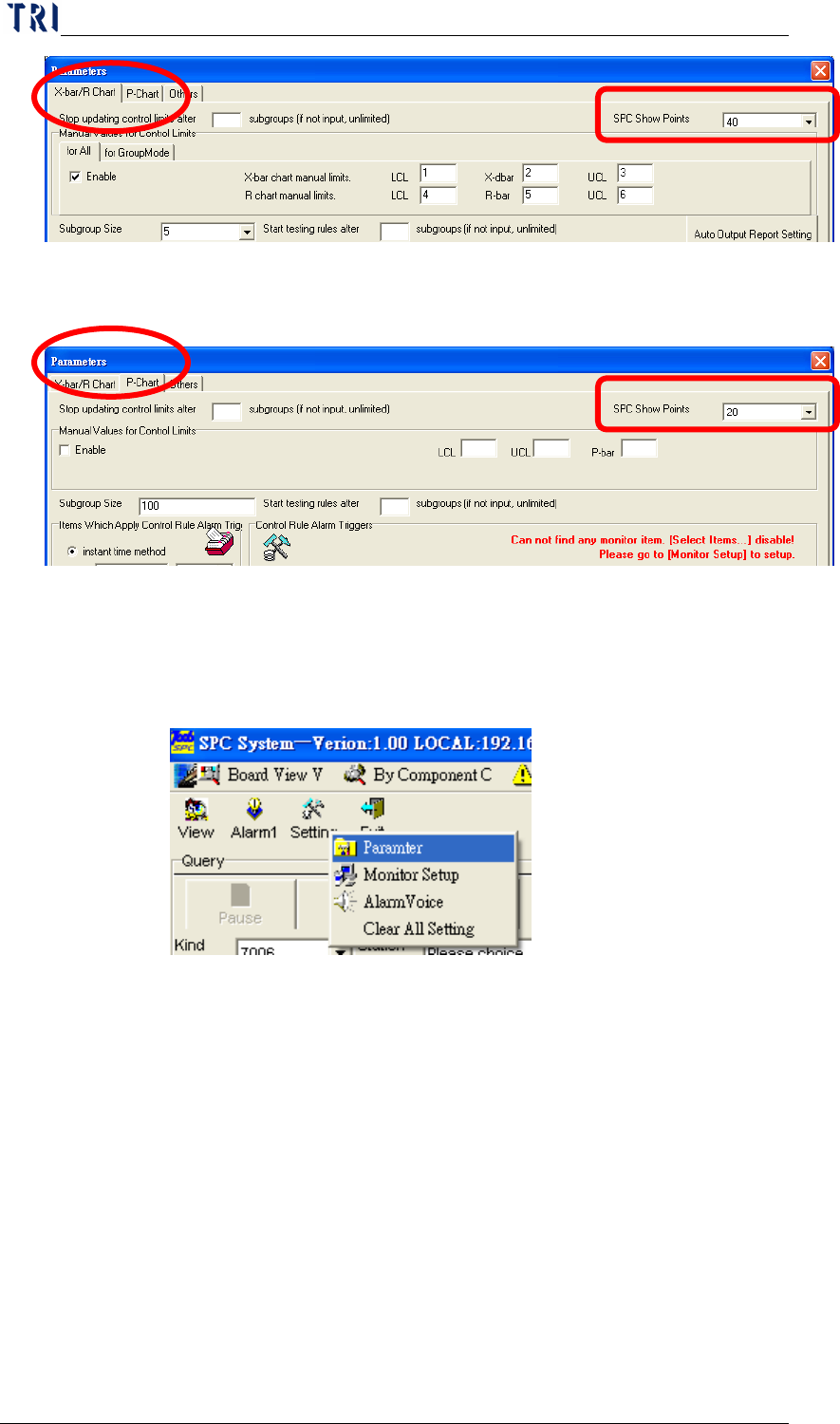
Chap ter3 SPC User Ma nual AOI Repair Station 1 19 P Chart: Ch ange to [P Chart] to do the setting of P Chart as the following picture. [Manual V alues for Control Limits] on the top of the table is to set the control …
Chapter3 SPC User Manual
AOI Repair Station
118
P Chart: User can change to see page “P Chart” for P
Control Chart parameter setting. “SPC Show Points” on the
top of the page is to set the maximum count that can be
displayed on the control chart.
7.4.1.3 Manual Control Limits
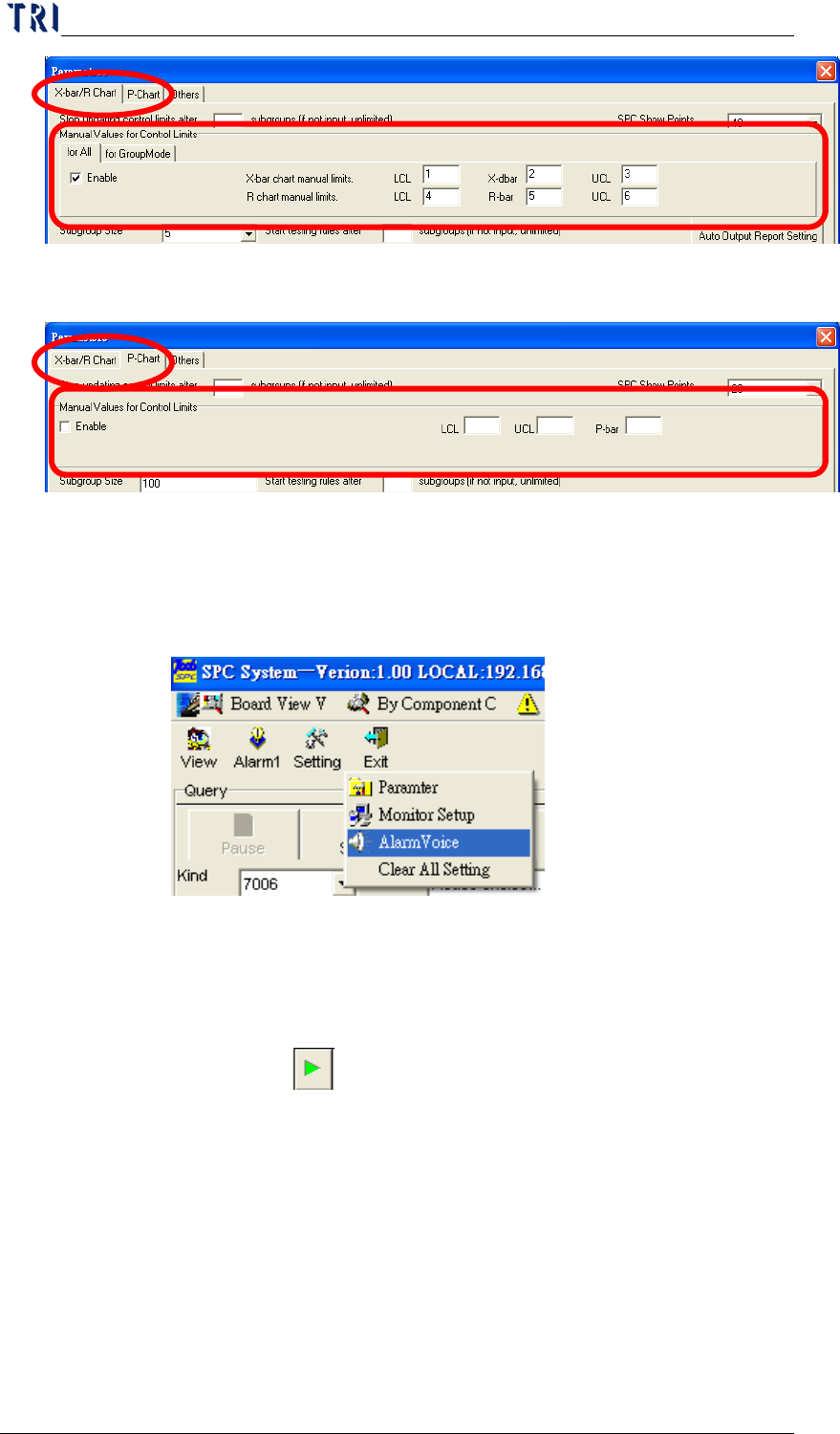
User could specify the control limits manually then system will not
refresh the control limits. You could press [Setting/Parameter] to
do the setting.
The setting frame is as the following. The same with Sampling
Method, the setting is separated to Xbar-R Chart and P Chart.
X bar-R Chart: Change to [X-bar/R Chart] to do the setting
of X bar-R Chart. [Manual Values for Control Limits] on
the top of the table is to set the control limits for X bar-R
Chart. There are two ways to set the control limits,
explained individually as the followings.
for All: The control limits set here are for all monitoring.
But when the [for GroupMode] control limits enabled,
the control limits set in [for All] field will become
inactive under group mode.
for GroupMode: The control limits set here is suitable
for group mode.
Chapter3 SPC User Manual
AOI Repair Station
119
P Chart: Change to [P Chart] to do the setting of P Chart as
the following picture. [Manual Values for Control Limits]
on the top of the table is to set the control limits for P Chart.
7.4.1.4 Alarm Voice
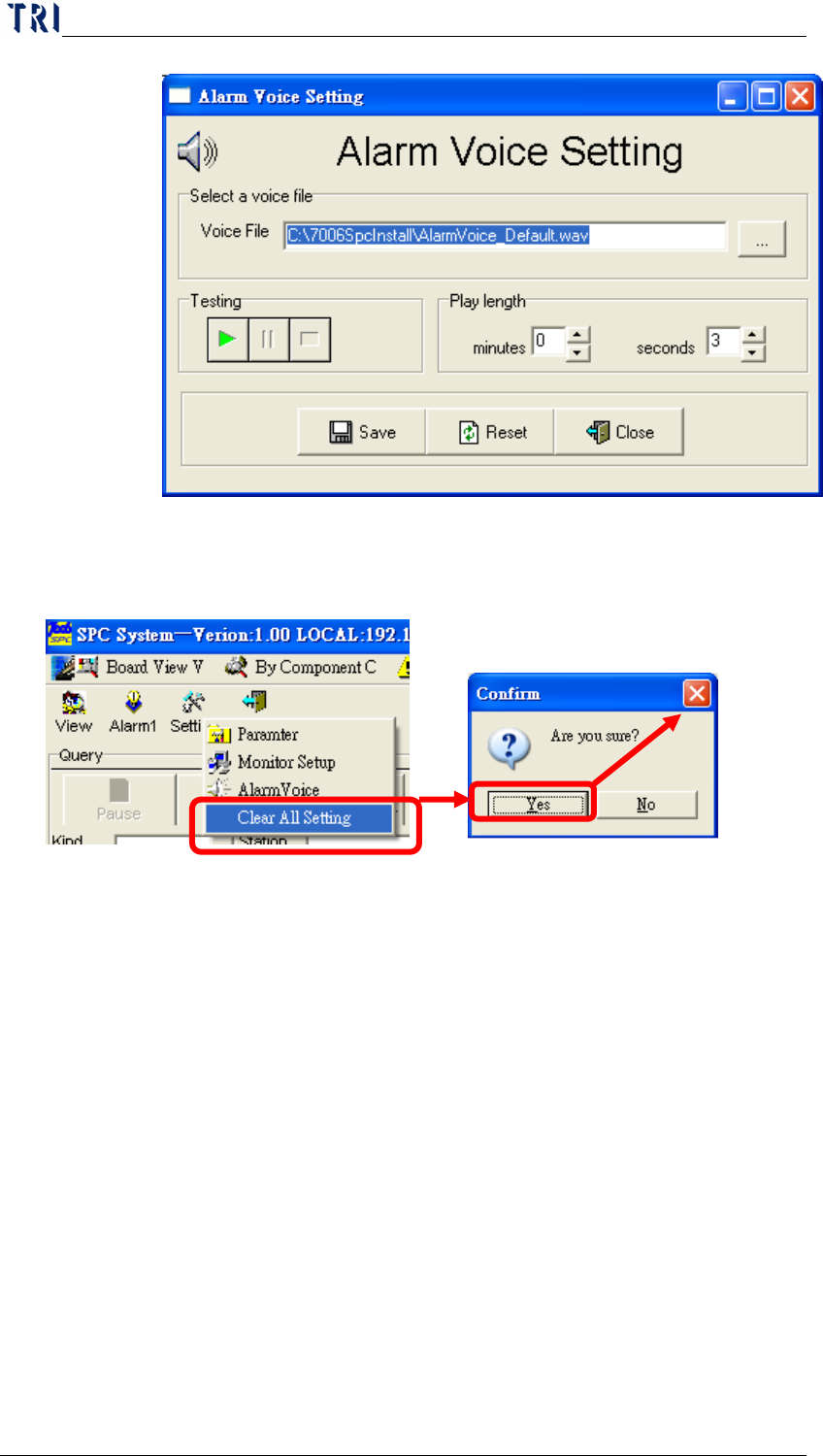
To specify the sound that computer will play when there is an
alarm occurring. Select [Setting/ Alarm Voice] as the following
picture.
Select a *.wav file in [Select a voice file] field to be the alarm
voice. If the WAV file that you select is not exist or invalid,
system will use the default voice. After selecting a voice, user
can execute [
] to listen the voice. And [Play length] field is
to set the playing time of alarm voice.
Chapter3 SPC User Manual
AOI Repair Station
120
7.4.1.5
Clear All Setting
Use this function to clear all current settings as shown below.
Click on this function and the “Are you sure?” prompt message
will appear. You must click on “
Yes” to clear all settings. When
“OK” appears on the screen, this indicates that the settings are
already cleared.
7.4.1.6 Real-time monitor setup area
Displays the real-time statistical data and control chart for the
desired component and solder. These are the components and
solders selected under the “Query” block in the Main menu, which
we referred to as the “real-time monitor items”. Whereas, the
monitor items selected under “Setting” – “Monitor Setup” are
referred to as “Non-real-time monitor items”. The explanation of
the setting method for this item is as follows.