AOI_RS_v85_en.pdf - 第69页
Chapter 2 Repair Station Main Progr am AOI Repair Station 65 10.6.6.22 Onl y GetLocalFovImage When you want to copy the database and image files to other computer you can select [T rue]. Then you only have to put the f…
Chapter 2 Repair Station Main Program
AOI Repair Station
64
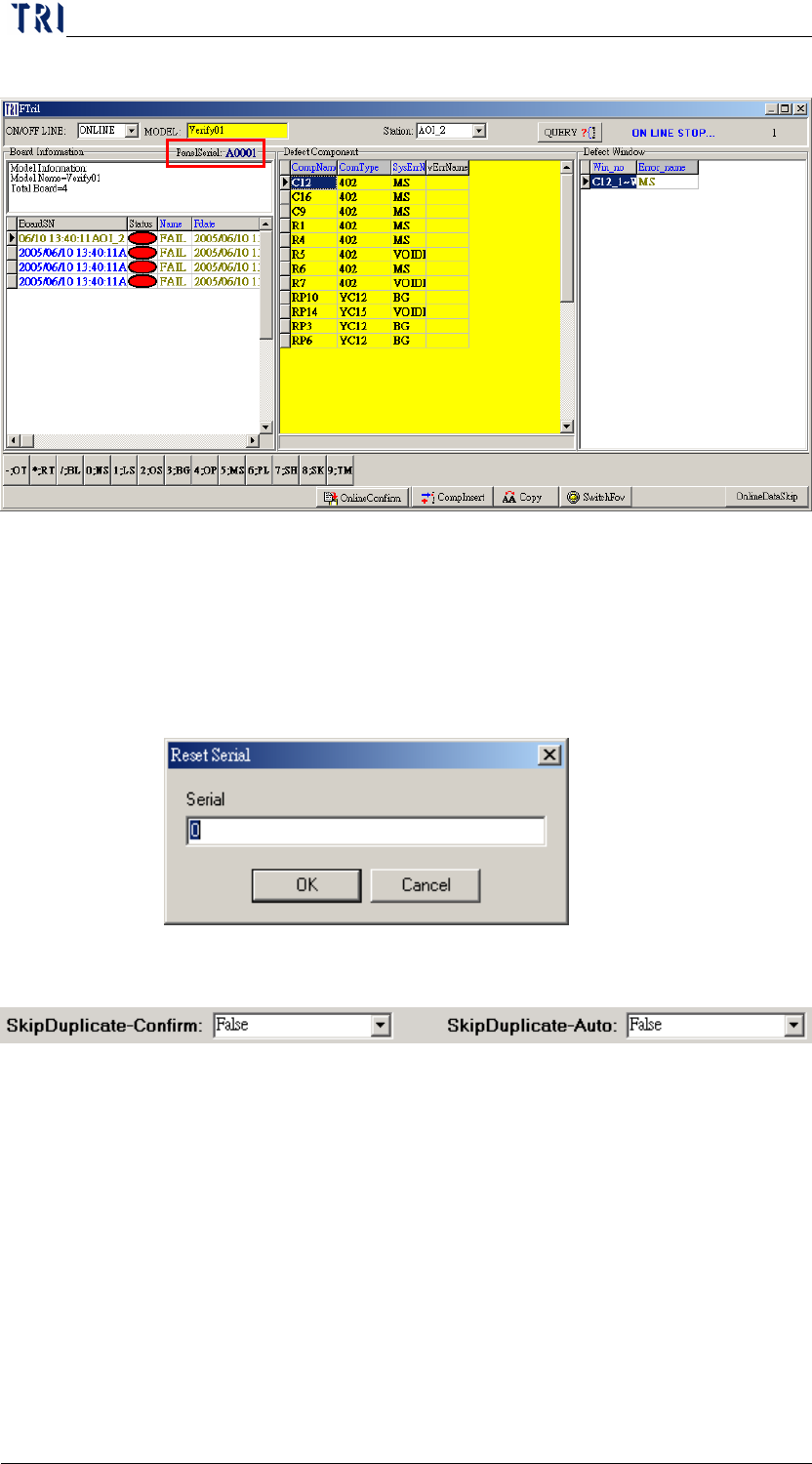
most. This field can't be blank.
Click on the serial number and you can order the initial serial
number by yourself. The serial number of circuit board that will be
later passed over will be accumulated with this assigned serial
number.
After the data is confirmed, the barcode number will be replace the
date at [BoardSN] field.
10.6.6.20 Skip Duplicate-Confirm
When you select [True] and there are two or more data with the
same barcode number, the earlier data will be set [SKIP] and only
the last one will be remainder. The time to judge what will be
Skipped is when user confirms data with OFFLINE mode.
10.6.6.21 Skip Duplicate-Auto
When you select [True] and there are two or more data with the
same barcode number, the earlier data will be set [SKIP] and only
the last one will be remainder. The time to judge what will be
Skipped is when system transfers data.
Chapter 2 Repair Station Main Program
AOI Repair Station
65
10.6.6.22 OnlyGetLocalFovImage
When you want to copy the database and image files to other
computer you can select [True]. Then you only have to put the files
to correct position and can see the FOV images. It’s not necessary
to change the computer name anymore.
10.6.6.23 Always show the board count pending for confirmation
When the function is set as [True], system will refresh the counts of
unconfirmed boards automatically rather than refreshing by
pressing [Enter]或[Query].
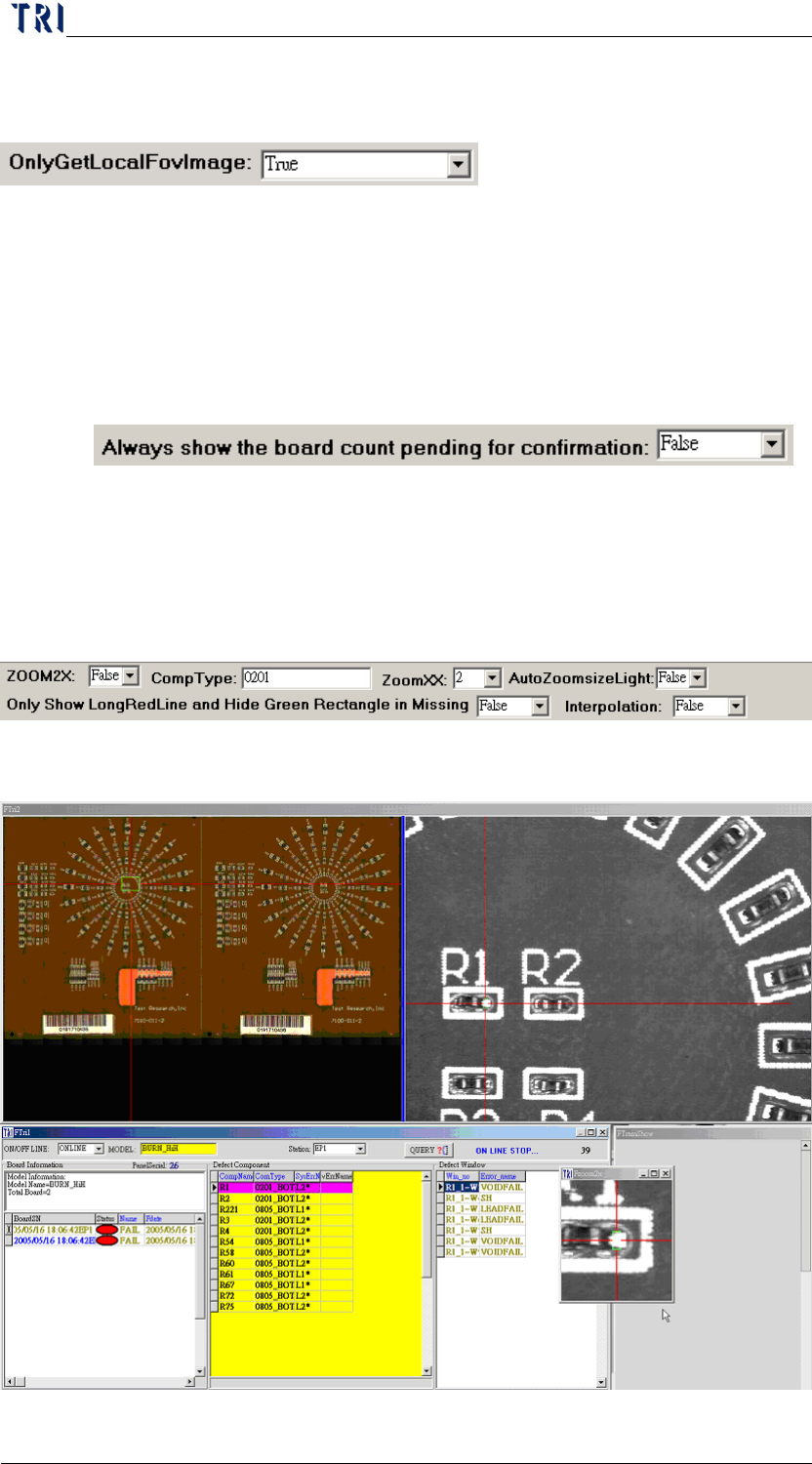
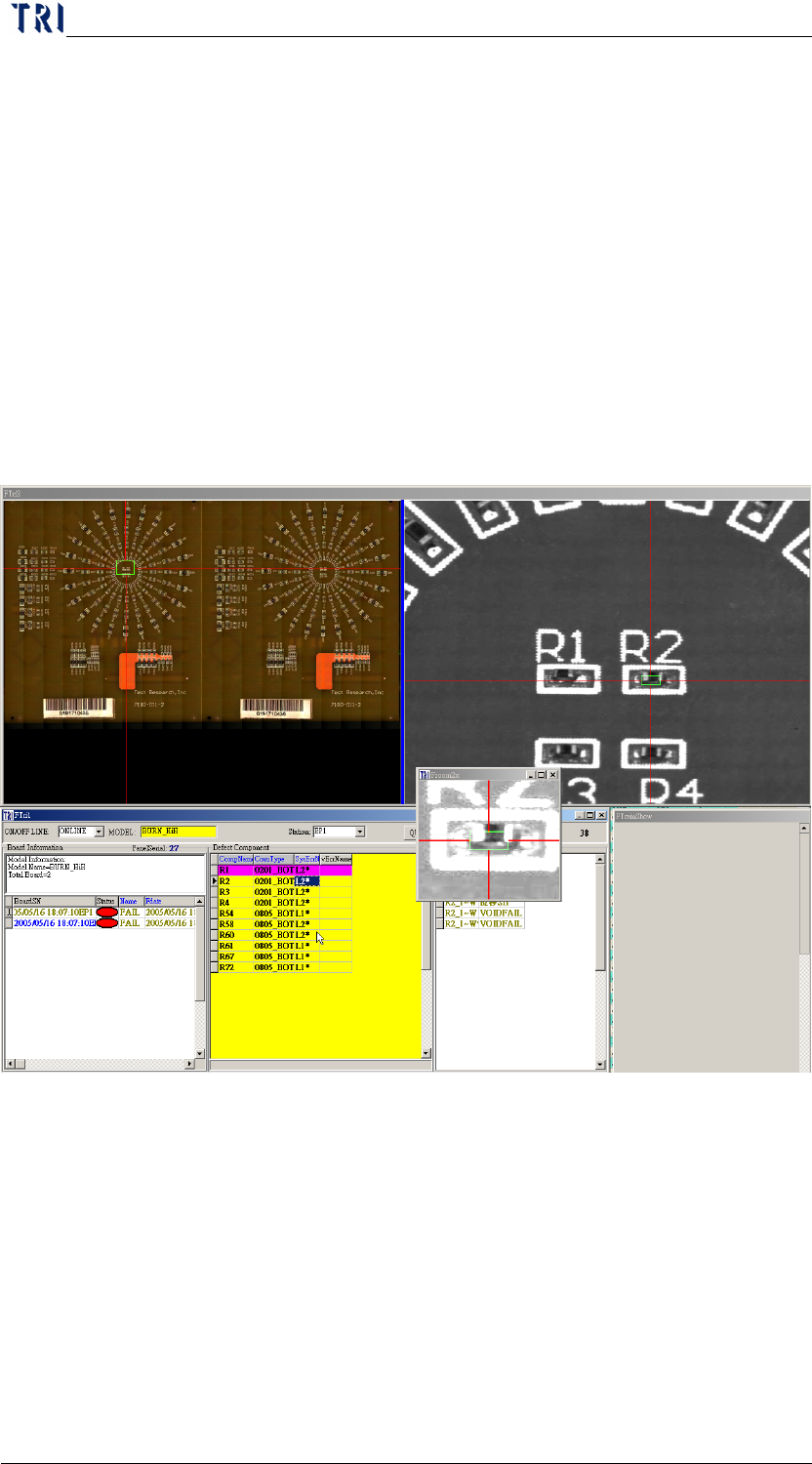
10.6.6.24 ZOOM
ZOOM2X-When you select [True], the system shows another
enlarged image according to other conditions.
Chapter 2 Repair Station Main Program
AOI Repair Station
66
Component Type-Input the type that you want to show the
enlarged image. You can input [ALL] to show all kinds of
components. If you input [0201] the system checks whether the last
4 characters are [0201] before confirming. When the result is [true]
the system shows the enlarged image. If you input [01] the system
checks whether the last 2 characters are [01] before confirming.
When the result is [true] the system shows the enlarged image.
ZOOMXX-You can input the multiple that you want to enlarged.
The range is 2~5 times.
AutoZoomsizeLight-When you select [True] the system increase
the brightness of enlarged image automatically. You also can press
[F3] key to keep increasing the brightness.
Only Show Long Red Line and Hide Green Rectangle in Missing-
Selecting [True] means that if it’s a [missing] failed the system will
only reserve the red line that is parallel orientating in direction of
the electrode and remove the green frame and red line that is
vertical orientating in direction of the component.