AOI_RS_v85_en.pdf - 第154页
Chap ter3 SPC User Ma nual AOI Repair Station 150 “Excel” allows you to export a message into an Ex cel sheet as shown below . 2. Report Parameters Setting Select the data that user wants to output besides statist ic d…

Chapter3 SPC User Manual
AOI Repair Station
149
Name: Name of component or solder where the message occurs.
Filter: The conditions for query the component.
Machine is the type of machine, 7006 (SPI), 7100 (AOI) or
ICT.
Station means the machine ID.
Feature means the selected feature, it may be V (Volume), A
(Area), H (Height), PX (X shift) or PY (Y shift) for 7006
(SPI); it may be X (X shift), Y (Y shift) or Theta (rotating
angle) for 7100 (AOI) and may be Measure for ICT.
Reason: Reason for the occurrence of this message. You can
find out the type of error through this information.
Data: Relevant statistical data that causes this message to occur.
SPC Data: Displays all sampling and statistical data of the
component or solder when the error occurred.
Comment:
You can key in the remarks for this alarm data for future
tracking. Click on “
Update Comment”
after keying in.
Task bar on top
The task bar on top is used for alarm message operation as
follows:
The “<< First” button allows you skip to the first alarm
message. Click on “< Pre” to go back to the previous alarm
message or click on “Next >” to go to the next alarm message.
The “Last >>” button allows you skip to the last alarm
message. You can also search the message list (on the right of
the “Alarms List” block under the task bar) directly for the
message you want to view.
“Delete” allow you to delete one or more alarm messages.
To delete several messages at the same time, check (
√) the
check boxes in front of the messages you want to delete and
then click on the “
Delete” button. “DeleteAll” allow you to
delete all alarm messages. Note! You cannot delete the
alarm data in to current day’s Alarm Log file.
“Refresh” allows you to get the refreshed alarm data from
the currently selected Alarm Log file.
Chapter3 SPC User Manual
AOI Repair Station
150
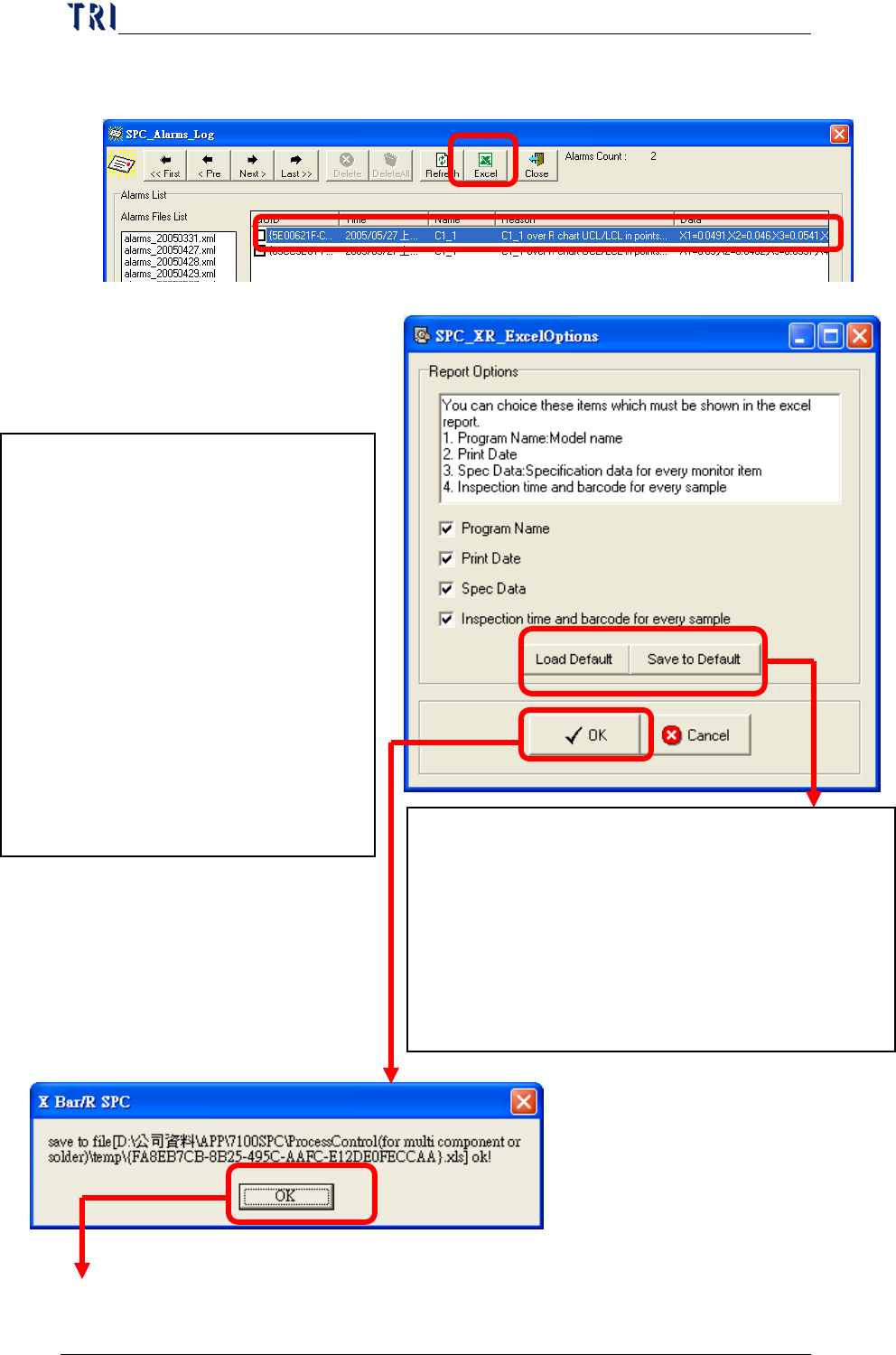
“Excel” allows you to export a message into an Excel sheet
as shown below.
2. Report Parameters Setting
Select the data that user wants to output
besides statistic data and control chart
in Excel file. User can select:
Program Name
Print Date
Spec Data
Inspection time and barcode for
every sample: the inspection time
and barcode for the board that
every sample belongs to.
Save to Default: Save the settings to default.
Then system will use these settings next time.
Load Default: Load the last saved settings.
P.S. System will load the last saved settings
automatically when this window starts. And [Load
Default] is to cancel the current and load the default
setting again.
Chapter3 SPC User Manual
AOI Repair Station
151
If the following message appears, this indicates that there are other
Excel applications running under the current operating system.
You can use the Task Manager to search and end all processes named
“EXCEL.EXE” (as shown in the figure below) and then resume
running the Excel function.
Close: Closes the alarm log view window.
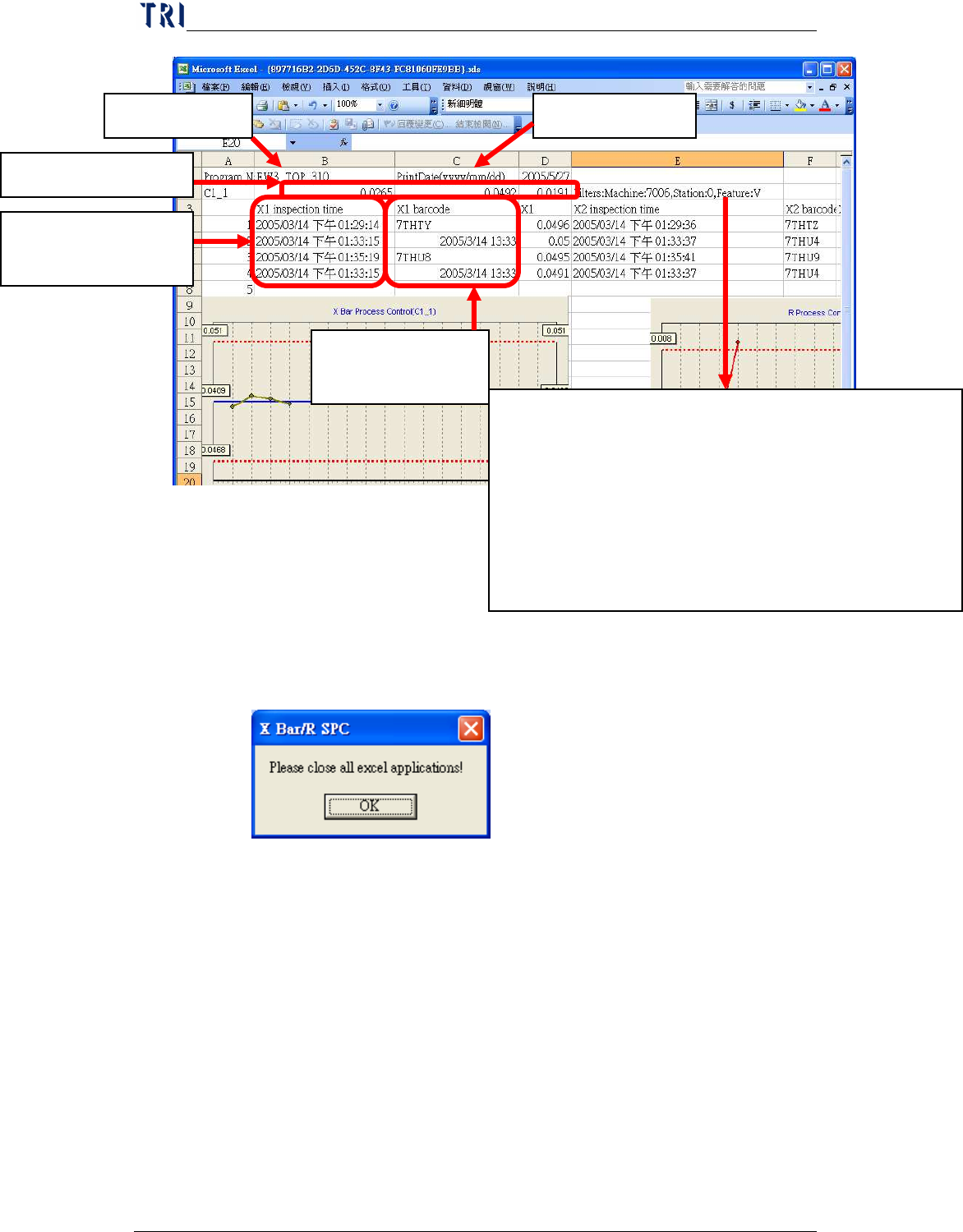
Display the monitoring condition for the component, contents are:
Machine means the type of machine, 7006, 7100 or ICT.
Station means the Machine ID
Feature means the selected feature, it may be V (Volume), A
(Area), H (Height), PX (X shift) or PY (Y shift) for 7006
(SPI); it may be X (X shift), Y (Y shift) or Theta (rotating
angle) for 7100 (AOI) and may be Measure for ICT.
Program Name Print Date
Barcode for every
sample
Spec Data for C1_1
Inspection time for
every sample