AOI_RS_v85_en.pdf - 第98页
Chap ter3 SPC User Ma nual AOI Repair Station 94 ST AFF(USER)], and [ T OP/BTM(* no separation of top or bottom)] and [LOT_NO(deselect for all)] Step2. Click on [QUER Y]. C hec k mark the [RP ASS C OMPONENT] before press…
Chapter3 SPC User Manual
AOI Repair Station
93
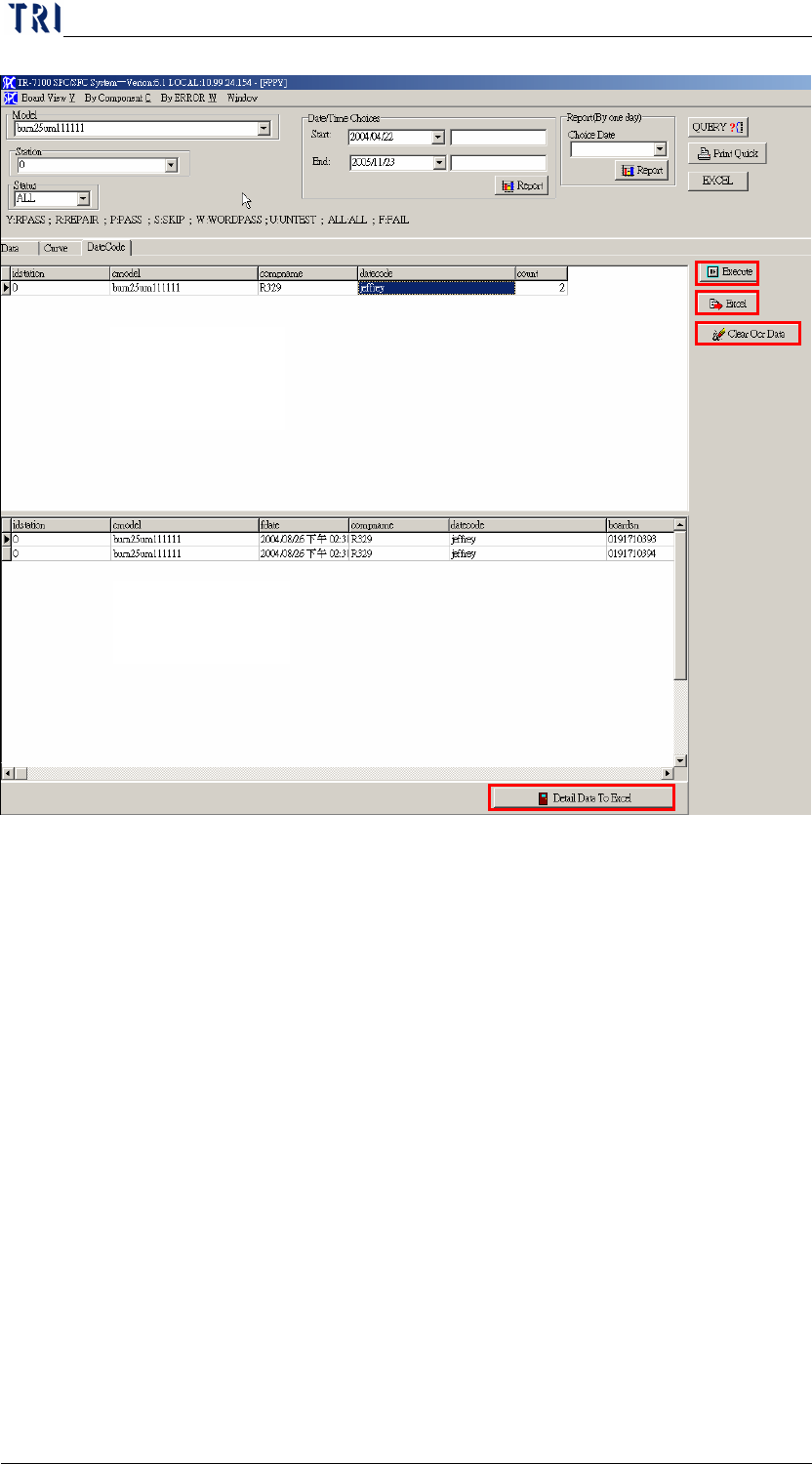
Step1. Select [MODEL], [STATION], [STATUS=ALL] and
[Date], then press [EXECUTE].
Step2. Double click on the record on Zone 1 and the details are
displayed on Zone 2.
Step3. Zone 1 is for a same kind of component with same
datecode. And [EXCEL] button is to output the data on
Zone1.
Step4. Zone 2 is the details of Zone 1. [DETAIL DATA TO
EXCEL] button is to output the data on Zone 2.
Step5. [CLEAR OCR DATA] is to clear OCR data.
4 COMPONENT SORT
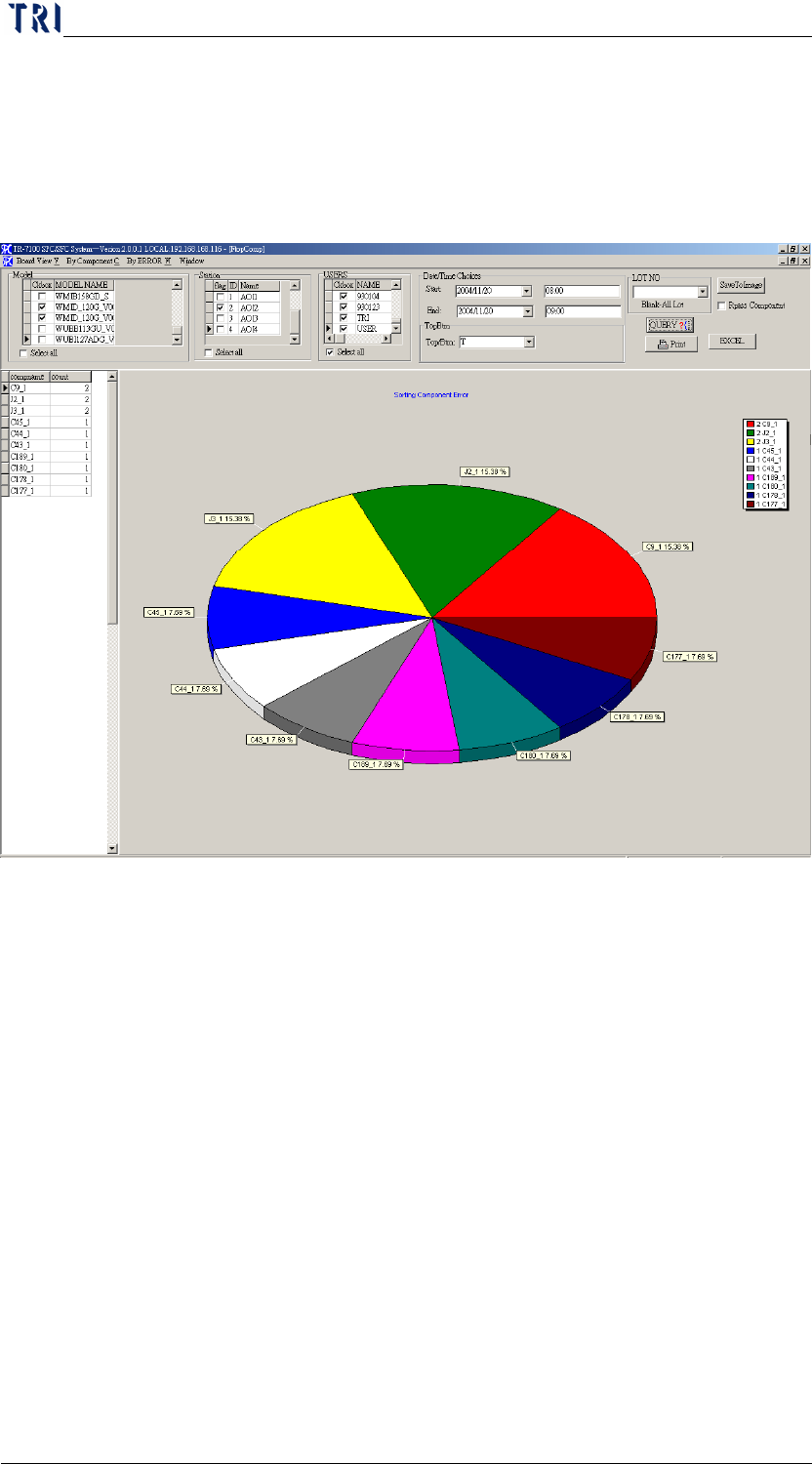
It will display the first 10 problem COMPONENT according to user’s
setting condition COMPONENT.
Step1. Select [MODEL], [STATION], [DATE TIME], [REPAIR
Zone 1
Zone 2
Chapter3 SPC User Manual
AOI Repair Station
94
STAFF(USER)], and [TOP/BTM(* no separation of top or bottom)]
and [LOT_NO(deselect for all)]
Step2. Click on [QUERY]. Check mark the [RPASS COMPONENT] before
pressing down [QUERY] will display the first 10 false alarm
component.
Step3. Click on [PRINT], will printout the graph by default printer
Step4. Click on [SAVETOIMAGE] will generate [TOP.BMP] under [C:\]
Step5. Click on [Excel] will generate EXCEL report.
5 FAIL COMPONENT
Search in details of defects on particular COMPONENT
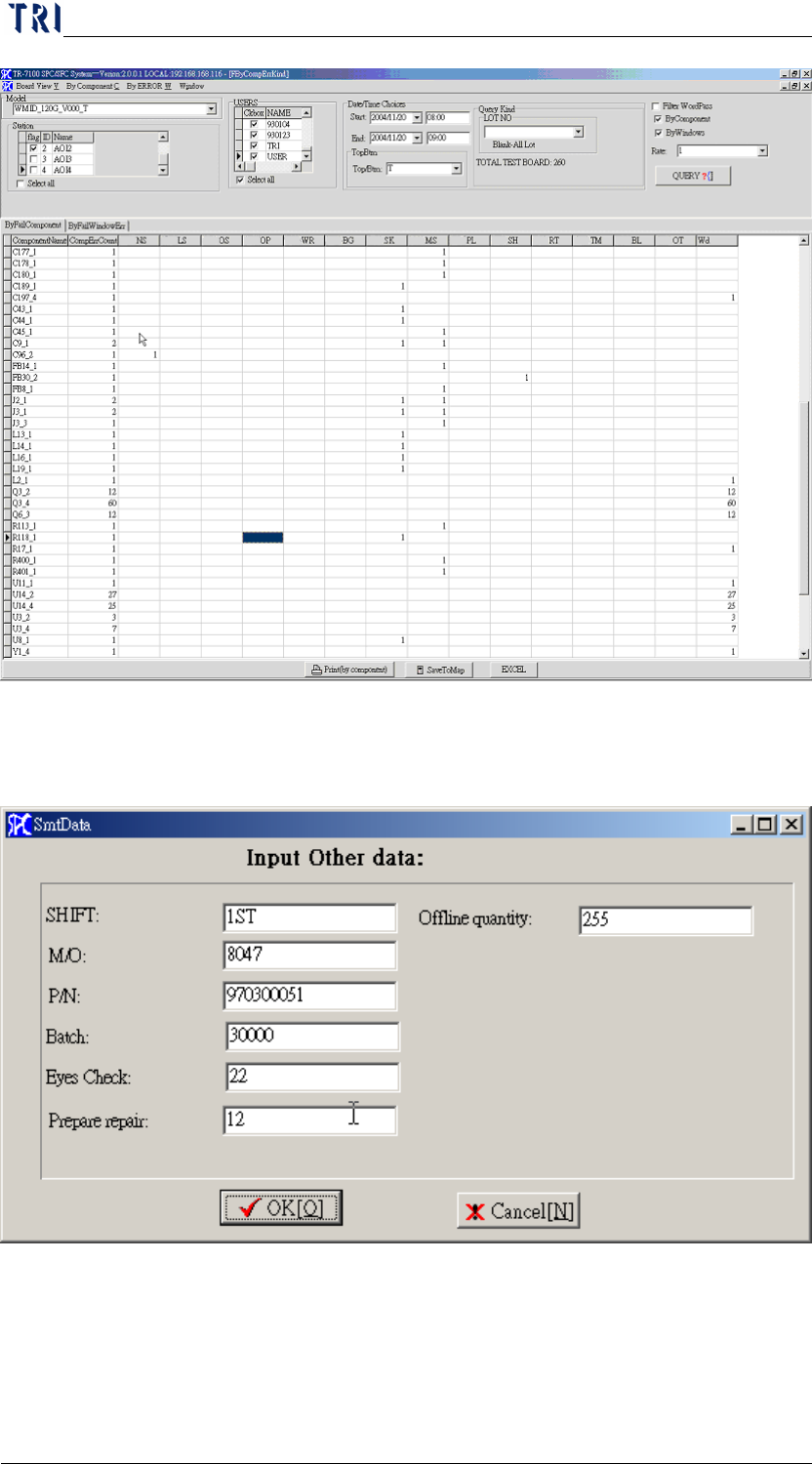
Step1. Select [MODEL], [STATION], [DATE TIME], [Repair staff
(USER)], [TOP/BTM (* no separation of top or bottom)] and
[LOT_NO (deselect for all)]. The false alarm characters will be
filtered when the [FILTER WORDPASS] is check marked.
Step2. Click on [QUERY], do the following switch:
When switch to [BYFAILCOMPONENT], you will get the
details in COMPONENT ERROR
When switch to [BYFAILWINDOWERR], you will get the
details in by WINDOWS ERROR
Chapter3 SPC User Manual
AOI Repair Station
95
Step3. Click on [PRINT] or click on [EXCEL] will generate EXCEL report.
the following screen will appear when [PRINT] is clicked:
Key in the values for each column, and then click [OK] to see
the report on screen below