AOI_RS_v85_en.pdf - 第59页
Chapter 2 Repair Station Main Progr am AOI Repair Station 55 Max Dbsize I nput the maximum of the database. When the size of database is up to the maximum value, the system shows the warning. If you have set [V ersio…
Chapter 2 Repair Station Main Program
AOI Repair Station
54
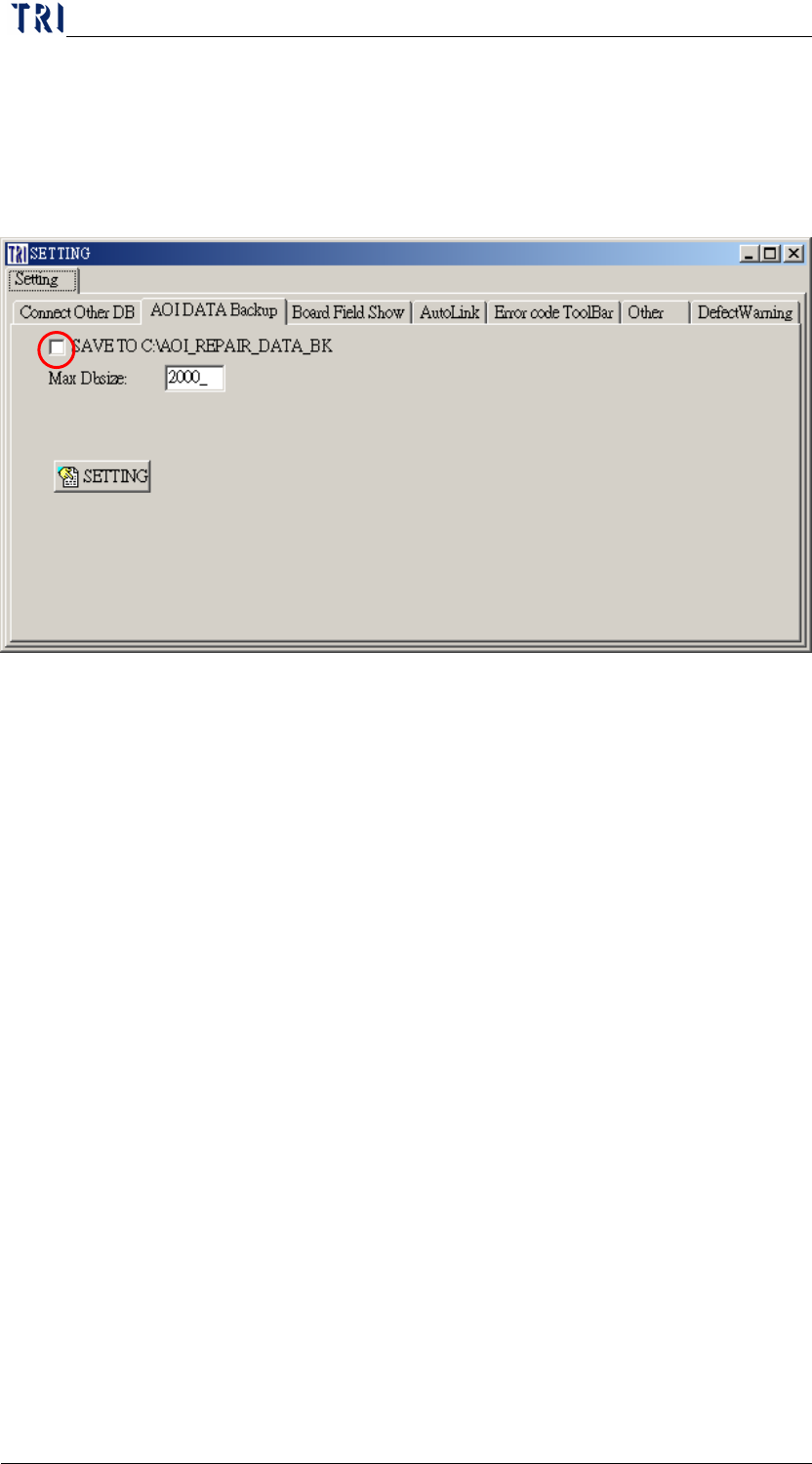
SAVE TO C:\AOI_REPAIR_DATA_BK: When the [InsertData.exe]
transfers the data, the system copy the original data to
[C:\AOI_REPAIR_DATA_BK] folder for backup at the same time.
Turn off the [Insertdata.exe], and wait till the completion of
following settings to reopen.
Step1. Select [SAVE TO C:\AOI_REPAIR_DATA_BK].
Step2. Press [SETTING] to finish the setting.
Step3. Reopen [Insertdata.exe].
Chapter 2 Repair Station Main Program
AOI Repair Station
55
Max Dbsize
Input the maximum of the database. When the size of database is
up to the maximum value, the system shows the warning. If you
have set [Version Kind] as [AutoBkDb], the system would
backup the database automatically when the size is to the limit.
The default setting of [Max Dbsize on the stand-alone version on
the following figure is 2000MB. Do not set size over 2000MB.
You may set the size based on the size of server’s hard disk under
the Server version
10.6.3 Board Field Show
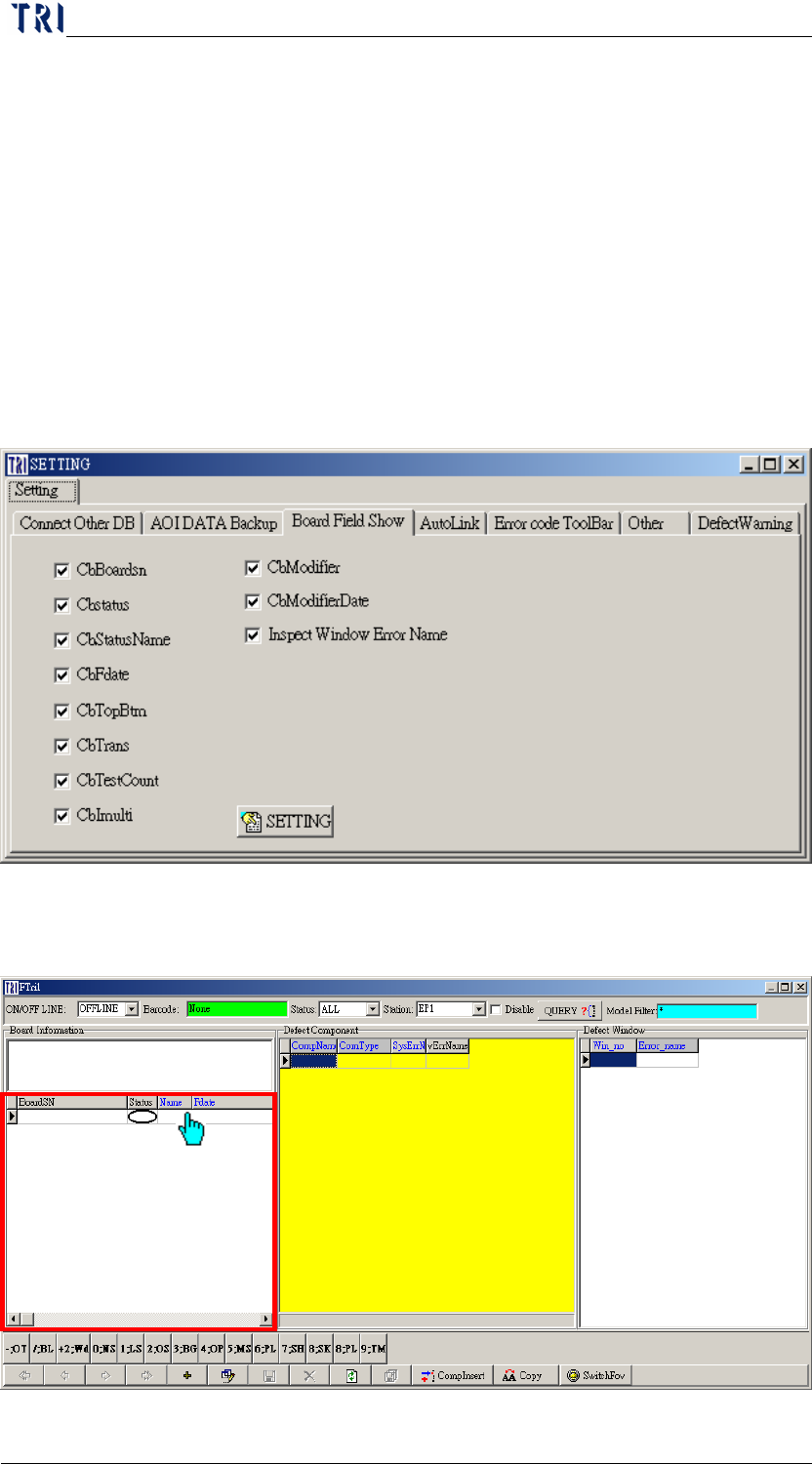
You can set which columns you want to show on [BoardSN] field at
confirm working.
Chapter 2 Repair Station Main Program
AOI Repair Station
56
The Options
CbBoardsn-Barcode or the inspection time.
Cbstatus-Status which is displayed by graph.
CbStatusName-Status which is displayed by words.
CbFdate-Inspection time.
CbTopBtm-Top or bottom
CbTrans-Condition of connecting Shop Flow
CbTestcount-Number of times been tested under the same
barcode.
Cbimulti-Number of multi boards per set
CbModifier-modifier
CbModifierDate-Date modified
10.6.4 Auto Link
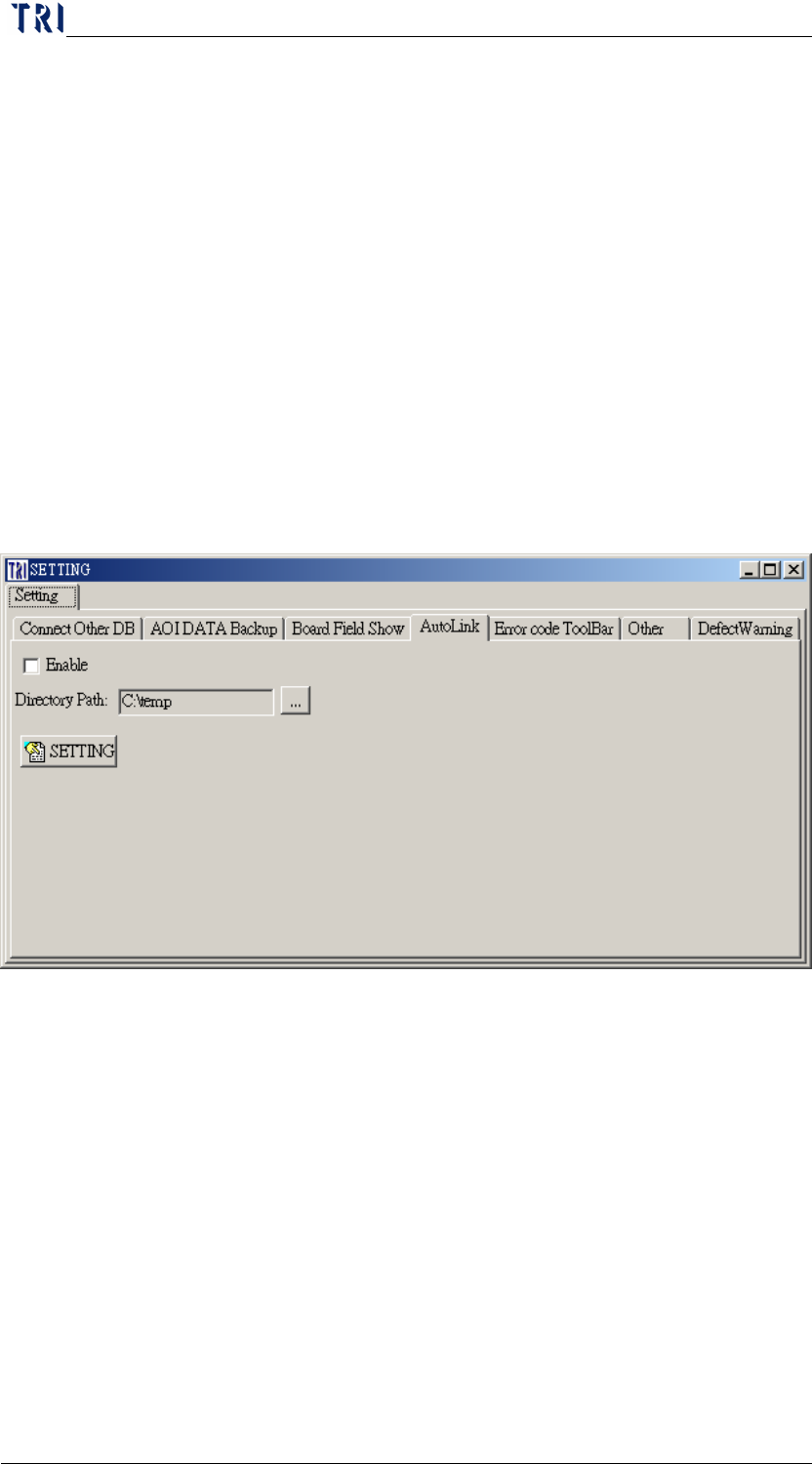
Procedure
Step1. Check the [Enable] to initiate [Auto Link] function, uncheck
the [Enable] to disable [Auto Link] function.
Step2. Select auto ink category at [Directory Path] field.
Step3. Press [SETTING] to complete setup.