00197500-01_IM_Material Manager_1.0_DE_EN.pdf - 第10页
Installing the MaterialManager 10 Installation Manual Material Manager V1.0 Setting in stallation folder The dialo g box for sett ing the insta llation folder is displayed . ► If you want to change the path of the insta…
Installing the MaterialManager
Installation Manual Material Manager V1.0 9
3
3 Installing the MaterialManager
Installing the Material Manager
► Insert the installation CD into the CD drive of the server on which the Material Manager shall be
installed.
► Switch over to the Install folder on the CD.
► Double-click on the ASM.AS.SiMM.MainInstaller.exe file.
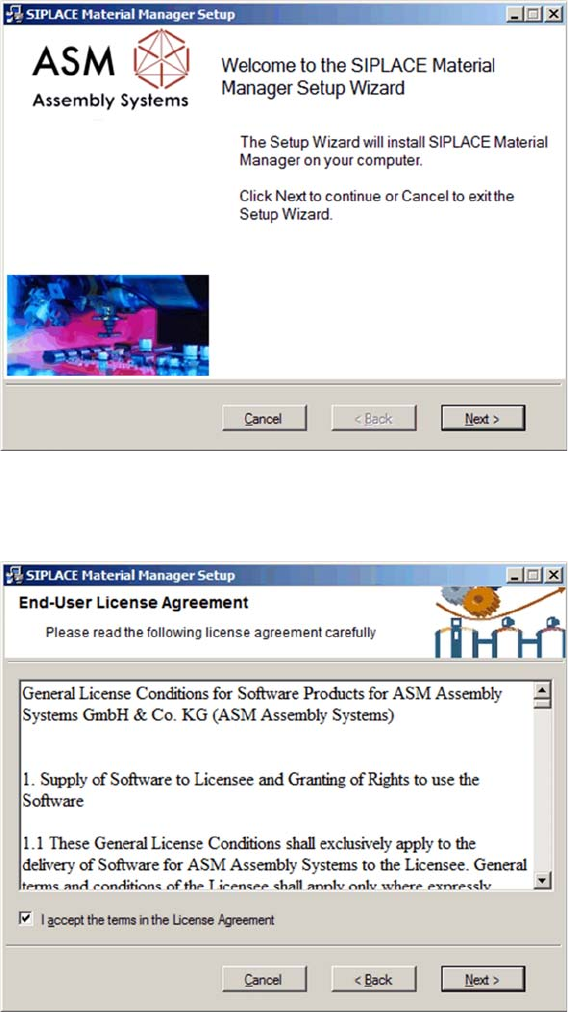
Start screen
The start screen of the installation program is displayed.
► Click on Next to continue the installation.
Confirming license agreement
The license agreement is displayed.
► Enable the option with which you accept the license agreement.
► Click on Next.
Installing the MaterialManager
10 Installation Manual Material Manager V1.0
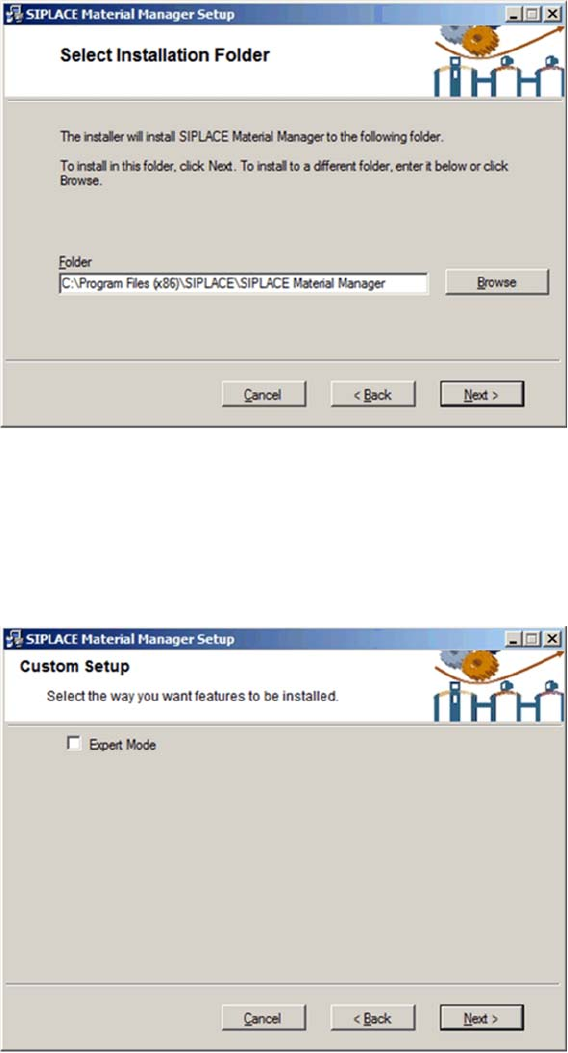
Setting installation folder
The dialog box for setting the installation folder is displayed.
► If you want to change the path of the installation folder, click on Browse and
navigate to the desired folder.
► Click on Next.
The set path will be used for the installation.
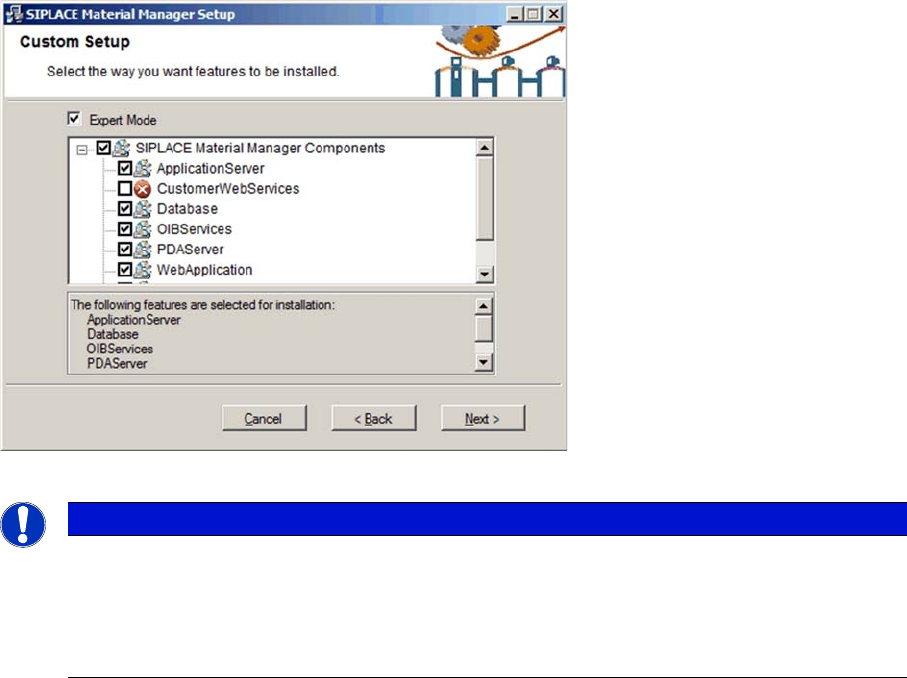
Selecting Expert Mode
In this dialog box you select to perform the installation in Expert Mode or with the default pre-settings.
▪ With the default settings, all components required for the Material Manager will be installed
automatically. (recommended)
The CustomerWebServices and WebServicesClient components will not be installed. These
components are only required if SIPLACE components shall be integrated in customer applications.
▪ If Expert Mode is enabled, you can select which Material Manager components shall be installed or
not.
The CustomerWebServices and WebServicesClient components can be selected for installation.
► Enable or disable Expert Mode.
► Click on Next.
Installing the MaterialManager
Installation Manual Material Manager V1.0 11
Expert Mode
If the Expert Mode is enabled, the single components of the Material Manager are displayed.
Selecting components in Expert Mode
► Select the components that you want to install.
► Click on Next to finish the selection and continue with the installation program.
Description of the Single Components
ApplicationServer (mandatory)
The Material Manager ApplicationServer is a Microsoft COM+ application. As central component of the
system it controls all Material Manager operations and events. Usually, the ApplicationServer will be
installed on the central Material Manager server or on another server. Once installed, the
ApplicationServer can be administered via the Control Panel of the operating system.
CustomerWebServices (optional)
The CustomerWebServices integrate the Material Manager into your system landscape and are hosted
on the Microsoft Internet Information Server (IIS). If they are available and administered, the Material
Manager calls these Web services within defined workflow modes.
Database (mandatory)
The Material Manager database contains all required tables and views. The database will be installed
on a Microsoft SQL.
OIBServices (mandatory)
The OIBServices integrate the Material Manager for working with other SIPLACE software products (e.g.
SIPLACE Setup Center) via the public OIB interface. The OIBServices are hosted on the Microsoft
Internet Information Server (IIS).
NOTICE
Complete installation recommended
To make sure that the Material Manager runs correctly, it is recommended to install all
components that are enabled for installation in the pre-settings because most of them are
mandatory to use the Material Manager.
If necessary, non-selected components can be installed later.