00197500-01_IM_Material Manager_1.0_DE_EN.pdf - 第45页
Distributed Installation Example: Settings under Windows Serve r 2008 R2 Installation Manual Material Manager V1.0 45 7 7 D is t r ib u t e d I n s t a lla t io n Distributed Installation If the Material Manager datab as…
Changing the Configuration
44 Installation Manual Material Manager V1.0
Distributed Installation
Example: Settings under Windows Server 2008 R2
Installation Manual Material Manager V1.0 45
7
7 Distributed Installation
Distributed Installation
If the Material Manager database shall be installed on another server as the application, the MS DTC
properties have to be set on this server at first. The procedure depends on the operating system.
► Install the data required for the respective operating system on the server from the Support Media
DVD.
The following section exemplifies how to set the MS DTC properties under Windows Server 2008 R2.
7.1
7.1 Example: Settings under Windows Server 2008 R2
Example: Settings under Windows Server 2008 R2
Proceed as follows to open the dialog box containing the MS DTC properties:
► Open the command line above Start / Run:
► Enter dcomcnfg and click on OK.
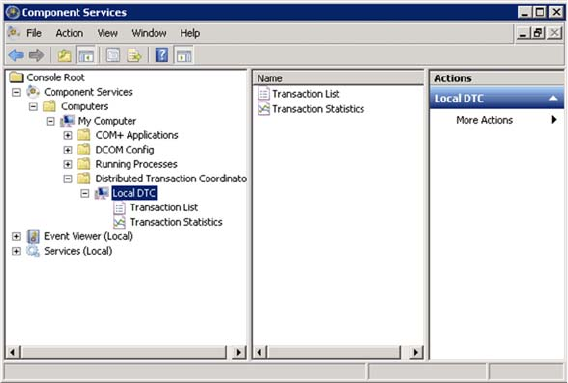
The dialog box containing the component services is displayed.
Component services under Windows Server 2008 R2
► Click here on Component Services / Computers / My Computer /
Distributed Transaction Coordinator / Local DTC and then in the Actions area under LocalDTC on
More Actions / Properties.
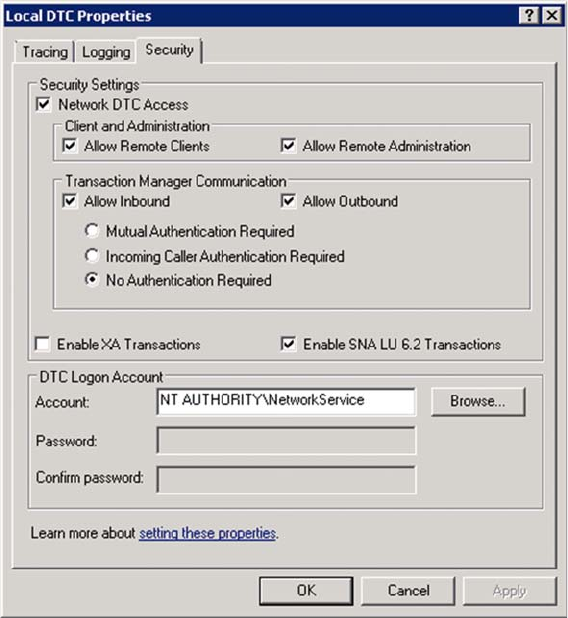
The dialog box containing the local DTC properties is displayed.
► Click on the Security tab.
Distributed Installation
Example: Settings under Windows Server 2008 R2
46 Installation Manual Material Manager V1.0
Security properties under Windows Server 2008 R2
► Set the single values as displayed above.
► Click on OK.