00197500-01_IM_Material Manager_1.0_DE_EN.pdf - 第18页
Installing the MaterialManager 18 Installation Manual Material Manager V1.0 Further Options The following data can be set for all typ es of escalation e-mai ls: Sender E-mail address of the sende r. SmtpHost Name of the…
Installing the MaterialManager
Installation Manual Material Manager V1.0 17
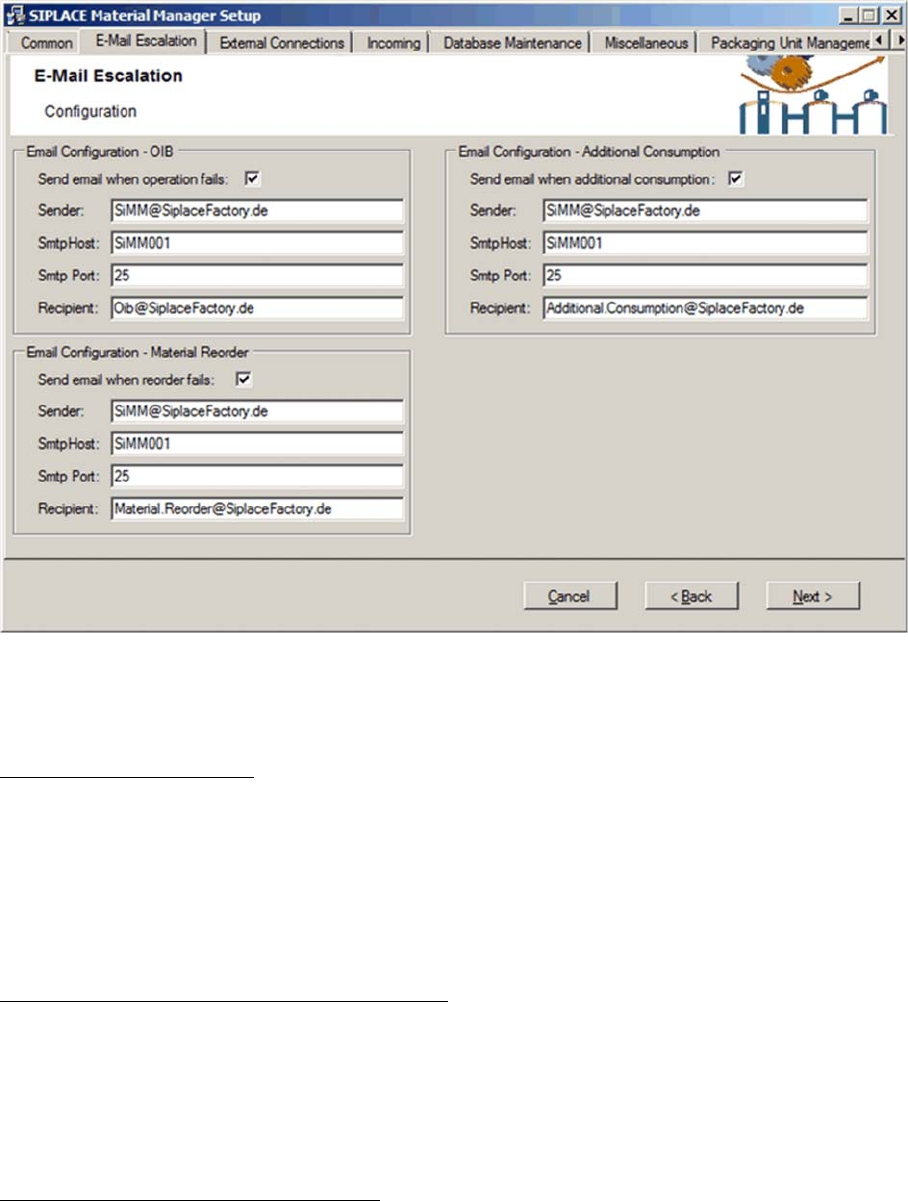
Configuring Material Manager – E-Mail Escalation tab
In this tab you set the e-mail addresses of the recipients to whom the automatically triggered escalation
e-mails will be sent.
Email Configuration – OIB
Settings for escalation e-mails concerning the OIB configuration
Send email when operation fails
If this option is enabled, an escalation e-mail will be sent if the communication with a SIPLACE system
over OIB failed. This may happen, e.g. if messages from the Material Manager to Setup Center cannot
be sent or messages from Setup Center cannot be processed.
The description of the other options can be found below.
Email Configuration – Additional Consumption
Settings for escalation e-mails concerning the additional consumption.
Send email when additional consumption
If this option is enabled, an escalation e-mail will be sent if the additional consumption of a material ex
-
ceeds a certain percentage. The default threshold value is 10%.
The description of the other options can be found below.
Email Configuration – Material Reorder
Settings for escalation e-mails concerning the reorder of material.
Send email when reorder fails
If this option is enabled, an escalation e-mail will be sent if the material reorder failed. This may happen,
e.g. if an automatically triggered material reorder could not be transmitted or if a supply system reports
that it cannot deliver the requested material.
The description of the other options can be found below.
Installing the MaterialManager
18 Installation Manual Material Manager V1.0
Further Options
The following data can be set for all types of escalation e-mails:
Sender
E-mail address of the sender.
SmtpHost
Name of the SMTP host.
SmtpPort
Port number of the SMTP host.
Recipient
E-mail address of the recipient
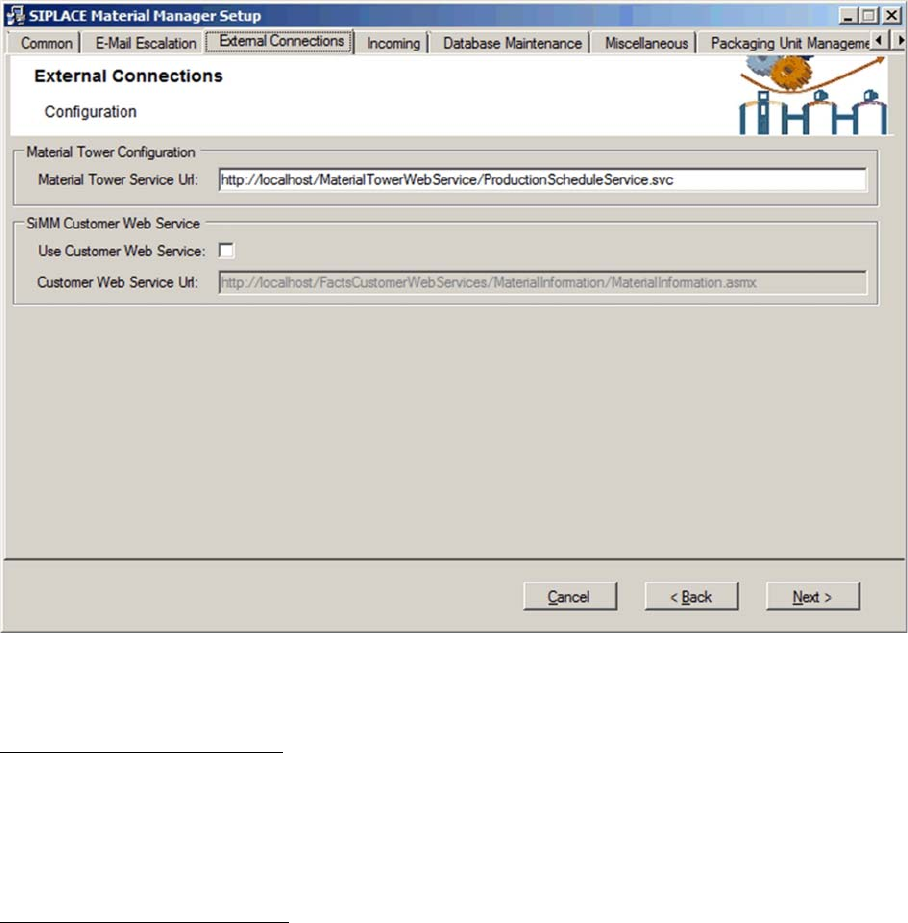
Configuring Material Manager – External Connections tab
In this tab you set the connections to other external systems.
Material Tower Configuration
Material Tower Service URL
Address of the service over which the Material Manager can send messages to the material tower. As
default, the URL is pre-set with the following address but if necessary, this may be changed.
http://localhost/MaterialTowerWebService/ProductionScheduleService.svc.
SiMM Customer Web Service
Use Customer Web Service
If this option is enabled, the Material Manager will be connected to the Web service over the address
defined below.
Customer Web Service URL
Address over which the Material Manager will be connected to a customer Web service.
It is recommended to use the pre-set SiMM Customer Web Service.
Installing the MaterialManager
Installation Manual Material Manager V1.0 19
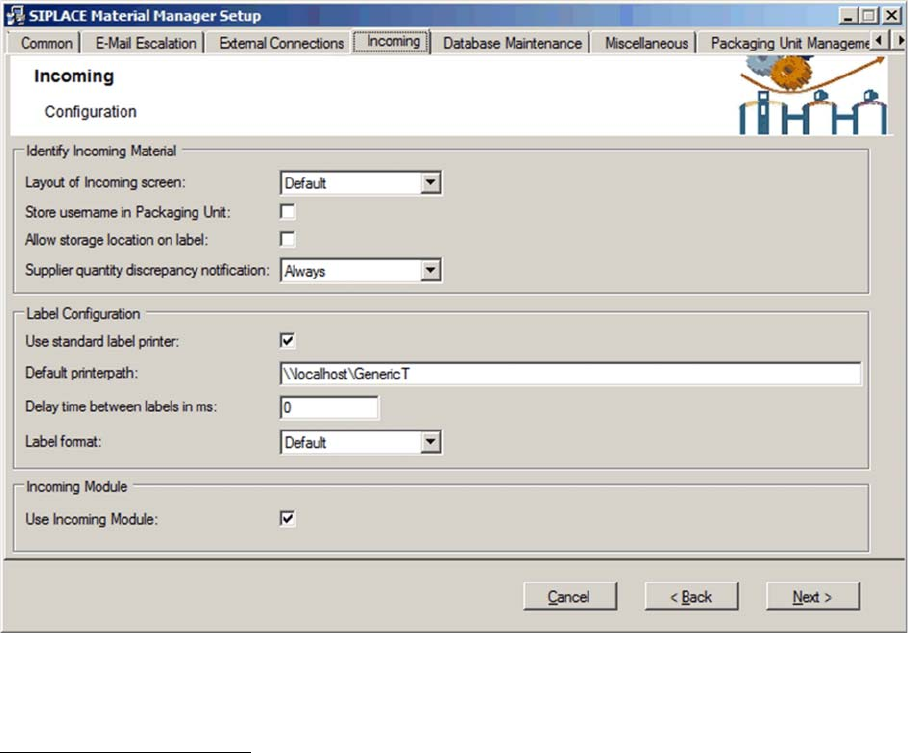
Configuring Material Manager – Incoming tab
In this tab you configure the incoming material process of the Material Manager.
Identify Incoming Material
Layout of Incoming screen
▪ Custom
As default incoming area but may be edited in an XML file.
The XML files that define the incoming area will be stored under:
*\Siplace\SIPLACE Material Manager\WebApplication\ASM\AS\SiMM\config\IdentifyIncomingMaterial.xml
*\Siplace\SIPLACE Material Manager\WebApplication\ASM\AS\SiMM\config\IdentifyIncomingMaterial
Details.xml
▪ Default + Supplier
Default incoming area extended by the supplier data.
▪ Default
Default incoming area as before.
▪ Existing
This option corresponds to the previous configuration.
Store username in Packaging Unit
If this option is enabled, the name of the user that enters a packaging unit into the Material Manager will
be stored together with the packaging unit data.
Allow storage location on label
If this option is enabled, the preferred storage location can be printed on the label.
Supplier quantity discrepancy notification
▪ Always
A message will always be displayed if the quantity of components does not match the planned
quantity.
▪ Exceeding
A message will only be displayed if more components were received as planned.
▪ Ignore
No message.