00197500-01_IM_Material Manager_1.0_DE_EN.pdf - 第47页
Uninstalling the MaterialManager Installation Manual Material Manager V1.0 47 8 8 U n in s t a llin g t h e M a t e r ia lM a n a g e r Uninstalling the Material Manager ► Insert the installation CD into t he C D drive …
Distributed Installation
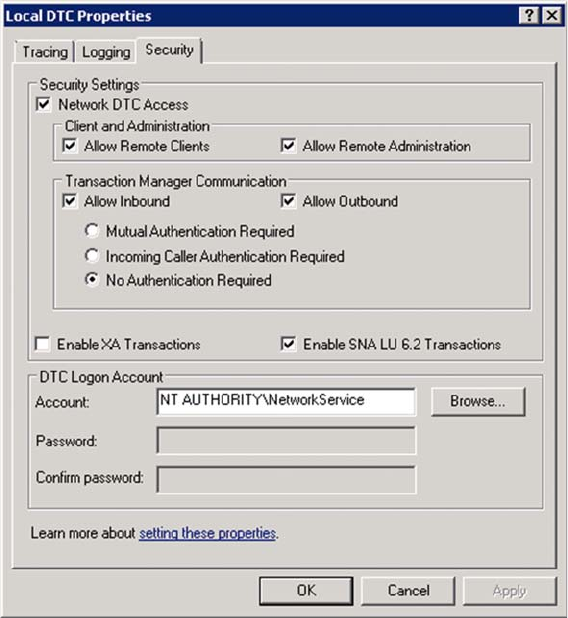
Example: Settings under Windows Server 2008 R2
46 Installation Manual Material Manager V1.0
Security properties under Windows Server 2008 R2
► Set the single values as displayed above.
► Click on OK.
Uninstalling the MaterialManager
Installation Manual Material Manager V1.0 47
8
8 Uninstalling the MaterialManager
Uninstalling the Material Manager
► Insert the installation CD into the CD drive of the server on which the Material Manager is installed
to uninstall the Material Manager.
► Switch over to the Install folder on the CD.
► Double-click on the ASM.AS.SiMM.MainInstaller.exe file.
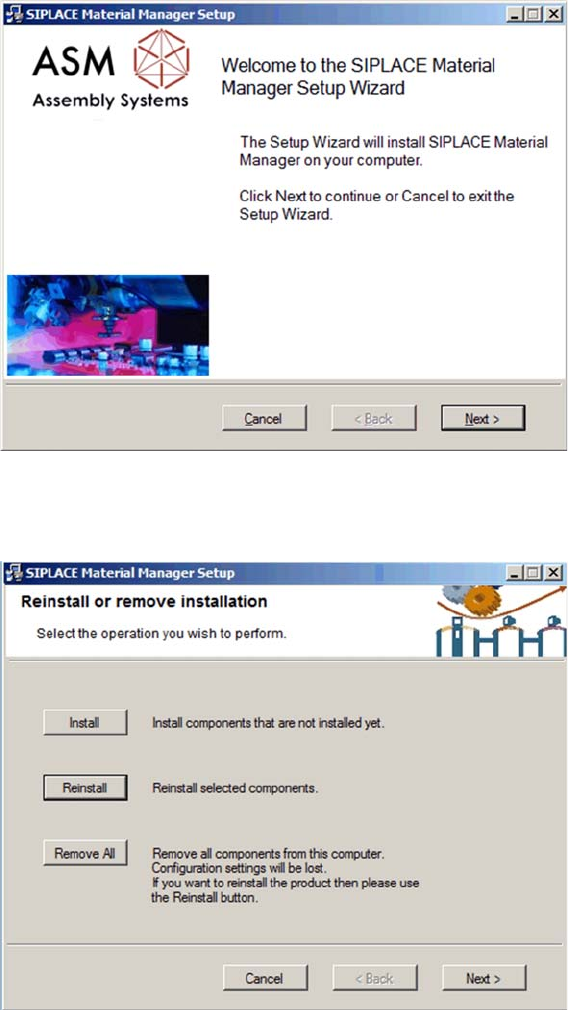
Start screen
The start screen of the installation program is displayed.
► Click on Next to continue the uninstalling procedure.
Selecting uninstalling procedure
► Click on Remove All.
Uninstalling the MaterialManager
48 Installation Manual Material Manager V1.0
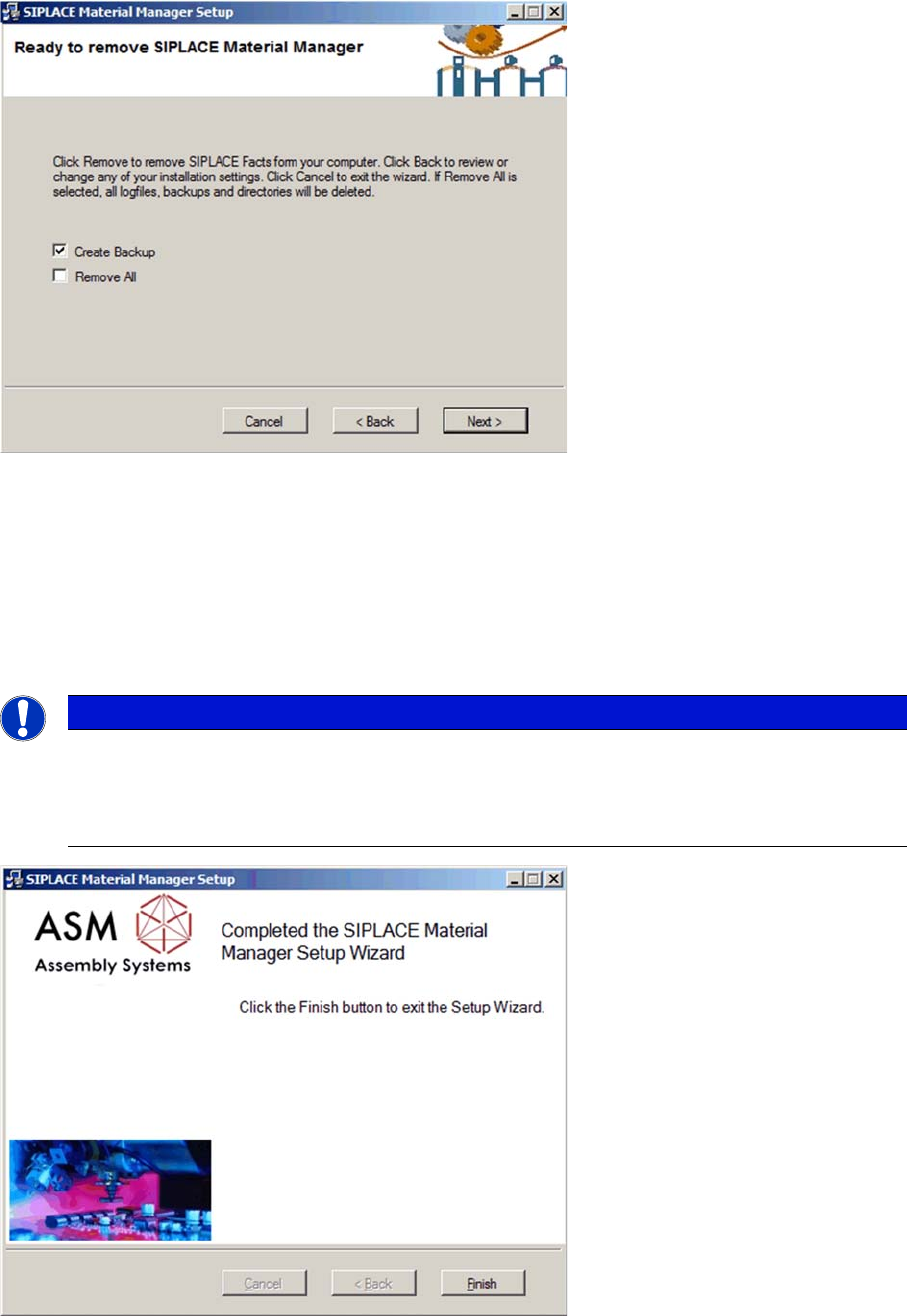
Settings for uninstalling procedure
By enabling the Create Backup option you can trigger a backup of project-specific files. These files can
be manually restored by a service engineer later.
By enabling the Remove All option, project-specific files will also be deleted during the uninstalling
procedure.
► Click on Next to start uninstalling.
All Material Manager components, log files and folders created for the Material Manager will be
deleted.
Uninstalling procedure completed
After the uninstalling procedure has been successfully completed, the dialog box to terminate the
installation program is displayed.
► Click on Finish to terminate the installation program.
NOTICE
Database remains
The SQL database of the Material Manager is excluded from the uninstalling procedure for the
application.
All inventory-relevant data and Traceability data remain completely.