00197500-01_IM_Material Manager_1.0_DE_EN.pdf - 第39页
Installing Components Afterwards Installation Manual Material Manager V1.0 39 5 5 I n s t a llin g C o m p o n e n t s A f t e r w a r d s Installing Components Afterwards ► Insert the installation CD into t he C D drive…
Setting Up a PC for the PDA and the 2D Scanner
Configuring the 2D Scanner
38 Installation Manual Material Manager V1.0
Installing Components Afterwards
Installation Manual Material Manager V1.0 39
5
5 Installing Components Afterwards
Installing Components Afterwards
► Insert the installation CD into the CD drive of the server on which the Material Manager is installed
to install Material Manager components afterwards.
► Switch over to the Install folder on the CD.
► Double-click on the ASM.AS.SiMM.MainInstaller.exe file.
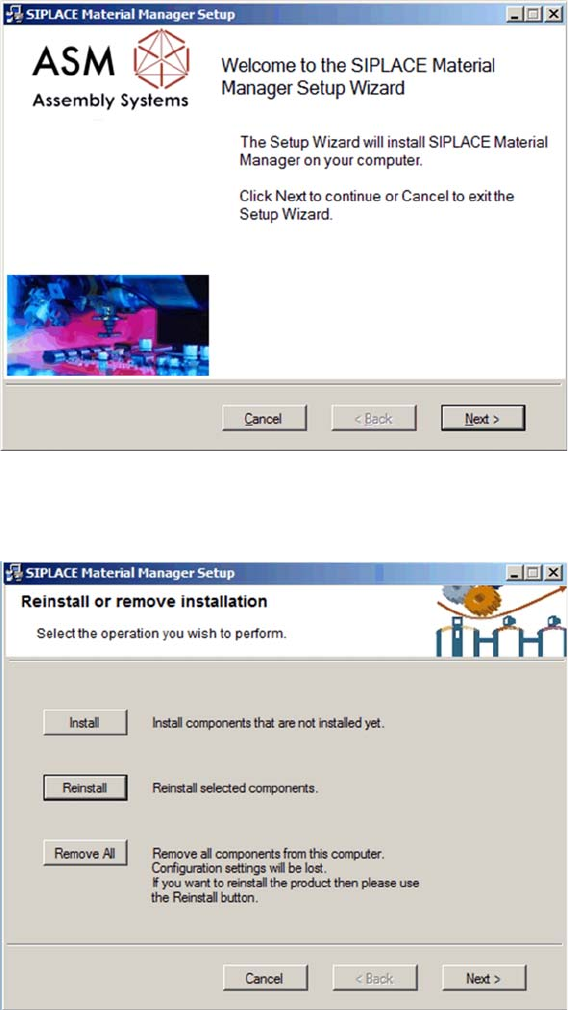
Start screen
The start screen of the installation program is displayed.
► Click on Next to continue the subsequent installation.
Selecting installation mode
The dialog for selecting the installation mode is displayed.
► Click on Install to install components that are not yet installed.
► Click on Reinstall to reinstall components that are already installed.
Installing Components Afterwards
40 Installation Manual Material Manager V1.0
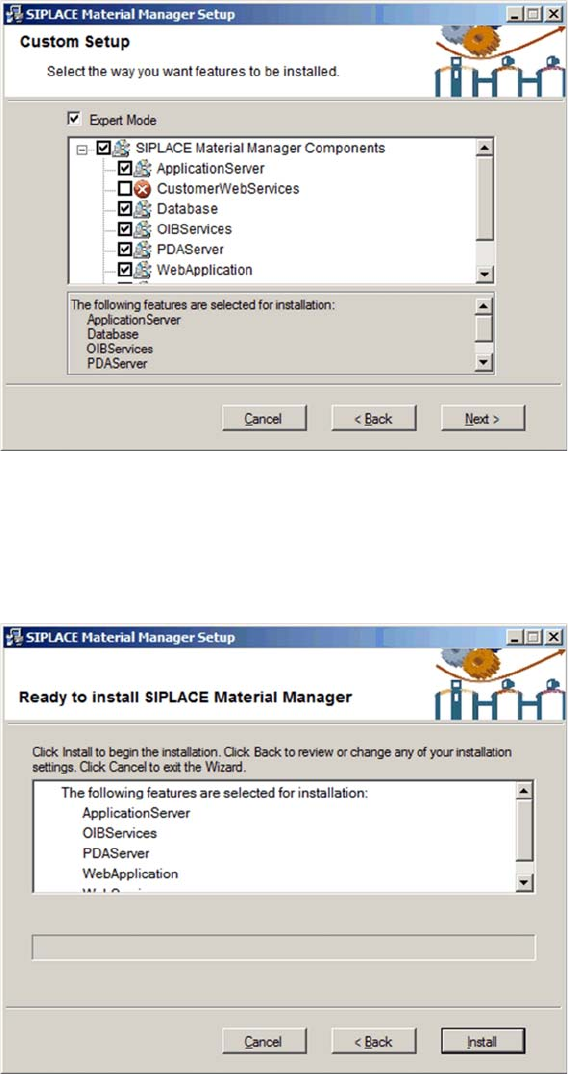
Selecting components in Expert Mode
The single components of the Material Manager are displayed for selection.
You will find a description of the single components in section "3 Installing the MaterialManager" [ ➙ 9].
► Enable the components to be installed or reinstalled.
► Click on Next to perform the installation.
Displaying settings
The settings you have selected are displayed for checking.
► Click on Back to correct your settings.
► Click on Install to perform the installation with your settings.
► Click on Cancel to cancel the installation.