00197500-01_IM_Material Manager_1.0_DE_EN.pdf - 第20页
Installing the MaterialManager 20 Installation Manual Material Manager V1.0 Label Configuration Use standard la bel printer If this option is ena bled, the labels will be sent in Zebra syn tax to the printer. This setti…
Installing the MaterialManager
Installation Manual Material Manager V1.0 19
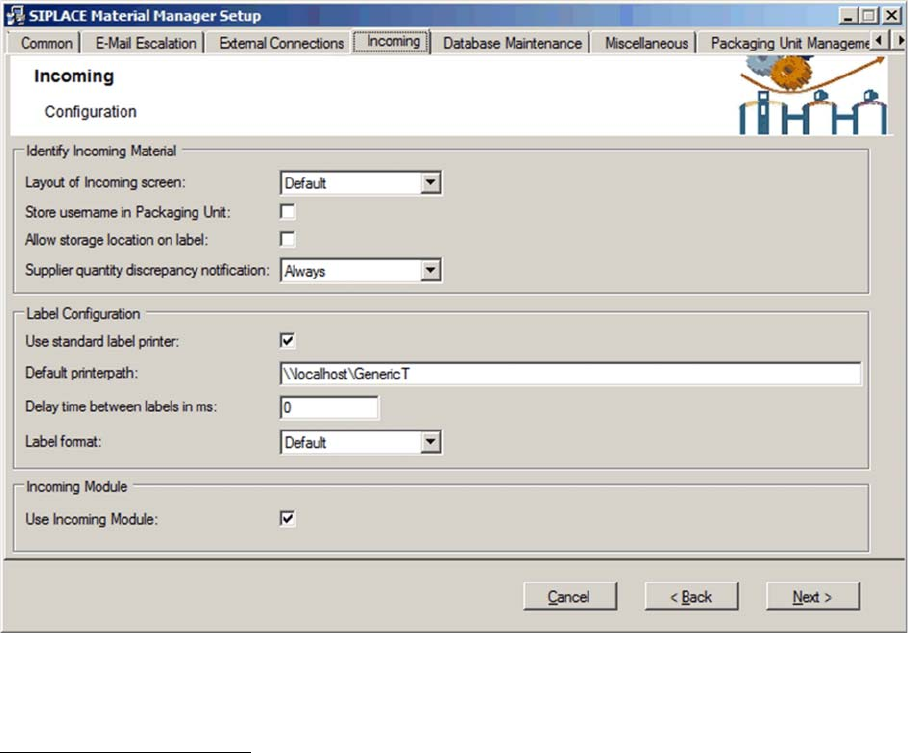
Configuring Material Manager – Incoming tab
In this tab you configure the incoming material process of the Material Manager.
Identify Incoming Material
Layout of Incoming screen
▪ Custom
As default incoming area but may be edited in an XML file.
The XML files that define the incoming area will be stored under:
*\Siplace\SIPLACE Material Manager\WebApplication\ASM\AS\SiMM\config\IdentifyIncomingMaterial.xml
*\Siplace\SIPLACE Material Manager\WebApplication\ASM\AS\SiMM\config\IdentifyIncomingMaterial
Details.xml
▪ Default + Supplier
Default incoming area extended by the supplier data.
▪ Default
Default incoming area as before.
▪ Existing
This option corresponds to the previous configuration.
Store username in Packaging Unit
If this option is enabled, the name of the user that enters a packaging unit into the Material Manager will
be stored together with the packaging unit data.
Allow storage location on label
If this option is enabled, the preferred storage location can be printed on the label.
Supplier quantity discrepancy notification
▪ Always
A message will always be displayed if the quantity of components does not match the planned
quantity.
▪ Exceeding
A message will only be displayed if more components were received as planned.
▪ Ignore
No message.

Installing the MaterialManager
20 Installation Manual Material Manager V1.0
Label Configuration
Use standard label printer
If this option is enabled, the labels will be sent in Zebra syntax to the printer. This setting should be
selected if the GT-430GK default label printer is used.
Otherwise, the setting for other label printers will be used. In this case, a detailed agreement is required
between ASM Assembly Systems GmbH & Co. KG and the customer.
Default printerpath
Path and network name of the pre-set label printer.
Delay time between labels in ms
(for printer-specific templates only)
If the printer is not able to process the print jobs correctly one after another, you can set a delay time
(in milliseconds) between the respective print jobs.
Label format
Here you set the size of the label that will be stuck on the packaging unit.
Available sizes:
▪ Default
Default size
▪ Small
Smaller labels
▪ Big
Bigger labels
▪ Custom
As default size but may be edited in a TXT file.
The TXT file will be stored under:
*\Siplace\SIPLACE Material Manager\WebApplication\ASM\AS\SiMM\config\Labels\Lot.txt
▪ Existing
This option corresponds to the previous configuration.
Incoming Modul
All packaging unit data that has been created in Setup Center can be transferred to the Material
Manager; if master data is required, it will also be automatically created.
Use Incoming Modul
If this option is enabled, Setup Center messages for created packaging unit data will be ignored.
If this option is NOT enabled, Setup Center messages for created packaging unit data will be processed
in the Material Manager, i.e. packaging unit data and the required master data will be created.
Installing the MaterialManager
Installation Manual Material Manager V1.0 21
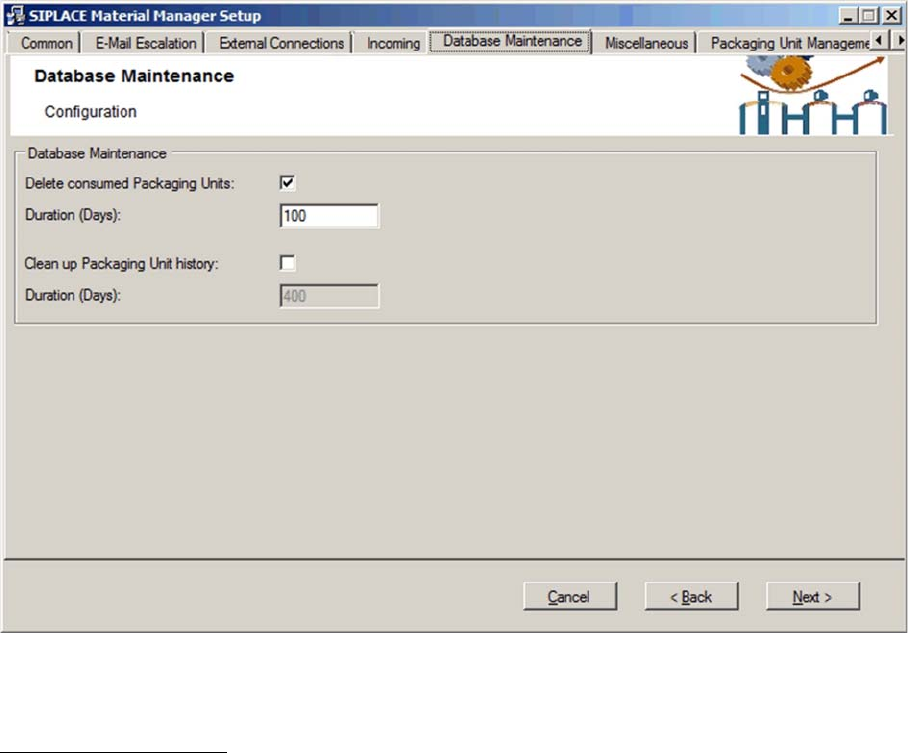
Configuring Material Manager – Database Maintenance tab
In this tab you configure the handling of consumed packaging units.
Database Maintenance
Delete consumed Packaging Units
If this option is enabled, a consumed packaging unit will be deleted in the database after the time set
under Duration.
Duration (Days)
Number of days after which a consumed packaging unit will be deleted in the database.
Clean up Packaging Unit history
If this option is enabled, the history of a consumed packaging unit will be deleted in the database after
the time set under Duration.
Duration (Days)
Number of days after which the history of a consumed packaging unit will be deleted in the database.