00197500-01_IM_Material Manager_1.0_DE_EN.pdf - 第32页
Setting Up a PC for the PDA and the 2D Scan ner Configuring the PDA 32 Installation Manual Material Manager V1.0 4.2 4 . 2 C o n f ig u r in g t h e P D A Configuring the PDA After the PDA client has been in stalle d on …
Setting Up a PC for the PDA and the 2D Scanner
Installing the PDA Client
Installation Manual Material Manager V1.0 31
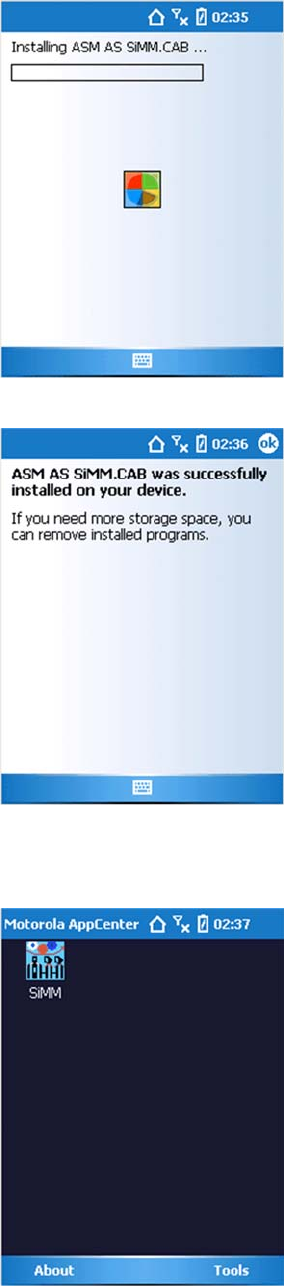
A progress bar displays the current state during the installation.
As soon as this message is displayed, the Material Manager applications have been successfully
installed.
Now, the PDA has to be restarted. After that, the following screen is displayed.
Now, the PDA has to be configured.
Setting Up a PC for the PDA and the 2D Scanner
Configuring the PDA
32 Installation Manual Material Manager V1.0
4.2
4.2 Configuring the PDA
Configuring the PDA
After the PDA client has been installed on the PC, the PDA has to be configured.
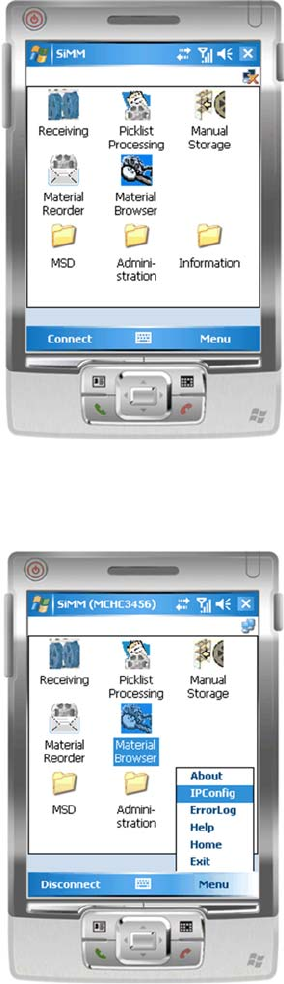
Start screen on the PDA
The start screen of the Material Manager is displayed.
► Click on the Menu button.
Displaying menu entries
The menu entries are displayed.
► Select the IPConfig menu entry.
Setting Up a PC for the PDA and the 2D Scanner
Configuring the PDA
Installation Manual Material Manager V1.0 33
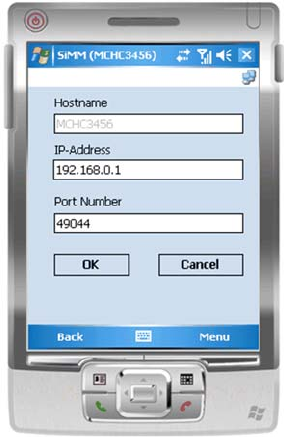
Entering IP address
The IP address of the server on which the SIPLACE Material Manager is installed has to be entered in
this dialog box.
► Enter the IP address in the IP-Address input box.
The Port Number is pre-set. If this has to be changed, ask your system administrator for the value to be
entered.
► Click on the OK button.