00197500-01_IM_Material Manager_1.0_DE_EN.pdf - 第9页
Installing the MaterialManager Installation Manual Material Manager V1.0 9 3 3 I n s t a llin g t h e M a t e r ia lM a n a g e r Installing the Material Manager ► Insert the installation CD into t he C D drive of th e …
Preparations
Installing the Label Printer
8 Installation Manual Material Manager V1.0
Installing the MaterialManager
Installation Manual Material Manager V1.0 9
3
3 Installing the MaterialManager
Installing the Material Manager
► Insert the installation CD into the CD drive of the server on which the Material Manager shall be
installed.
► Switch over to the Install folder on the CD.
► Double-click on the ASM.AS.SiMM.MainInstaller.exe file.
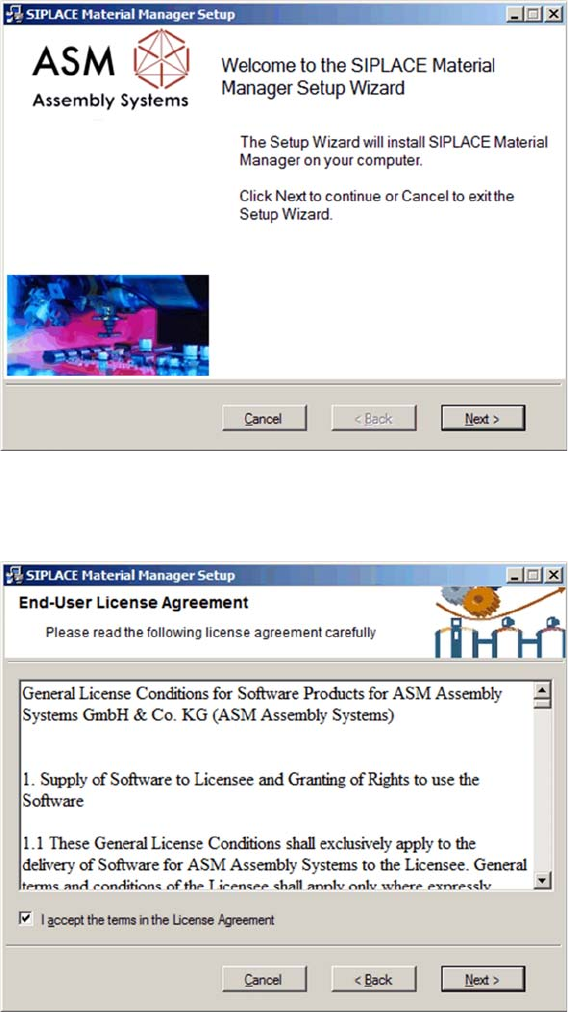
Start screen
The start screen of the installation program is displayed.
► Click on Next to continue the installation.
Confirming license agreement
The license agreement is displayed.
► Enable the option with which you accept the license agreement.
► Click on Next.
Installing the MaterialManager
10 Installation Manual Material Manager V1.0
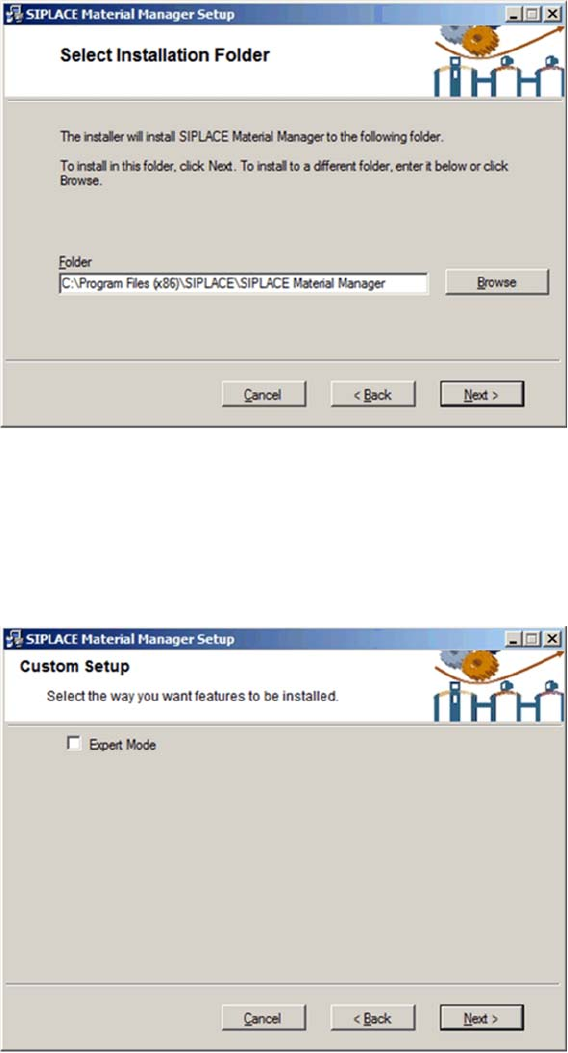
Setting installation folder
The dialog box for setting the installation folder is displayed.
► If you want to change the path of the installation folder, click on Browse and
navigate to the desired folder.
► Click on Next.
The set path will be used for the installation.
Selecting Expert Mode
In this dialog box you select to perform the installation in Expert Mode or with the default pre-settings.
▪ With the default settings, all components required for the Material Manager will be installed
automatically. (recommended)
The CustomerWebServices and WebServicesClient components will not be installed. These
components are only required if SIPLACE components shall be integrated in customer applications.
▪ If Expert Mode is enabled, you can select which Material Manager components shall be installed or
not.
The CustomerWebServices and WebServicesClient components can be selected for installation.
► Enable or disable Expert Mode.
► Click on Next.