Nordson_EFD_GV_Series_Operating_Manual.pdf - 第112页
GV Series Automated Dispensing Systems 112 www.nordsonefd.com info@nordsonefd.com +1-401-431-7000 Sales and service of Nordson EFD dispensing systems are available worldwide. Goto Label Click Function Causes the program …
GV Series Automated Dispensing Systems
111www.nordsonefd.com info@nordsonefd.com +1-401-431-7000 Sales and service of Nordson EFD dispensing systems are available worldwide.
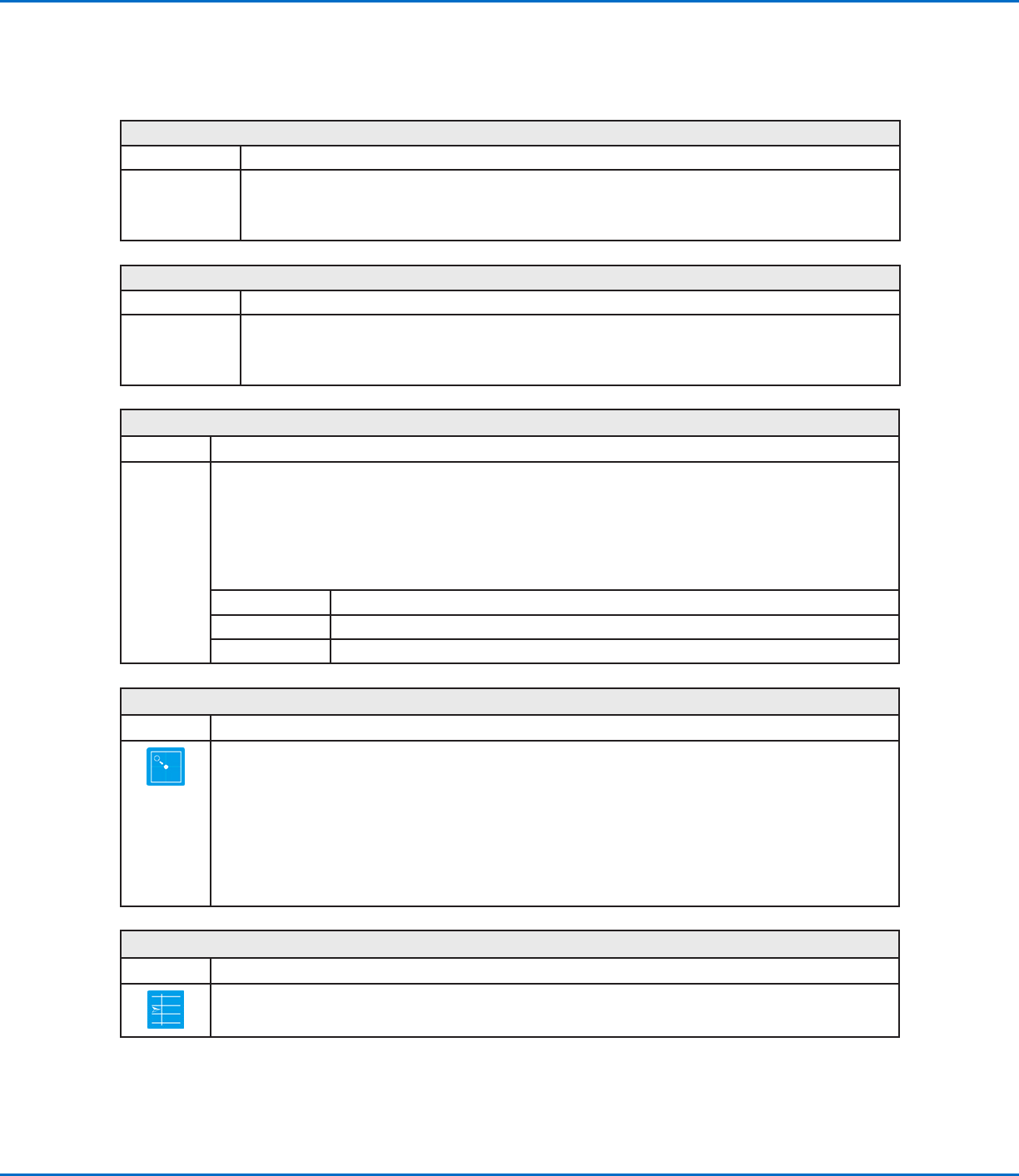
Fill End
Click Function
Double-click
address and
select from drop-
down menu
Used in tandem with Fill Area and Fill Start, the Fill End command designates the end of a Fill Area
command. The correct sequence of commands for a fill area is: (1) Fill Start, (2) Fill Area, (3) Fill End.
NOTE: Line End can be used in place of Fill End.
Fill Start
Click Function
Double-click
address and
select from drop-
down menu
Used in tandem with Fill Area and Fill End, the Fill Start command designates the start of a Fill Area
command. The correct sequence of commands for a fill area is: (1) Fill Start, (2) Fill Area, (3) Fill End.
NOTE: Line Start can be used in place of Fill Start.
Find Angle Mark
Click Function
Double-click
address and
select from
drop-down
menu
Used in tandem with Fiducial Marks to cause the system to search for a change in the XY orientation of a
workpiece by searching in an angle-shaped area on the workpiece. If a change is found, the system adjusts the
dispense program accordingly.
EXAMPLE: If Start Angle = 0 and End Angle = 90, the system searches for marks within the specified angle-
shaped area. If a workpiece differs from the previous workpiece within that area, the system adjusts the dispense
program accordingly. If the system cannot find the marks within the specified angle-shaped area, it skips the
workpiece.
Parameter Description
Start Angle The angle (in degrees) at which the systems starts searching.
End Angle The angle (in degrees) at which the system stops searching.
Find Mark
Click Function
Causes the system to search for the mark specified in the No. (number) field of a Find Mark command. The
mark is then used by the Mark Adjust command to adjust the dispense program accordingly for any XY position
changes between workpieces.
NOTES:
• Only one Find Mark is required in a program for the system to perform this function correctly.
• A Find Mark is different from a Fiducial Mark. A Find Mark is used only to check the XY position of a workpiece
whereas a Fiducial Mark is used to check the orientation of a workpiece.
• Refer to “About Marks” on page28 for more information on marks.
Goto Address
Click Function
Causes the program to jump to the specified address.
Appendix A, Command Function Reference
(continued)
GV Series Automated Dispensing Systems
112 www.nordsonefd.com info@nordsonefd.com +1-401-431-7000 Sales and service of Nordson EFD dispensing systems are available worldwide.
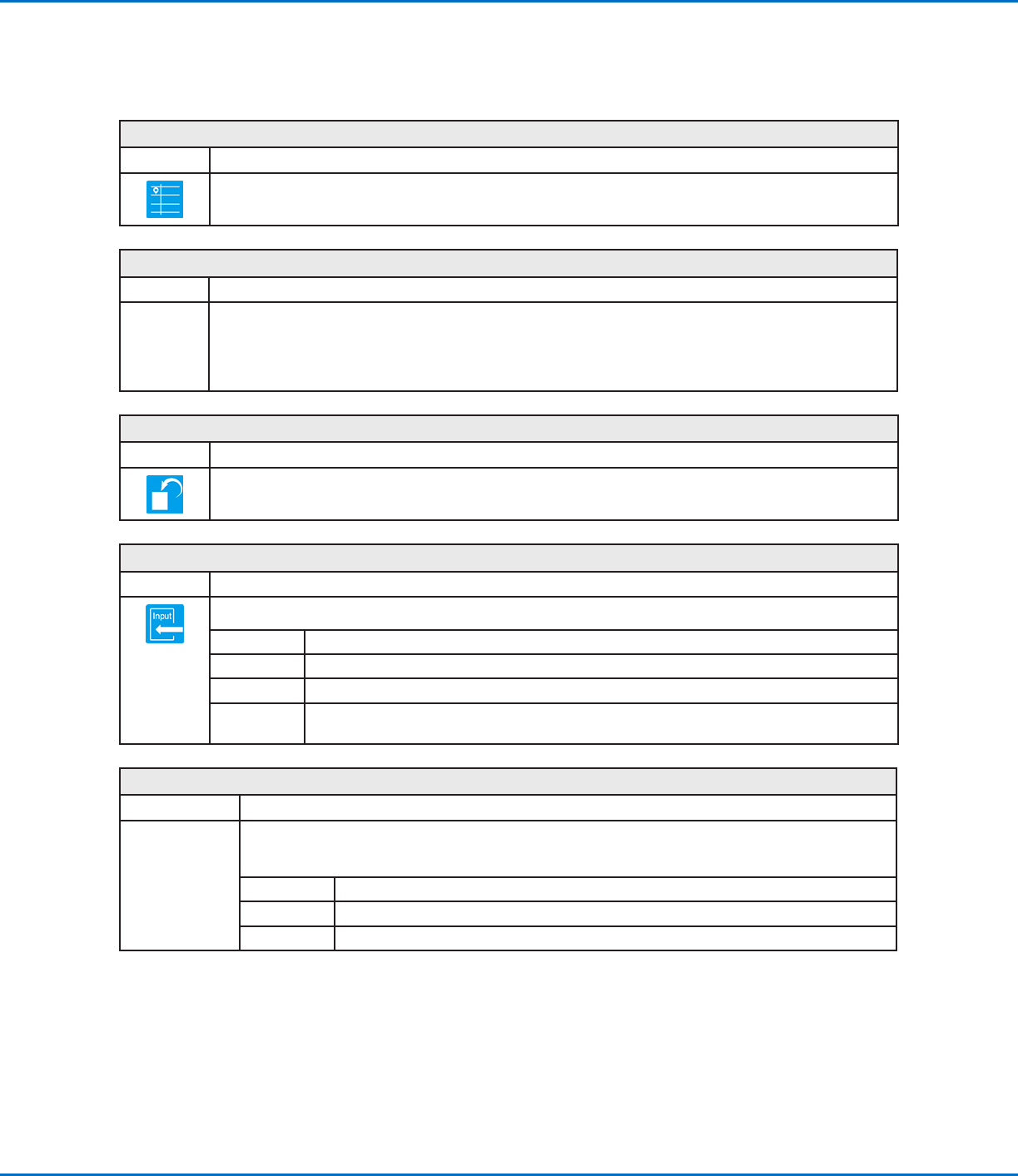
Goto Label
Click Function
Causes the program to jump to the address in the program that has the specified label.
Height Sensor
Click Function
Double-click
address and
select from
drop-down
menu
Measures the height of an object on a workpiece where a dispense dot is to be placed; the measured data is
then used to adjust dispensing accordingly for any height changes between workpieces.
NOTE: For this functionality, the optional height sensor must be installed and set up. Refer to”AppendixF,
Height Sensor Setup and Use” on page142 for all information related to the height sensor.
Initialize
Click Function
Causes the robot to perform an initialization. The dispensing tip moves to the home position (0, 0, 0) and the
robot relocates the home position using the home position sensors.
Input
Click Function
Causes the program to check for an input signal at the specified port and to turn the input ON or OFF.
Parameter Description
Port(1~8) Sets the input port number.
0 Off, 1 On Turns the input OFF or ON.
Address or
Label
Causes the program to check the input at the specified address or label. Click Change to toggle
between Address and Label.
Input Ready
Click Function
Double-click
address and
select from drop-
down menu
Used to communicate with external devices: If Input Ready is ON, the system checks the assigned port and
acts accordingly; if Input Ready is OFF, the system does not check the assigned port and moves on to the
next command.
Parameter Description
Port(1~8) Sets the input port number for the system to check.
0 Off, 1 On Turns Input Ready OFF or ON.
Appendix A, Command Function Reference
(continued)
GV Series Automated Dispensing Systems
113www.nordsonefd.com info@nordsonefd.com +1-401-431-7000 Sales and service of Nordson EFD dispensing systems are available worldwide.
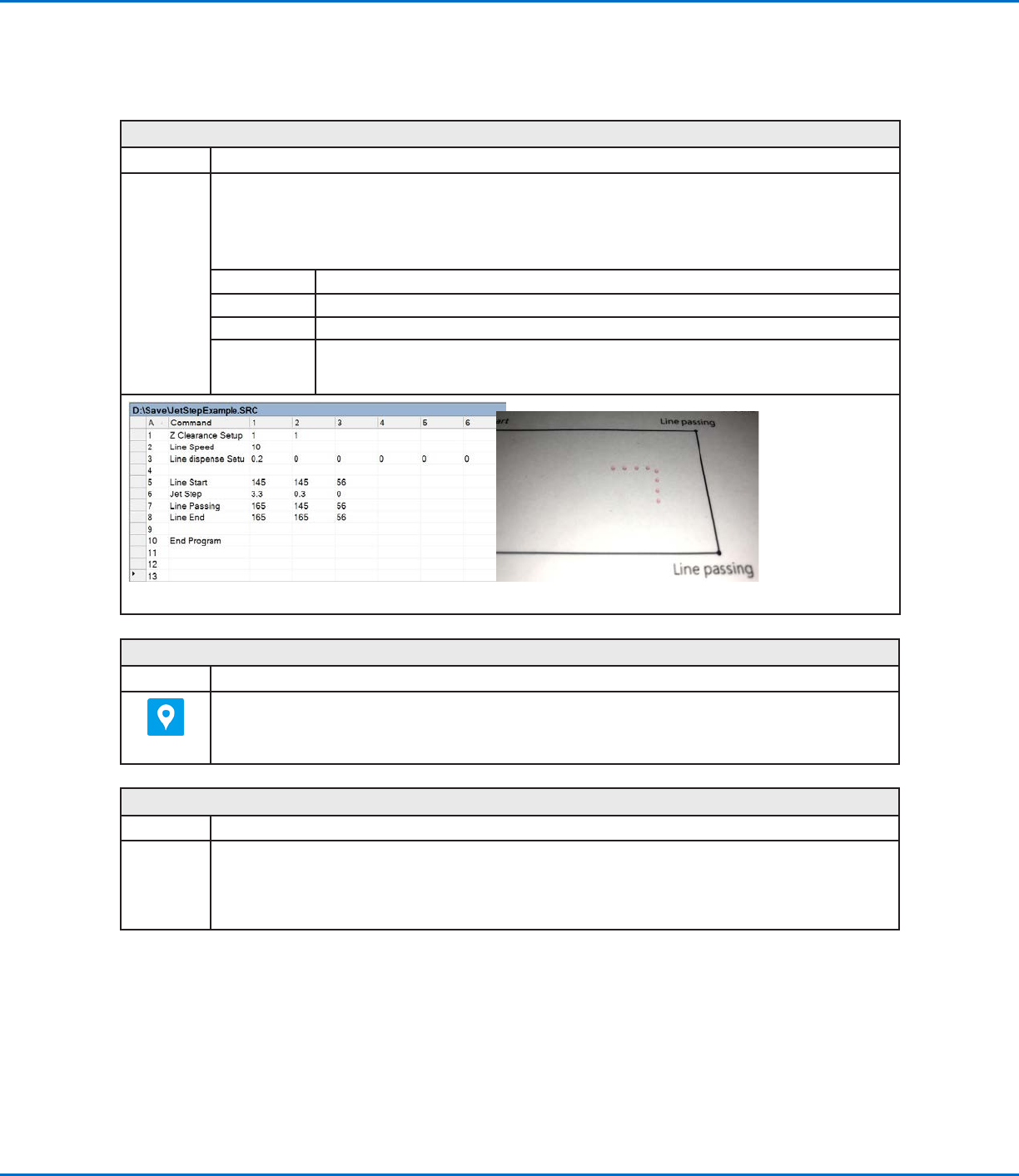
Jet Step
Click Function
Double-click
address and
select from
drop-down
menu
Used in tandem with a Line Start and a Line End command to cause the system to dispense a stitched series
of dots between the commands at the specified length (Jet Step) and for the specified amount of time (Pulse
Width). This command is useful for jetting applications in which extremely quick dispensing is required.
NOTE: For PICO jet dispensing, this command can be used with Line Start and Line End commands to create a
stitched pattern. An example program and resulting pattern are shown below.
Parameter Description
Jet Step The distance (inmm) between the stitched dots.
Pulse Width How long the dispenser stays open (in ms) for each deposited dot.
Adjust Offset value (in mm) that the system applies to each coordinate value in the program. This
setting can be used to compensate when a dispensing program is slightly off from the desired
pattern.
Example of a stitching program using the Jet Step command for a PICO jet valve
Label
Click Function
Registers a numeric label that can be used as a reference in the Goto Address, Goto Label, Loop Address, Step
& RepeatX, Step & Repeat Y, and Call Subroutine commands. Using a Label is a good alternative to using an
address number because a Label does not change when commands are inserted or removed. A maximum of 64
labels is allowed per program; each label can have up to 8 numbers.
Light
Click Function
Double-click
address and
select from
drop-down
menu
Sets the luminance of the light source at a specified point in the program between 0 (no luminance) and 255
(brightest).
NOTE: This command is present only if an optional light accessory is installed.
Appendix A, Command Function Reference
(continued)