Nordson_EFD_GV_Series_Operating_Manual.pdf - 第61页
GV Series Automated Dispensing Systems 61 www.nordsonefd.com info@nordsonefd.com +1-401-431-7000 Sales and service of Nordson EFD dispensing systems are available worldwide. Sharing Of fset V alues Acr oss Multiple Progr…
GV Series Automated Dispensing Systems
60 www.nordsonefd.com info@nordsonefd.com +1-401-431-7000 Sales and service of Nordson EFD dispensing systems are available worldwide.
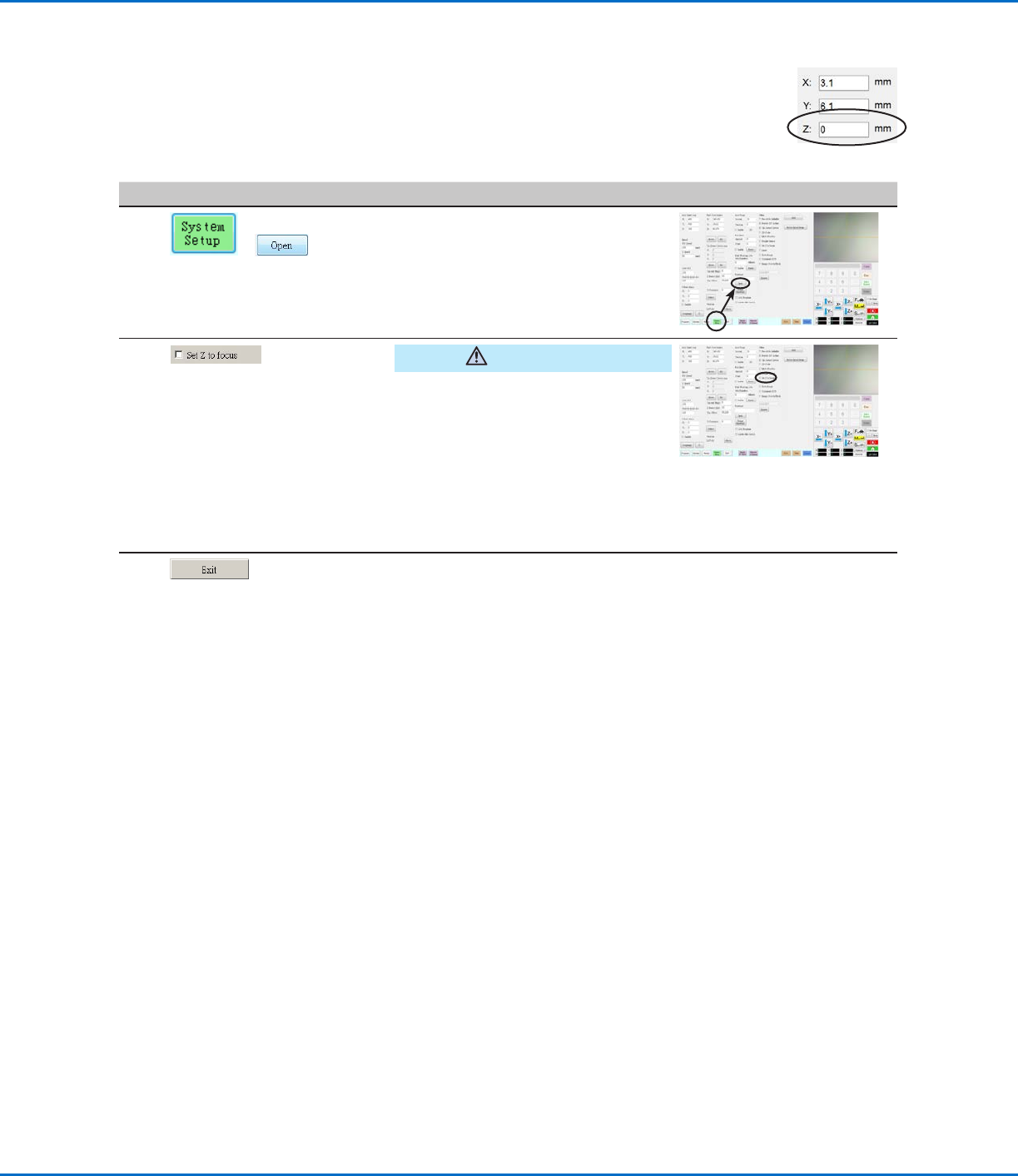
Setting How the System Captures Z Height Values (Optional)
By default, the system does not capture the Z-height value as you move the camera over the work
surface. This is a safeguard to prevent the dispensing tip from being damaged when a workpiece
surface is uneven.
Use the Set Z to Focus checkbox in the Expert window to set the system to automatically capture
Z-height values.
# Click Step Reference Image
1
>
• Click SYSTEM SETUP > OPEN.
2
CAUTION
When SET Z TO FOCUS is NOT
checked, the tip can collide with
obstacles on uneven workpieces,
causing damage.
• Select or deselect the SET Z TO
FOCUS checkbox.
When SET Z TO FOCUS is checked,
the system captures Z-height values.
3
• Click EXIT to close, then reopen the
DispenseMotion software for the
change to take effect.
GV Series Automated Dispensing Systems
61www.nordsonefd.com info@nordsonefd.com +1-401-431-7000 Sales and service of Nordson EFD dispensing systems are available worldwide.
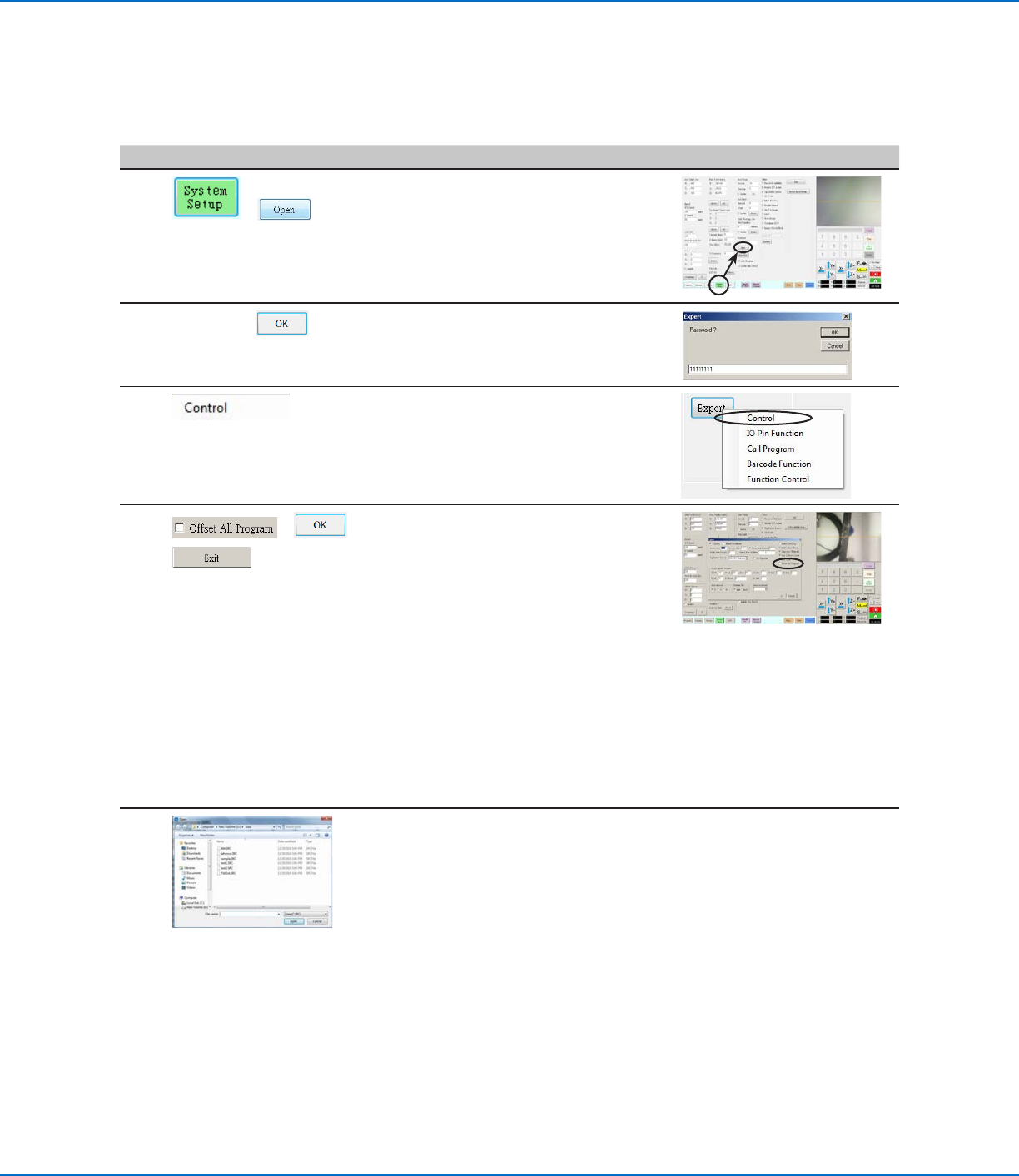
Sharing Offset Values Across Multiple Programs
If you want multiple dispense programs to have the same offset values (tip-to-workpiece, camera-to-tip), you can
enable Offset All Program through the System Setup screen. Doing so creates a new directory (D:\auto) — programs
that should have the same offsets are stored in this directory. Enabling Offset All Program causes the Needle Z
Detect (if applicable) and NeedleXY Adjust offsets to affect all files stored in the d:\auto directory.
# Click Step Reference Image
1
>
• Click SYSTEM SETUP > OPEN.
2
11111111 >
• Enter 11111111, then click OK.
3 • Click CONTROL.
4
> >
• In the Expert window, select or
deselect the OFFSET ALL PROGRAM
checkbox.
• Click OK to save the setting.
NOTE: The change takes effect
immediately, but does not change
the directory of the currently open
program. To save the currently open
program in the d:\auto directory, use
Save As.
• Click EXIT to close the
DispenseMotion application, allowing
the system to update the default
directory based on the Offset All
Program selection.
When Offset All Program is enabled:
• The system automatically creates a new directory: D:\auto. Programs
that should share the same offsets must be saved in this directory.
• To ensure that a program is saved to the correct directory for sharing
offsets, create a new program and then select Save or Save As. The
system automatically opens the D:\auto directory.
NOTE: When Offset All Program is disabled, the system automatically
returns to saving programs in the default D:\save directory.
GV Series Automated Dispensing Systems
62 www.nordsonefd.com info@nordsonefd.com +1-401-431-7000 Sales and service of Nordson EFD dispensing systems are available worldwide.
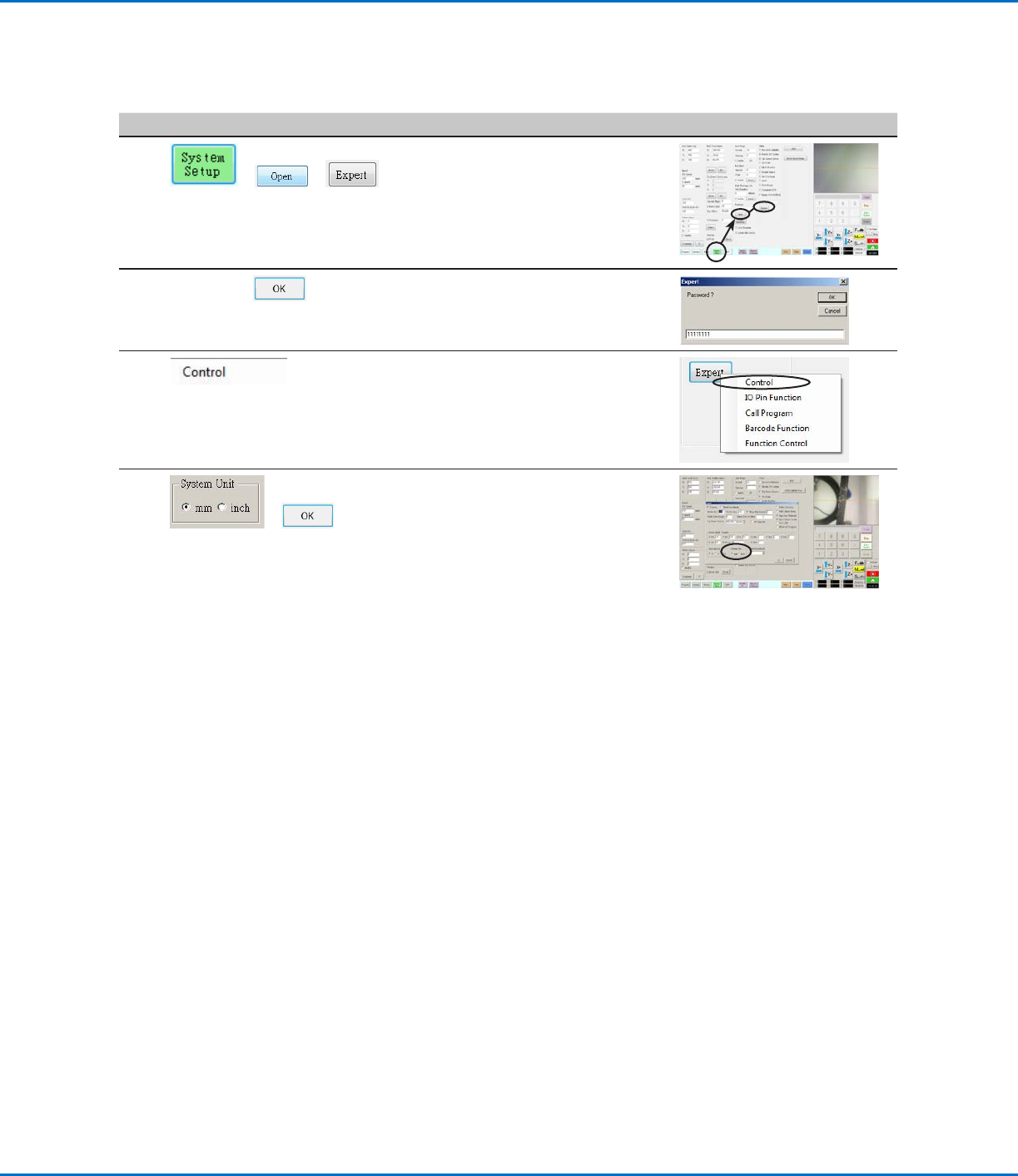
Setting the Units of Measure
By default, the system displays units of measure using the metric system. Follow this procedure to change how the
system displays units of measure.
# Click Step Reference Image
1
> >
• Click SYSTEM SETUP > OPEN >
EXPERT.
2
11111111 >
• Enter 11111111, then click OK.
3 • Click CONTROL.
4
>
• In the Expert window, select the
desired unit of measure under System
Unit.
• Click OK to save the setting.
The system automatically exits the
software to allow the change to take
effect.
Restoring the System to the Factory Default Settings
To restore all settings to their factory default values, open and then close the following file located on the D:\ drive:
D:\ever_sr\Initial Setup.