Nordson_EFD_GV_Series_Operating_Manual.pdf - 第24页
GV Series Automated Dispensing Systems 24 www.nordsonefd.com info@nordsonefd.com +1-401-431-7000 Sales and service of Nordson EFD dispensing systems are available worldwide. Connect Inputs / Outputs (Optional) All automa…
GV Series Automated Dispensing Systems
23www.nordsonefd.com info@nordsonefd.com +1-401-431-7000 Sales and service of Nordson EFD dispensing systems are available worldwide.
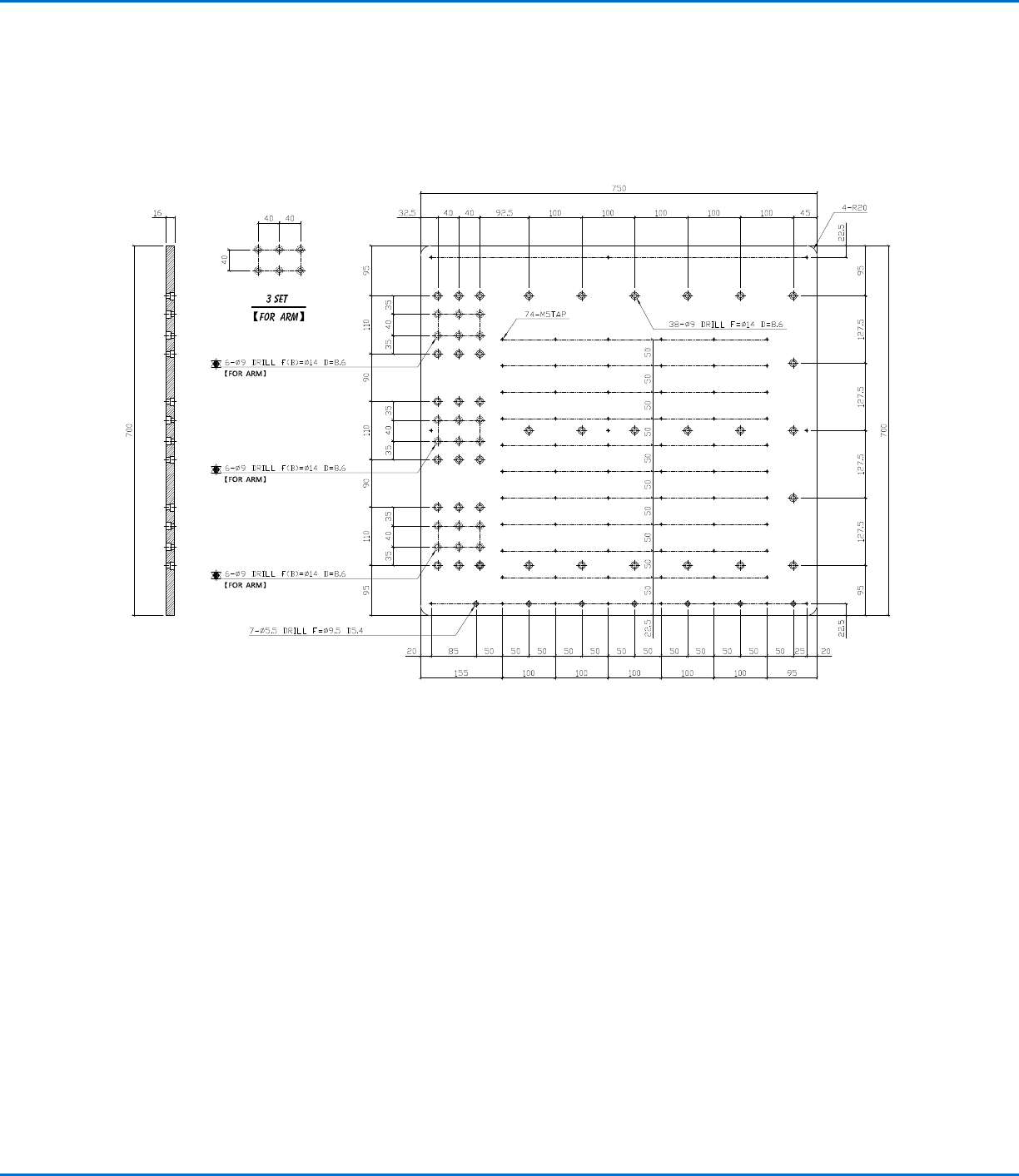
Prepare the Work Surface
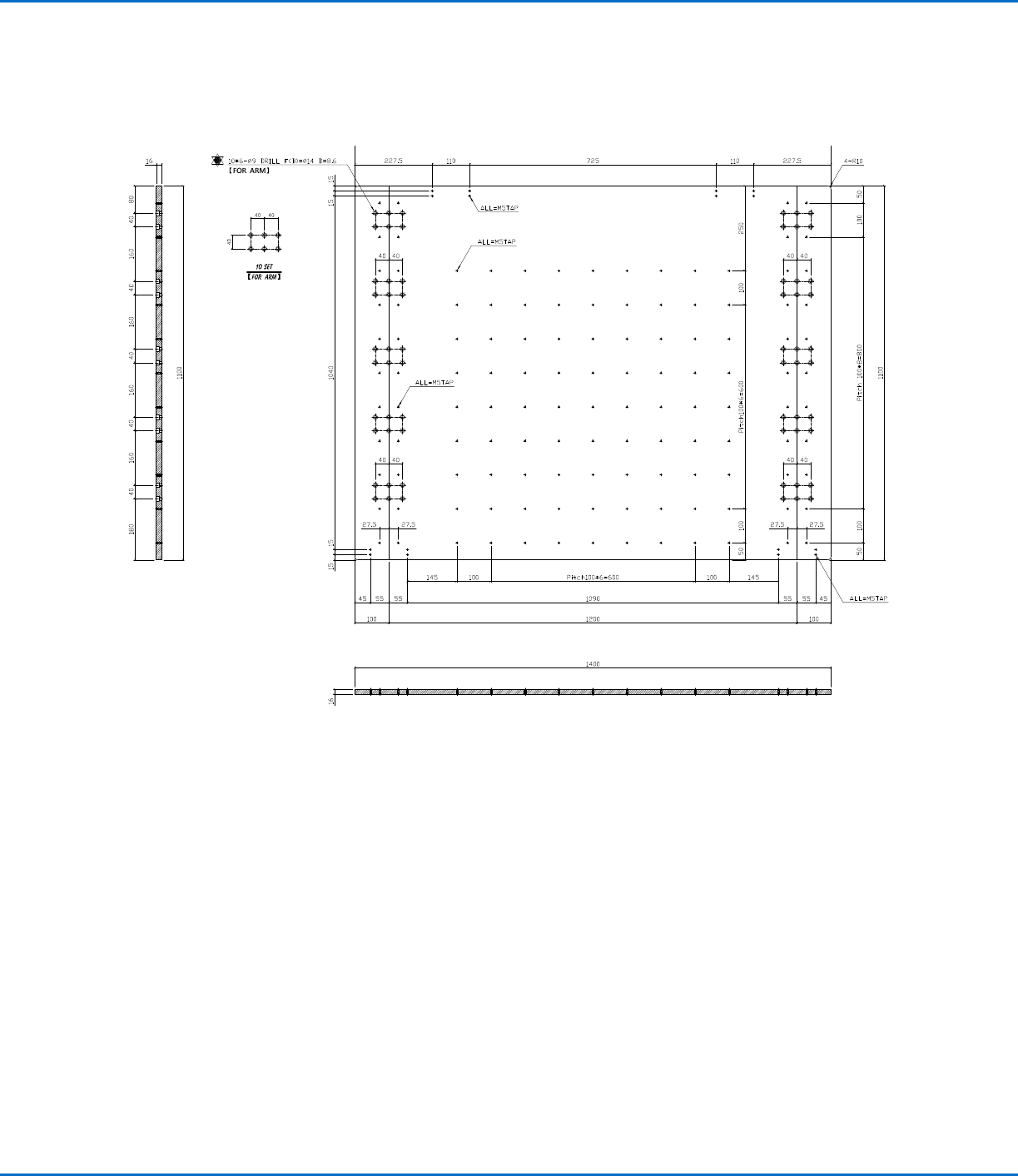
Prepare the robot work surface for secure placement of the workpiece. You can place the substrate directly on the
work surface or mount a customized fixture plate on the work surface. Mounting hole templates are provided below.
G4V Fixture Plate Mounting Hole Template
NOTE: All dimensions are in mm.
GV Series Automated Dispensing Systems
24 www.nordsonefd.com info@nordsonefd.com +1-401-431-7000 Sales and service of Nordson EFD dispensing systems are available worldwide.
Connect Inputs / Outputs (Optional)
All automated dispensing systems provide 8 standard inputs and 8 standard outputs. Connect input / output wiring
to the I/O PORT connection on the back of the GV operation box. For a wiring diagram, refer to “I/O Port” on
page95. There are several ways to use the system inputs / outputs. Refer to “Setting Up Inputs / Outputs” on
page58 for additional information on inputs / outputs.
G8V Fixture Plate Mounting Hole Template
NOTE: All dimensions are in mm.
Prepare the Work Surface (continued)
GV Series Automated Dispensing Systems
25www.nordsonefd.com info@nordsonefd.com +1-401-431-7000 Sales and service of Nordson EFD dispensing systems are available worldwide.
Power On the System
After the system is fully installed, including the dispensing system
components, switch on the system to verify the installation.
1. Make sure the following installation tasks are complete:
• All applicable system components are installed (refer to
“Installation” on page19).
• All system components are properly connected as shown on
the Quick Start Guide.
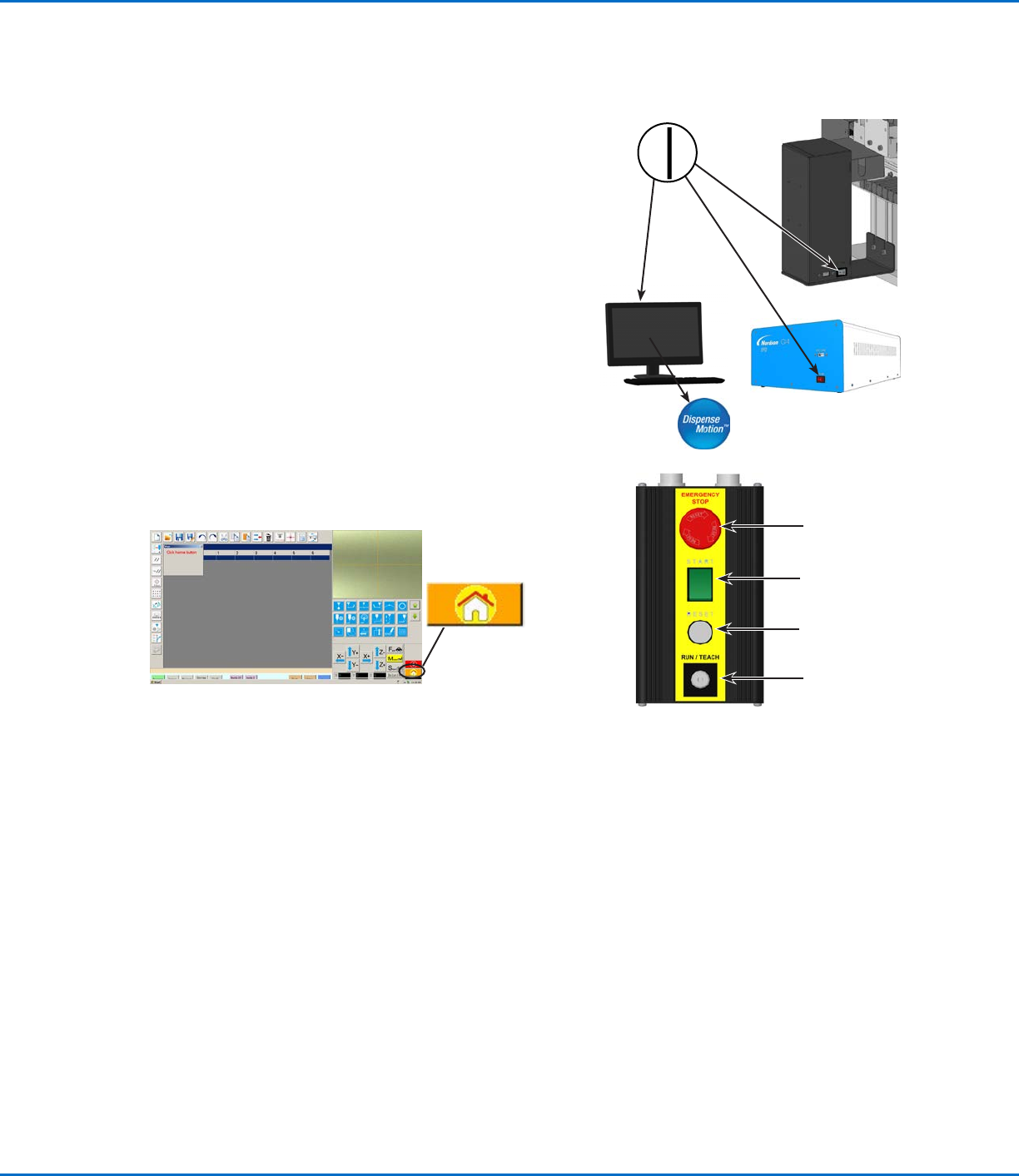
2. Switch on the DispenseMotion controller, monitor, and
GVoperation box.
3. On the start / stop box:
a. Ensure that the EMERGENCY STOP button is not depressed.
b. Turn the RUN / TEACH key to the TEACH position
(recommended for creating a program).
NOTE: When the RUN / TEACH switch is in the TEACH position,
the system will run a dispense cycle, but will not dispense
material.
4. Double-click the DispenseMotion icon to open the dispensing
software.
5. Click HOME.
The robot moves the camera to the home position (0, 0, 0) and the
system is ready.
6. Enable the dispensing system, including the valve controller. Refer to
the dispensing equipment manuals as needed.
7. Refer to the following sections to set up the system and to create
programs for your applications:
• “Concepts” on page26
• “Overview of the DispenseMotion Software” on page29
• “Setup” on page44
• “Programming” on page63
Start / stop box
EMERGENCY STOP
button
START button
RESET button
RUN / TEACH key