Nordson_EFD_GV_Series_Operating_Manual.pdf - 第129页
GV Series Automated Dispensing Systems 129 www.nordsonefd.com info@nordsonefd.com +1-401-431-7000 Sales and service of Nordson EFD dispensing systems are available worldwide. Importing a DXF File PREREQUISITES: The sys…
GV Series Automated Dispensing Systems
128 www.nordsonefd.com info@nordsonefd.com +1-401-431-7000 Sales and service of Nordson EFD dispensing systems are available worldwide.
Setting DXF Import Preferences
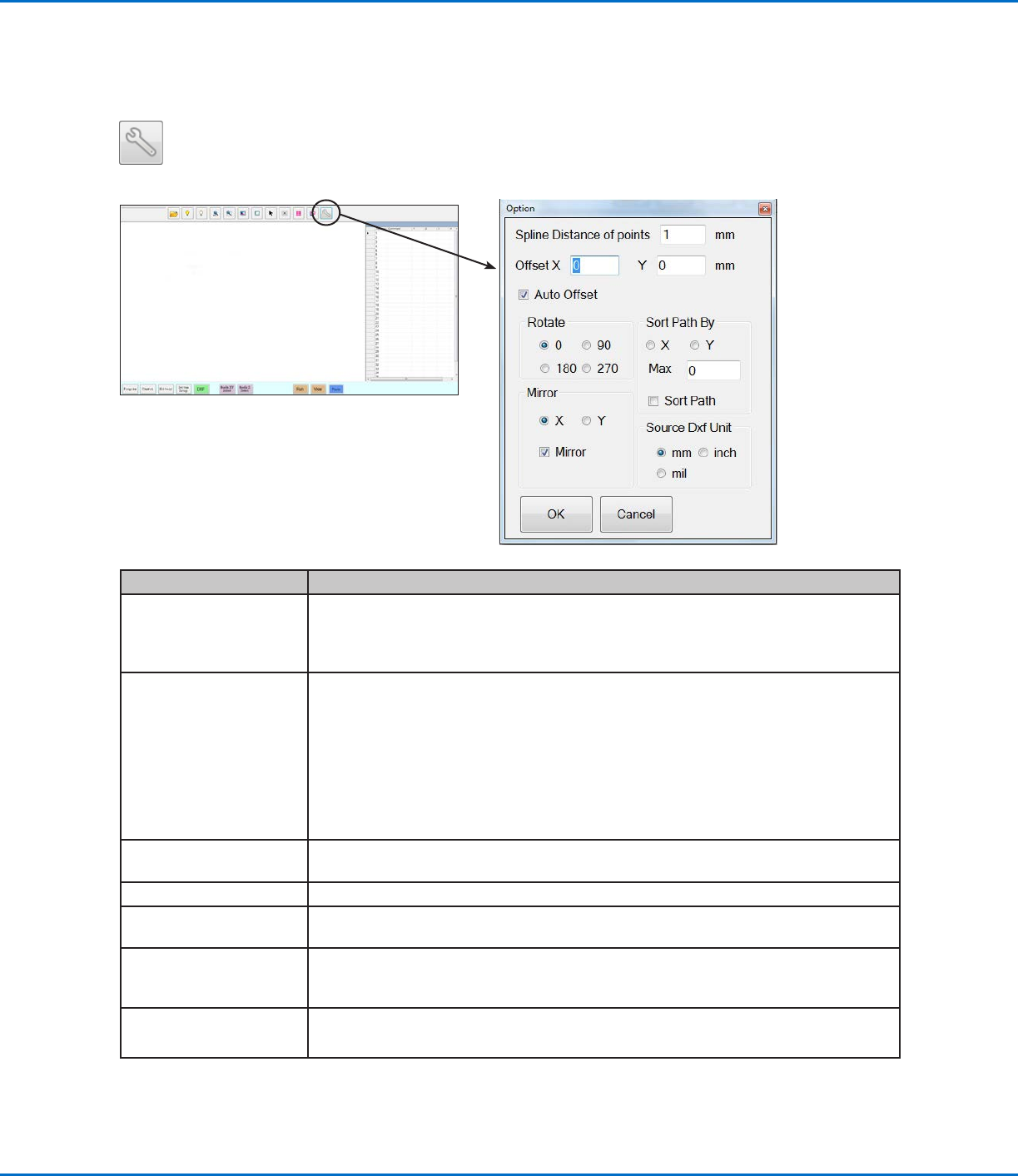
Click the OPTION icon on the DXF screen to set DXF import preferences.
AppendixC, DXF File Import (continued)
Item Description
Spline Distance of points
(mm)
Specifies the distance between any two points on a curve when the curve is converted
to coordinates. For example, when this value is set to 1 and a 10-mm long curve is
converted to commands, the result will be a series of Line Start, Line Passing, and
Line End commands that will produce a curve with a total of 11 points.
Offset X, Y After you create program commands using Point Dispense or Line Dispense, the
resulting XY values may be negative numbers. This causes the imported points to
display off the grid when viewed on the Secondary View screen. To resolve this
issue, enter X and / or Y values in the offset fields of the Option window such that the
imported XY values change to positive values. For example, if an imported XY value is
-150, -150, 0, then enter 200 for Offset X and 200 for offset Y, click OK, and then click
the Point Dispense or Line Dispense icon again to refresh the values. The new values
will be 50, 50, 0 and the points will be visible on the Secondary View screen grid when
you go to the Program screen.
Auto Offset When selected, causes the system to align all the points in the middle of the fixture
plate to the greatest extent possible.
Rotate Rotates the file by the specifed degrees
Mirror Mirrors the file over the X or Y axis, as selected. Select the Mirror checkbox for the
option to take effect when the file imports.
Sort Path By For arrays of dispense dots, sorts the resulting Dispense Dot commands by the X or Y
coordinates, as specified. Refer to “Using the Sort Path By Option” on page132 for
details about this option.
Source Dxf Unit Toggles the display of units between millimeters, inches, and mils
NOTE: A mil is one-thousandth of an inch, or 0.001 inch.
GV Series Automated Dispensing Systems
129www.nordsonefd.com info@nordsonefd.com +1-401-431-7000 Sales and service of Nordson EFD dispensing systems are available worldwide.
Importing a DXF File
PREREQUISITES:
The system is properly set up. Refer to “Setting Up and Calibrating the System (Required)” on page48.
If the tip or any element of the Zaxis head was changed, repeat system setup and calibration using the Robot
Initial Setup wizard. Refer to “Setting Up the System Using the Robot Initial Setup Wizard” on page49.
The system is in the correct mode (Tip or CCD).
The DXF file for the workpiece is located on the DispenseMotion controller.
The actual workpiece is properly positioned on the fixture plate.
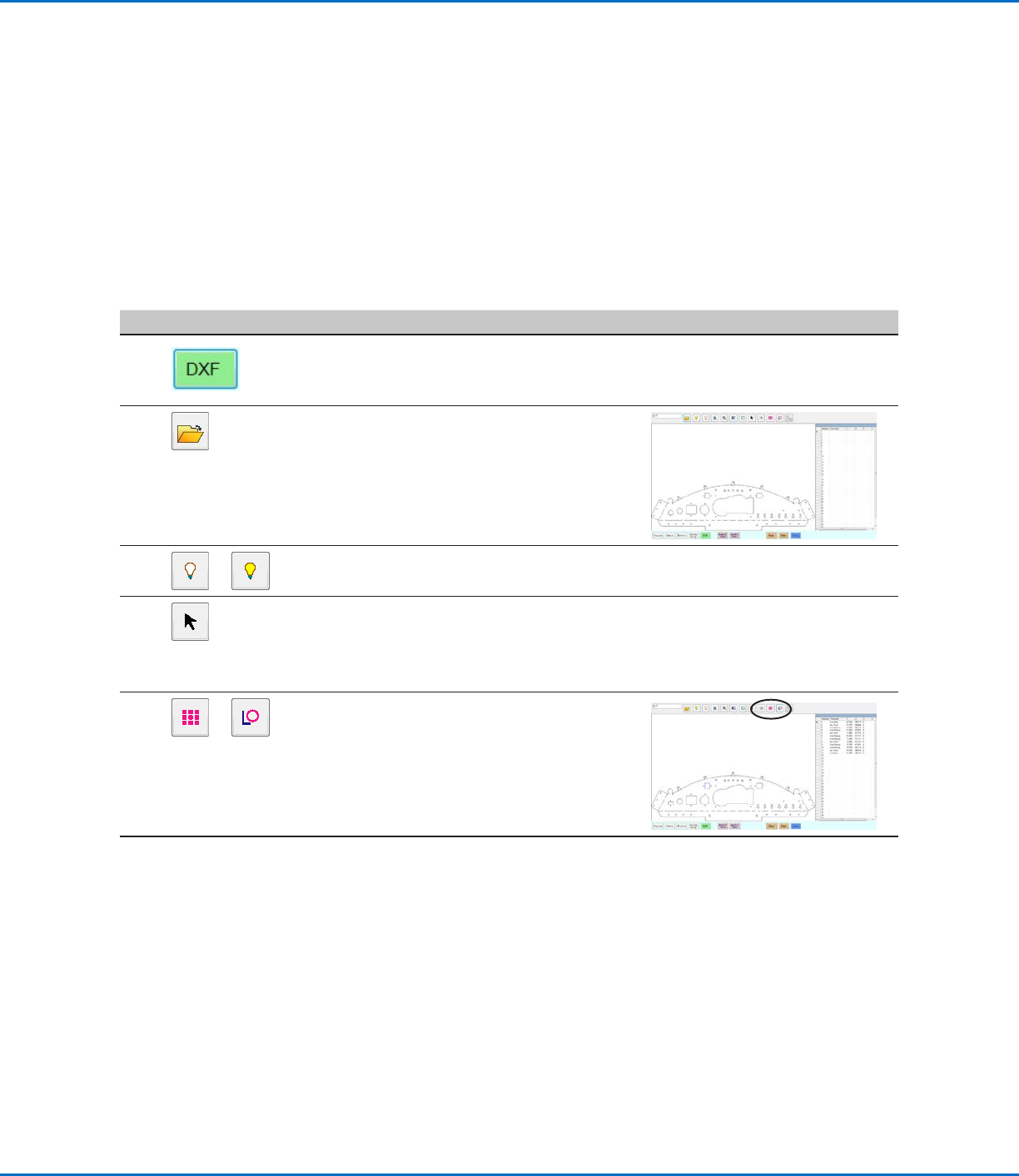
# Click Step Reference Image
1
• Click DXF.
The DXF screen appears in the Primary
View screen.
2
• Open the DXF file you want to convert
to a program.
The file appears in the Primary View
screen.
3
or
• To hide or show layers, click HIDE ALL
LAYERS or SHOW ALL LAYERS.
4
• Select the points and / or lines onto
which you want to dispense material.
Refer to “Overview of the DXF Screen”
on page127 for an explanation of all
the selection icons.
5
or
• Click POINT DISPENSE (for dispense
dots) or LINE DISPENSE (for lines, arcs,
and circles).
The system generates the program
commands that will create the selected
pattern.
Continued on next page
AppendixC, DXF File Import (continued)
GV Series Automated Dispensing Systems
130 www.nordsonefd.com info@nordsonefd.com +1-401-431-7000 Sales and service of Nordson EFD dispensing systems are available worldwide.
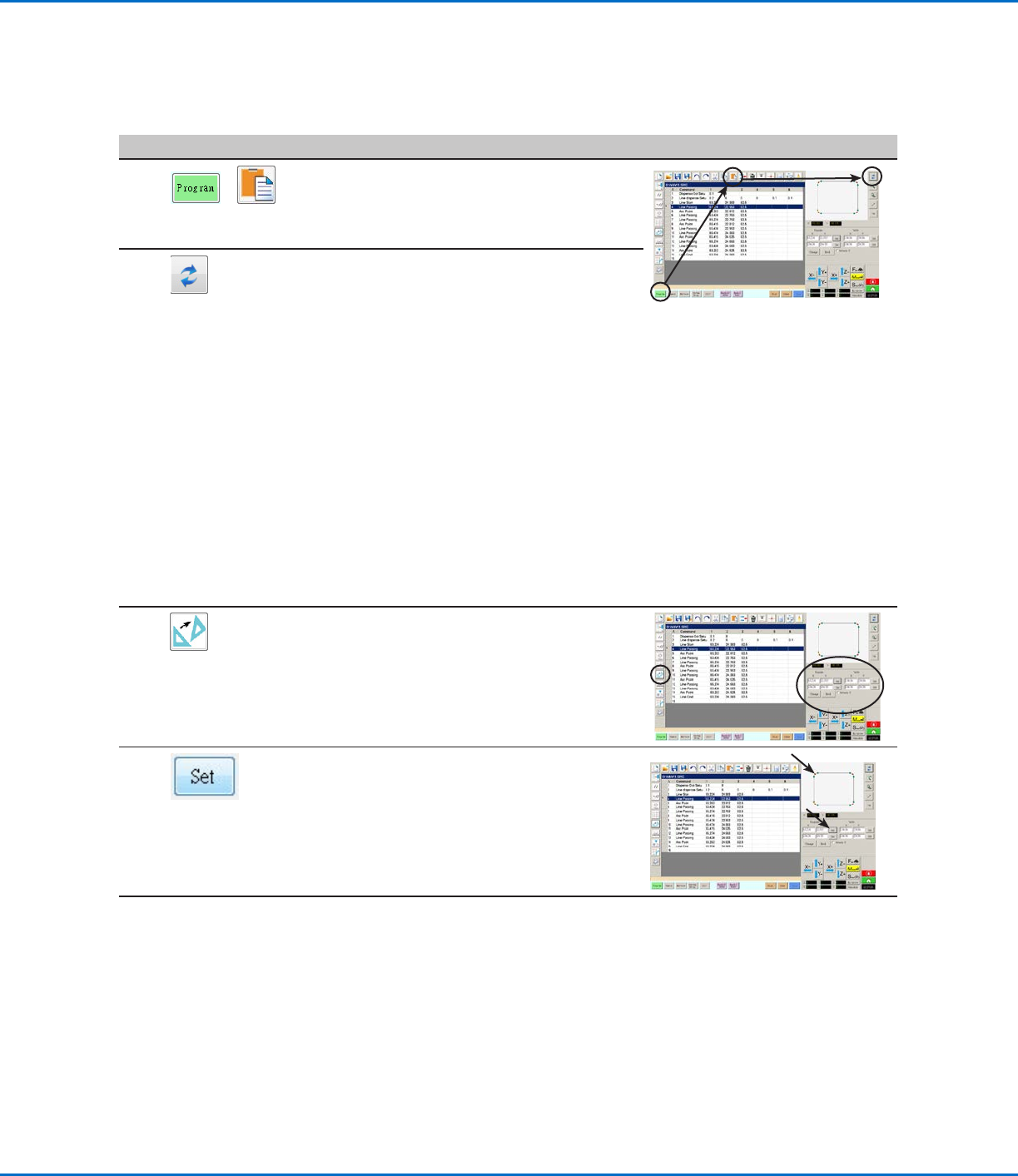
# Click Step Reference Image
6
>
• Click the PROGRAM tab, select an
empty Address line, then click PASTE.
The commands appear in the Program
screen.
7
• Click REFRESH next to the Secondary
View screen to show the imported
points and lines and make changes as
needed to the program.
The next step is to match the program
commands to the actual workpiece.
NOTES:
• After making any change to the
program, click REFRESH to update the
view in the Secondary View screen to
show the changes.
• You may need to zoom out to see the
points. This can be avoided by entering
offset values in the DXF screen Option
window. Refer to Option X, Y under
“Setting DXF Import Preferences” on
page128.
8
• Click TRANSFORM.
The Program and Table fields appear.
9
• Click on a point at the far left side of the
points shown in the Secondary View
screen, then click the top SET button
under Program.
Continued on next page
Importing a DXF File (continued)
AppendixC, DXF File Import (continued)