Nordson_EFD_GV_Series_Operating_Manual.pdf - 第132页
GV Series Automated Dispensing Systems 132 www.nordsonefd.com info@nordsonefd.com +1-401-431-7000 Sales and service of Nordson EFD dispensing systems are available worldwide. Using the Sort Path By Option When importing …
GV Series Automated Dispensing Systems
131www.nordsonefd.com info@nordsonefd.com +1-401-431-7000 Sales and service of Nordson EFD dispensing systems are available worldwide.
# Click Step Reference Image
10
>
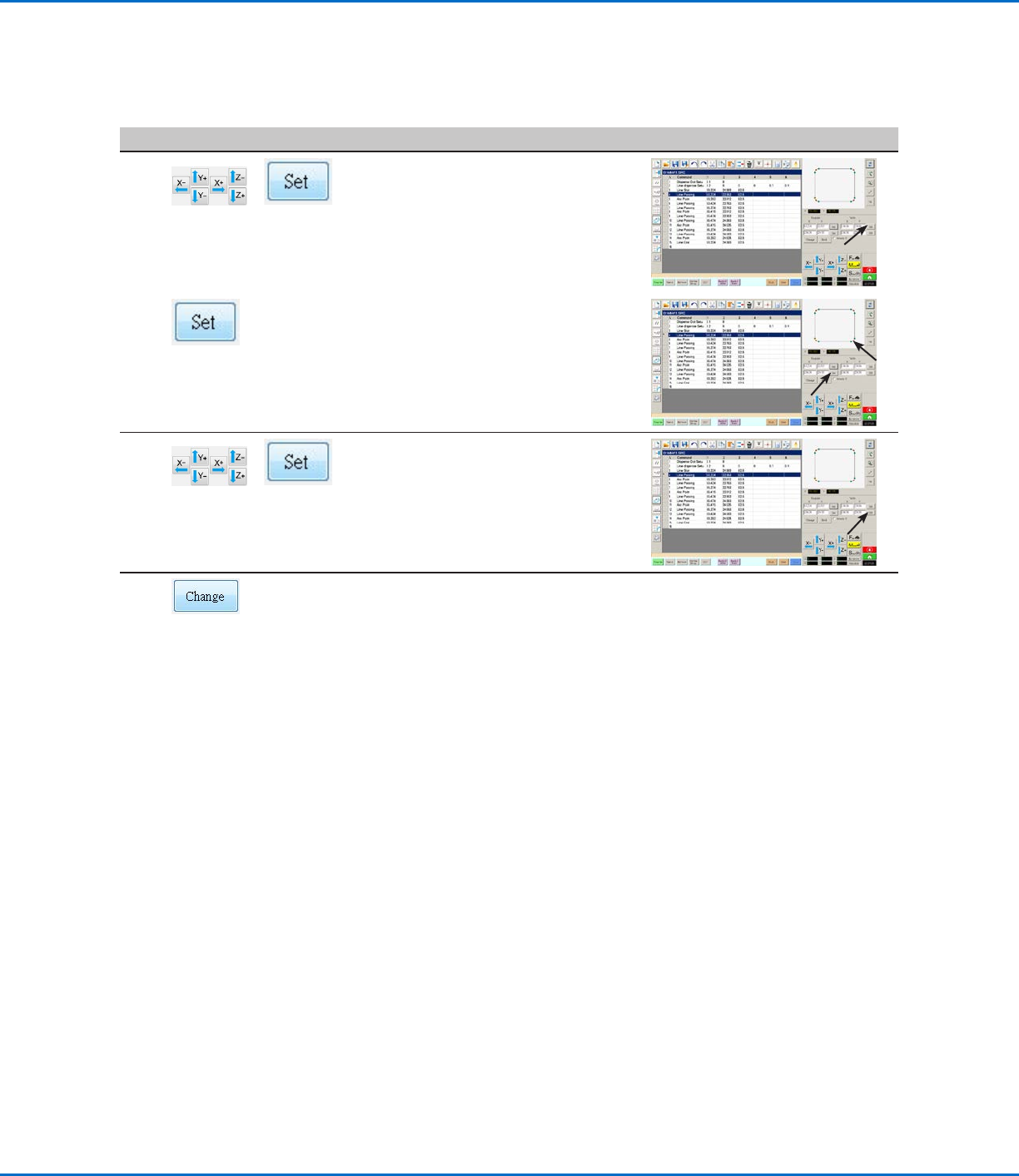
• Jog the tip to the same point on the
actual workpiece and then click the top
SET button under Table.
11
• Click on a point at the far right side
of the points shown in the Secondary
View screen, then click the bottom SET
button under Program.
12
>
• Jog the tip to the same point on the
actual workpiece and then click the
bottom SET button under Table.
13
• Click CHANGE.
The system updates all XY locations in
the program so they align with same XY
locations on the actual workpiece.
Importing a DXF File (continued)
AppendixC, DXF File Import (continued)
GV Series Automated Dispensing Systems
132 www.nordsonefd.com info@nordsonefd.com +1-401-431-7000 Sales and service of Nordson EFD dispensing systems are available worldwide.
Using the Sort Path By Option
When importing a DXF file that includes an array of dots, you can use the Sort Path By option to choose how the dot
pattern is ordered upon import.
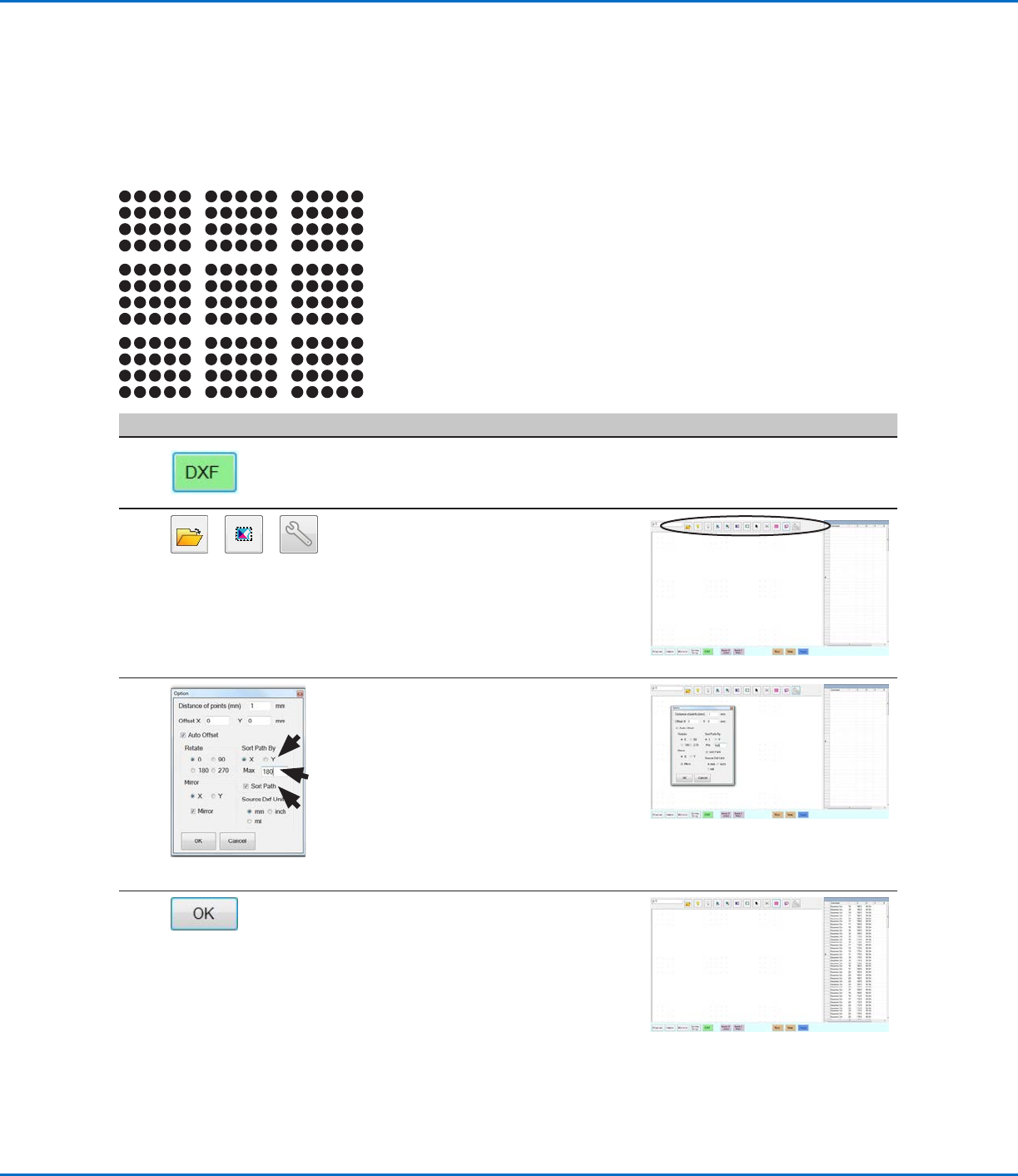
The DXF file imported for this example has the dispense dot array shown below.
# Click Step Reference Image
1
• Click DXF.
The DXF screen appears in the Primary
View screen.
2
> >
• Open the DXF file you want to convert
to a program.
The file appears in the Primary View
screen.
• Click SELECT ALL.
• Click OPTION.
The Option window opens.
3
• Select the SORT PATH checkbox to
enable the Sort Path By feature.
• Select the X or Y radio button to specify
the direction for the dots to be arrayed.
• Enter the number of dots in the array. In
this example, there are 160 dots.
NOTE: Refer to for “Examples of How
the Sort By Path Option Affects DXF
Imports” on page133 for diagrams of
the resulting import for each selection.
4
• Select OK.
The commands for the imported DXF
appear in the Program screen based on
the selected Sort Path By options.
AppendixC, DXF File Import (continued)
GV Series Automated Dispensing Systems
133www.nordsonefd.com info@nordsonefd.com +1-401-431-7000 Sales and service of Nordson EFD dispensing systems are available worldwide.
Using the Sort Path By Option (continued)
AppendixC, DXF File Import (continued)
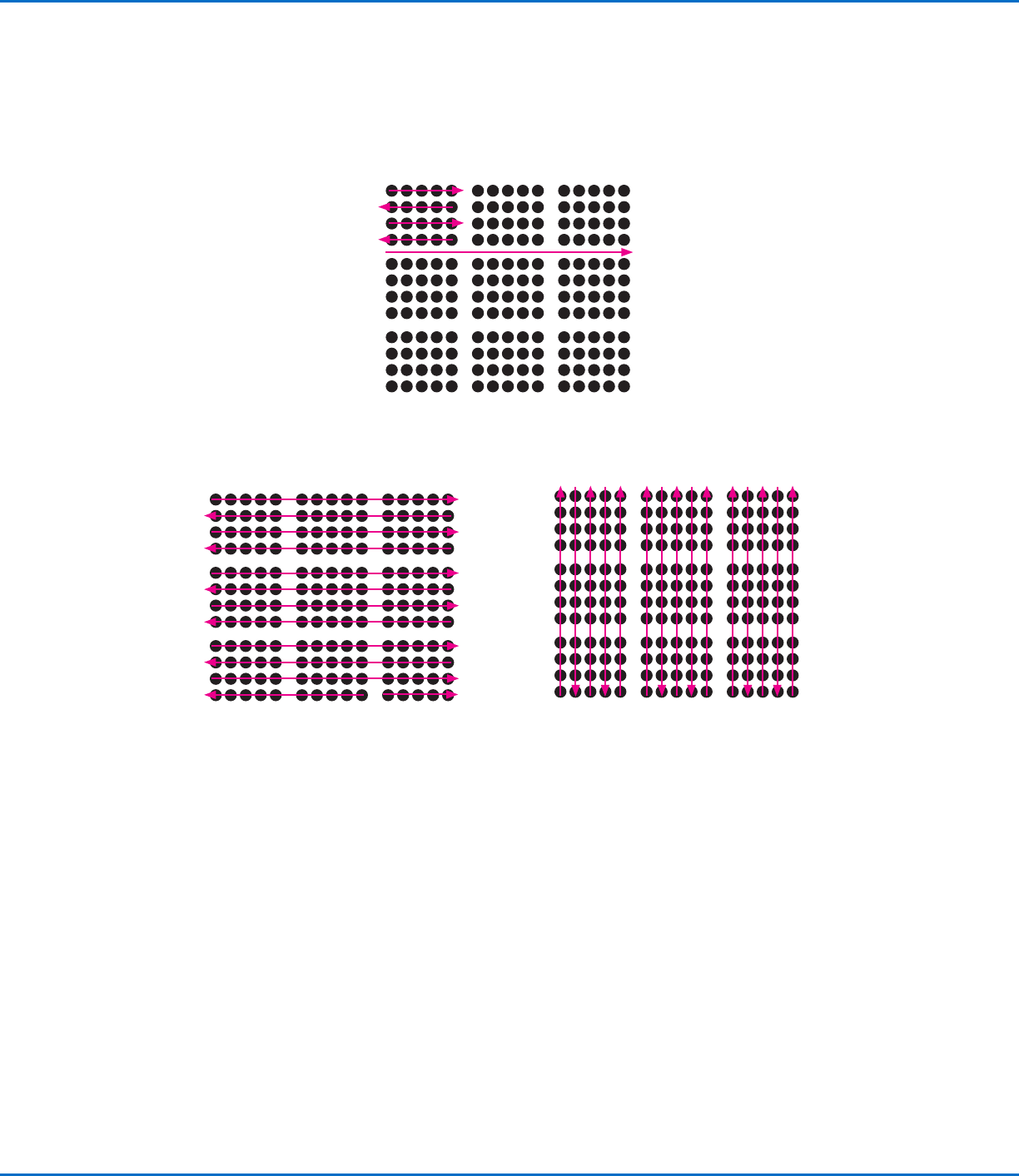
Examples of How the Sort By Path Option Affects DXF Imports
DXF array import: Sort By Path disabled
A
B
C
D
1 2 3
4 5 6
7 8 9
DXF array import: Sort By Path X enabled
A
1
3
4
5
6
7
8
9
10
11
12
13
B
DXF array import: Sort By Path Y enabled
21 3
4 576 8 9 1011 12 13 14 15